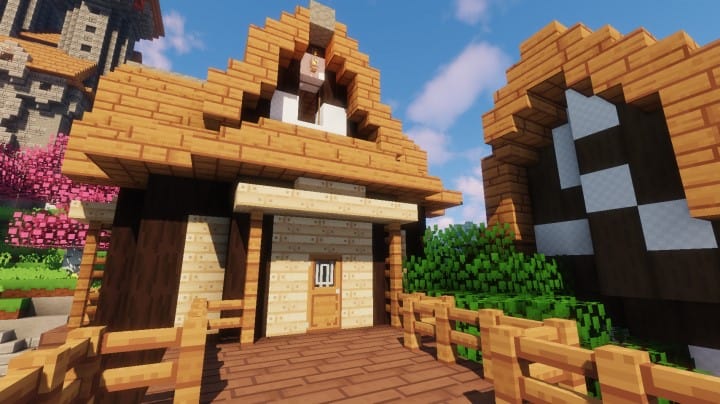
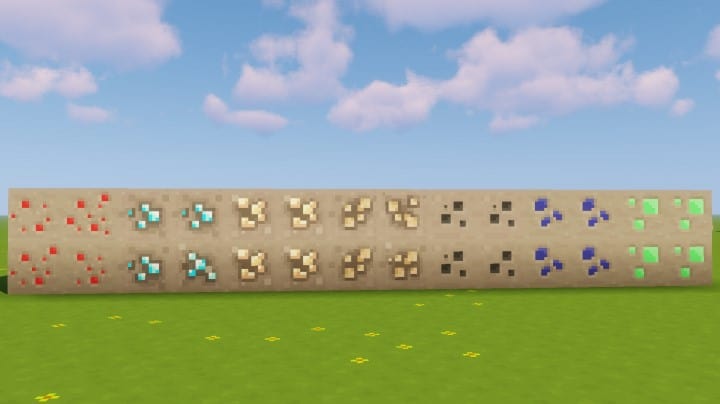
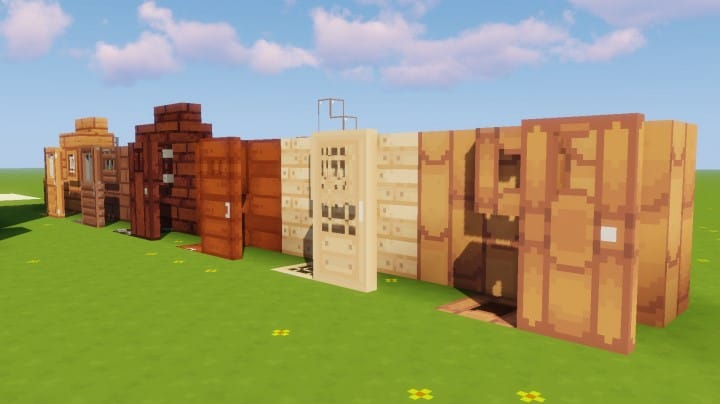
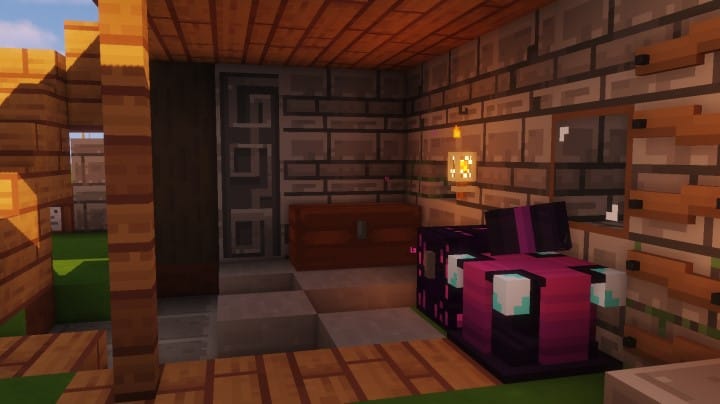
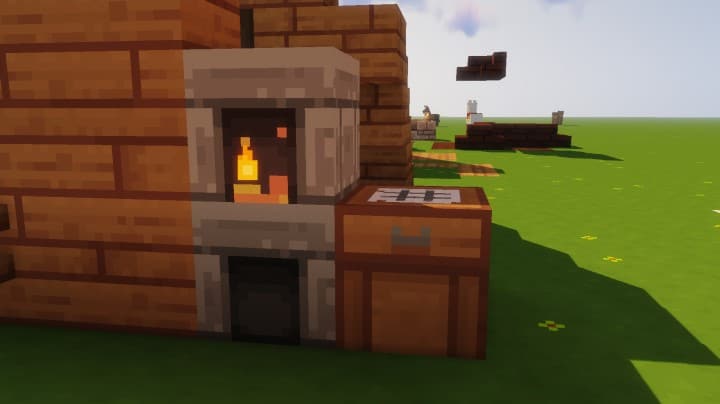
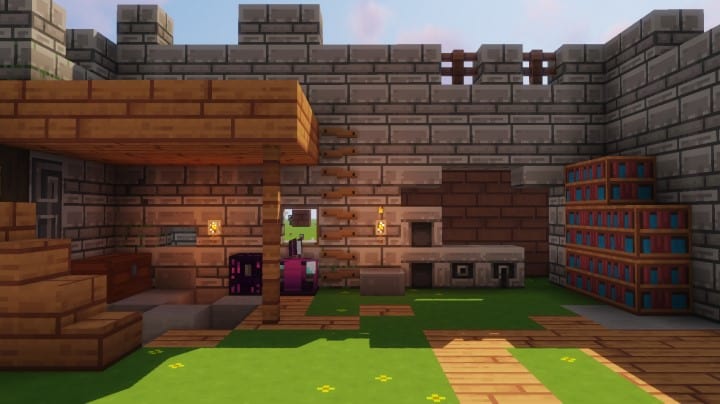
One thing I really noticed with Find Overgrown Resource Pack is how it manages to keep the calm, clean feeling of the original Find pack while giving the world a much more natural and slightly messy character. After playing with it for a while, the difference becomes easy to appreciate. The textures aren’t overloaded with unnecessary detail, but there is enough extra visual texture to make forests, terrain, and survival builds feel more rustic and lived-in. It has a relaxed look that works especially well when you’re spending long sessions exploring or building.
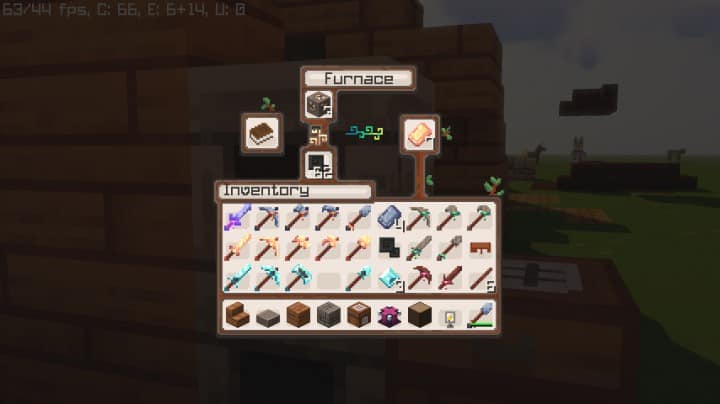
If you’ve used the original Find pack before, you’ll probably recognize the same smooth visual approach here. Find Overgrown simply pushes that style in a more adventurous direction. The color palette remains comfortable to look at, while additional details give blocks and environments a little more personality. I found it particularly fitting for Survival and Adventure gameplay, where you’re constantly moving between forests, caves, villages, and your own builds. The updated interface also follows the same clean design, so the GUI doesn’t feel like an afterthought compared with the world textures.
Another reason I’d recommend giving it a try is how lightweight it is. The pack stays at 16×16 resolution, meaning it doesn’t demand much from your hardware and should run comfortably on systems that already handle vanilla Minecraft. You can get the visual changes without worrying about a significant FPS hit or complicated installation requirements. It won’t completely reinvent Minecraft, and that’s exactly the point—it keeps the familiar look and feel while adding just enough overgrown, rustic character to make the world feel fresher.
Find Overgrown should be compatible with all of these Minecraft versions: 1.17. – 1.17.1 – 1.17 – 1.16.5 – 1.16.4 – 1.16.3 – 1.16.2 – 1.16.1 – 1.16 – 1.15.2 – 1.15.1 – 1.15 – 1.14.4 – 1.14.3 – 1.14.2 – 1.14 – 1.13.2 – 1.13.1 – 1.13
The Find Overgrown — Video and screenshots
How to Install Texture Pack (Simple 10 Steps)
- Download Optifine: Most of the texture packs and shaders need Optifine. That’s why, first download and install Optifine for the version of Minecraft you want to play.
- Download the Texture Pack: Get the texture pack you want from the download section. Choose the version that works with your Minecraft and your PC’s performance.
- Open Minecraft Launcher: Start Minecraft using the official game launcher — or even TLauncher, if you use that.
- Go to Options: From the main menu, click on the “Options” button.
- Open Resource Packs: Inside Options, click on “Resource Packs…”.
- Open the Resource Pack Folder: Click on “Open Resource Pack Folder”— this will open a folder named “resourcepacks”.
- Move the Pack File: Copy or move the .zip file you downloaded into that “resourcepacks” folder. (Don’t unzip the file—Minecraft uses it as-is!)
- Go Back and Refresh: Close the folder and click “Done”, then go back into “Resource Packs…” again.
- Activate the Pack: You’ll see the pack on the left side. Hover over it and click the ➡️ arrow to move it to the right (active side). ⚙️ Tip: If you get a message that the pack is for a different version, just click “”Yes”—it usually works fine.
- Click Done and Enjoy: Click “Done” again. Now your pack is ready to use in-game. It’s that easy!
Overgrown Texture Pack Download
Bedrock Editon:
(16x) (1.21.70) Download the Find Overgrown resource pack
Java Edition:
Note: This texture pack needs Optifine to work on Java Edition. It won’t work without it.
(16x) (1.17.x) Download the Find Overgrown resource pack – Dark GUI
(16x) (1.16.x) Download the Find Overgrown resource pack – Dark GUI
(16x) (1.15.x) Download the Find Overgrown resource pack – Dark GUI
(16x) (1.14.x) Download the Find Overgrown resource pack – Dark GUI
(16x) (1.14.x) Download the Find Overgrown resource pack – Lightweight GUI
(16x) (1.13.x) Download the Find Overgrown resource pack
Official links:
Check out The Find Overgrown Resource Pack on the official resource
CurseForge: The download will start by itself after a few seconds.
Mediafire: Click the big blue “DOWNLOAD” button.
Google Drive: Click the small download icon (a down arrow) at the top-right corner to start the download.
Disclaimer
We are not the creators of any texture packs or shader packs shared on this site. All credit goes to the original authors. We do not edit or change any files in any way. Also, none of the downloads are hosted on our servers — we only provide official links shared by the original creators. That means all downloads are completely safe.
❗Note: Since we manually add the official links, so some may stop working after updates. If you find a broken link, tell us in the comments and we’ll fix it as soon as we can.
If you like a pack, please leave a comment and vote for it — this helps the creators improve their work. You can also support them directly through the links below the download section.