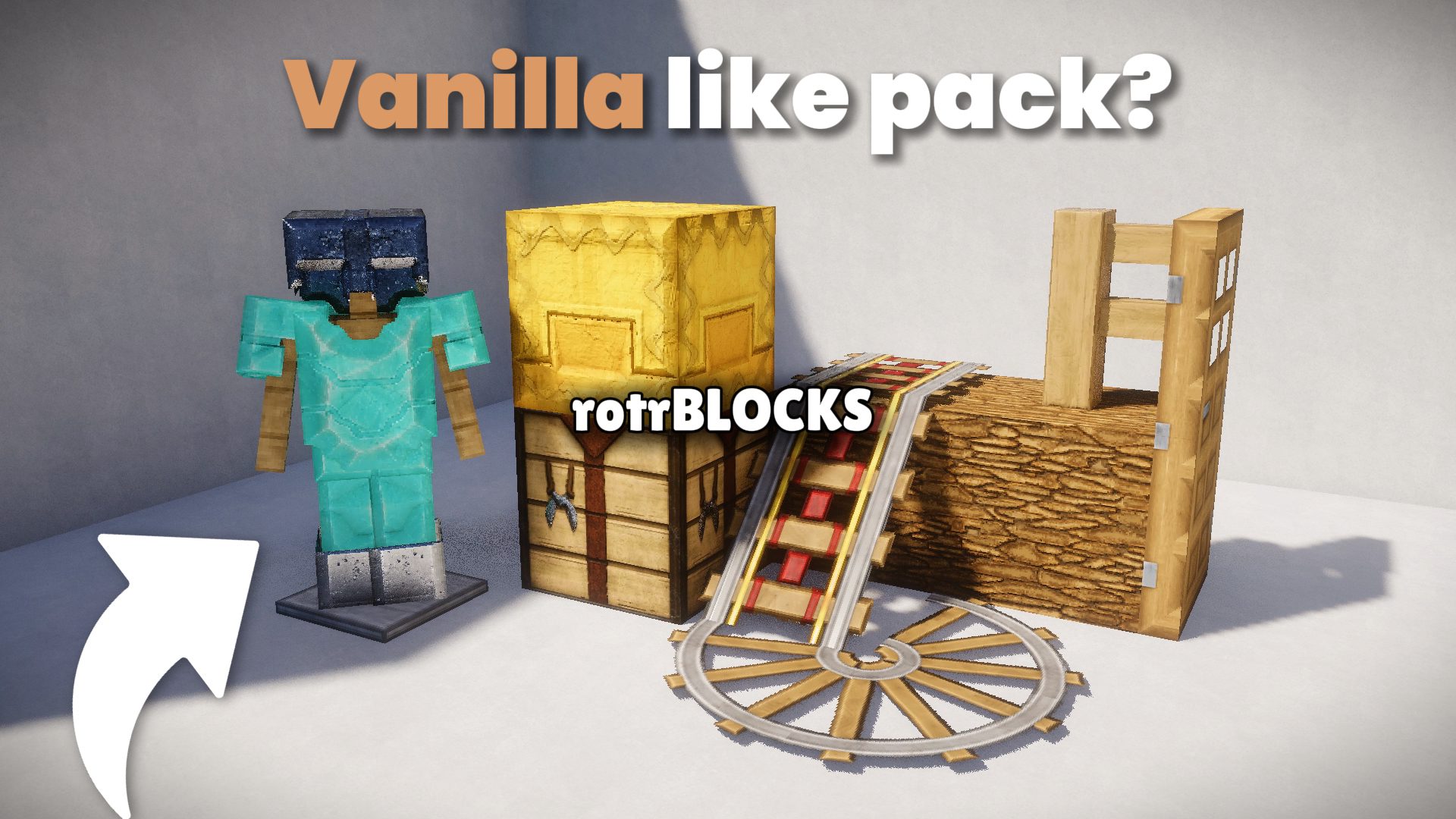
rotrBLOCKS should work smoothly with all of these Minecraft versions: 26.3 – 26.2 – 26.1.2 – 26.1.1 – 26.1 – 1.21.11 – 1.21.10 – 1.21.9 – 1.21.8 – 1.21.7 – 1.21.6 – 1.21.5 – 1.21.4 – 1.21.3 – 1.21.2 – 1.21.1 – 1.21 – 1.20.6 – 1.20.5 – 1.20.4 – 1.20.3 – 1.20.2 – 1.20.1 – 1.20 – 1.19.4 – 1.19.3 – 1.19.2 – 1.19.1 – 1.19 – 1.18.2 – 1.18.1 – 1.18 – 1.17.1 – 1.17 – 1.16.5 – 1.16.4 – 1.16.3 – 1.16.2 – 1.16.1 – 1.16 – 1.15.2 – 1.15.1 – 1.15 – 1.14.4 – 1.14.3 – 1.14.2 – 1.14 – 1.13.2 – 1.13.1 – 1.13
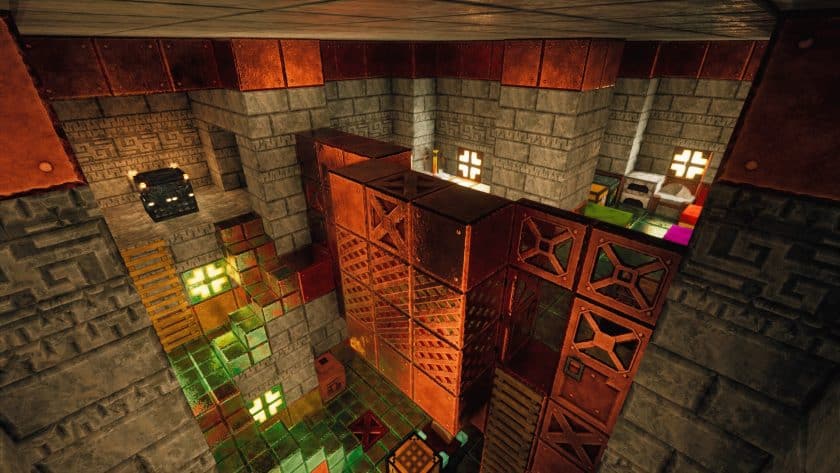
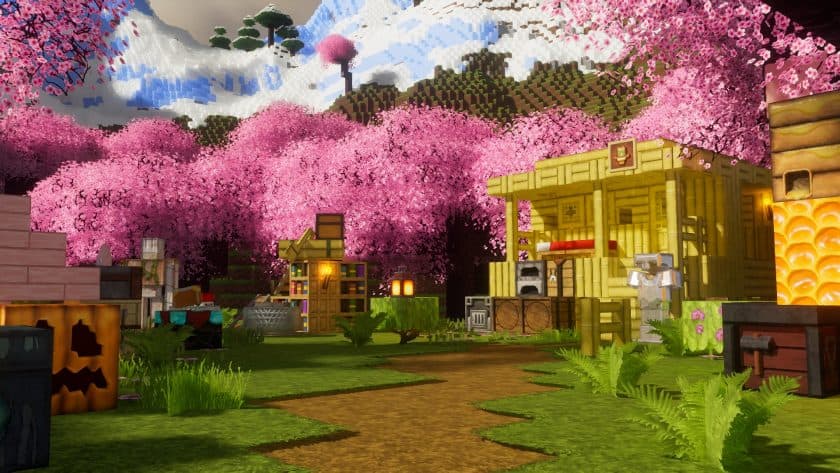
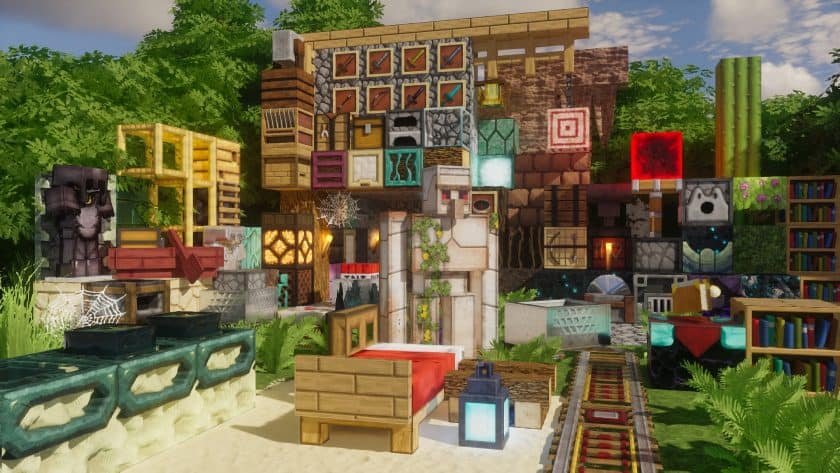
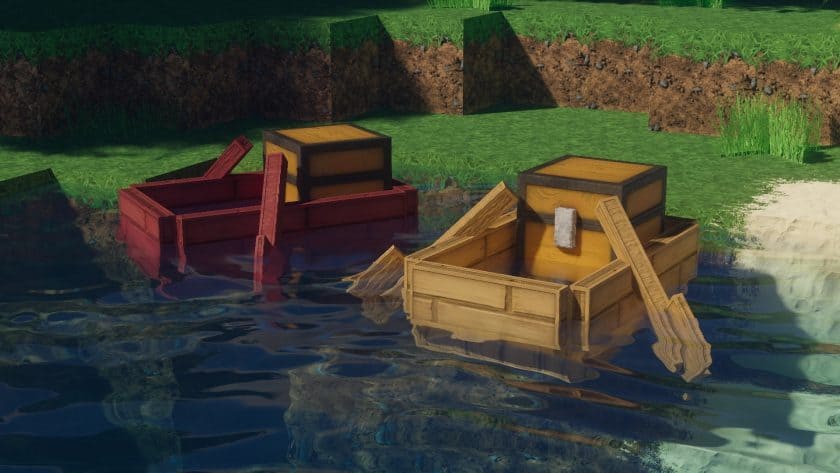
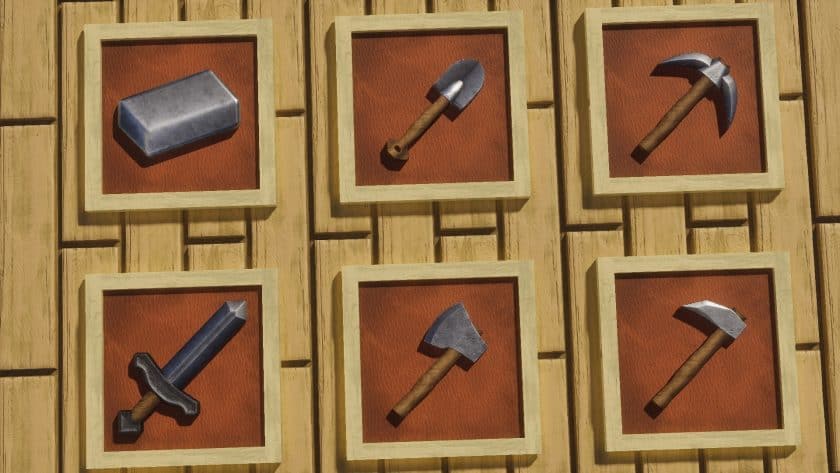
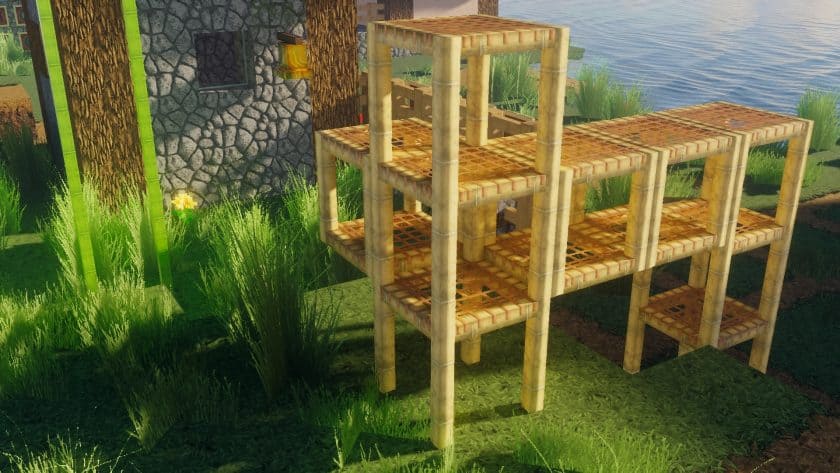
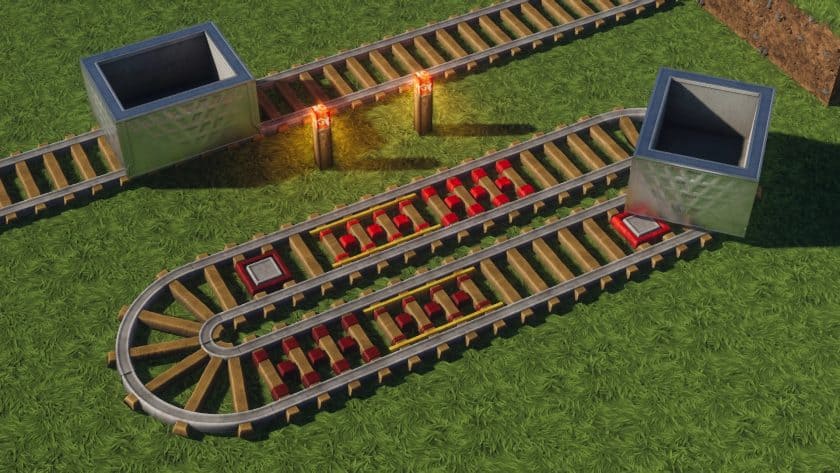
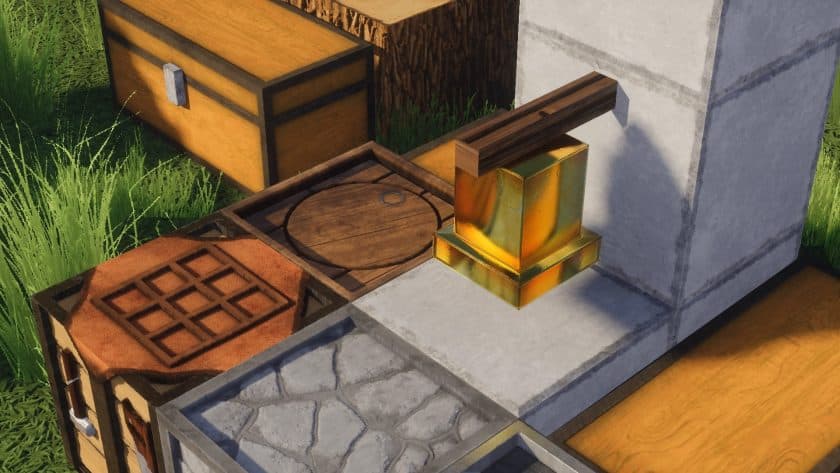
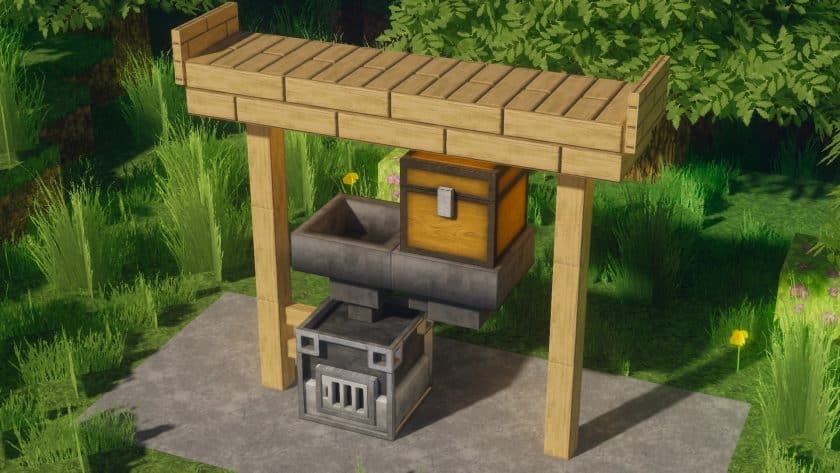
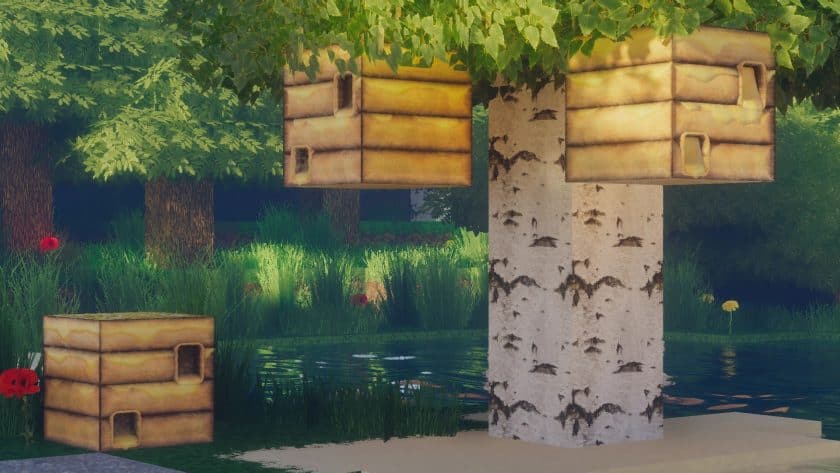
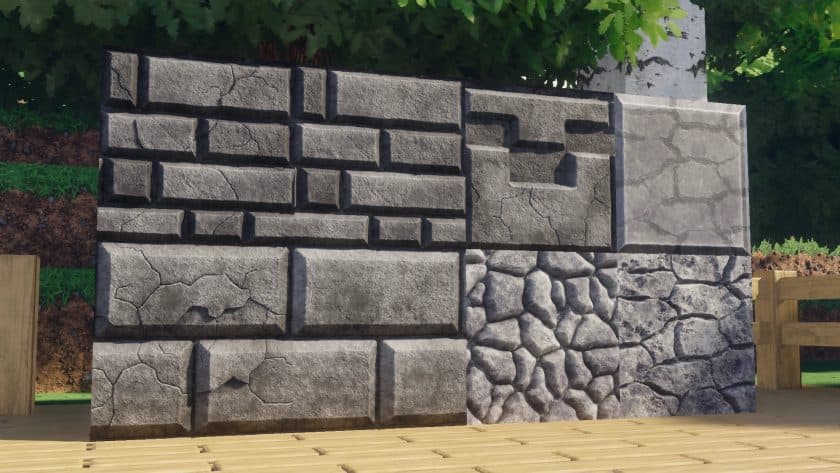
rotrBLOCKS — Video and screenshots
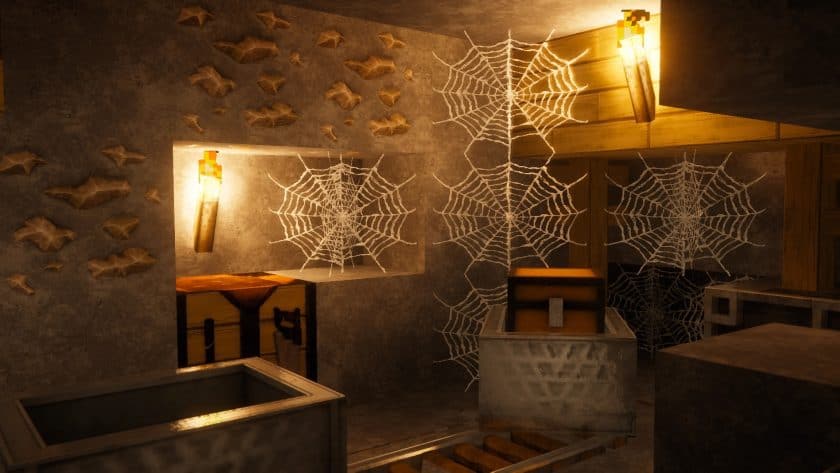
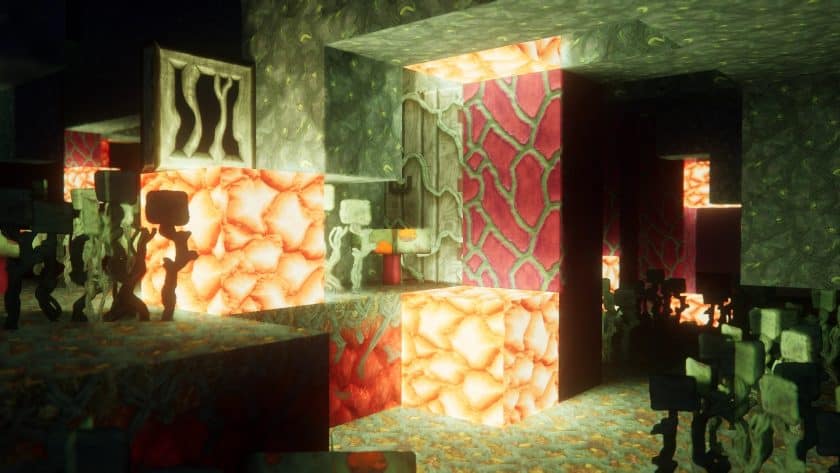
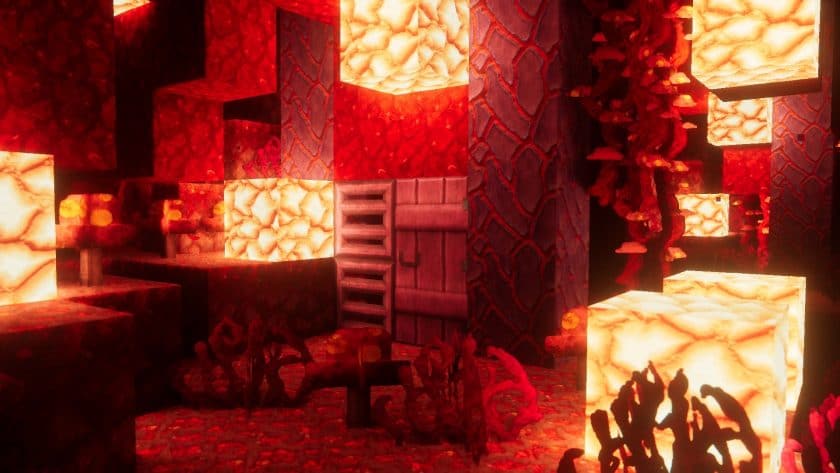
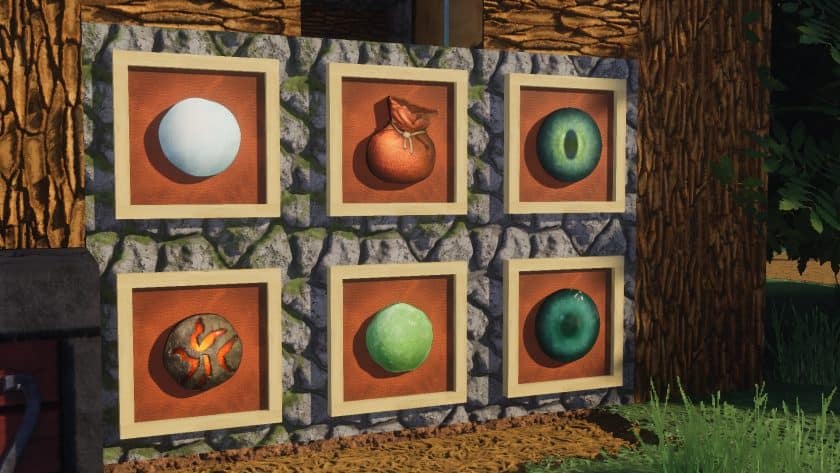
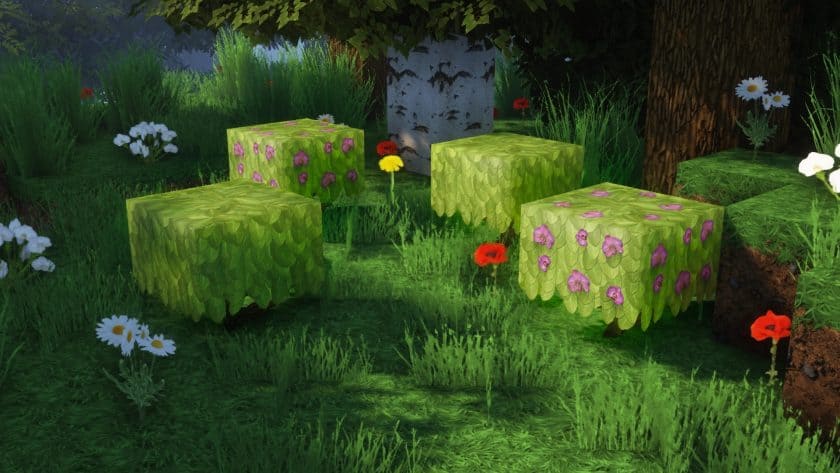
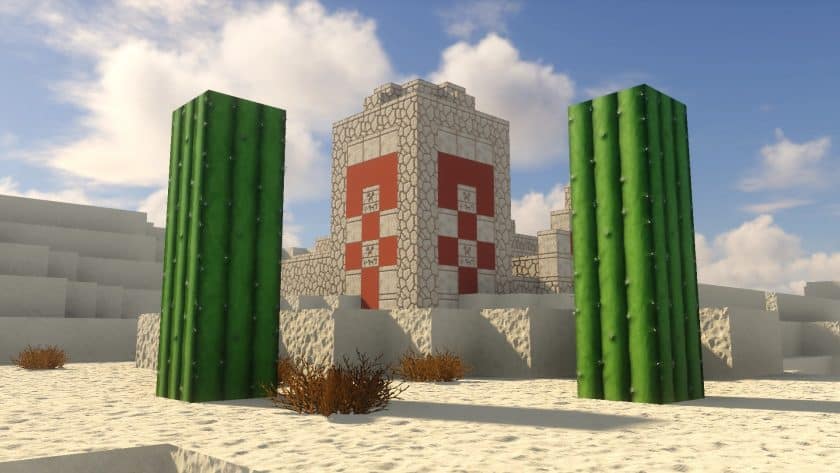
How to install rotrBLOCKS Resource Pack:
- Download Optifine: Most of the texture packs and shaders need Optifine. That’s why, first download and install Optifine for the version of Minecraft you want to play.
- Download the Texture Pack: Get the texture pack you want from the download section. Choose the version that works with your Minecraft and your PC’s performance.
- Open Minecraft Launcher: 🚀 Start Minecraft using the official game launcher — or even TLauncher, if you use that.
- Go to Options: From the main menu, click on the “Options” button.
- Open Resource Packs: Inside Options, click on “Resource Packs…”.
- Open the Resource Pack Folder: Click on “Open Resource Pack Folder”— this will open a folder named “resourcepacks.”
- Move the Pack File: Copy or move the .zip file you downloaded into that “resourcepacks” folder. (Don’t unzip the file—Minecraft uses it as-is!)
- Go Back and Refresh: Close the folder and click “Done”, then go back into “Resource Packs…” again.
- Activate the Pack: You’ll see the pack on the left side. Hover over it and click the arrow to move it to the right (active side).
- Tip: If you get a message that the pack is for a different version, just click “”Yes”—it usually works fine.
- Click Done and Enjoy: Click “Done” again. Now your pack is ready to use in-game. It’s that easy!
Recommended shader settings:
- BASE – contains most of the block textures. However, according to the authors, some block textures have been moved to other parts, so you will also need the FLORA, UNDERGROUND and DESIGN parts.
- ITEM – this section contains only object textures.
- CTM – if you want connected block textures you need this part. Requires Optifine to function.
- headquarters – this part contains new models, for example new 3D sheets. Requires Optifine to function.
- FONT – this is the official font of the rotrBLOCKS source set. Requires Optifine to function.
rotrBLOCKS Texture Pack Download
- Shader Options > Material > Advanced Materials: ON
- Shader Options > Material > Material Format: labPBR 1.3
Optifine is highly recommended for the Java Edition of this pack, otherwise the resource pack may not work properly! Get optifine here.
Download Links
Java Edition:
[128x] [26.3.x – 1.13.x] Download rotrBLOCKS Resource Pack – 3D Foliage, absolutely free;
[128x] [26.3.x – 1.13.x] Download rotrBLOCKS Resource Pack – 2D Foliage, absolutely free;
[256x – 512x] [26.3.x – 1.11.x] Download rotrBLOCKS Resource Pack – for Patreon subscribers only;
[256x – 512x] [26.3.x – 1.11.x] Download rotrBLOCKS Resource Pack – for Boosty subscribers only;
Download Instructions:
CurseForge: The download will start by itself after a few seconds.
Mediafire: Click the big blue “DOWNLOAD” button.
Google Drive: Click the small download icon (a down arrow) at the top-right corner to start the download.
Disclaimer
We are not the creators of any texture packs or shader packs shared on this site. All credit goes to the original authors. We do not edit or change any files in any way. Also, none of the downloads are hosted on our servers — we only provide official links shared by the original creators. That means all downloads are completely safe.
❗Note: Since we manually add the official links, so some may stop working after updates. If you find a broken link, tell us in the comments and we’ll fix it as soon as we can.
If you like a pack, please leave a comment and vote for it — this helps the creators improve their work. You can also support them directly through the links below the download section.