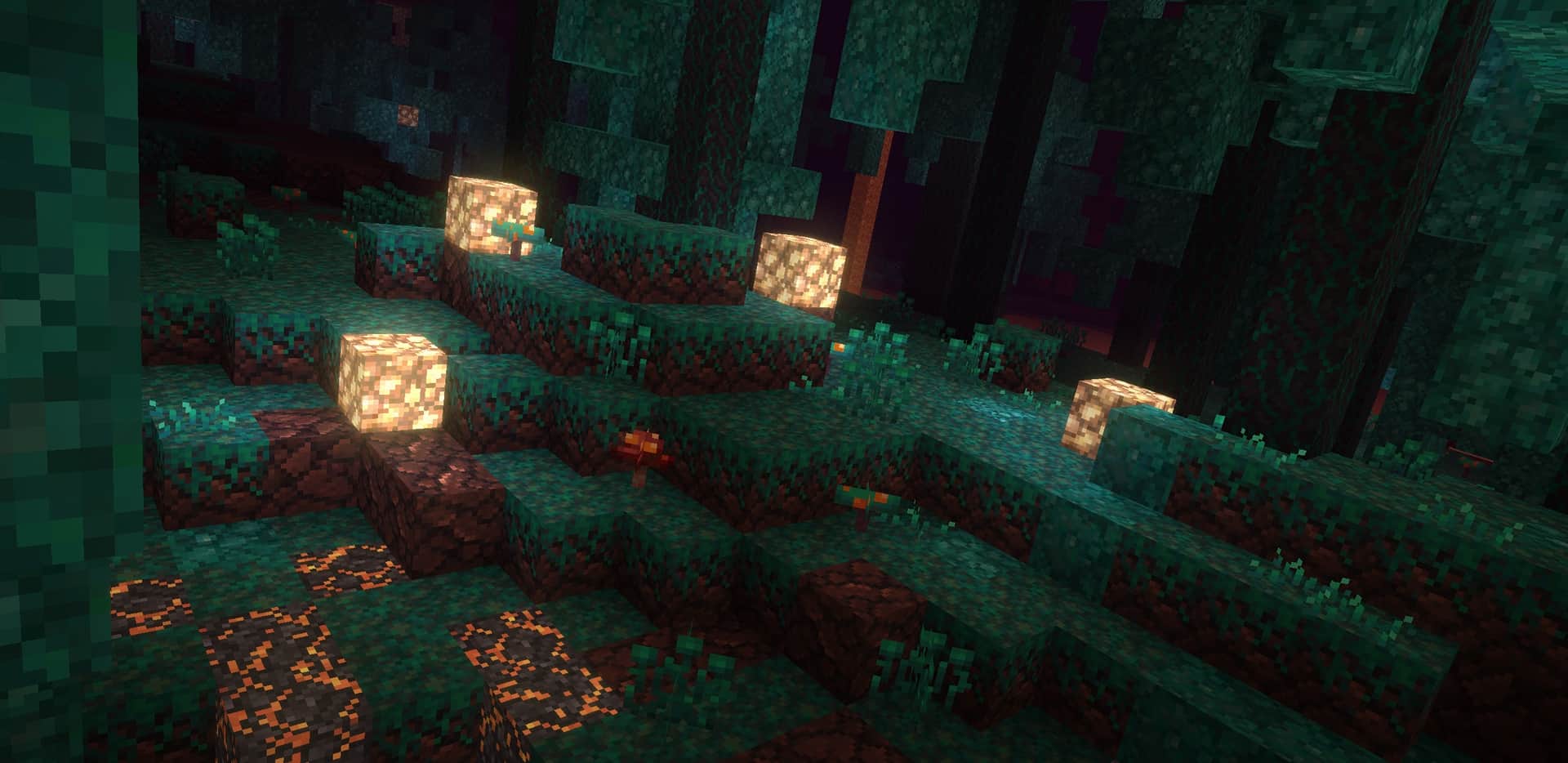
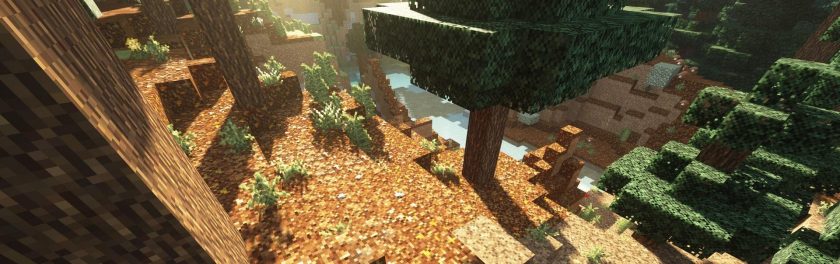
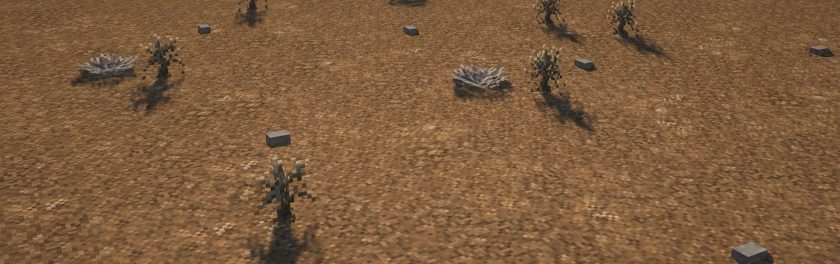
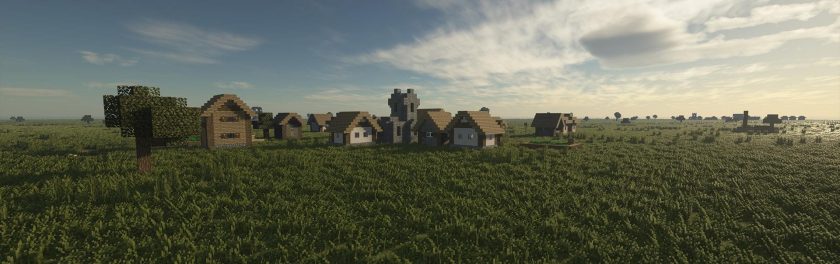
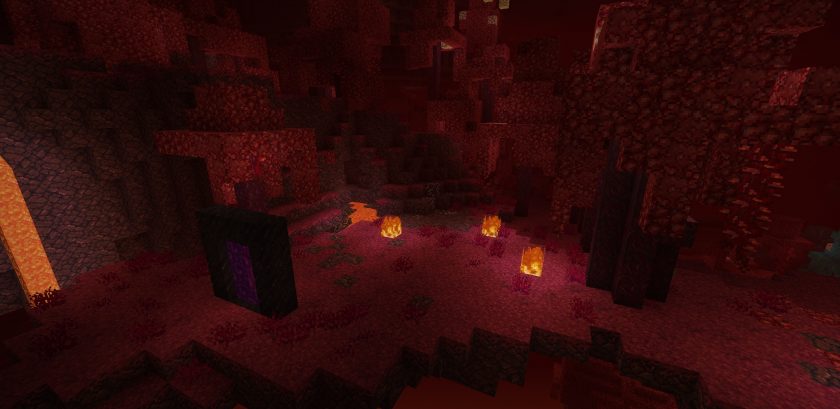
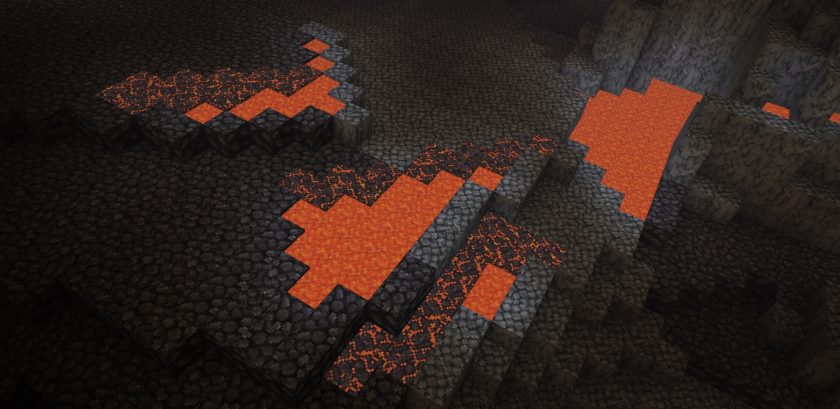
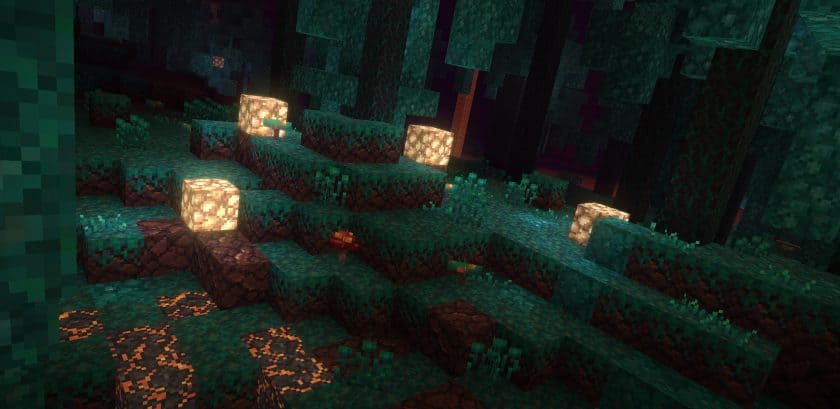
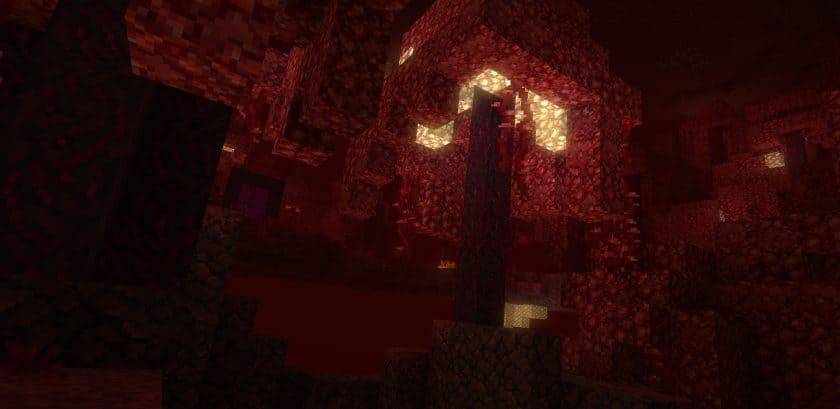
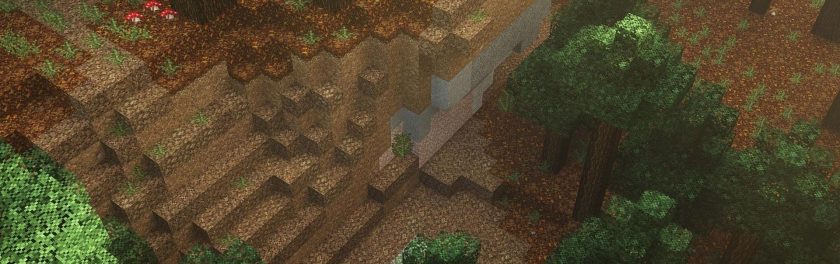
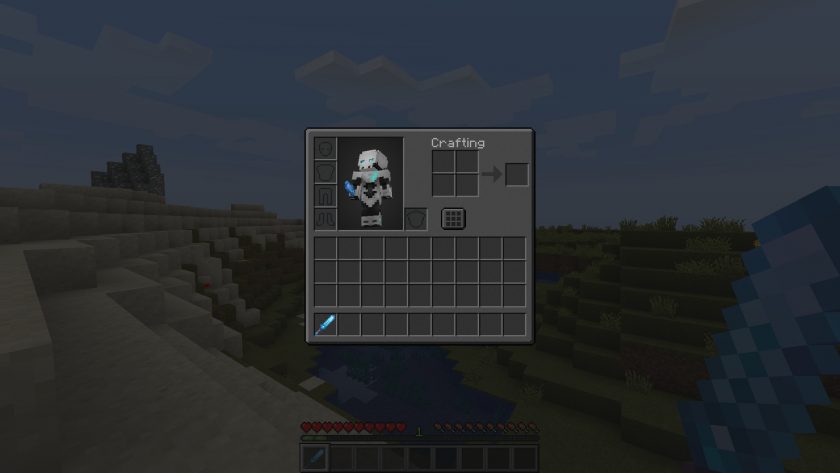
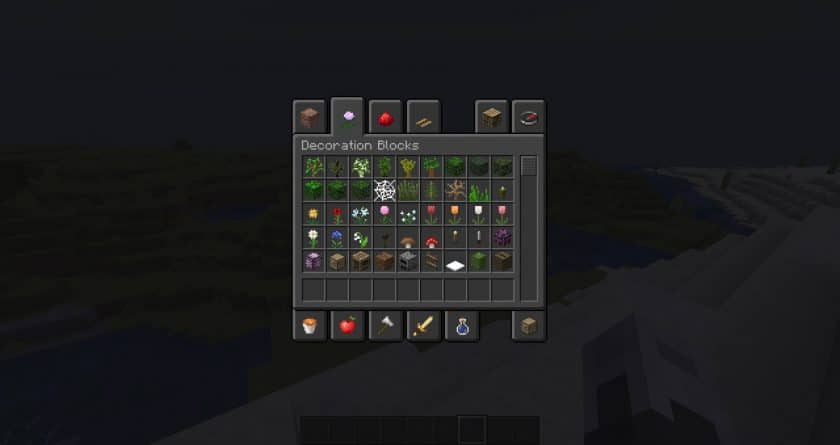
The Unity Resource Pack is one of the best vanilla-style texture packs for Minecraft, offering a cleaner and more polished version of the game’s original visuals. Instead of completely redesigning Minecraft, Unity carefully refines existing textures while preserving the classic art style that players already love. Running at the original 16×16 resolution, the pack delivers sharper details, smoother textures, and richer colors without changing the familiar look and feel of the game. Every block, item, and environment appears more refined, creating a fresh experience that still feels unmistakably like vanilla Minecraft.
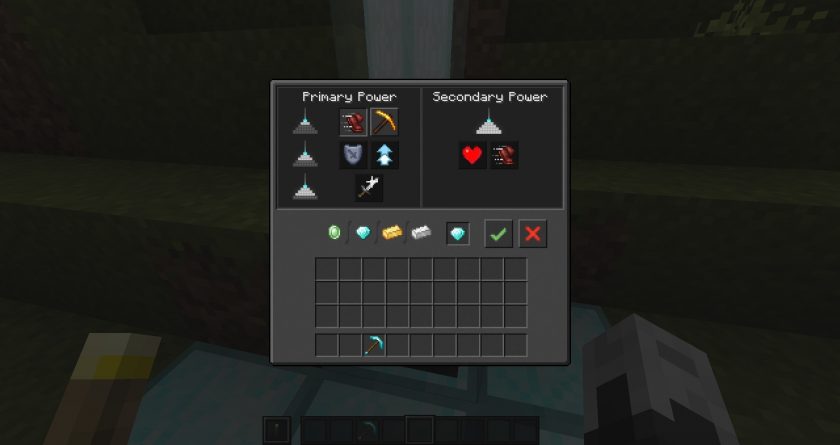
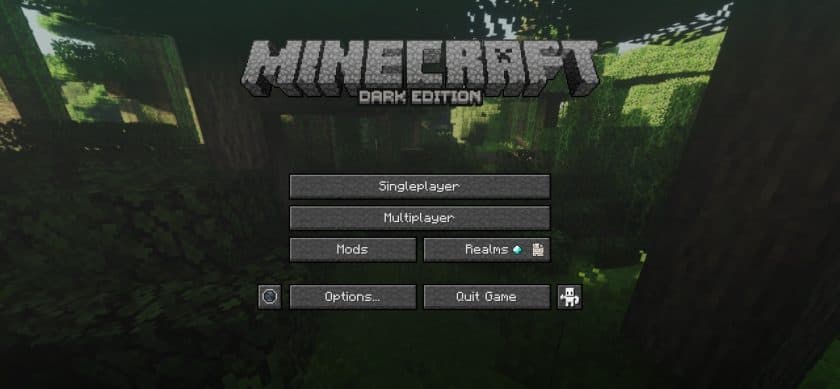
One of Unity’s biggest strengths is its attention to consistency. The textures feature balanced color palettes, subtle shading improvements, and reduced visual noise, making the world look cleaner and easier on the eyes. From natural landscapes and building blocks to decorative items and user interface elements, everything blends together seamlessly. Rather than relying on flashy effects, Unity focuses on small improvements that collectively make Minecraft feel more modern and immersive. The resource pack also extends its polished style to several popular mods, including Thermal Expansion, Blood Magic, and Iron Chests, allowing modded gameplay to maintain the same visual quality as the vanilla experience. Players who prefer a darker interface can also choose the optional Dark Edition, which introduces a sleek dark-themed GUI.
Despite its visual refinements, the Unity Resource Pack remains lightweight thanks to its 16×16 resolution, making it suitable for almost any computer. For the best experience, it’s recommended to use OptiFine, which unlocks additional features such as connected textures, custom skies, random mob textures, and other visual enhancements. Players with more powerful hardware can also pair Unity with shader packs like SEUS PTGI to enjoy realistic lighting, shadows, and reflections. Whether you’re playing vanilla survival or a heavily modded world, the Unity Resource Pack provides a clean, consistent, and performance-friendly visual upgrade that enhances Minecraft without losing its original identity.
Unity should be compatible with all of these Minecraft versions: 1.21.3 – 1.21.2 – 1.21.1 – 1.21 – 1.20.6 – 1.20.5 – 1.20.4 – 1.20.3 – 1.20.2 – 1.20.1 – 1.20 – 1.19.4 – 1.19.3 – 1.19.2 – 1.19.1 – 1.19 – 1.18.2 – 1.18.1 – 1.18 – 1.17.1 – 1.17 – 1.16.5 – 1.16.4 – 1.16.3 – 1.16.2 – 1.16.1 – 1.16 – 1.15.2 – 1.15.1 – 1.15 – 1.14.4 – 1.14.3 – 1.14.2 – 1.14 – 1.13.2 – 1.13.1 – 1.13 – 1.12.2 – 1.12 – 1.11.2 – 1.11 – 1.10.2 – 1.10 – 1.9.4 – 1.9 – 1.8.9 – 1.8.8 – 1.8.1 – 1.8.6 – 1.8 – 1.7.10 – 1.7.9 – 1.7.4 – 1.7
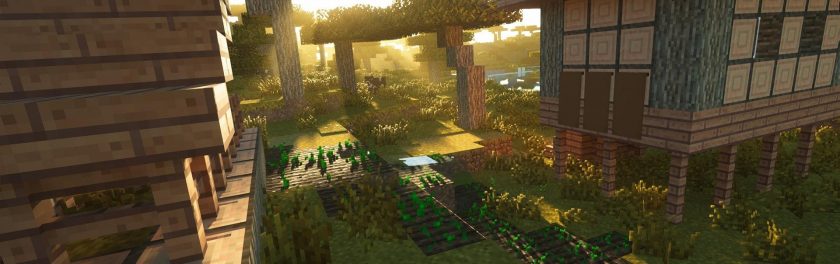
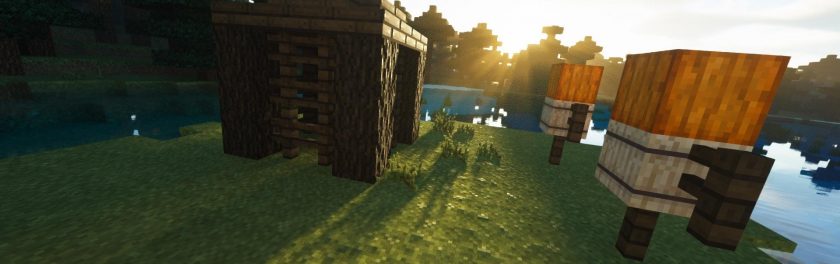
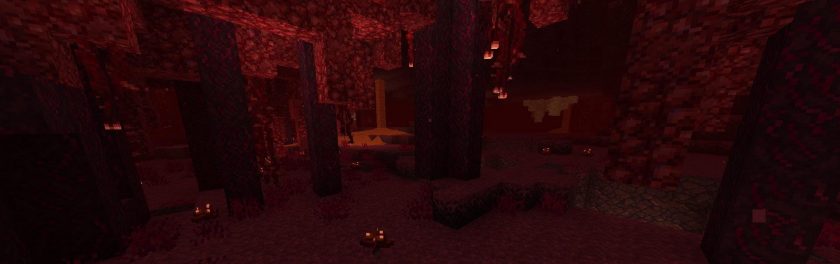
Unity Resource Pack – Screenshots & Videos
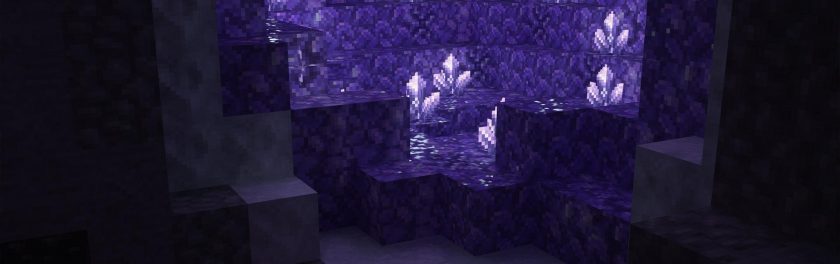
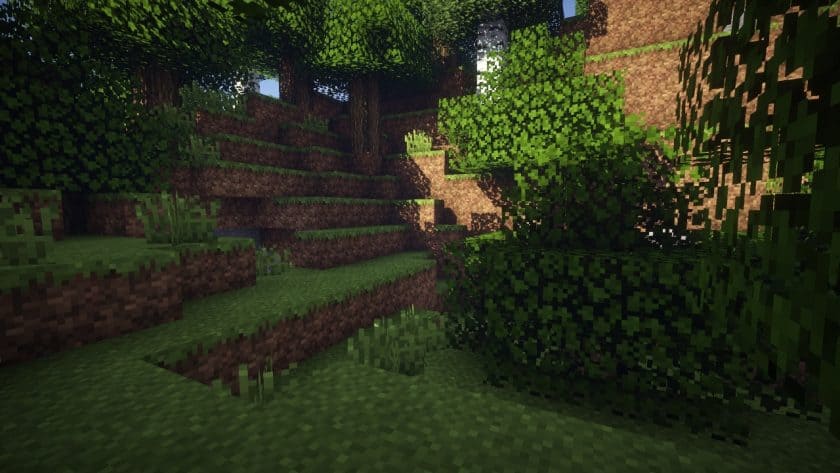
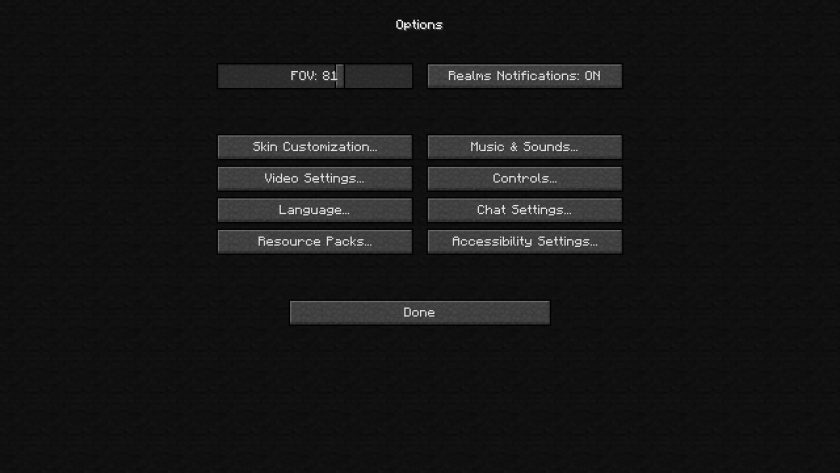
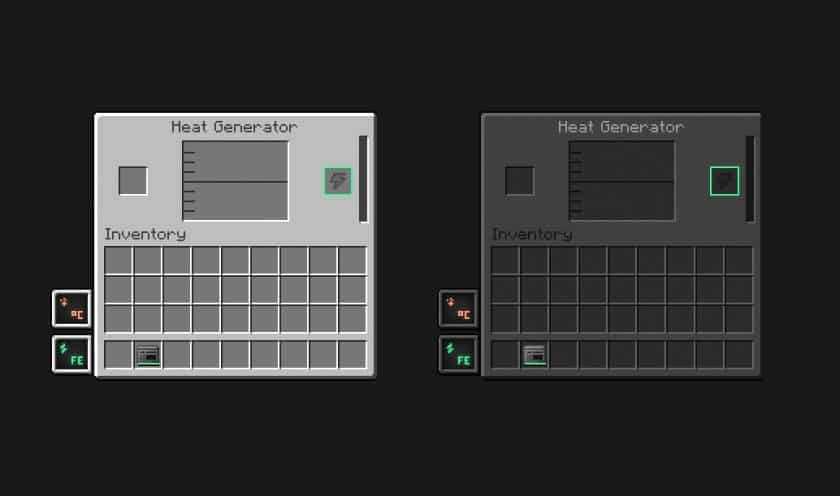
How to Install Texture Pack (Simple 10 Steps)
- Download Optifine: Most of the texture packs and shaders need Optifine. That’s why, first download and install Optifine for the version of Minecraft you want to play.
- Download the Texture Pack: Get the texture pack you want from the download section. Choose the version that works with your Minecraft and your PC’s performance.
- Open Minecraft Launcher: Start Minecraft using the official game launcher – or even TLauncher, if you use that.
- Go to Options: From the main menu, click on the “Options” button.
- Open Resource Packs: Inside Options, click on “Resource Packs…”.
- Open the Resource Pack Folder: Click on “Open Resource Pack Folder” – this will open a folder named “resourcepacks”.
- Move the Pack File: Copy or move the .zip file you downloaded into that “resourcepacks” folder. (Don’t unzip the file – Minecraft uses it as-is!)
- Go Back and Refresh: Close the folder and click “Done”, then go back into “Resource Packs…” again.
- Activate the Pack: You’ll see the pack on the left side. Hover over it and click the arrow to move it to the right (active side). Tip: If you get a message that the pack is for a different version, just click “Yes” – it usually works fine.
- Click Done and Enjoy: Click “Done” again. Now your pack is ready to use in-game. It’s that easy!
Download
Unity: Dark (Java Edition):
[16x] [1.21.x – 1.20.2] Download Unity: Dark Edition Resource Pack
[16x] [1.20.1 – 1.20] Download Unity: Dark Edition Resource Pack
[16x] [1.19.x] Download Unity: Dark Edition Resource Pack
[16x] [1.18.x] Download Unity: Dark Edition Resource Pack
[16x] [1.17.x] Download Unity: Dark Edition Resource Pack
[16x] [1.16.x] Download Unity: Dark Edition Resource Pack
[16x] [1.15.x] Download Unity: Dark Edition Resource Pack
[16x] [1.14.x – 1.13.x] Download Unity: Dark Edition Resource Pack
[16x] [1.12.x] Download Unity: Dark Edition Resource Pack
[16x] [1.8.x] Download Unity: Dark Edition Resource Pack
Unity: Main (Java Edition):
[16x] [1.19.x] Download Unity Resource Pack
[16x] [1.18.x] Download Unity Resource Pack
[16x] [1.17.x] Download Unity Resource Pack
[16x] [1.16.x] Download Unity Resource Pack
[16x] [1.15.x] Download Unity Resource Pack
[16x] [1.14.x – 1.13.x] Download Unity Resource Pack
[16x] [1.12.x] Download Unity Resource Pack
[16x] [1.11.x] Download Unity Resource Pack
[16x] [1.10.x] Download Unity Resource Pack
[16x] [1.9.x – 1.8.x] Download Unity Resource Pack
[16x] [1.7.x] Download Unity Resource Pack
Unity Modded:
[16x] [1.19.x] Download Unity: PBR Materials Resource Pack– requires base pack;
[16x] [1.18.x – 1.17.x] Download Unity: PBR Materials Resource Pack– requires base pack;
[16x] [1.16.x] Download Unity: PBR Materials Resource Pack– requires base pack;
[16x] [1.14.x] Download Unity: PBR Materials Resource Pack– requires base pack;
PBR Materials (SEUS PTGI):
[16x] [1.18.x – 1.17.x] Download Unity: PBR Materials Resource Pack – PBR Materials for SEUS PTGI;
[16x] [1.16.x – 1.15.x] Download Unity: PBR Materials Resource Pack – PBR Materials for SEUS PTGI;
[16x] [1.14.x] Download Unity: PBR Materials Resource Pack – PBR Materials for SEUS PTGI;
Download Instructions
- CurseForge: If the pack is hosted on CurseForge, the download will begin automatically after a few seconds. If it does not start, use the “Download” button shown on the page.
- Modrinth: If the download is from Modrinth, click the file version that matches your Minecraft build, then press the Download button. Modrinth usually offers multiple releases, so make sure you pick the correct version before installing.
- Mediafire: On Mediafire, click the large blue Download button to start the file download. Avoid any extra pop-ups or buttons that are not related to the direct download.
- Google Drive: For Google Drive, click the small download icon at the top right corner of the page. It looks like a downward arrow. The file will be saved to your computer immediately.
Disclaimer: We do not create or modify any of the texture packs or shader packs shared on this website. All credit goes to the original creators, and every download link we provide is the official link from their page, which keeps all downloads safe. Some links may stop working after updates, so if you find a broken one, let us know in the comments and we will update it quickly. If you like a pack, consider supporting the creator by visiting their official page or website that we have linked below, and feel free to leave a comment or vote to help their work reach more players.