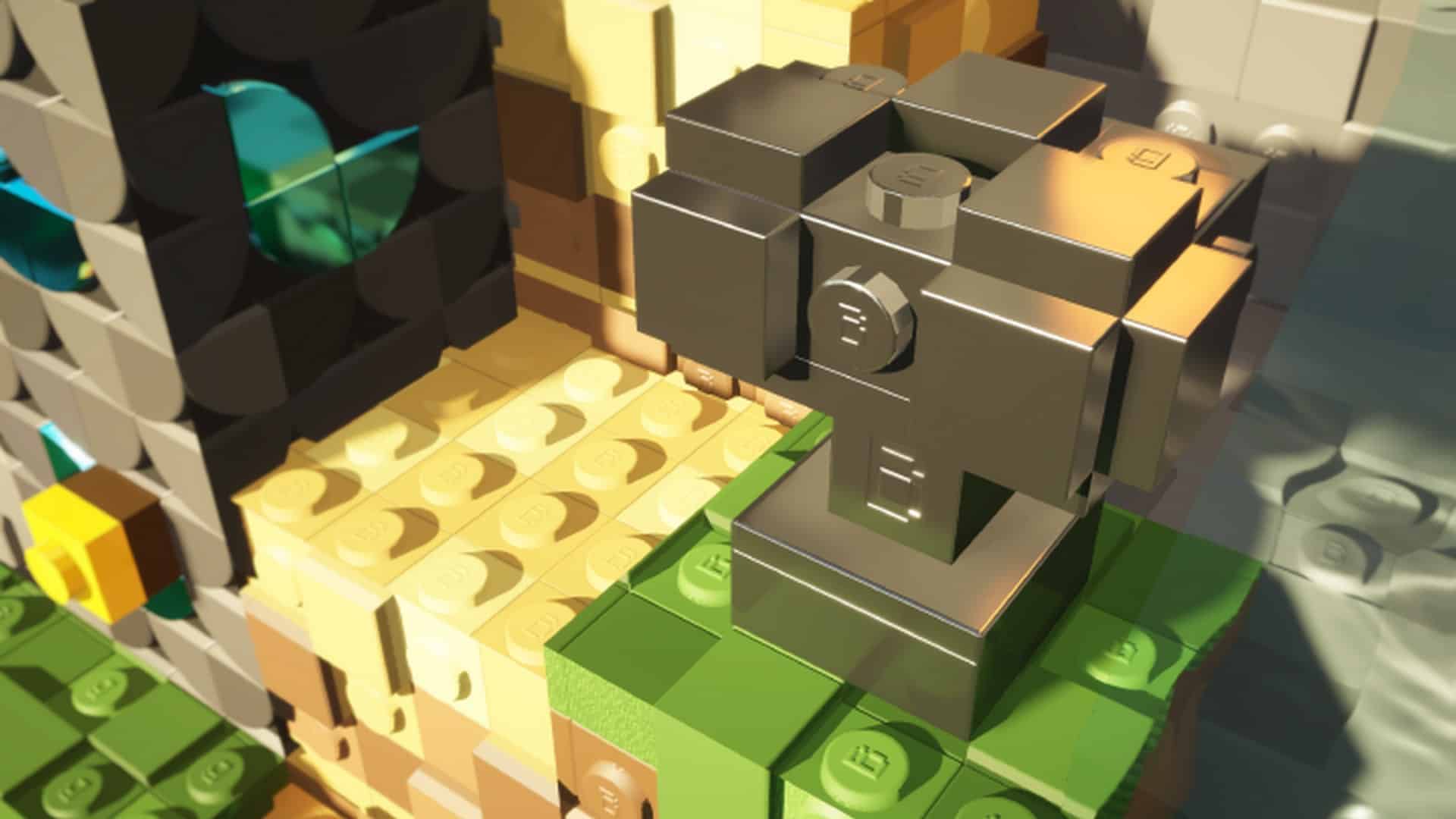
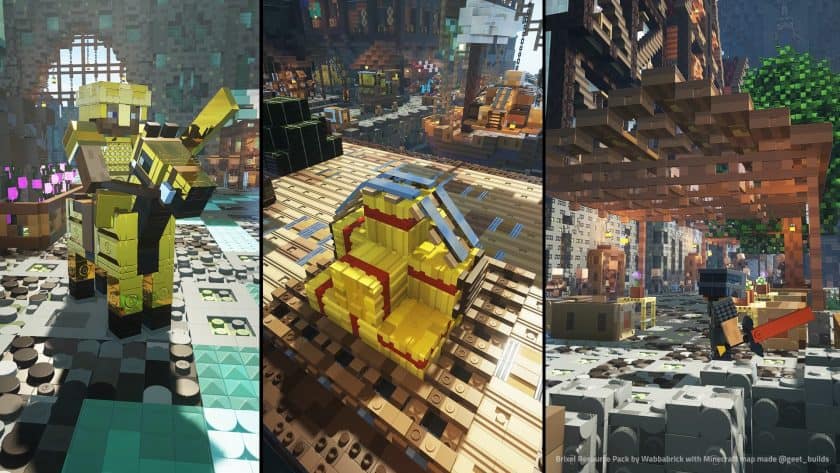
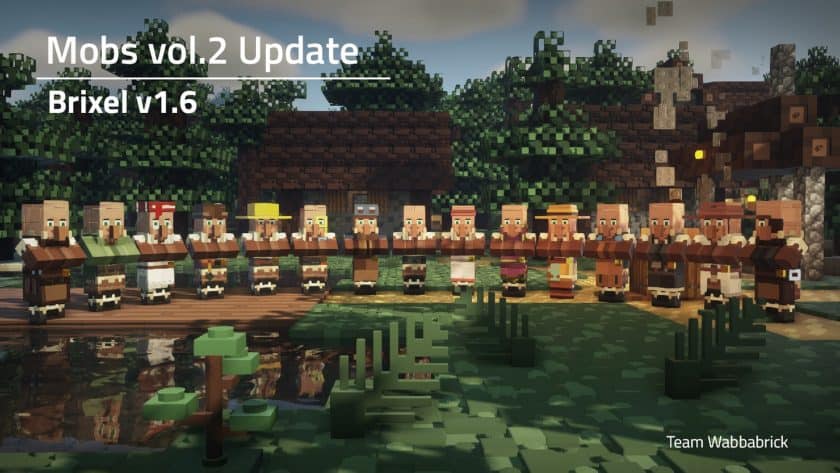
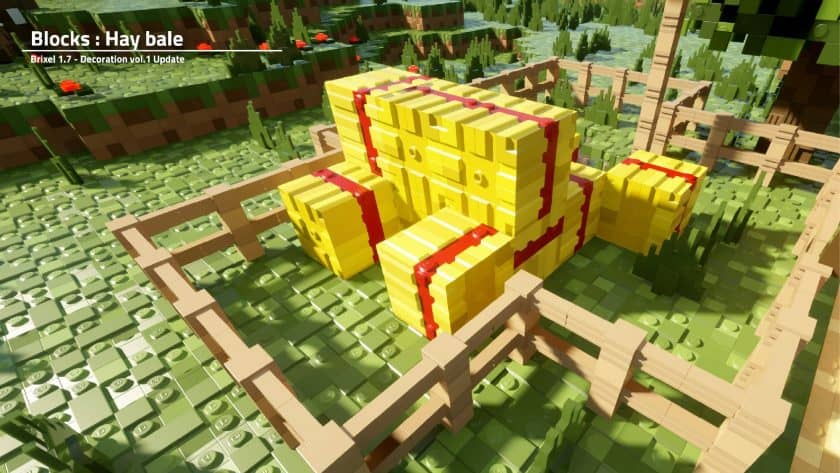
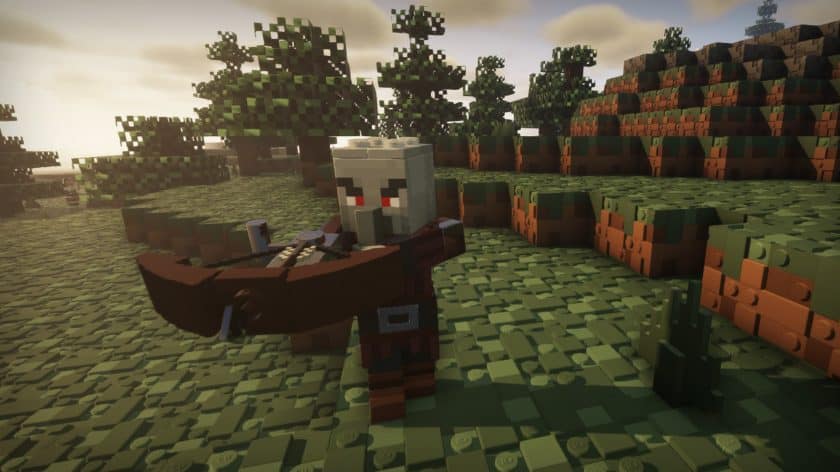
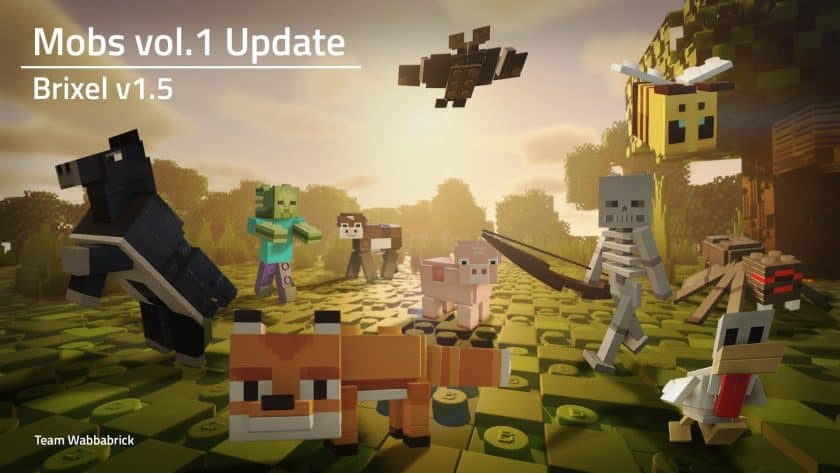
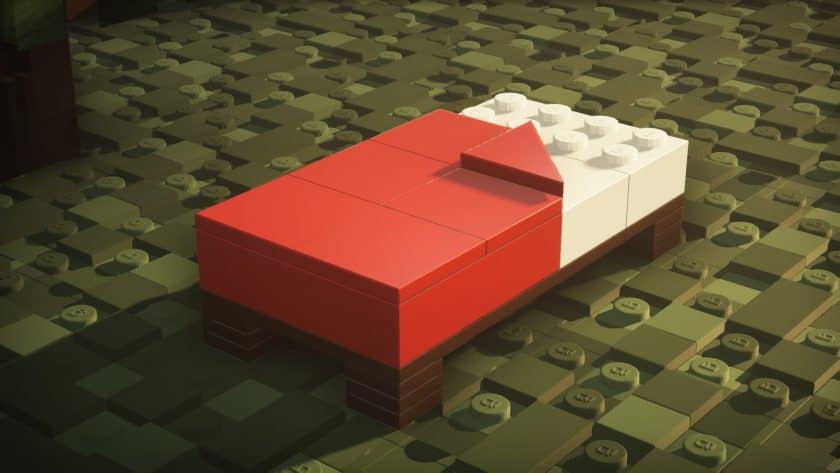
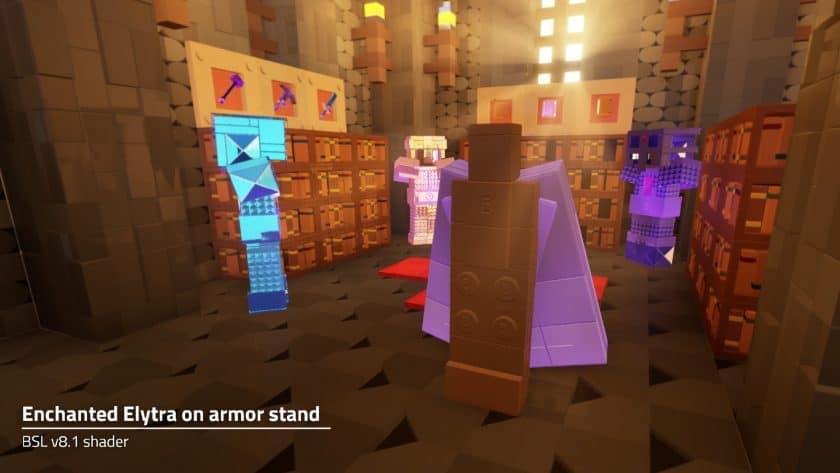
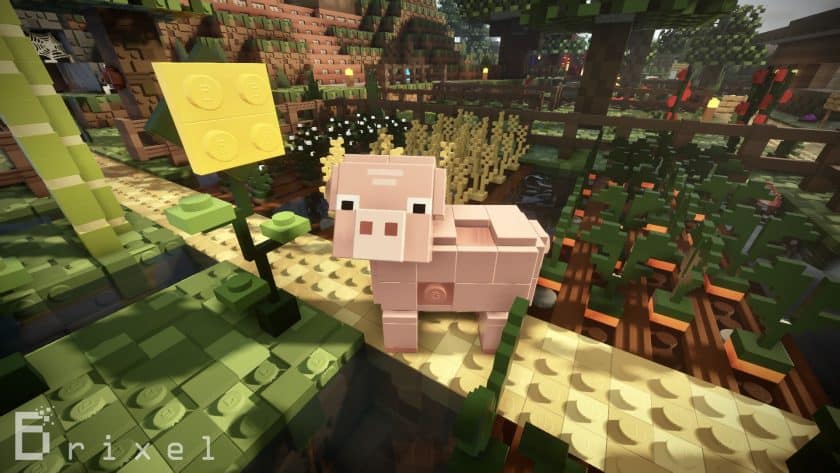
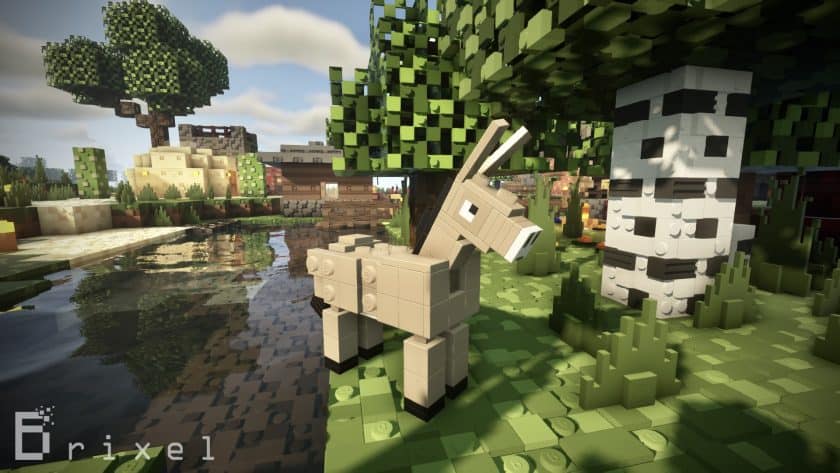
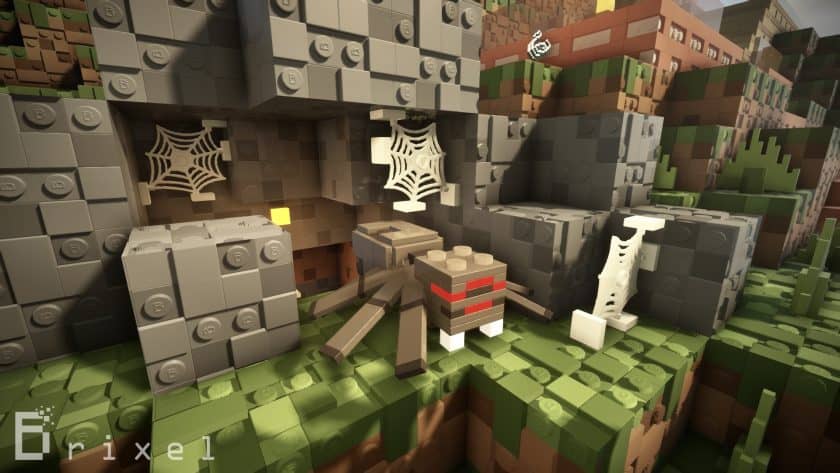
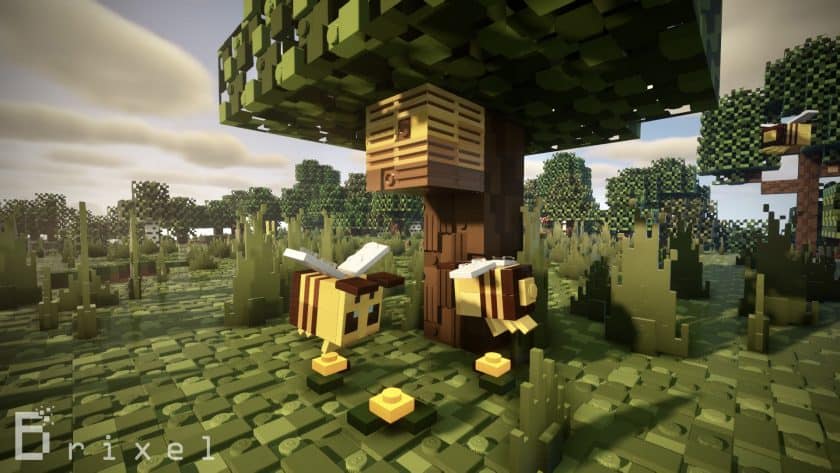
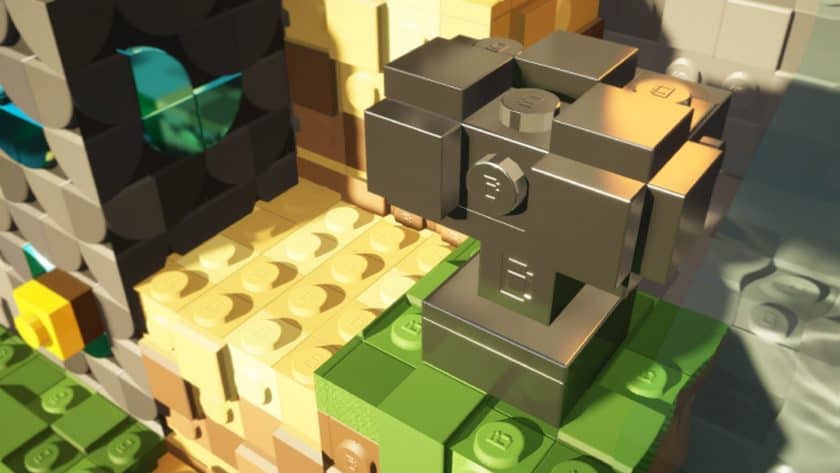
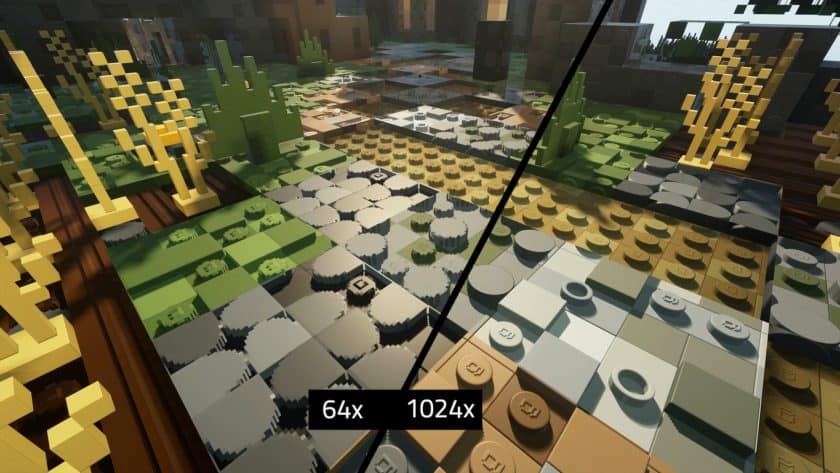
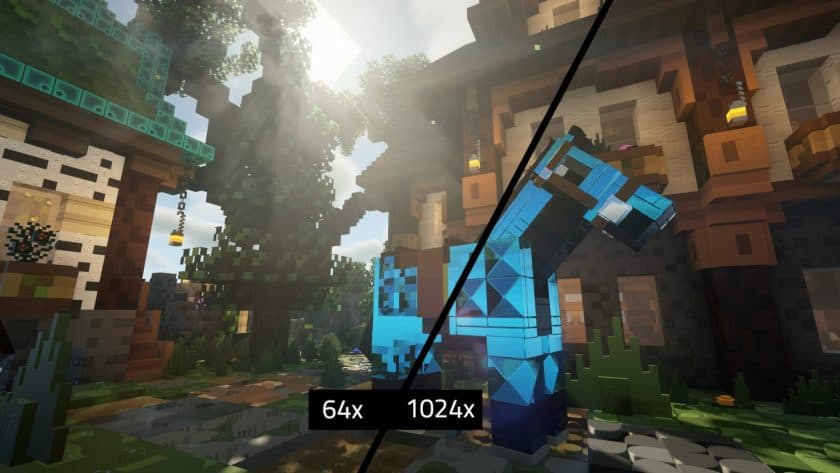
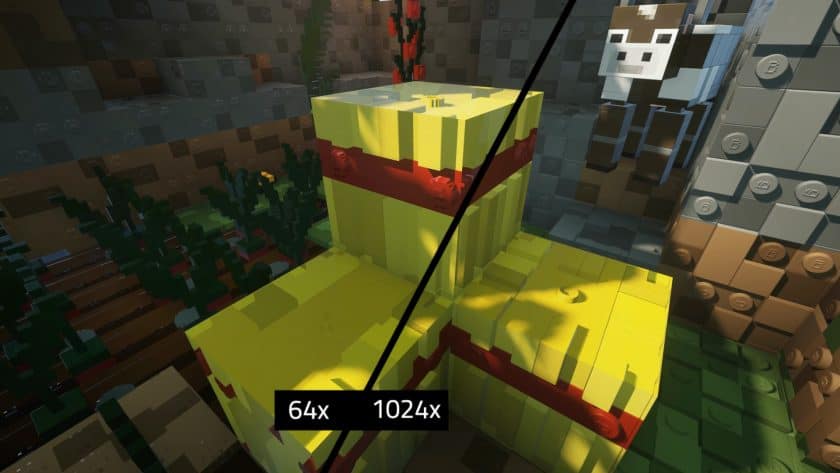
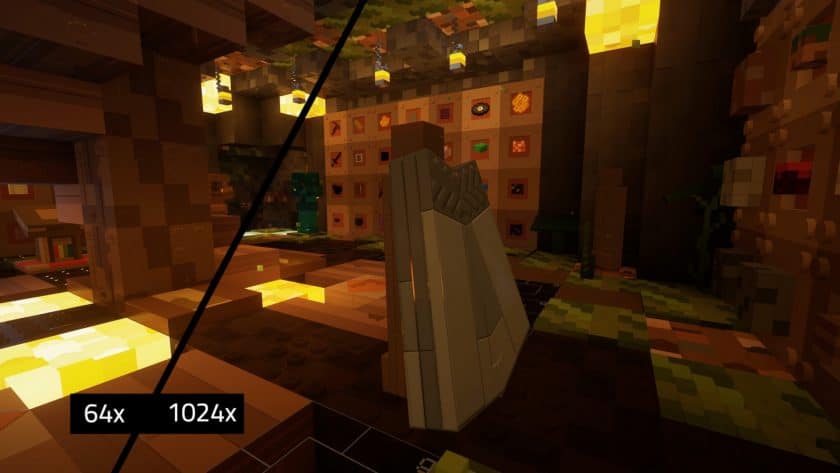
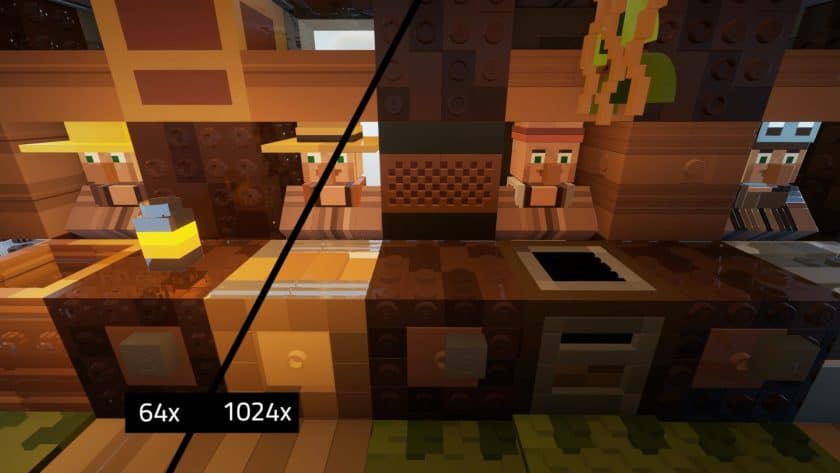
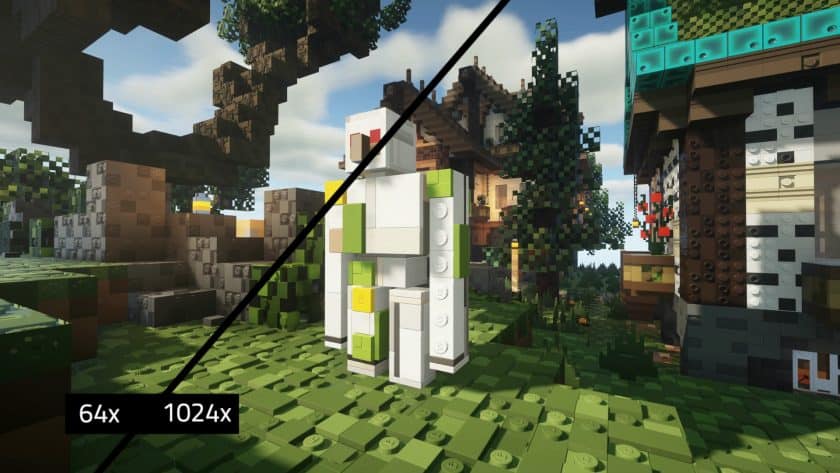
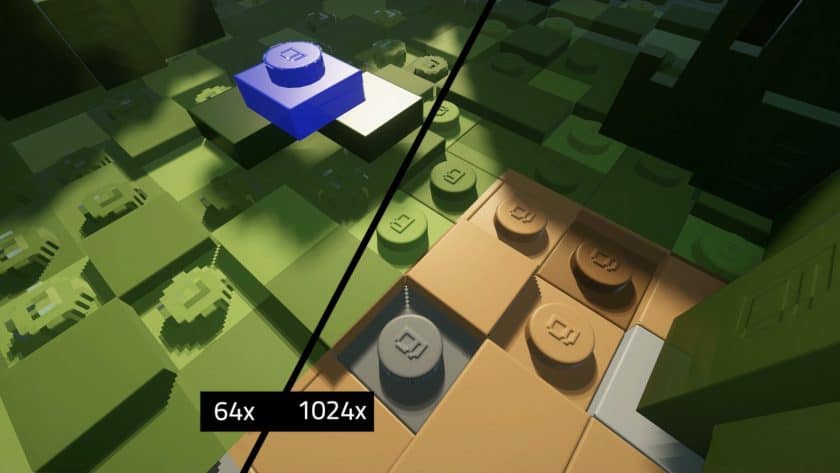
I’ve tried plenty of Minecraft packs that promise to completely transform the game, but the Brixel Resource Pack is one of the few where that description actually feels appropriate. Created by Wabbabrick, Brixel takes obvious inspiration from LEGO and rebuilds much of Minecraft around that idea. Once you load into a world, the resemblance is impossible to miss. Grass, dirt, sand, stone, mobs, and many other textures have been redesigned to look like they’re constructed from tiny plastic bricks. What impressed me is that it doesn’t feel like someone simply added LEGO studs to vanilla textures. There’s a consistent design running throughout the pack, so landscapes, buildings, entities, and items actually look like they belong in the same brick-built world. Some natural elements such as leaves and flowers can’t follow the LEGO concept quite as strictly, but they’re still designed to fit comfortably alongside everything else.
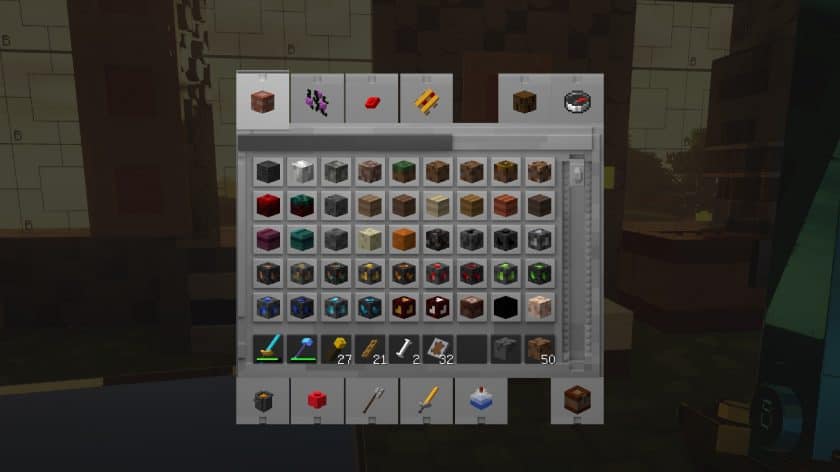
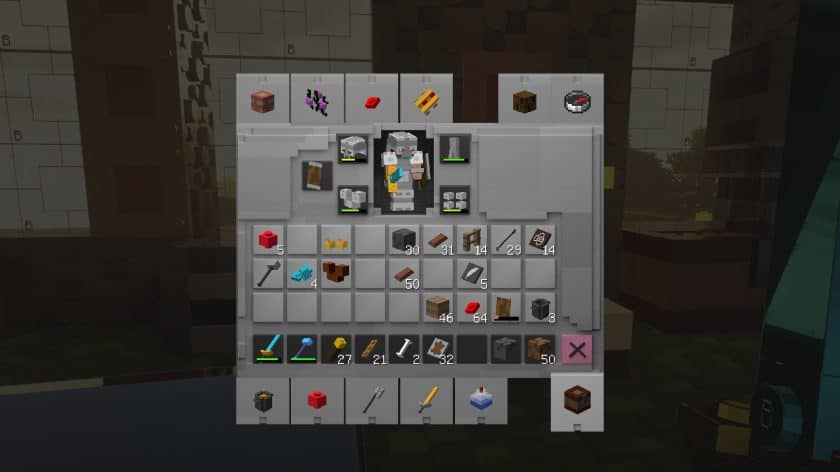
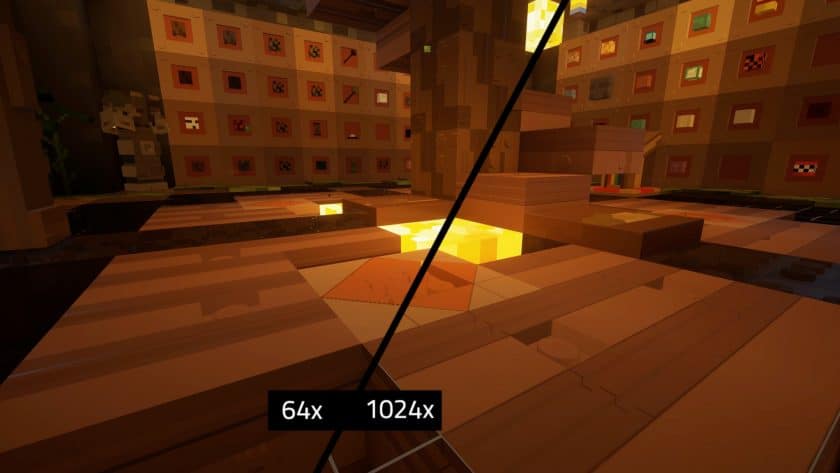
The colors are another thing I noticed almost immediately. Brixel Texture Pack uses a brighter and more cheerful palette than vanilla Minecraft, which works surprisingly well with the toy-brick theme. Common workstation blocks such as grindstones, lecterns, stonecutters, fletching tables, and smithing tables have been given detailed redesigns, while the sky and water also receive noticeable visual improvements. Even the sun and moon follow the block-built aesthetic, helping the theme extend beyond the terrain itself. The user interface hasn’t been forgotten either. Menus, buttons, backgrounds, checkboxes, bars, icons, and world-selection screens have been redesigned to match the rest of the pack. I really appreciate this because nothing breaks immersion faster than having an impressive themed world followed by a completely vanilla menu every time you open your inventory.
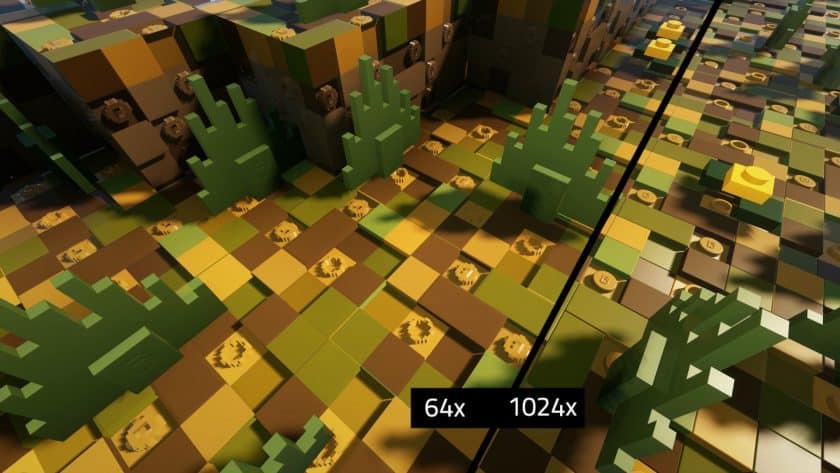
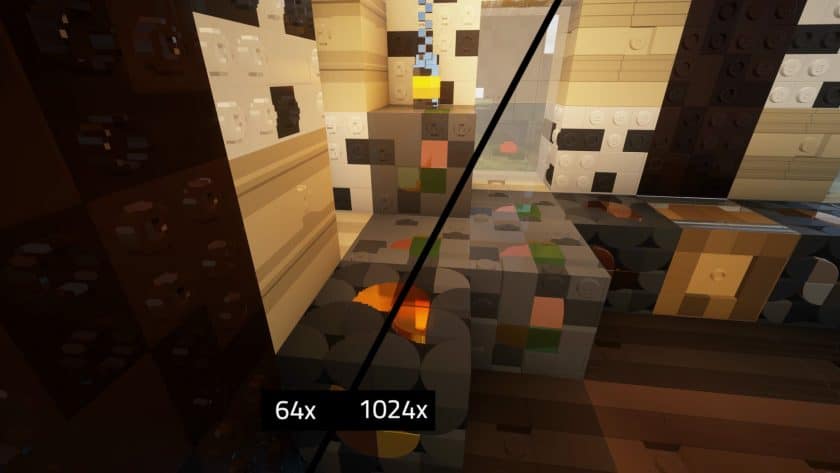
Brixel is available in several resolutions, including 64x, 128x, 256x, and 512x, and the difference in hardware requirements becomes pretty significant as you move upward. The 64x edition already looks considerably sharper than Minecraft’s default 16x textures and is the version I’d recommend trying first. Higher resolutions bring out much finer details in individual bricks and surfaces, but they also require considerably more memory and GPU power. The 256x and especially 512x versions can become demanding once you’re exploring large areas, increasing render distance, or adding shaders. If your PC isn’t particularly powerful, choosing the highest resolution just because it’s available probably isn’t worth sacrificing a stable frame rate.
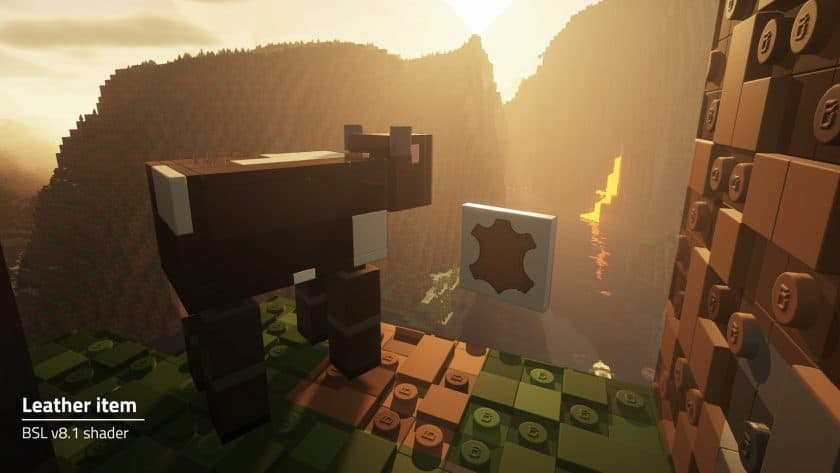
For the full visual experience, Brixel looks particularly impressive when paired with BSL Shaders. Lighting and shadows help sell the illusion that you’re looking at physical plastic bricks rather than flat Minecraft textures, while reflections and improved water add another layer of depth. Of course, combining a high-resolution resource pack with shaders increases the performance cost considerably, so I’d start with Brixel on its own and then add BSL once you know how well your system handles it. Overall, the Brixel Resource Pack is one of the more creative Minecraft transformations I’ve played with. It doesn’t just make vanilla textures sharper—it gives the entire game a recognizable LEGO-inspired identity. If you enjoy building with LEGO or simply want Minecraft to look completely different for a while, Brixel is absolutely worth loading into one of your worlds and experiencing firsthand.
Brixel should be compatible with all of these Minecraft versions: 1.21.5 – 1.21.4 – 1.21.3 – 1.21.2 – 1,21,1 – 1.21 – 1.20.6 – 1.20.5 – 1.20.4 – 1.20.3 – 1.20.2 – 1.20.1 – 1.20 – 1.19.4 – 1.19.3 – 1.19.2 – 1.19.1 – 1.19 – 1.18.2 – 1.18.1 – 1.18 – 1.17.1 – 1.17 – Bedrock edition – PE
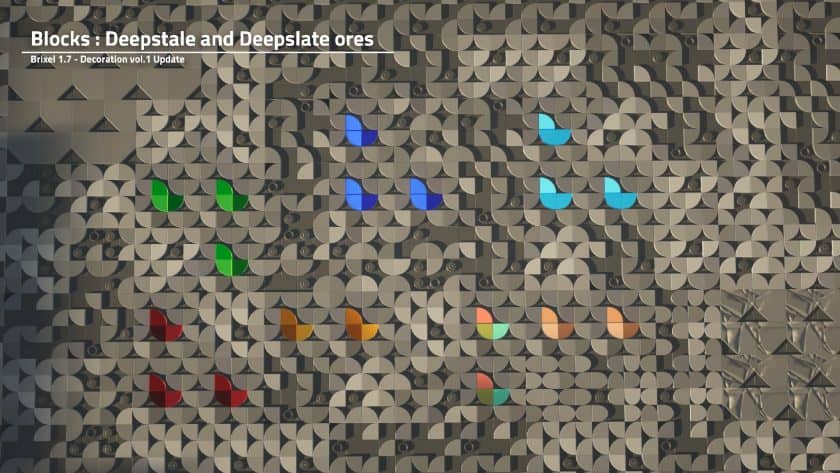
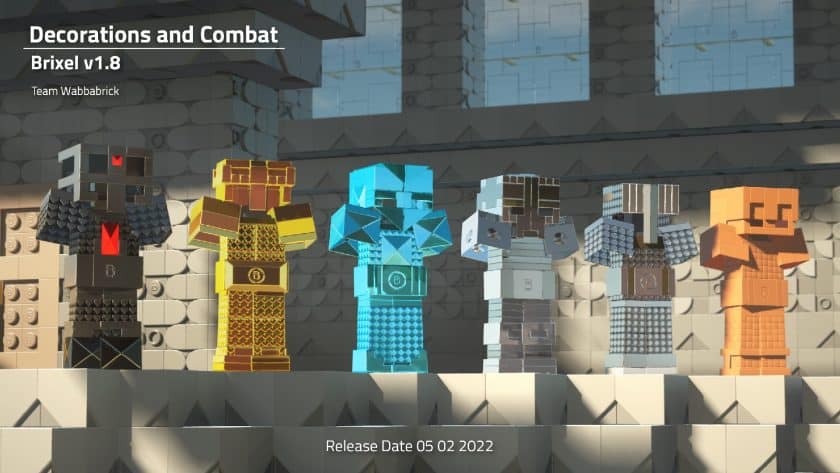
Brixel — Video and screenshots
How to install Brixel Resource Pack:
- Download Optifine: Most of the texture packs and shaders need Optifine. That’s why, first download and install Optifine for the version of Minecraft you want to play.
- Download the Texture Pack: Get the texture pack you want from the download section. Choose the version that works with your Minecraft and your PC’s performance.
- Open Minecraft Launcher: 🚀 Start Minecraft using the official game launcher — or even TLauncher, if you use that.
- Go to Options: From the main menu, click on the “Options” button.
- Open Resource Packs: Inside Options, click on “Resource Packs…”.
- Open the Resource Pack Folder: Click on “Open Resource Pack Folder”— this will open a folder named “resourcepacks.”
- Move the Pack File: Copy or move the .zip file you downloaded into that “resourcepacks” folder. (Don’t unzip the file—Minecraft uses it as-is!)
- Go Back and Refresh: Close the folder and click “Done”, then go back into “Resource Packs…” again.
- Activate the Pack: You’ll see the pack on the left side. Hover over it and click the arrow to move it to the right (active side).
- Tip: If you get a message that the pack is for a different version, just click “”Yes”—it usually works fine.
- Click Done and Enjoy: Click “Done” again. Now your pack is ready to use in-game. It’s that easy!
Important for Java Edition:
- Requires Optifine.
- BSL shaders are required.
Brixel Texture Pack download
- We never modify or modify resource packs in any way. None of the resource packs, shader mods or tools you see on this site are hosted on our servers. We only use official download links provided by official authors. Therefore, they are completely safe.
- Since the links are official and we update them manually – the links may stop working with each new update. We try to update the links as fast as possible and usually we update everything on time and users don’t have any problems, but if suddenly any link stops working – let us know through comments below.
- Don’t forget to leave a comment below and vote for the pack. In this way, you will help the authors to constantly improve the project. If you want to support the author(s), be sure to check the author links right below the download links.
Bedrock Edition:
[64x] [1.21.x] Download Brixel Bedrock Edition Resource Pack – absolutely free;
[64x] [1.21.x] Download Brixel RTX Bedrock Edition Resource Pack – absolutely free;
[128x] [1.21.x] Download Brixel Bedrock & RTX Edition Resource Pack – for Patrons only;
[256x] [1.21.x] Download Brixel Bedrock & RTX Edition Resource Pack – for Patrons only;
[512x] [1.21.x] Download Brixel Bedrock & RTX Edition Resource Pack – for Patrons only;
Java Edition:
[64x] [1.21.x – 1.20.2] Download Brixel Resource Pack – absolutely free;
[128x] [1.21.x – 1.17.x] Download Brixel Resource Pack – for Patrons only;
[256x] [1.21.x – 1.17.x] Download Brixel Resource Pack – for Patrons only;
[512x] [1.21.x – 1.17.x] Download Brixel Resource Pack – for Patrons only;
[1024x] [1.21.x – 1.17.x] Download Brixel Resource Pack – for Patrons only;
Download Instructions:
CurseForge: The download will start by itself after a few seconds.
Mediafire: Click the big blue “DOWNLOAD” button.
Google Drive: Click the small download icon (a down arrow) at the top-right corner to start the download.
Disclaimer
We are not the creators of any texture packs or shader packs shared on this site. All credit goes to the original authors. We do not edit or change any files in any way. Also, none of the downloads are hosted on our servers — we only provide official links shared by the original creators. That means all downloads are completely safe.
❗Note: Since we manually add the official links, so some may stop working after updates. If you find a broken link, tell us in the comments and we’ll fix it as soon as we can.
If you like a pack, please leave a comment and vote for it — this helps the creators improve their work. You can also support them directly through the links below the download section.