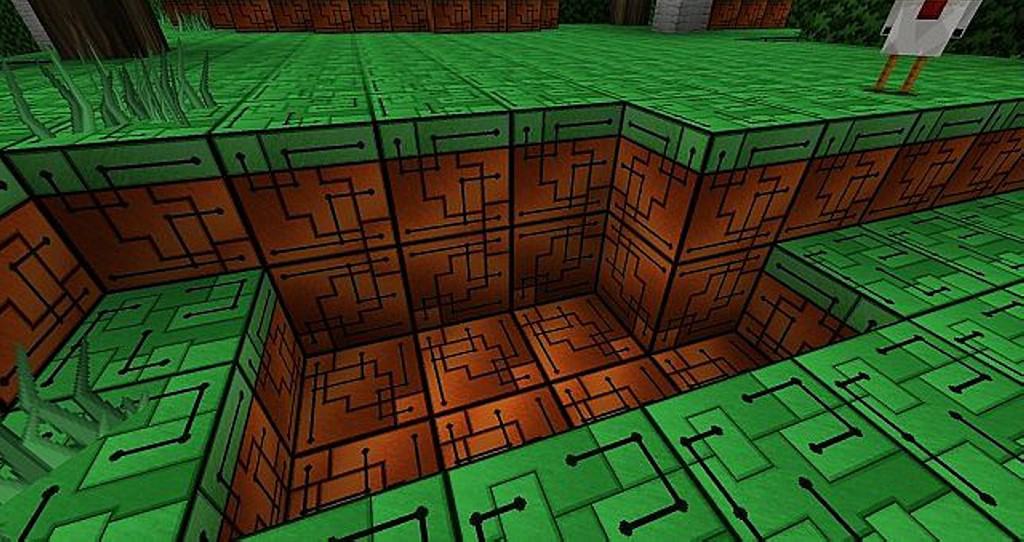
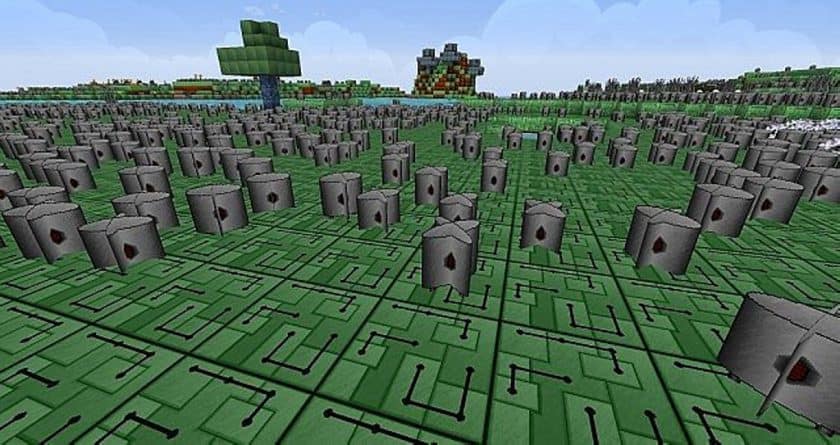
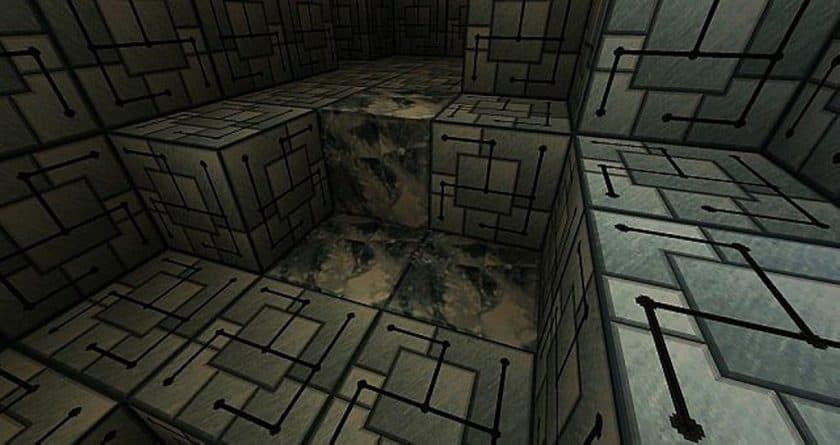
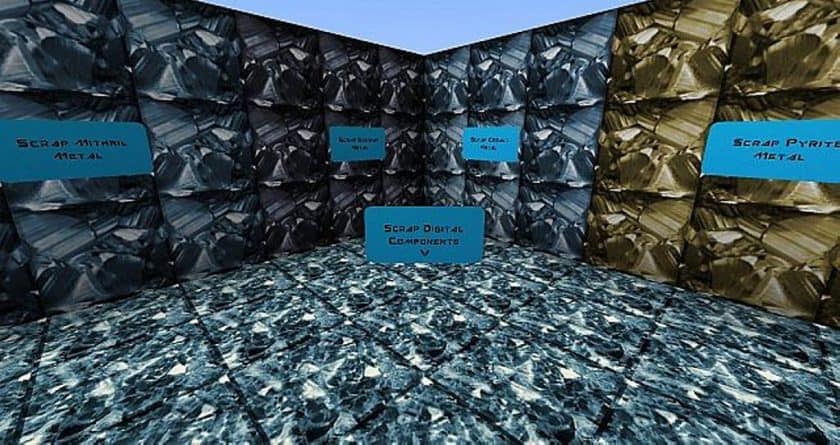
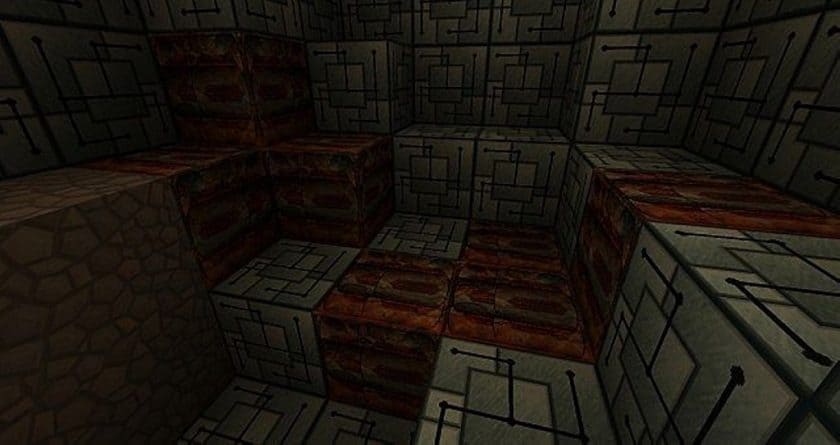
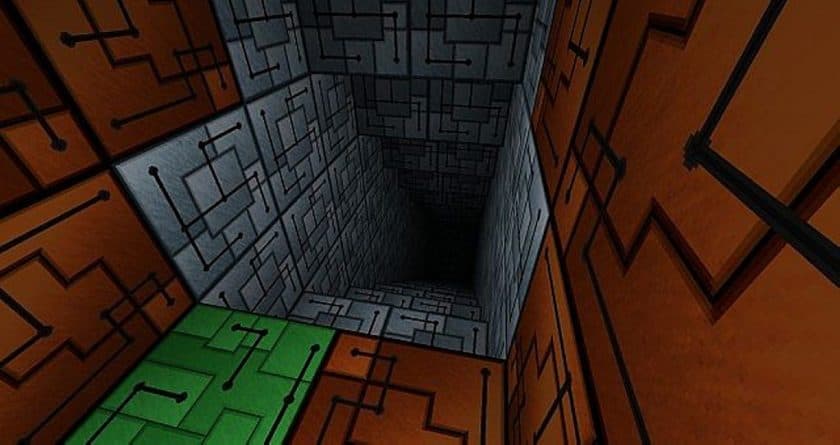
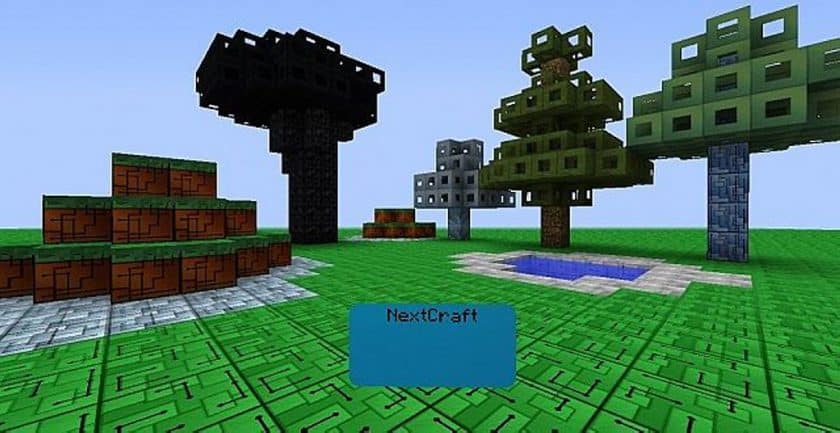
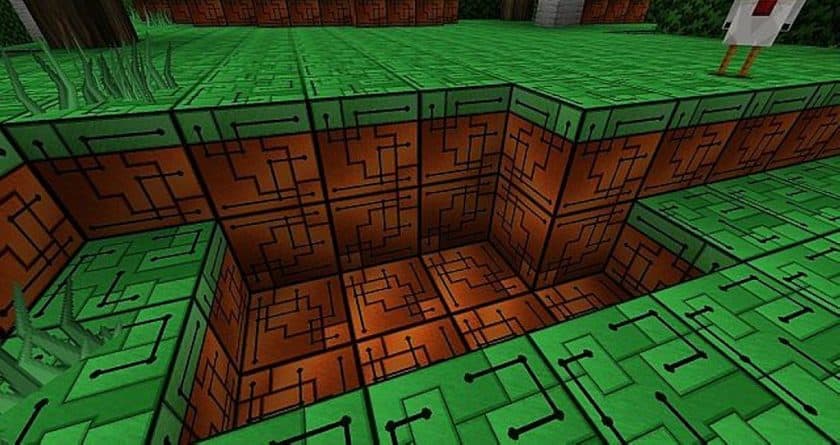
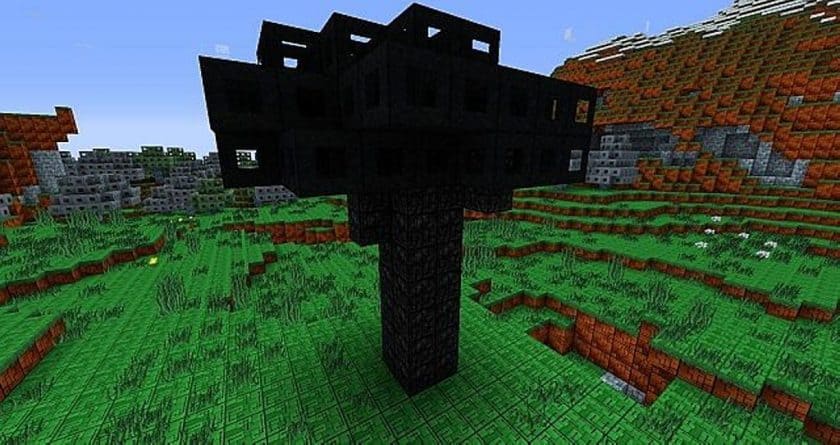
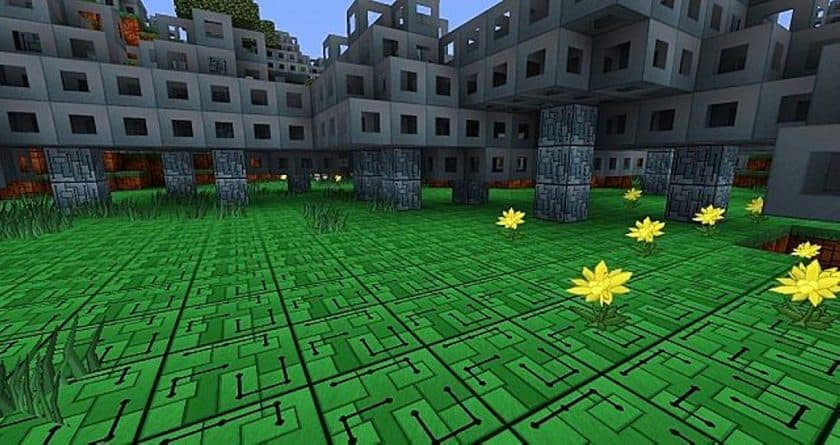
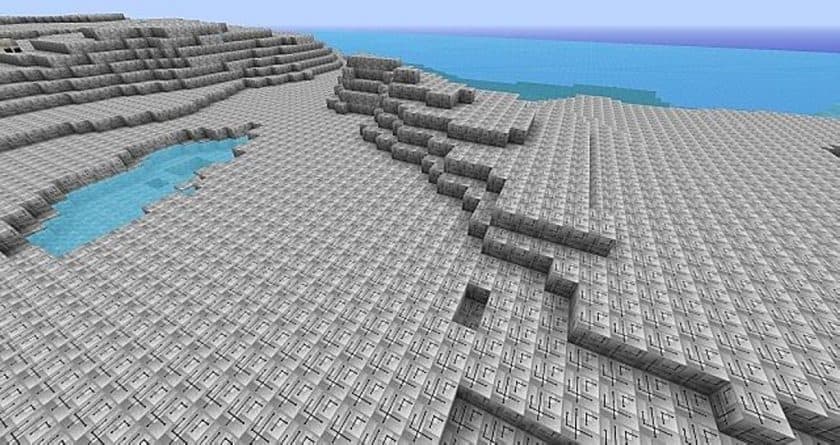
One of the more unusual things about NextCraft Resource Pack is the direction it takes with Minecraft’s visuals. Instead of trying to make the game look realistic or simply adding more detail to the vanilla textures, it gives the entire world a futuristic, almost sci-fi-inspired appearance. I’ve spent some time playing with it on older Minecraft versions, and the change is immediately noticeable. Blocks lose some of their traditional look and take on sharper, more technological patterns, giving the game a completely different atmosphere. If you’re into futuristic builds or have a soft spot for that old-school Matrix-style aesthetic, NextCraft has a surprisingly interesting vibe.
At the same time, I wouldn’t recommend this pack expecting the level of polish you get from newer resource packs. The textures are fairly simple, and some of them can actually feel less refined than vanilla Minecraft. That’s part of the charm, though, especially if you’re looking for something different rather than another high-definition realism pack. The futuristic designs make familiar areas feel new again, and revisiting old worlds with NextCraft enabled can be a fun experience. It has its own visual identity without trying to completely redesign how Minecraft is played.
The biggest limitation today is compatibility. NextCraft is an older resource pack and development stopped around Minecraft 1.7.x, so it is mainly worth considering if you’re playing one of those classic versions. The pack also uses a 128x resolution, which is considerably heavier than vanilla’s 16x textures. On older hardware, that can mean lower FPS or longer loading times, so I’d keep an eye on performance. If you’re playing a supported version and want a nostalgic futuristic makeover rather than modern realism, NextCraft is still an interesting pack to experiment with.
All Minecraft versions should work with NextCraft: 1.7.10 – 1.7.9 – 1.7.4 – 1.7 – 1.6.4 – 1.6.2
NextCraft — Screenshots
How to install NextCraft Resource Pack:
- Download Optifine: Most of the texture packs and shaders need Optifine. That’s why, first download and install Optifine for the version of Minecraft you want to play.
- Download the Texture Pack: Get the texture pack you want from the download section. Choose the version that works with your Minecraft and your PC’s performance.
- Open Minecraft Launcher: 🚀 Start Minecraft using the official game launcher — or even TLauncher, if you use that.
- Go to Options: From the main menu, click on the “Options” button.
- Open Resource Packs: Inside Options, click on “Resource Packs…”.
- Open the Resource Pack Folder: Click on “Open Resource Pack Folder”— this will open a folder named “resourcepacks.”
- Move the Pack File: Copy or move the .zip file you downloaded into that “resourcepacks” folder. (Don’t unzip the file—Minecraft uses it as-is!)
- Go Back and Refresh: Close the folder and click “Done”, then go back into “Resource Packs…” again.
- Activate the Pack: You’ll see the pack on the left side. Hover over it and click the arrow to move it to the right (active side).
- Tip: If you get a message that the pack is for a different version, just click “”Yes”—it usually works fine.
- Click Done and Enjoy: Click “Done” again. Now your pack is ready to use in-game. It’s that easy!
- We never modify or modify resource packs in any way. None of the resource packs, shader mods or tools you see on this site are hosted on our servers. We only use official download links provided by official authors. Therefore, they are completely safe.
- Since the links are official and we update them manually – the links may stop working with each new update. We try to update the links as fast as possible and usually we update everything on time and users don’t have any problems, but if suddenly any link stops working – let us know through comments below.
- Don’t forget to leave a comment below and vote for the pack. In this way, you will help the authors to constantly improve the project. If you want to support the author(s), be sure to check the author links right below the download links.
Download the NextCraft texture pack.
DOWNLOAD LINKS
(128x) (1.7.x – 1.6.x) Download NextCraft Resource Pack
Official links:
Check out the NextCraft Resource Pack on the official resource
Download Instructions:
CurseForge: The download will start by itself after a few seconds.
Mediafire: Click the big blue “DOWNLOAD” button.
Google Drive: Click the small download icon (a down arrow) at the top-right corner to start the download.
Disclaimer
We are not the creators of any texture packs or shader packs shared on this site. All credit goes to the original authors. We do not edit or change any files in any way. Also, none of the downloads are hosted on our servers — we only provide official links shared by the original creators. That means all downloads are completely safe.
❗Note: Since we manually add the official links, so some may stop working after updates. If you find a broken link, tell us in the comments and we’ll fix it as soon as we can.
If you like a pack, please leave a comment and vote for it — this helps the creators improve their work. You can also support them directly through the links below the download section.