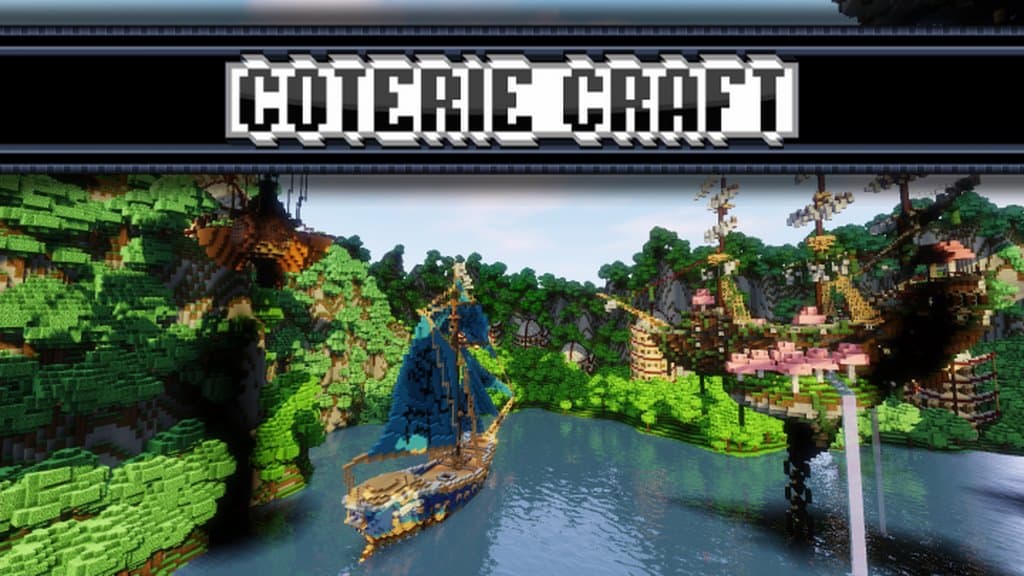
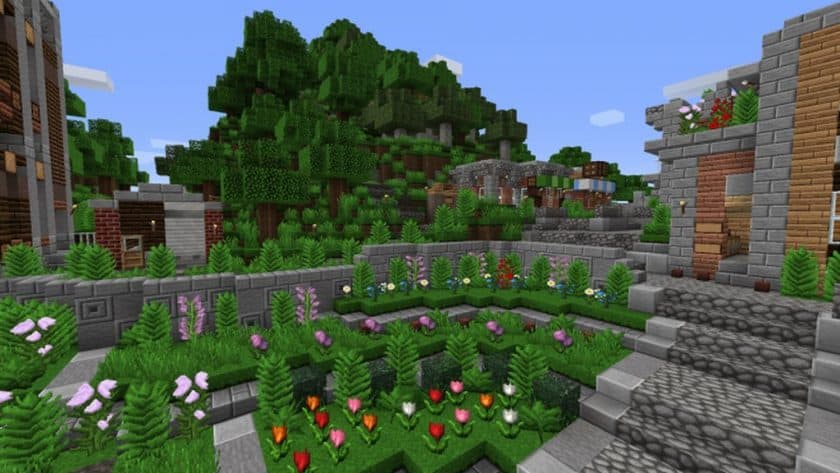
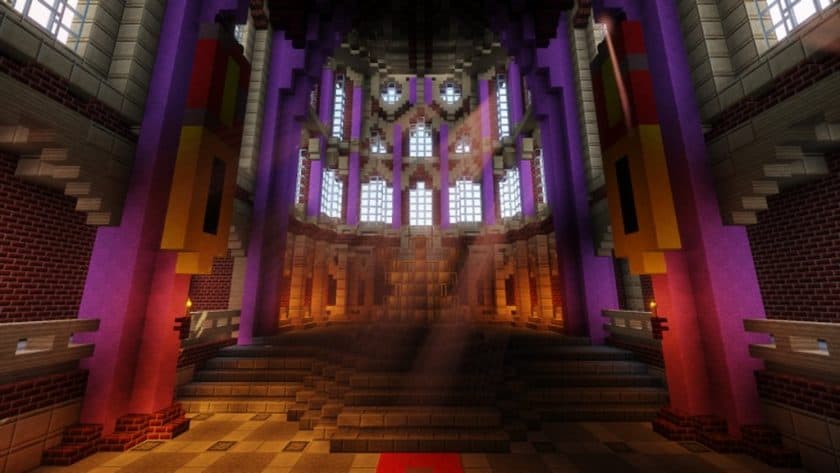
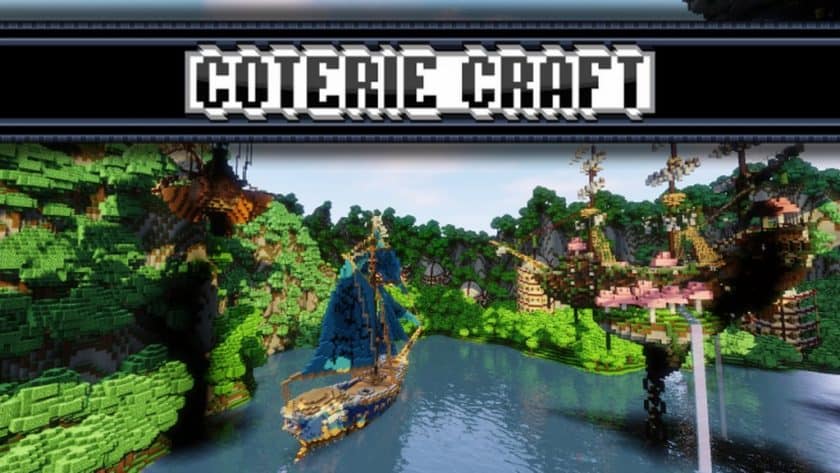
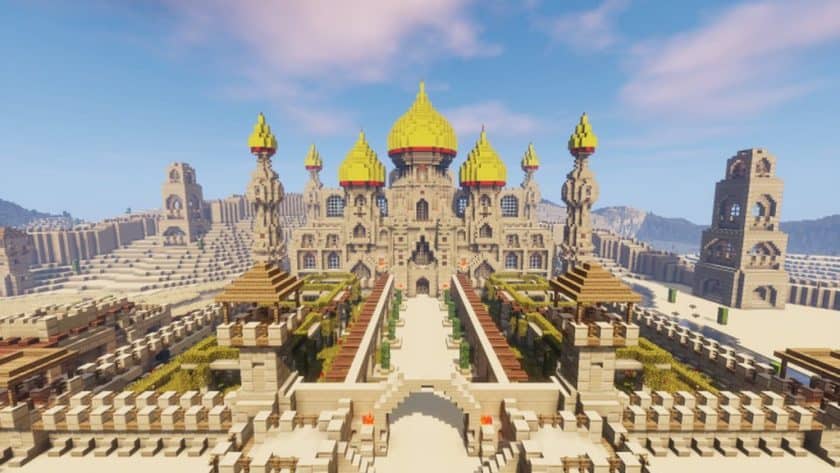
Stepping into a world powered by the Coterie Craft Resource Pack immediately reveals its unique charm. Unlike many packs that simply iterate on existing styles, Coterie Craft delivers a distinctly different and refreshing aesthetic while still feeling comfortably familiar. Its strength lies in its wonderfully smooth textures and an overall visual upgrade that truly transforms the Minecraft landscape. You’ll notice the change instantly as blocks and environments take on a softer, more refined appearance.
The visual experience crafted by Coterie Craft is genuinely pleasant, moving away from clunky details in favor of clean lines and harmonious, softer colors. This creates a much more welcoming and immersive atmosphere, making your adventures feel vibrant and renewed. It’s a pack designed to leave you feeling refreshed and thoroughly satisfied with your chosen visual overhaul. With a development history spanning eight years, the Coterie Craft team has dedicated itself to continuous improvement, consistently pushing the standards for Minecraft resource packs. Remaining true to the original 16×16 resolution, this pack ensures that players receive an authentic yet significantly enhanced viewing experience. Crucially, this commitment to a modest resolution means you can enjoy your beautifully transformed world on virtually any PC, maintaining smooth performance without any noticeable lag.
Coterie Craft should work smoothly with all of these Minecraft versions: 1.21.5 – 1.21.4 – 1.21.3 – 1.21.2 – 1.21.1 – 1.21 – 1.20.6 – 1.20.5 – 1.20.4 – 1.20.3 – 1.20.2 – 1.20.1 – 1.20 – 1.18.2 – 1.18.1 – 1.18 – 1.17.1 – 1.17 – 1.16.5 – 1.16.4 – 1.16.3 – 1.16.2 – 1.16.1 – 1.16 – 1.15.2 – 1.15.1 – 1.15 – 1.14.4 – 1.14.3 – 1.14.2 – 1.14 – 1.13.2 – 1.13.1 – 1.13 – 1.12.2 – 1.12 – 1.11.2 – 1.11 – 1.9.4 – 1.9 – 1.8.1 – 1.8.6 – 1.8 – 1.7.10 – 1.7.9 – 1.7.4 – 1.7 – Bedrock Edition – PE
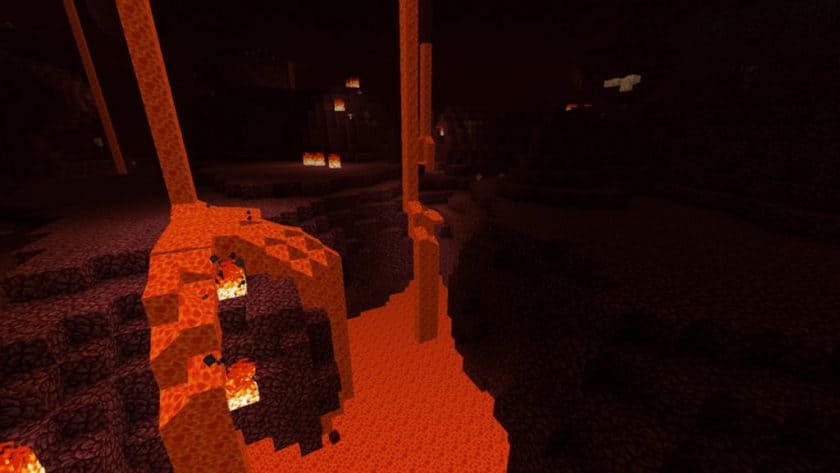
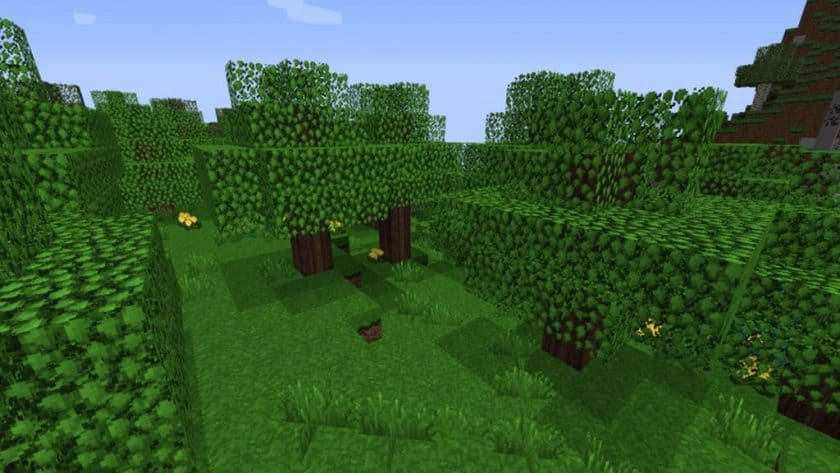
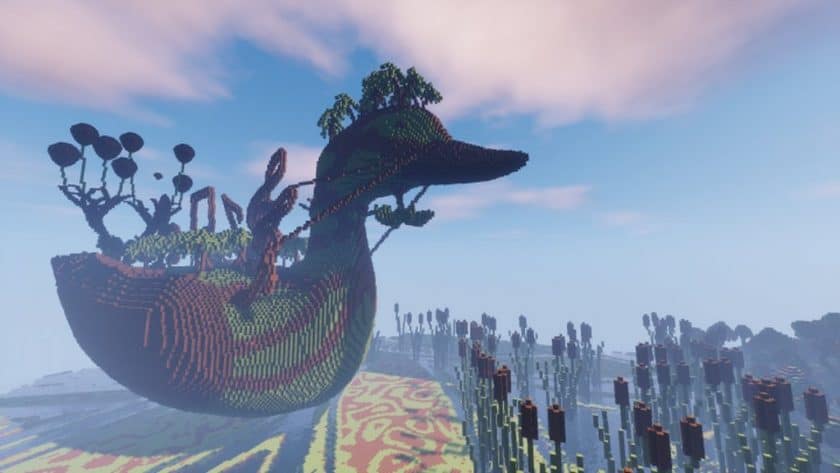
Coterie Craft Resource Pack – Screenshots & Videos
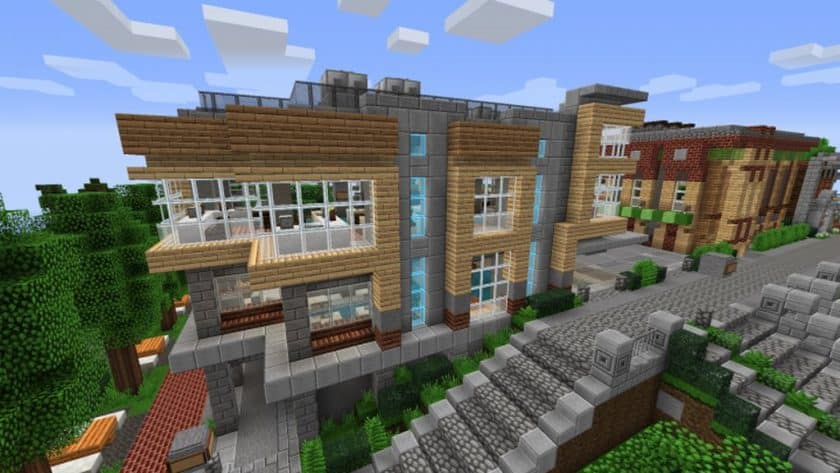
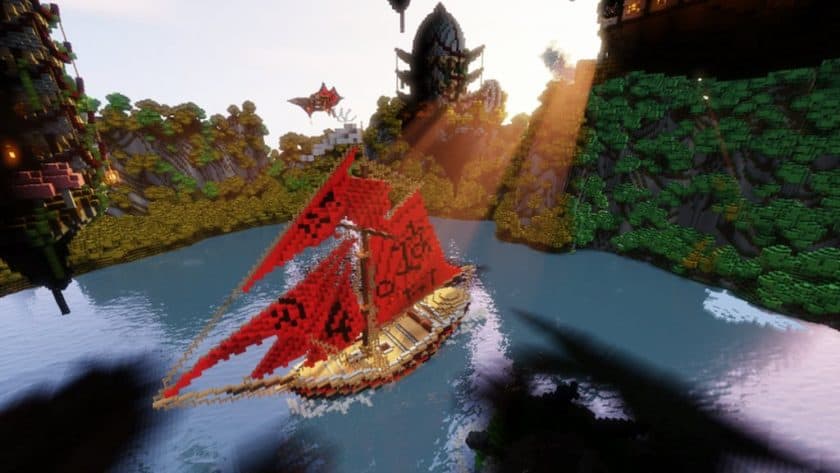
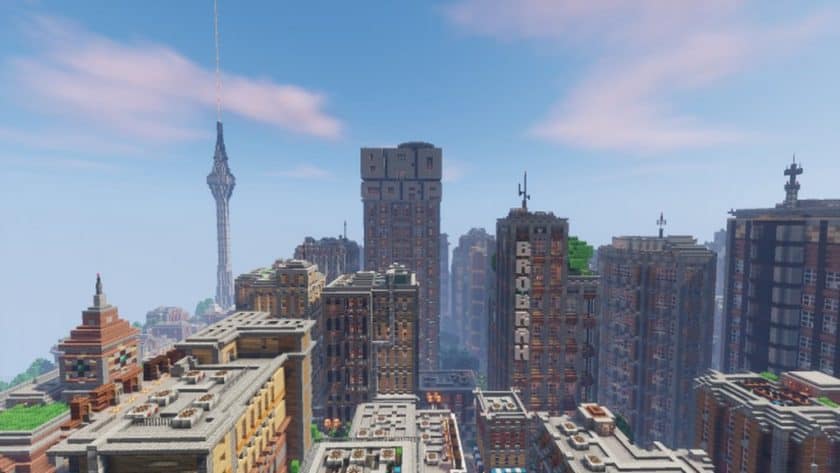
How to Install Texture Pack (Simple 10 Steps)
- Download Optifine: Most of the texture packs and shaders need Optifine. That’s why, first download and install Optifine for the version of Minecraft you want to play.
- Download the Texture Pack: Get the texture pack you want from the download section. Choose the version that works with your Minecraft and your PC’s performance.
- Open Minecraft Launcher: Start Minecraft using the official game launcher – or even TLauncher, if you use that.
- Go to Options: From the main menu, click on the “Options” button.
- Open Resource Packs: Inside Options, click on “Resource Packs…”.
- Open the Resource Pack Folder: Click on “Open Resource Pack Folder” – this will open a folder named “resourcepacks”.
- Move the Pack File: Copy or move the .zip file you downloaded into that “resourcepacks” folder. (Don’t unzip the file – Minecraft uses it as-is!)
- Go Back and Refresh: Close the folder and click “Done”, then go back into “Resource Packs…” again.
- Activate the Pack: You’ll see the pack on the left side. Hover over it and click the arrow to move it to the right (active side). Tip: If you get a message that the pack is for a different version, just click “Yes” – it usually works fine.
- Click Done and Enjoy: Click “Done” again. Now your pack is ready to use in-game. It’s that easy!\
Credit for the creation of Coterie Craft goes to Cpt. Corn.
- We do not modify or edit any resource packs. All resource packs, shaders and tools found on this website are linked directly to official sources rather than hosted on our own servers. We provide only the official download links from the original creators to ensure that your files are safe and secure.
- These official links are updated manually and may occasionally stop working when a new version is released. We work hard to keep everything current so that you have a smooth experience. Please let us know in the comments if you find a link that no longer works.
- Minecraft is a trademark of Mojang Studios and has no official connection to this website. Our goal is simply to share the best creations from the community with other players.
- Please consider leaving a comment or voting for your favorite packs. This feedback helps authors improve their projects over time. You can also support the creators directly by visiting the official links located below the download section.
Download Links
Bedrock Edition
[32x] Download Coterie Craft: Bedrock Edition Resource Pack – for older versions, may not work on newer versions;
Java Edition (16x):
[16x] [1.21.x – 1.20.x] Download Coterie Craft Resource Pack
[16x] [1.18.x] Download Coterie Craft Resource Pack
[16x] [1.17.x] Download Coterie Craft Resource Pack
[16x] [1.16.x] Download Coterie Craft Resource Pack
[16x] [1.15.x] Download Coterie Craft Resource Pack
[16x] [1.14.x] Download Coterie Craft Resource Pack
[16x] [1.13.x] Download Coterie Craft Resource Pack
[16x] [1.12.x] Download Coterie Craft Resource Pack
[16x] [1.11.x] Download Coterie Craft Resource Pack
Java Edition (32x):
[32x] [1.14.x] Download Coterie Craft Resource Pack
[32x] [1.13.x] Download Coterie Craft Resource Pack
[32x] [1.12.x] Download Coterie Craft Resource Pack
[32x] [1.11.x] Download Coterie Craft Resource Pack
Download Instructions
- CurseForge: If the pack is hosted on CurseForge, the download will begin automatically after a few seconds. If it does not start, use the “Download” button shown on the page.
- Modrinth: If the download is from Modrinth, click the file version that matches your Minecraft build, then press the Download button. Modrinth usually offers multiple releases, so make sure you pick the correct version before installing.
- Mediafire: On Mediafire, click the large blue Download button to start the file download. Avoid any extra pop-ups or buttons that are not related to the direct download.
- Google Drive: For Google Drive, click the small download icon at the top right corner of the page. It looks like a downward arrow. The file will be saved to your computer immediately.
Disclaimer: We do not create or modify any of the texture packs or shader packs shared on this website. All credit goes to the original creators, and every download link we provide is the official link from their page, which keeps all downloads safe. Some links may stop working after updates, so if you find a broken one, let us know in the comments and we will update it quickly. If you like a pack, consider supporting the creator by visiting their official page or website that we have linked below, and feel free to leave a comment or vote to help their work reach more players.