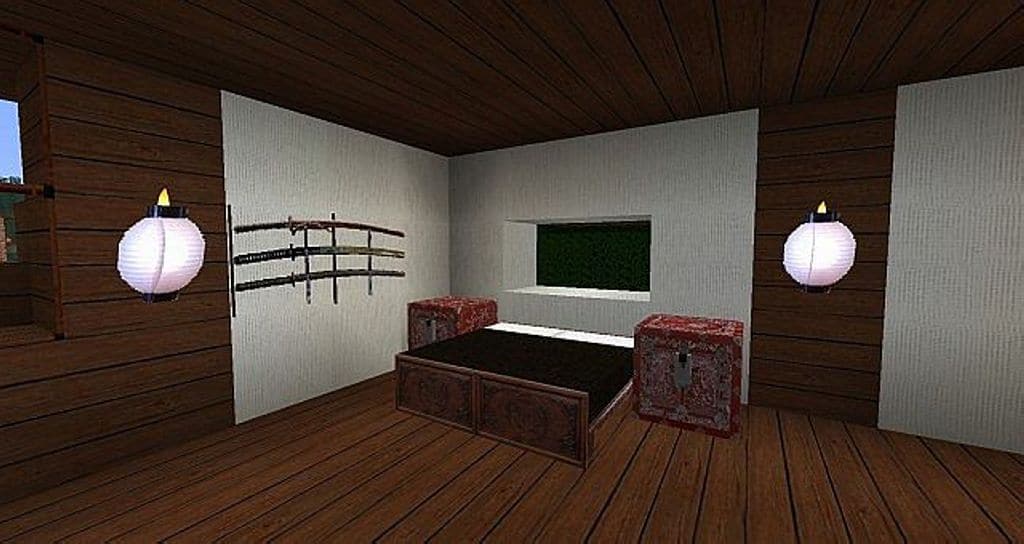
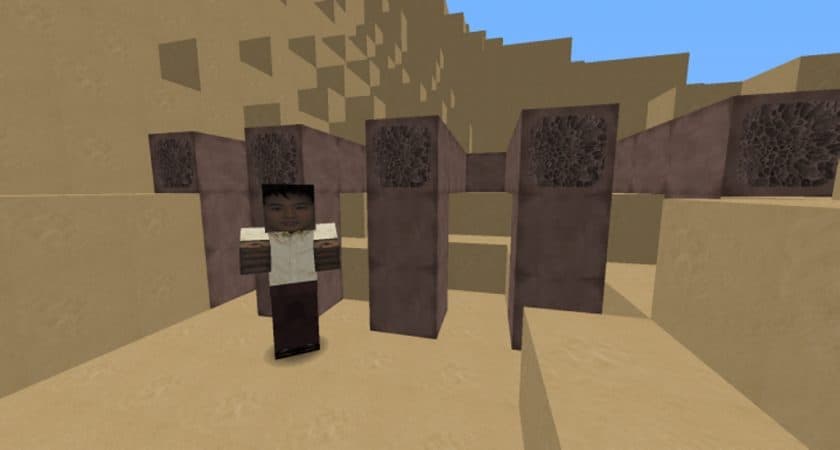
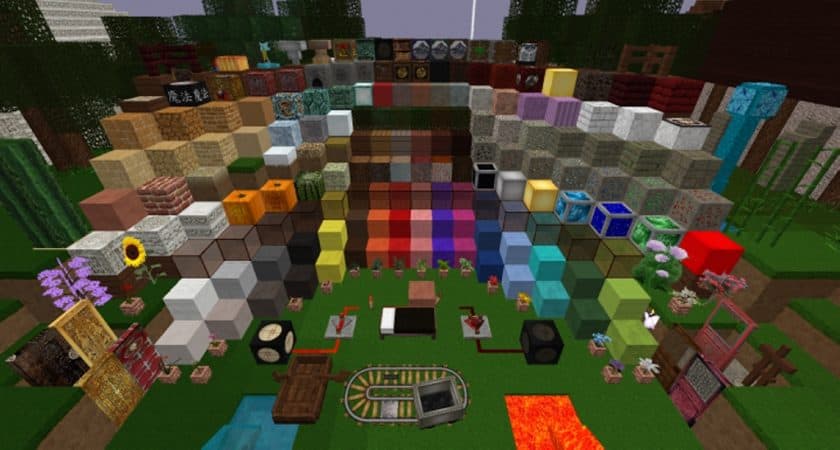
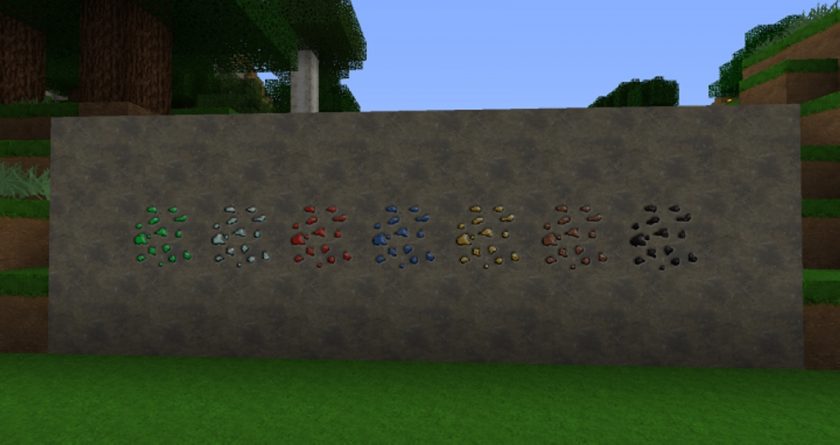
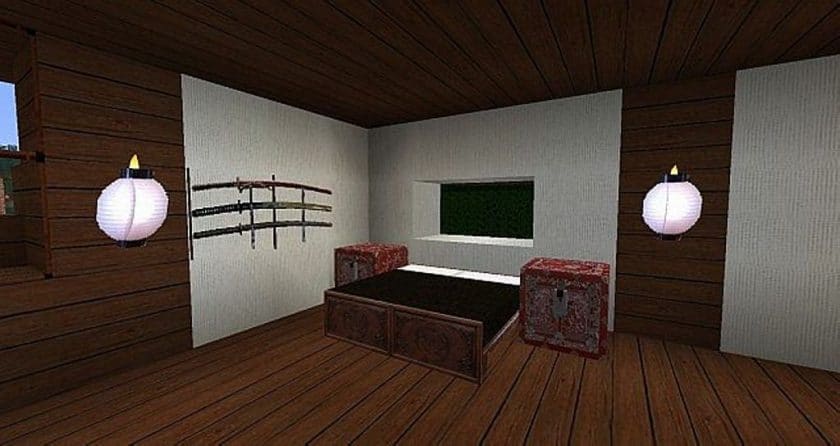
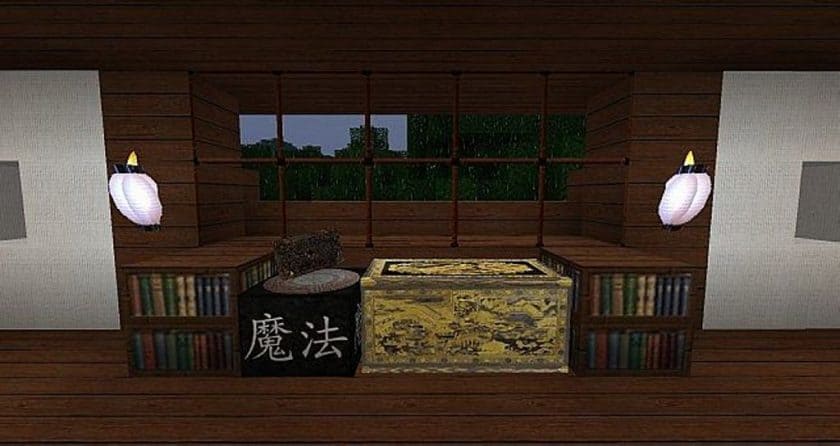
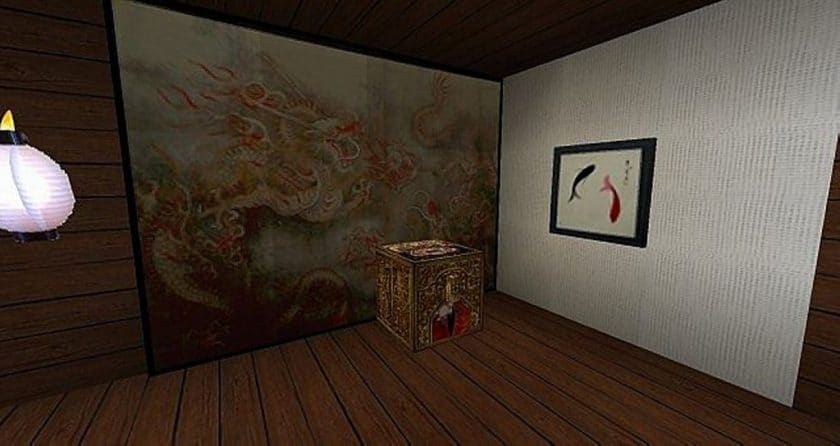
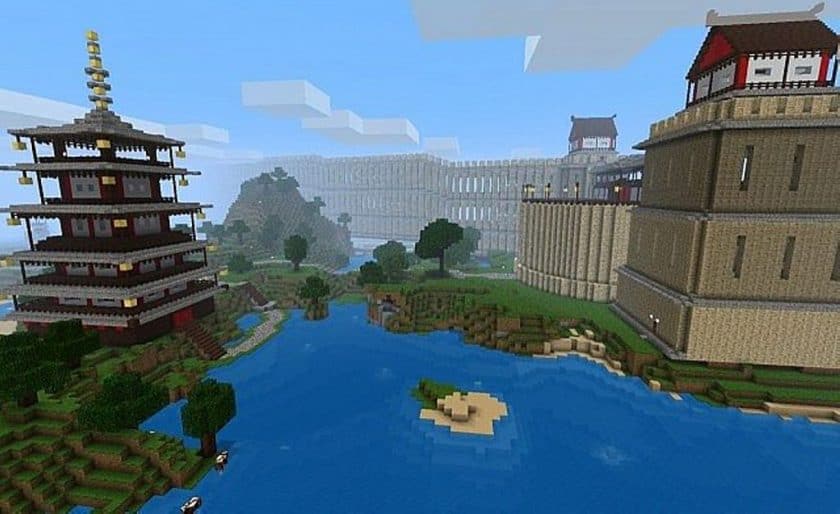
Stepping into a world transformed by the Woocraft Resource Pack feels like venturing straight into ancient Japan, a realm where the spirit of samurai and ninja permeates every pixel. Crafted by the talented Kyctarniq, this pack immediately distinguishes itself from conventional Minecraft textures by embracing a unique, compelling Eastern aesthetic. From the moment you load it, you’re greeted by stellar textures that vividly recreate the atmosphere of feudal Japan, making your exploration truly immersive. The default appearance of blocks, tools, and creatures has been thoughtfully reworked, offering a fresh visual journey that transports you to a land rich with historical and mythical grandeur.
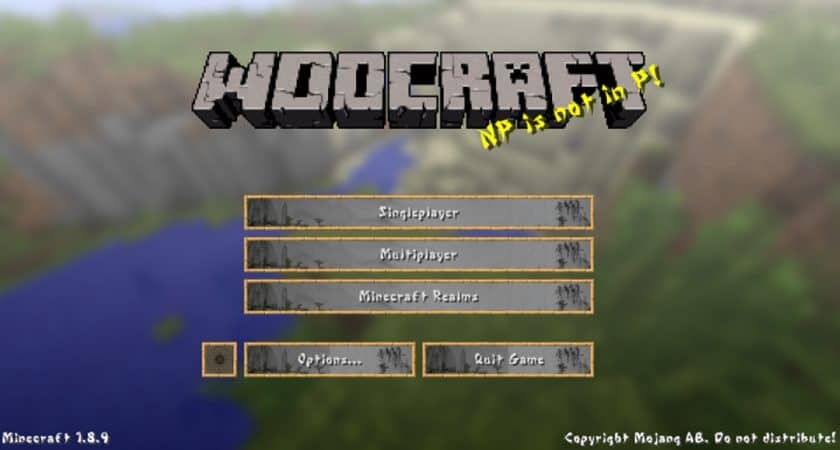
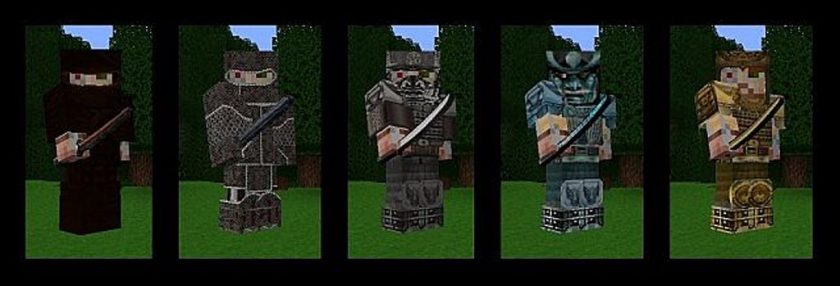
I found myself marveling at the intricate details; wooden structures boast realistic patterns and deeper textures, while storage blocks reveal substantial, authentic-looking surfaces. It’s clear the creator poured passion into hand-tuning each element to perfection, resulting in gorgeous blocks adorned with customized Asian art. Even the armor has been redesigned to emulate the revered samurai attire, making every foray into combat feel more epic. Beyond the environment, Woocraft extends its transformative touch to the living world, successfully modifying every animal, mob, and NPC to fit the overarching theme. Swords are reshaped to reflect traditional Japanese weaponry, and even the Graphical User Interface (GUI) receives a subtle yet effective overhaul, ensuring a cohesive experience from top to bottom.
This resource pack, which has a resolution of 128x, delivers a deeply artistic and customized gaming experience that is truly a feast for the eyes. It aims to maximize detail in every texture, making the world feel incredibly rich and vibrant. However, it’s important to note that to fully appreciate Woocraft’s high-resolution visuals and avoid any frame rate issues, a computer system with more robust hardware than usual will be beneficial. If you’ve ever dreamt of building a dojo, exploring bamboo forests, or battling foes in the style of ancient Japanese warriors, the Woocraft Resource Pack is an outstanding choice to bring that vision to life within Minecraft.
| Minecraft Version | Compatibility |
|---|---|
| 1.17.1 | ✅ Supported |
| 1.17 | ✅ Supported |
| 1.10.2 | ✅ Supported |
| 1.10 | ✅ Supported |
| 1.9.4 | ✅ Supported |
| 1.9 | ✅ Supported |
| 1.8.9 | ✅ Supported |
| 1.8.8 | ✅ Supported |
| 1.8.1 | ✅ Supported |
| 1.8.6 | ✅ Supported |
| 1.8 | ✅ Supported |
| 1.7.10 | ✅ Supported |
| 1.7.9 | ✅ Supported |
| 1.7.4 | ✅ Supported |
| 1.7 | ✅ Supported |
| 1.6.4 | ✅ Supported |
| 1.6.2 | ✅ Supported |
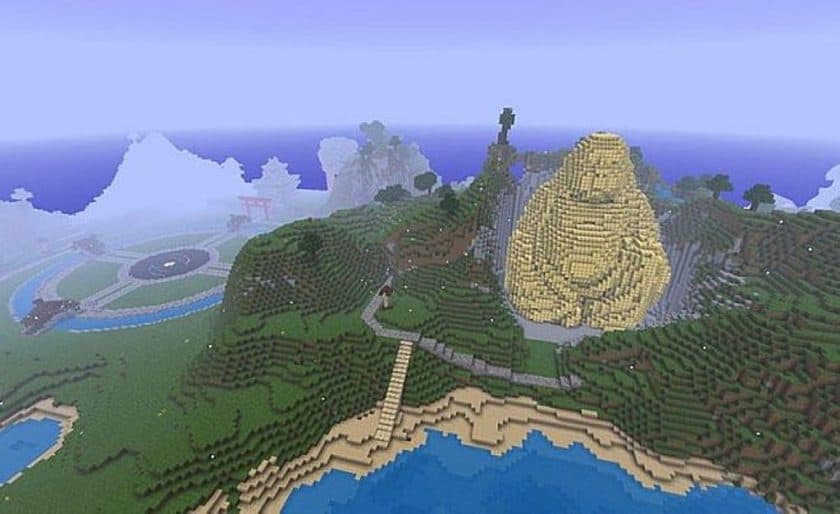
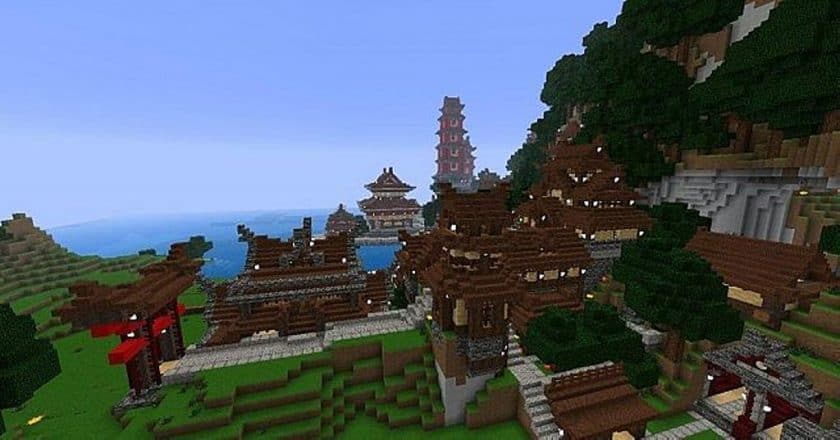
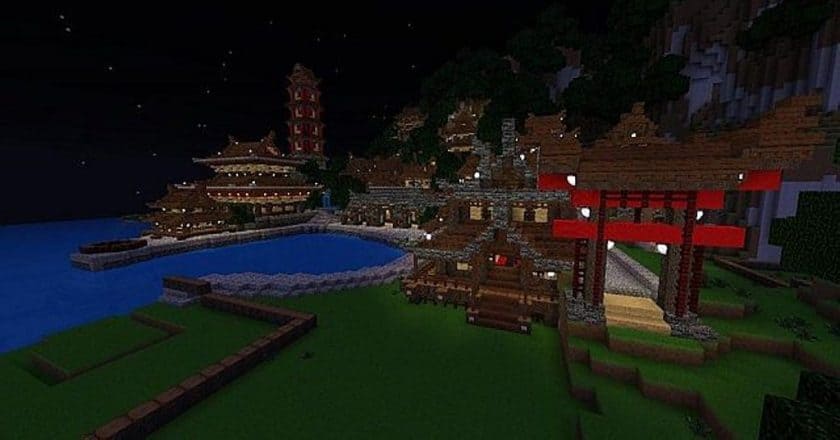
Woocraft – Screenshots & Videos
How to Install Texture Pack (Simple 10 Steps)
- Download Optifine: Most of the texture packs and shaders need Optifine. That’s why, first download and install Optifine for the version of Minecraft you want to play.
- Download the Texture Pack: Get the texture pack you want from the download section. Choose the version that works with your Minecraft and your PC’s performance.
- Open Minecraft Launcher: Start Minecraft using the official game launcher – or even TLauncher, if you use that.
- Go to Options: From the main menu, click on the “Options” button.
- Open Resource Packs: Inside Options, click on “Resource Packs…”.
- Open the Resource Pack Folder: Click on “Open Resource Pack Folder” – this will open a folder named “resourcepacks”.
- Move the Pack File: Copy or move the .zip file you downloaded into that “resourcepacks” folder. (Don’t unzip the file – Minecraft uses it as-is!)
- Go Back and Refresh: Close the folder and click “Done”, then go back into “Resource Packs…” again.
- Activate the Pack: You’ll see the pack on the left side. Hover over it and click the arrow to move it to the right (active side). Tip: If you get a message that the pack is for a different version, just click “Yes” – it usually works fine.
- Click Done and Enjoy: Click “Done” again. Now your pack is ready to use in-game. It’s that easy!
Download
(128x) (1.17.x) Download Woocraft Resource Pack
(128x) (1.10.x) Download Woocraft Resource Pack
(128x) (1.9.x) Download Woocraft Resource Pack
(128x) (1.8.x) Download Woocraft Resource Pack
(128x) (1.7.x – 1.6.x) Download Woocraft Resource Pack
(128x) (1.5.x) Download Woocraft Resource Pack
(128x) (1.4.x) Download Woocraft Resource Pack
Official links:
Check out the Woocraft Resource Pack on the official resource
Download Instructions
-
CurseForge: If the pack is hosted on CurseForge, the download will begin automatically after a few seconds. If it does not start, use the “Download” button shown on the page.
-
Modrinth: If the download is from Modrinth, click the file version that matches your Minecraft build, then press the Download button. Modrinth usually offers multiple releases, so make sure you pick the correct version before installing.
-
Mediafire: On Mediafire, click the large blue Download button to start the file download. Avoid any extra pop-ups or buttons that are not related to the direct download.
-
Google Drive: For Google Drive, click the small download icon at the top right corner of the page. It looks like a downward arrow. The file will be saved to your computer immediately.
Disclaimer We do not create or modify any of the texture packs or shader packs shared on this website. All credit goes to the original creators, and every download link we provide is the official link from their page, which keeps all downloads safe. Some links may stop working after updates, so if you find a broken one, let us know in the comments and we will update it quickly. If you like a pack, consider supporting the creator by visiting their official page or website that we have linked below, and feel free to leave a comment or vote to help their work reach more players.