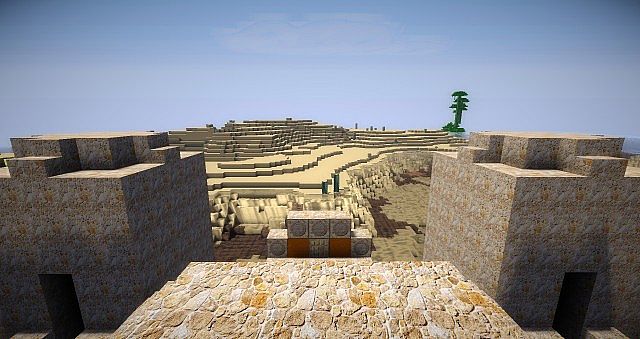
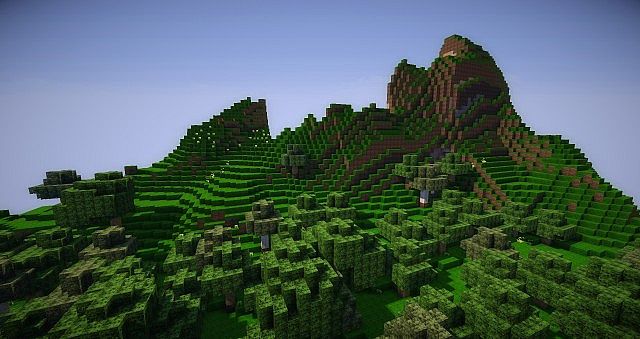
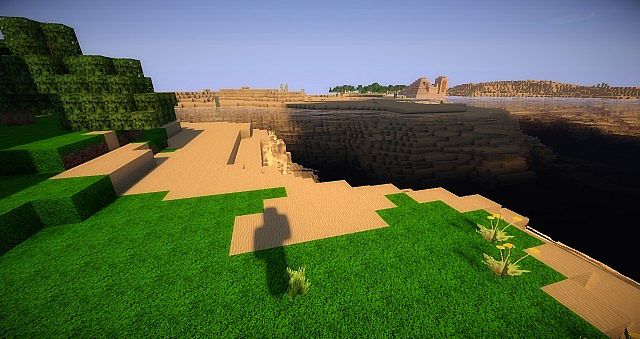
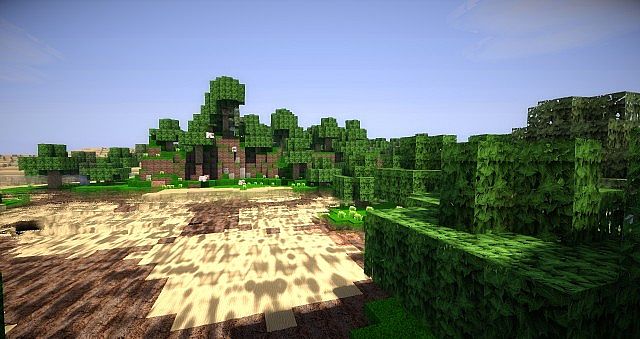
Intermacgod Realistic invites players into a profoundly transformed Minecraft world, where the familiar blocky landscapes take on an astonishing level of detail and immersion. This exceptional resource pack stands out by masterfully blending the essence of three renowned texture packs: LB Photo, Sphax PureBDCraft, and KoP Photo Realism. The result is a unique visual experience that doesn’t just enhance graphics but reimagines the entire game environment with a keen eye for realism and aesthetic appeal.
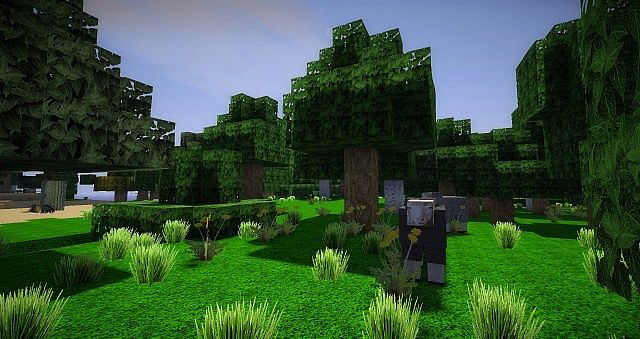
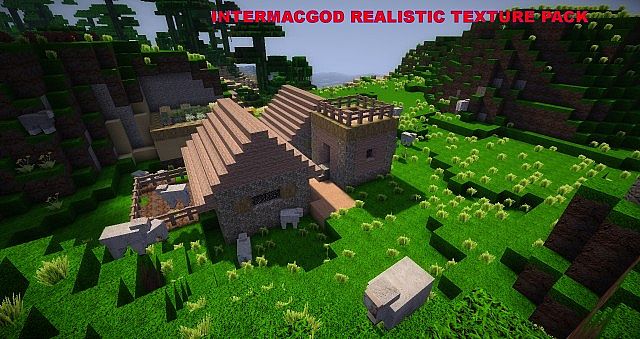
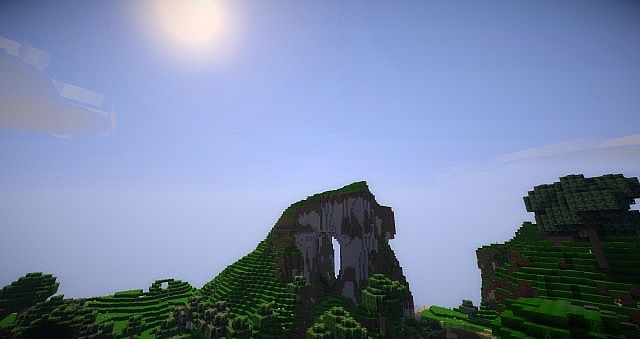
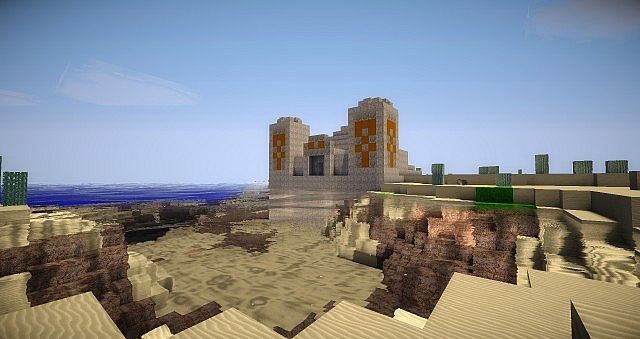
Exploring a world with Intermacgod Realistic feels like stepping into a high-definition painting. Trees gain intricate bark textures, water shimmers with newfound clarity, and distant mountains reveal more pronounced geological features. The pack excels in creating a palpable atmosphere, where lighting interacts more naturally with surfaces, casting softer shadows and illuminating scenes with a more believable glow. Whether you’re traversing a dense forest, delving into a cavern, or admiring a sunset over a sprawling plain, every vista is enriched with textures that feel organic and thoughtfully designed. The fusion of its influences means players can expect the sharp, defined edges of Sphax, the deep photographic realism of LB Photo, and the vibrant, artistic flair of KoP Photo Realism, all working in harmony.
One of the significant advantages of Intermacgod Realistic is its availability across multiple resolutions, ranging from 64x to an incredibly detailed 512x. This flexibility allows players to tailor their experience to their system’s capabilities, ensuring that whether you have a robust gaming rig or a more modest setup, you can still enjoy a substantial visual upgrade. The higher resolutions bring out truly breathtaking levels of fidelity, making individual leaves on trees and cobblestones underfoot appear incredibly distinct. This pack is not merely a graphical update; it’s an invitation to rediscover Minecraft through a fresh, realistic lens, making every building project, adventure, and moment of exploration feel more significant and visually stunning than ever before. It truly elevates the gameplay, making the world feel more tangible and alive.
| Minecraft Version | Compatibility |
|---|---|
| 1.8.1 | ✅ Supported |
| 1.8.6 | ✅ Supported |
| 1.8 | ✅ Supported |
| 1.7.10 | ✅ Supported |
| 1.7.9 | ✅ Supported |
| 1.7.4 | ✅ Supported |
| 1.7 | ✅ Supported |
| 1.6.4 | ✅ Supported |
| 1.6.2 | ✅ Supported |
Intermacgod Realistic – Screenshots & Videos
How to Install Texture Pack (Simple 10 Steps)
- Download Optifine: Most of the texture packs and shaders need Optifine. That’s why, first download and install Optifine for the version of Minecraft you want to play.
- Download the Texture Pack: Get the texture pack you want from the download section. Choose the version that works with your Minecraft and your PC’s performance.
- Open Minecraft Launcher: Start Minecraft using the official game launcher – or even TLauncher, if you use that.
- Go to Options: From the main menu, click on the “Options” button.
- Open Resource Packs: Inside Options, click on “Resource Packs…”.
- Open the Resource Pack Folder: Click on “Open Resource Pack Folder” – this will open a folder named “resourcepacks”.
- Move the Pack File: Copy or move the .zip file you downloaded into that “resourcepacks” folder. (Don’t unzip the file – Minecraft uses it as-is!)
- Go Back and Refresh: Close the folder and click “Done”, then go back into “Resource Packs…” again.
- Activate the Pack: You’ll see the pack on the left side. Hover over it and click the arrow to move it to the right (active side). Tip: If you get a message that the pack is for a different version, just click “Yes” – it usually works fine.
- Click Done and Enjoy: Click “Done” again. Now your pack is ready to use in-game. It’s that easy!
Download
(64x) (1.8) (1.7) Download Intermacgod Realistic Resource Pack
(128x) (1.8) (1.7) Download Intermacgod Realistic Resource Pack
(256x) (1.8) (1.7) Download Intermacgod Realistic Resource Pack
(512x) (1.8) (1.7) Download Intermacgod Realistic Resource Pack
Download Instructions
-
CurseForge: If the pack is hosted on CurseForge, the download will begin automatically after a few seconds. If it does not start, use the “Download” button shown on the page.
-
Modrinth: If the download is from Modrinth, click the file version that matches your Minecraft build, then press the Download button. Modrinth usually offers multiple releases, so make sure you pick the correct version before installing.
-
Mediafire: On Mediafire, click the large blue Download button to start the file download. Avoid any extra pop-ups or buttons that are not related to the direct download.
-
Google Drive: For Google Drive, click the small download icon at the top right corner of the page. It looks like a downward arrow. The file will be saved to your computer immediately.
Disclaimer We do not create or modify any of the texture packs or shader packs shared on this website. All credit goes to the original creators, and every download link we provide is the official link from their page, which keeps all downloads safe. Some links may stop working after updates, so if you find a broken one, let us know in the comments and we will update it quickly. If you like a pack, consider supporting the creator by visiting their official page or website that we have linked below, and feel free to leave a comment or vote to help their work reach more players.