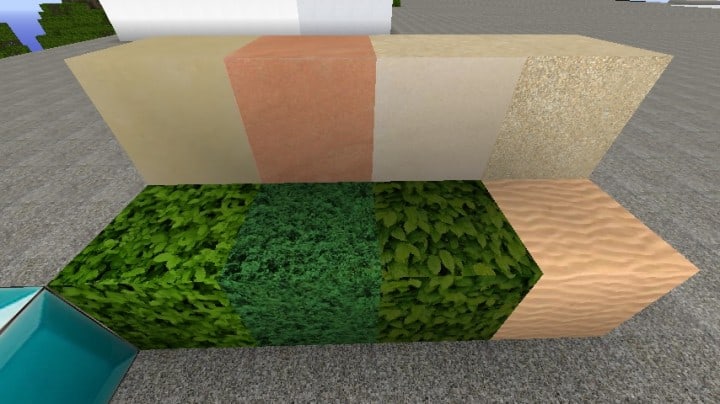
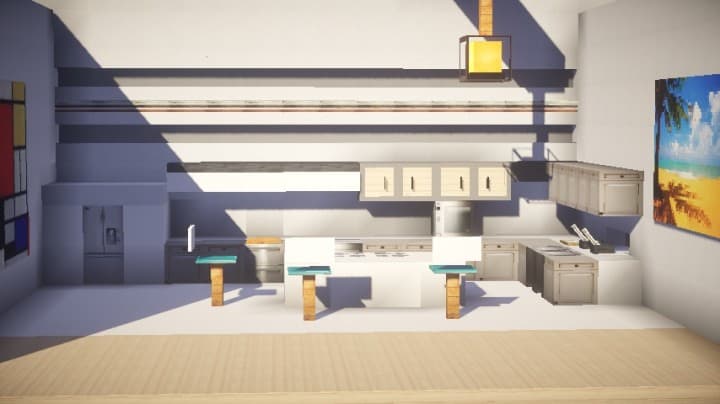
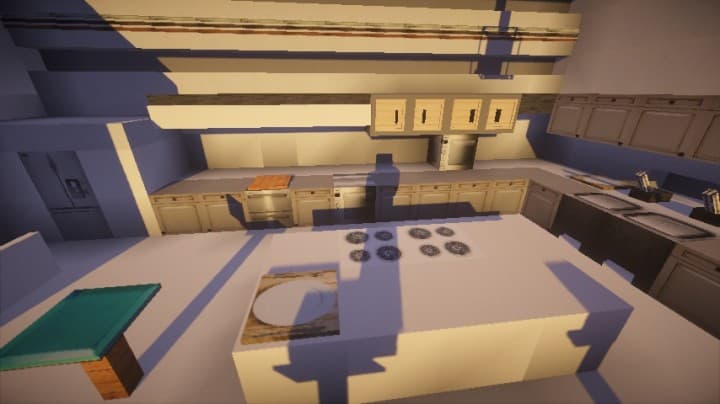
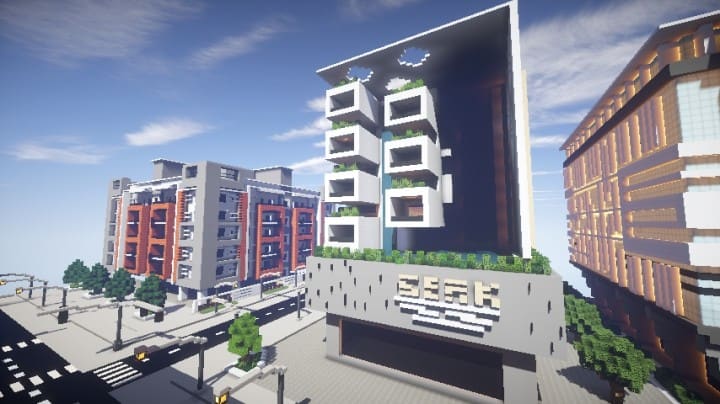
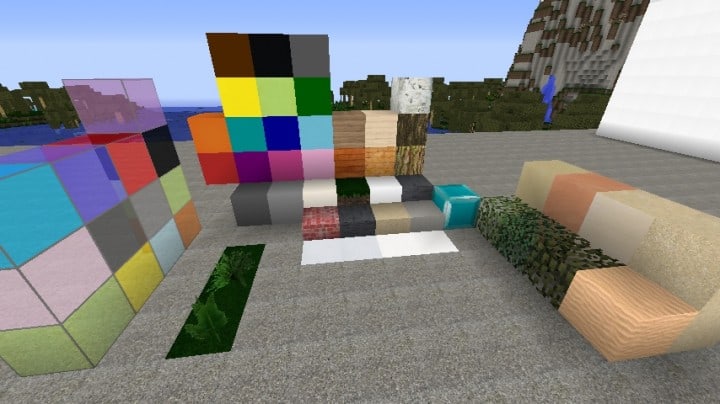
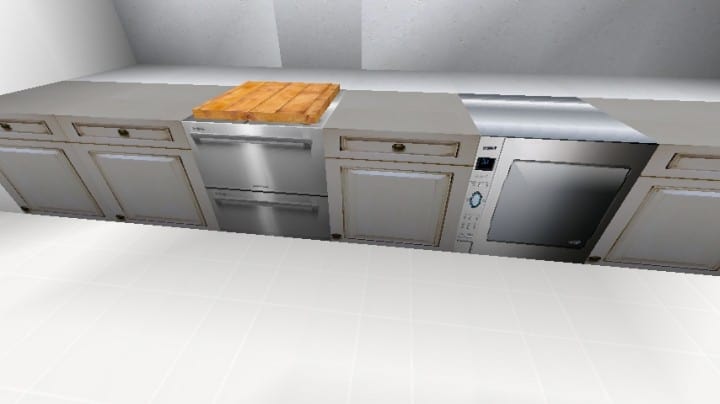
The Modern Real Pack offers an exciting vision for a contemporary Minecraft experience, meticulously transforming the blocky world into a sleek, functional environment. From the moment you step into a world enhanced by this pack, you’ll notice a significant shift in aesthetic. Gone are some of the rustic, default textures, replaced by designs that exude a clean, modern sensibility. The creator’s dedication to a truly ‘real’ modern feel is evident, as basic blocks cleverly become everyday household devices. Imagine crafting a kitchen where your furnace is a stylish oven, your crafting table a sleek countertop, or a laundry room complete with a washing machine and dryer, all seamlessly integrated into the game world.
While still a work in progress, the pack already feels remarkably cohesive and highly usable for anyone looking to build impressive contemporary structures. Whether you’re designing a minimalist apartment, a sprawling suburban home, or an urban skyscraper, the textures provide the perfect foundation. The visual vibe leans towards a smooth, polished finish, bringing a sense of order and sophisticated design to your builds. It encourages a different kind of architectural creativity, pushing players to think about modern interiors and exteriors. Despite its developmental stage, the pack’s core strengths lie in its clear artistic direction and the immediate impact it has on modern builds, making it a compelling choice for players seeking a fresh, up-to-date look for their Minecraft adventures. The attention to detail in transforming familiar elements into functional-looking appliances truly makes the world feel more lived-in and contemporary, even at an early stage of development.
| Minecraft Version | Compatibility |
|---|---|
| 1.8.1 | ✅ Supported |
| 1.8.6 | ✅ Supported |
| 1.8 | ✅ Supported |
| 1.7.10 | ✅ Supported |
| 1.7.9 | ✅ Supported |
| 1.7.4 | ✅ Supported |
| 1.7 | ✅ Supported |
Modern Real Pack – Screenshots
How to Install Texture Pack (Simple 10 Steps)
- Download Optifine: Most of the texture packs and shaders need Optifine. That’s why, first download and install Optifine for the version of Minecraft you want to play.
- Download the Texture Pack: Get the texture pack you want from the download section. Choose the version that works with your Minecraft and your PC’s performance.
- Open Minecraft Launcher: Start Minecraft using the official game launcher – or even TLauncher, if you use that.
- Go to Options: From the main menu, click on the “Options” button.
- Open Resource Packs: Inside Options, click on “Resource Packs…”.
- Open the Resource Pack Folder: Click on “Open Resource Pack Folder” – this will open a folder named “resourcepacks”.
- Move the Pack File: Copy or move the .zip file you downloaded into that “resourcepacks” folder. (Don’t unzip the file – Minecraft uses it as-is!)
- Go Back and Refresh: Close the folder and click “Done”, then go back into “Resource Packs…” again.
- Activate the Pack: You’ll see the pack on the left side. Hover over it and click the arrow to move it to the right (active side). Tip: If you get a message that the pack is for a different version, just click “Yes” – it usually works fine.
- Click Done and Enjoy: Click “Done” again. Now your pack is ready to use in-game. It’s that easy!
Download
(128x) (1.8) (1.7) Download Modern Real Resource Pack
- Please note: the pack is not yet fully ready for version 1.8+, but you can still use it in your 1.8+ world.
Download Instructions
-
CurseForge: If the pack is hosted on CurseForge, the download will begin automatically after a few seconds. If it does not start, use the “Download” button shown on the page.
-
Modrinth: If the download is from Modrinth, click the file version that matches your Minecraft build, then press the Download button. Modrinth usually offers multiple releases, so make sure you pick the correct version before installing.
-
Mediafire: On Mediafire, click the large blue Download button to start the file download. Avoid any extra pop-ups or buttons that are not related to the direct download.
-
Google Drive: For Google Drive, click the small download icon at the top right corner of the page. It looks like a downward arrow. The file will be saved to your computer immediately.
Disclaimer We do not create or modify any of the texture packs or shader packs shared on this website. All credit goes to the original creators, and every download link we provide is the official link from their page, which keeps all downloads safe. Some links may stop working after updates, so if you find a broken one, let us know in the comments and we will update it quickly. If you like a pack, consider supporting the creator by visiting their official page or website that we have linked below, and feel free to leave a comment or vote to help their work reach more players.