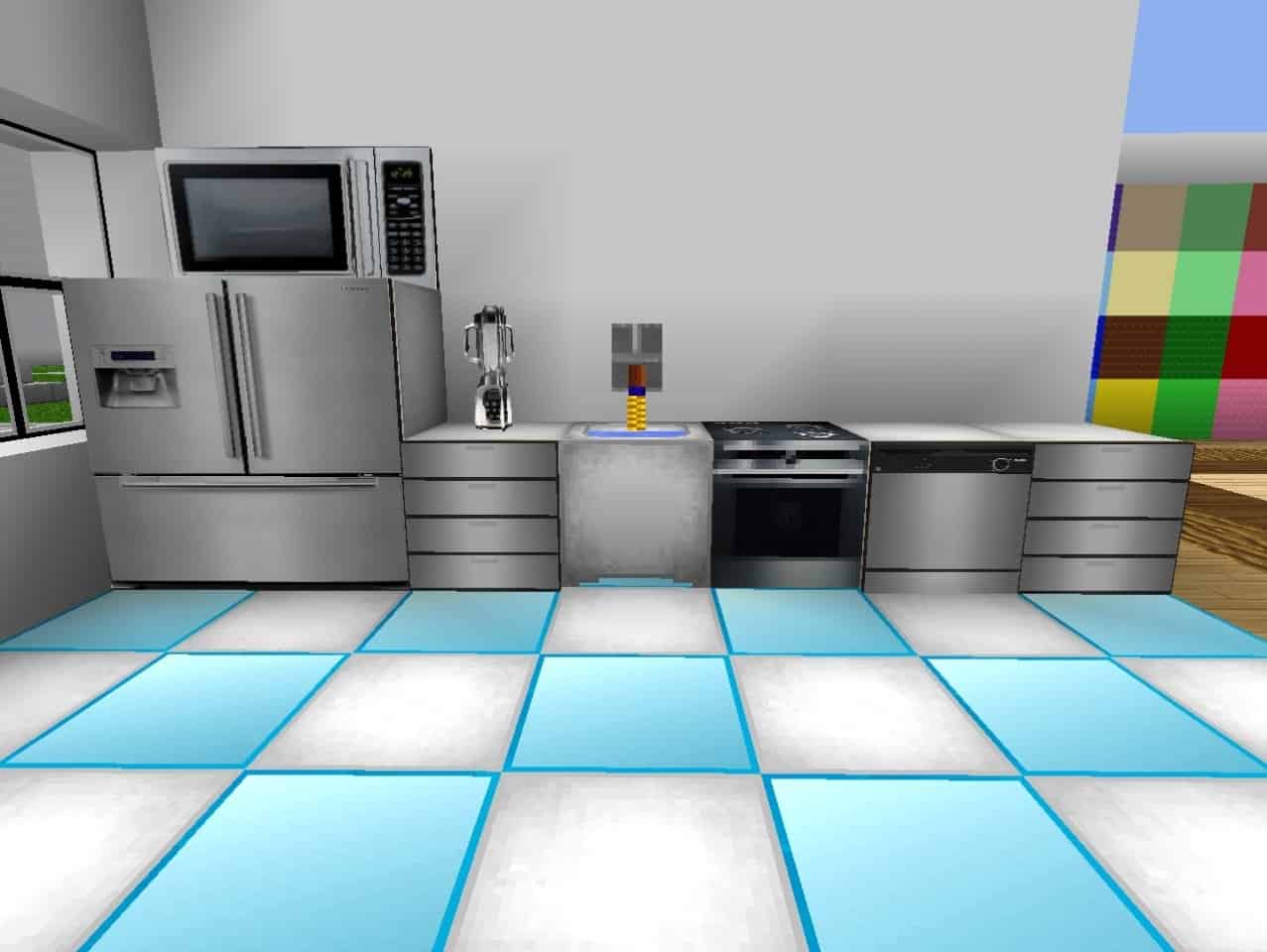
Stepping into a world transformed by Hokomoko’s Modern resource pack feels like a delightful departure from the usual Minecraft experience. While many packs lean into medieval fantasies or intricate high-resolution textures, Hokomoko’s Modern boldly carves out a niche focused on the sleek, familiar aesthetic of contemporary life. This isn’t about photorealism; it’s about infusing Minecraft’s inherent blockiness with a stylish, modern twist, making your virtual constructions feel truly up-to-date.
Released in February 2013 by the developer known as DaHokomoko or Hokomoko2332, this pack quickly became a fan favorite, garnering significant downloads for its refreshing concept. Although it hasn’t seen major updates in some time, the developer considers it 100% complete, a testament to its cohesive vision. The pack utilizes a modest 32x texture resolution, striking a perfect balance that maintains Minecraft’s classic feel while introducing fresh visuals. Performance-wise, it’s incredibly light; players should experience no noticeable impact on their framerates, making it a friendly choice even for those with older systems or for PVP. It also plays nicely with or without Optifine, simplifying installation.
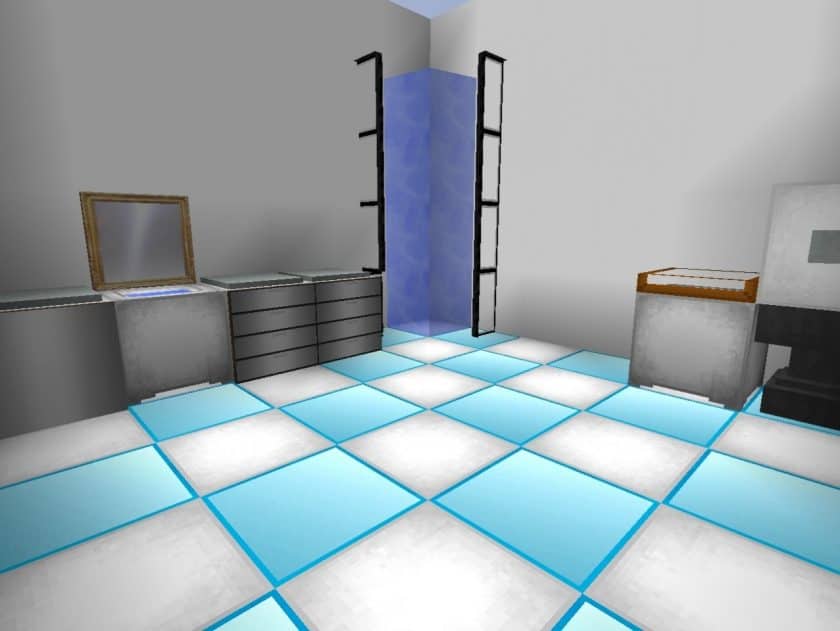
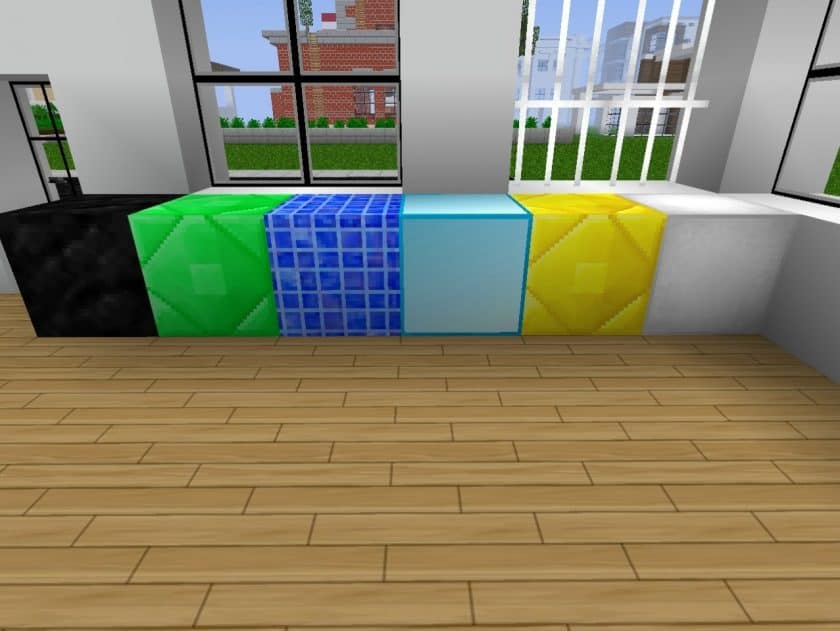
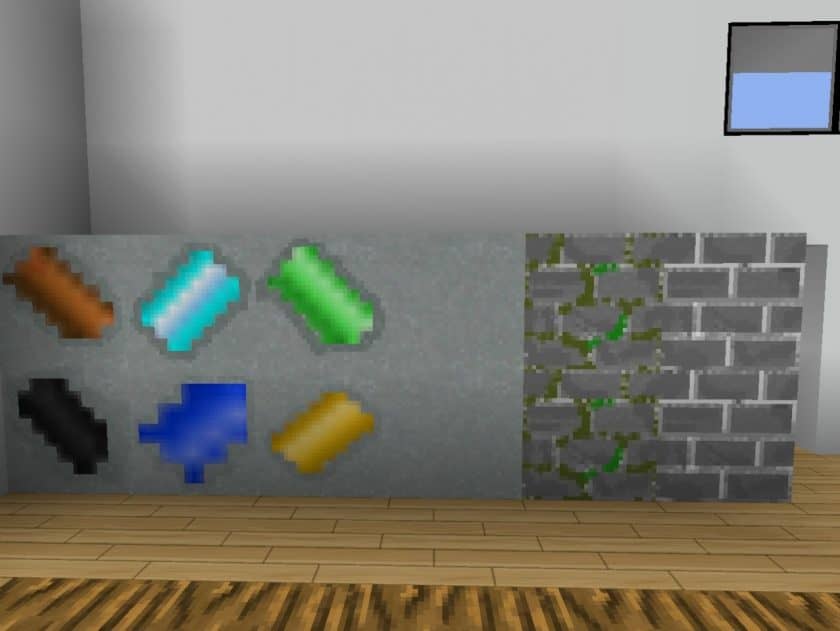
The true charm of Hokomoko’s Modern lies in its meticulously redesigned blocks and items. Imagine furnishing your home with modern electronics like sleek TVs and robust speakers, or outfitting your kitchen with contemporary appliances. Vending machines, stylish sofas, detailed bookcases, and new designs for beds, doors, and windows breathe life into your architectural endeavors. It’s an inspiring collection that empowers you to build authentic modern houses, transforming simple blocks into a functional and aesthetically pleasing urban landscape. However, the pack’s focus is sharply defined; it leaves the natural world-skies, water, clouds, mobs, foliage, and terrain-untouched, concentrating its efforts purely on the elements essential for crafting your modern dwelling. Even the in-game menus and HUD remain classic, highlighting the pack’s dedication to a core set of modern building and furnishing elements from an era when resource pack design was, arguably, a bit simpler but no less innovative.
| Minecraft Version | Compatibility |
|---|---|
| 1.8.9 | ✅ Supported |
| 1.8.8 | ✅ Supported |
| 1.8.1 | ✅ Supported |
| 1.8.6 | ✅ Supported |
| 1.8 | ✅ Supported |
| 1.7.10 | ✅ Supported |
| 1.7.9 | ✅ Supported |
| 1.7.4 | ✅ Supported |
| 1.7 | ✅ Supported |
Hokomoko’s Modern – Screenshots
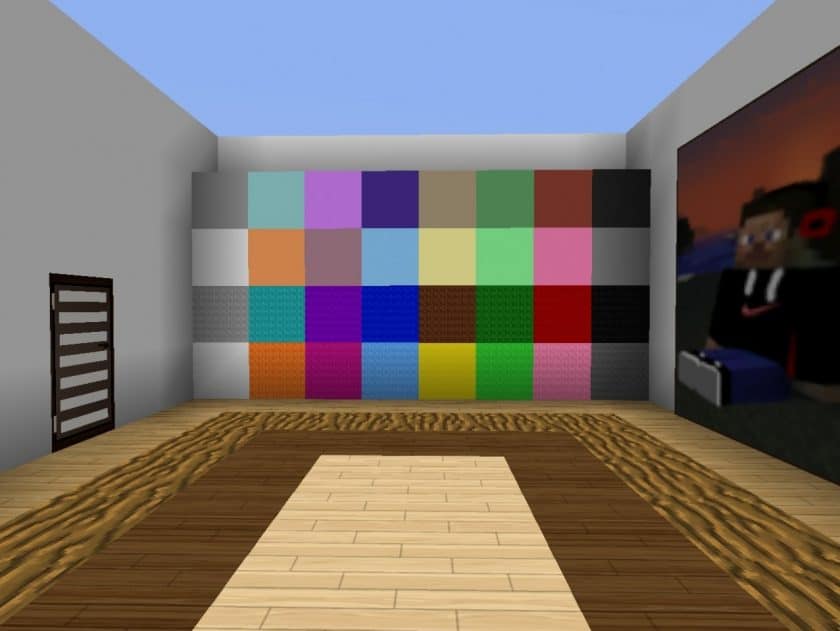
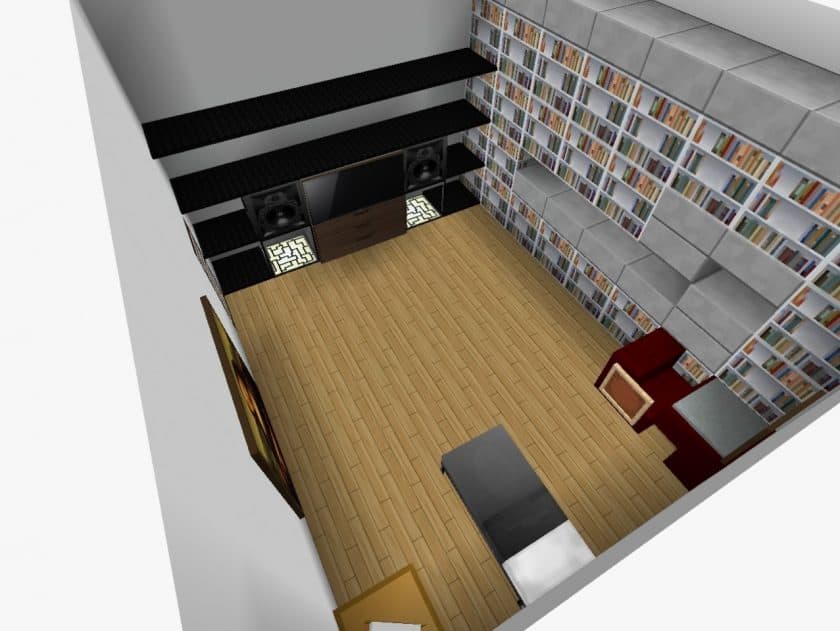
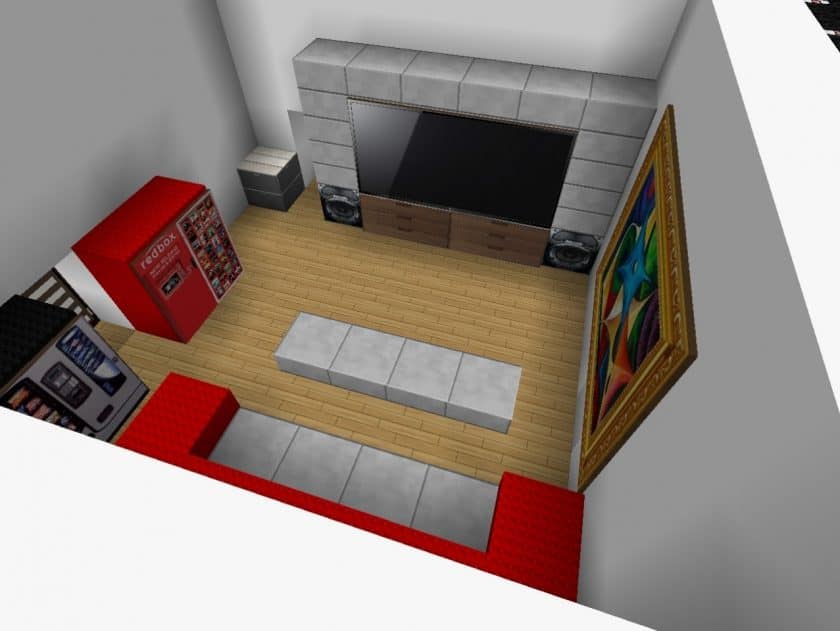
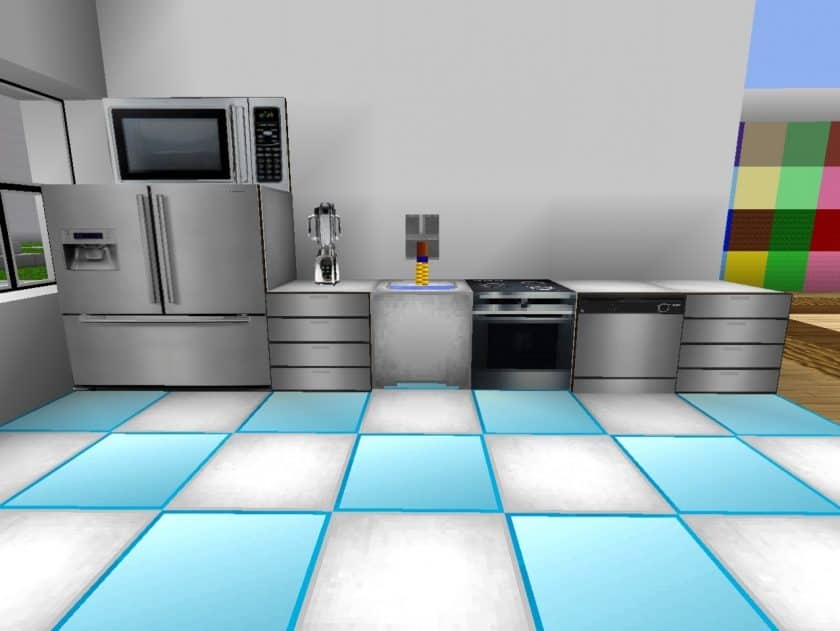
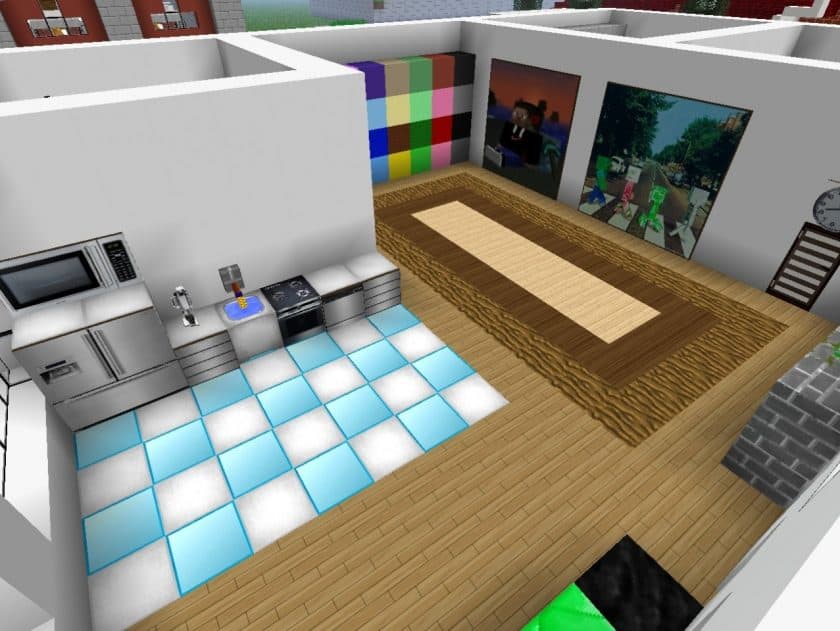
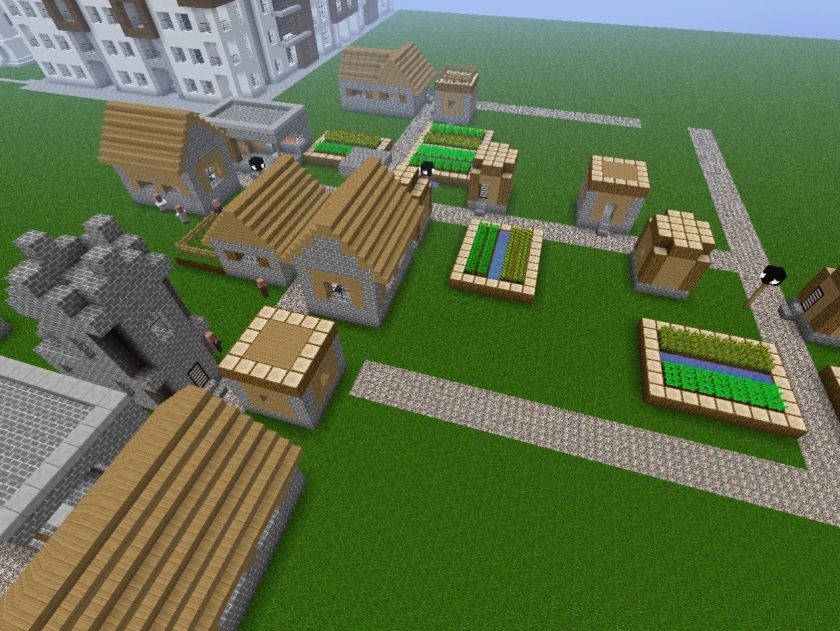
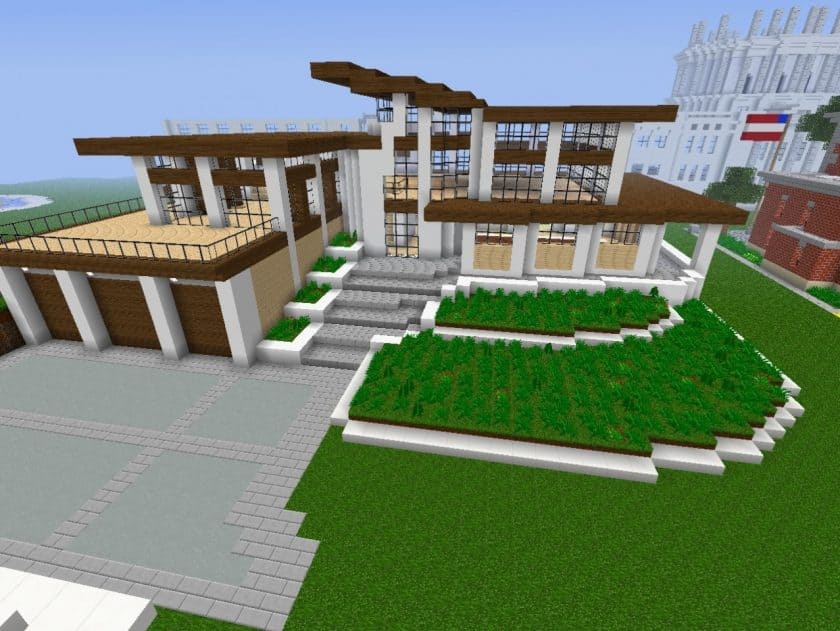
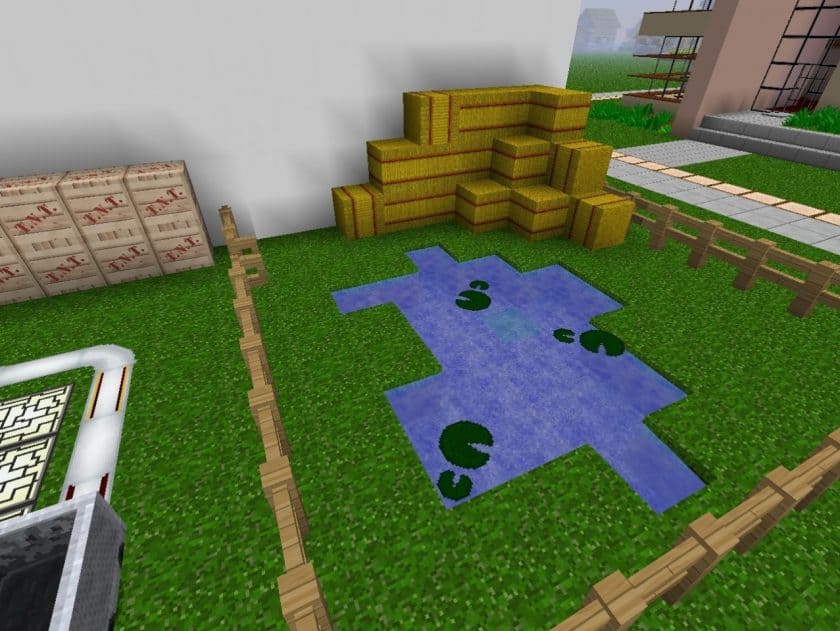
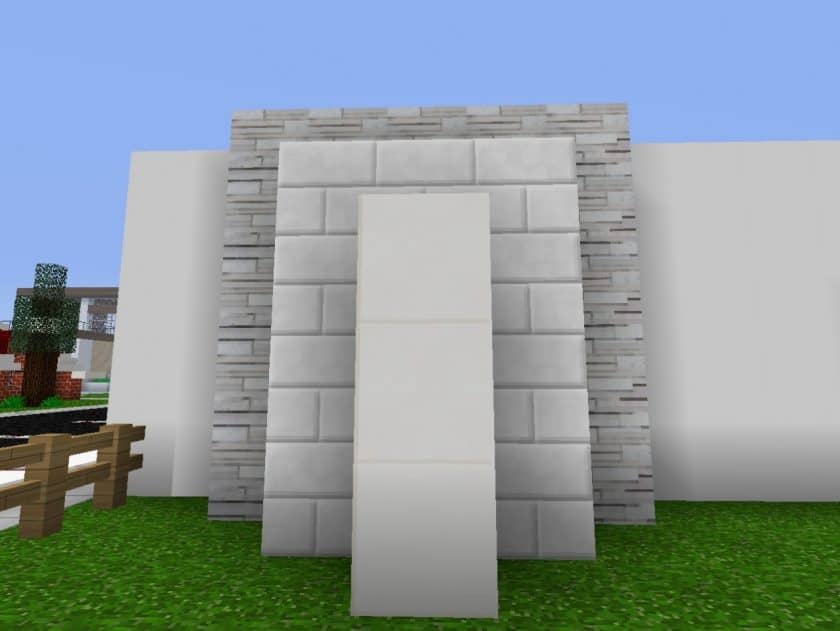
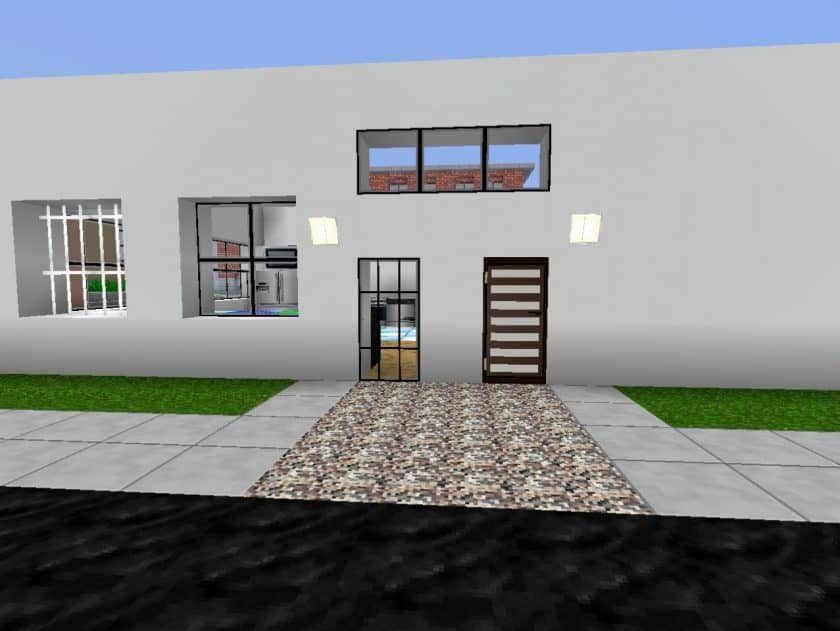
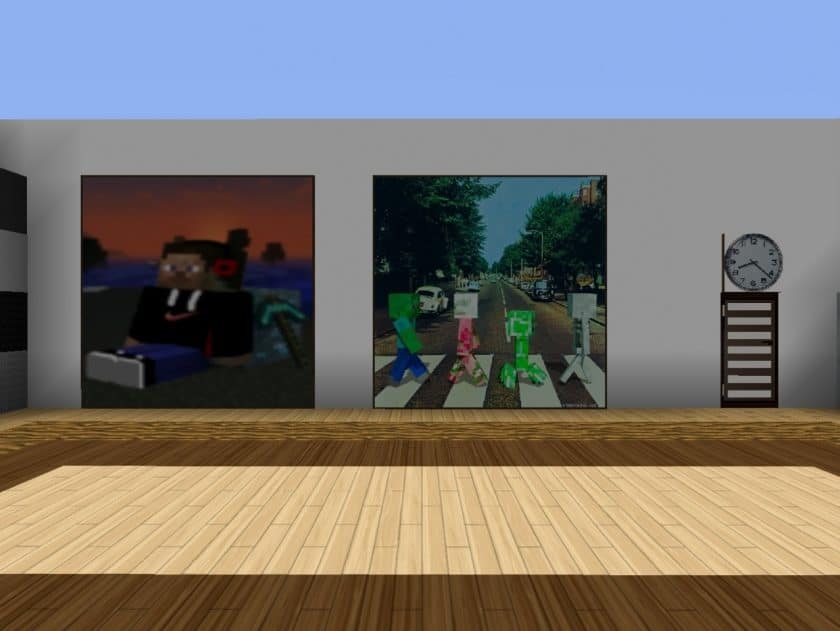
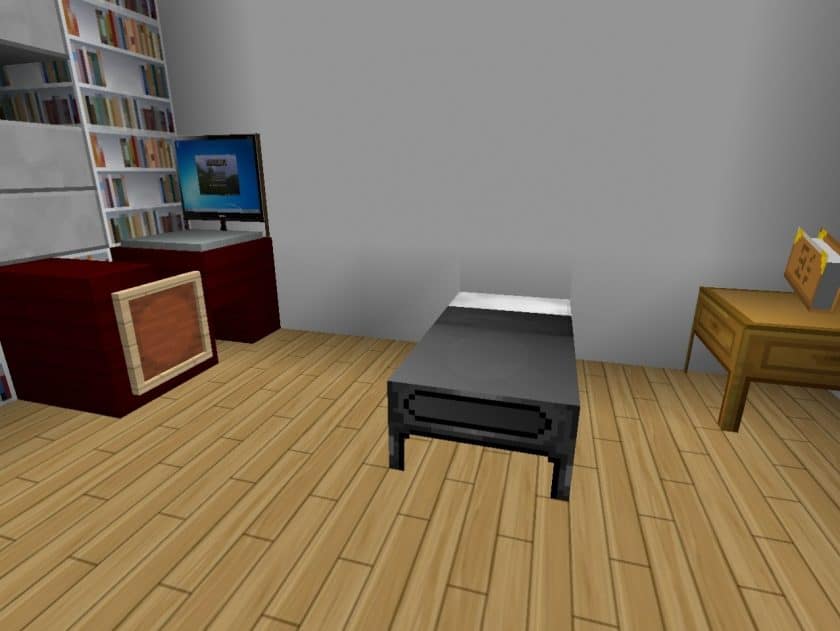
How to Install Texture Pack (Simple 10 Steps)
- Download Optifine: Most of the texture packs and shaders need Optifine. That’s why, first download and install Optifine for the version of Minecraft you want to play.
- Download the Texture Pack: Get the texture pack you want from the download section. Choose the version that works with your Minecraft and your PC’s performance.
- Open Minecraft Launcher: Start Minecraft using the official game launcher – or even TLauncher, if you use that.
- Go to Options: From the main menu, click on the “Options” button.
- Open Resource Packs: Inside Options, click on “Resource Packs…”.
- Open the Resource Pack Folder: Click on “Open Resource Pack Folder” – this will open a folder named “resourcepacks”.
- Move the Pack File: Copy or move the .zip file you downloaded into that “resourcepacks” folder. (Don’t unzip the file – Minecraft uses it as-is!)
- Go Back and Refresh: Close the folder and click “Done”, then go back into “Resource Packs…” again.
- Activate the Pack: You’ll see the pack on the left side. Hover over it and click the arrow to move it to the right (active side). Tip: If you get a message that the pack is for a different version, just click “Yes” – it usually works fine.
- Click Done and Enjoy: Click “Done” again. Now your pack is ready to use in-game. It’s that easy!
Download
Java Edition:
(32x) (1.8.x – 1.7.x) Download Hokomoko’s Modern Resource Pack
Download Instructions
-
CurseForge: If the pack is hosted on CurseForge, the download will begin automatically after a few seconds. If it does not start, use the “Download” button shown on the page.
-
Modrinth: If the download is from Modrinth, click the file version that matches your Minecraft build, then press the Download button. Modrinth usually offers multiple releases, so make sure you pick the correct version before installing.
-
Mediafire: On Mediafire, click the large blue Download button to start the file download. Avoid any extra pop-ups or buttons that are not related to the direct download.
-
Google Drive: For Google Drive, click the small download icon at the top right corner of the page. It looks like a downward arrow. The file will be saved to your computer immediately.
Disclaimer We do not create or modify any of the texture packs or shader packs shared on this website. All credit goes to the original creators, and every download link we provide is the official link from their page, which keeps all downloads safe. Some links may stop working after updates, so if you find a broken one, let us know in the comments and we will update it quickly. If you like a pack, consider supporting the creator by visiting their official page or website that we have linked below, and feel free to leave a comment or vote to help their work reach more players.