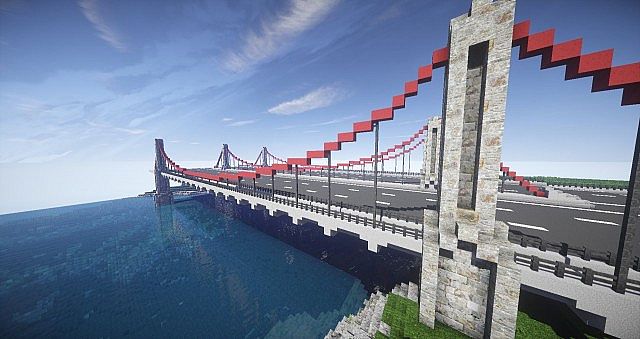
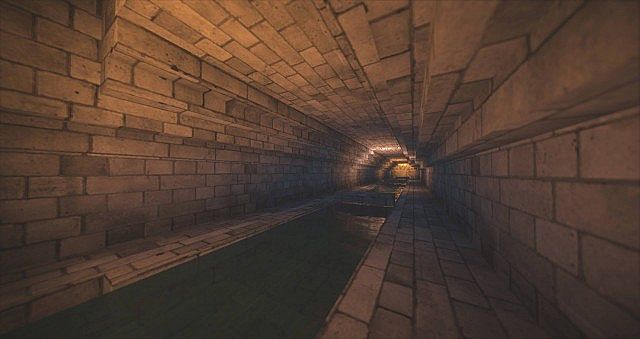
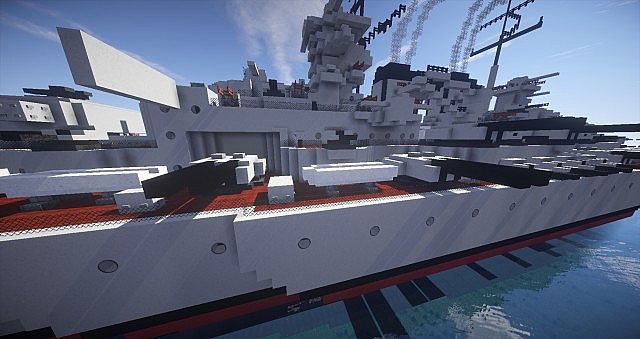
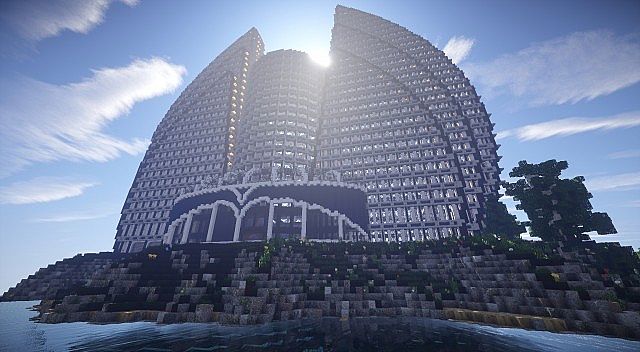
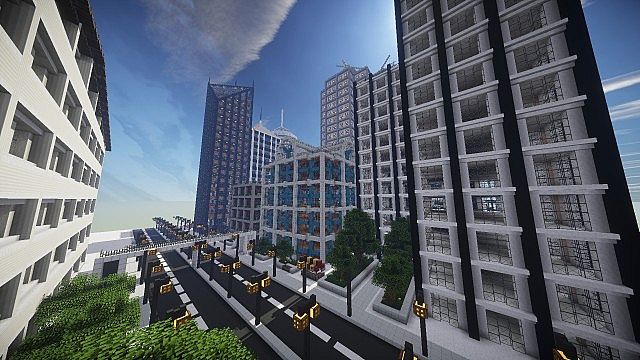
Stepping into a world powered by the LD Modern resource pack instantly transports you from the blocky, natural landscapes of vanilla Minecraft into a sleek, sophisticated urban environment. This isn’t just another texture overhaul; it’s a complete architectural reimagining, tailored specifically for players who dream of constructing sprawling metropolises, towering skyscrapers, and intricately designed contemporary spaces. The moment you begin exploring, you’ll notice how every block has been thoughtfully retextured to shed its rustic charm in favor of a clean, minimalist aesthetic. Imagine glass panes transforming into seamless, reflective curtain walls, stone blocks becoming polished concrete or brushed metal, and wooden planks taking on the appearance of refined laminates or industrial flooring. The color palette shifts towards cooler, more muted tones, creating a cohesive, almost futuristic feel that’s perfect for modern builds.
What truly sets LD Modern apart is its dedication to detail, making it an invaluable tool for urban planners and architects within Minecraft. Roads gain crisp, defined lines, giving your streets an authentic, organized look. Lighting takes on a more refined glow, perfect for illuminating sleek interiors and neon-lit cityscapes without feeling out of place. Even foliage and natural elements are subtly tweaked to complement the manufactured environment, ensuring that your parks and green spaces blend harmoniously with the surrounding concrete jungle. The 64x resolution strikes a fantastic balance, offering significantly more detail than standard Minecraft textures, resulting in sharp, defined visuals that are still optimized enough for a smooth gameplay experience on most systems. Whether you’re planning a massive city project, designing a minimalist modern home, or simply want to experience Minecraft with a distinctively contemporary flair, LD Modern delivers a truly immersive and inspiring visual foundation that encourages creativity and ambition.
| Minecraft Version | Compatibility |
|---|---|
| 1.8.1 | ✅ Supported |
| 1.8.6 | ✅ Supported |
| 1.8 | ✅ Supported |
| 1.7.10 | ✅ Supported |
| 1.7.9 | ✅ Supported |
| 1.7.4 | ✅ Supported |
| 1.7 | ✅ Supported |
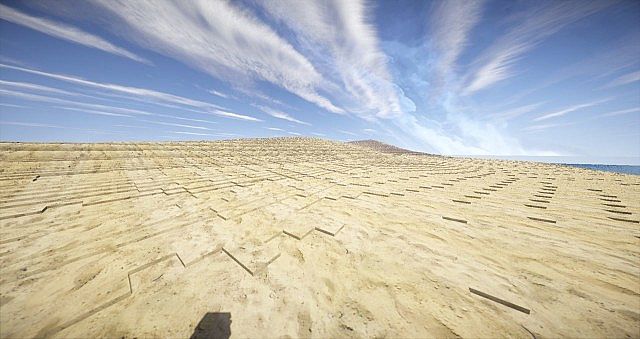
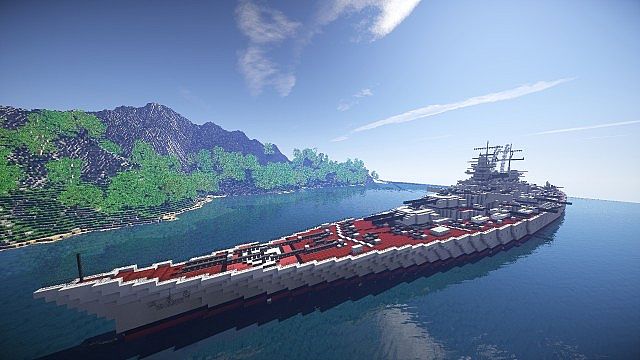
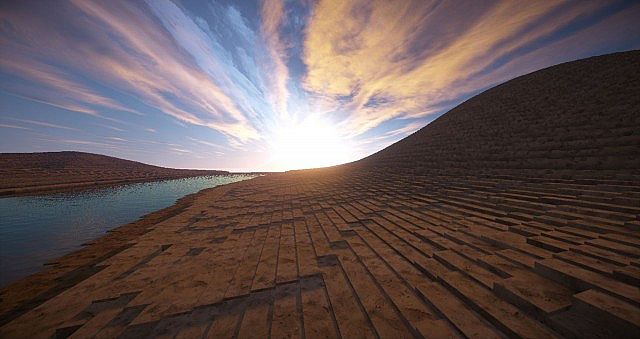
LD Modern – Screenshots
How to Install Texture Pack (Simple 10 Steps)
- Download Optifine: Most of the texture packs and shaders need Optifine. That’s why, first download and install Optifine for the version of Minecraft you want to play.
- Download the Texture Pack: Get the texture pack you want from the download section. Choose the version that works with your Minecraft and your PC’s performance.
- Open Minecraft Launcher: Start Minecraft using the official game launcher – or even TLauncher, if you use that.
- Go to Options: From the main menu, click on the “Options” button.
- Open Resource Packs: Inside Options, click on “Resource Packs…”.
- Open the Resource Pack Folder: Click on “Open Resource Pack Folder” – this will open a folder named “resourcepacks”.
- Move the Pack File: Copy or move the .zip file you downloaded into that “resourcepacks” folder. (Don’t unzip the file – Minecraft uses it as-is!)
- Go Back and Refresh: Close the folder and click “Done”, then go back into “Resource Packs…” again.
- Activate the Pack: You’ll see the pack on the left side. Hover over it and click the arrow to move it to the right (active side). Tip: If you get a message that the pack is for a different version, just click “Yes” – it usually works fine.
- Click Done and Enjoy: Click “Done” again. Now your pack is ready to use in-game. It’s that easy!
Download
(64x) (1.8) (1.7) Download LD Modern Resource Pack
Download Instructions
-
CurseForge: If the pack is hosted on CurseForge, the download will begin automatically after a few seconds. If it does not start, use the “Download” button shown on the page.
-
Modrinth: If the download is from Modrinth, click the file version that matches your Minecraft build, then press the Download button. Modrinth usually offers multiple releases, so make sure you pick the correct version before installing.
-
Mediafire: On Mediafire, click the large blue Download button to start the file download. Avoid any extra pop-ups or buttons that are not related to the direct download.
-
Google Drive: For Google Drive, click the small download icon at the top right corner of the page. It looks like a downward arrow. The file will be saved to your computer immediately.
Disclaimer We do not create or modify any of the texture packs or shader packs shared on this website. All credit goes to the original creators, and every download link we provide is the official link from their page, which keeps all downloads safe. Some links may stop working after updates, so if you find a broken one, let us know in the comments and we will update it quickly. If you like a pack, consider supporting the creator by visiting their official page or website that we have linked below, and feel free to leave a comment or vote to help their work reach more players.