Stepping into a Minecraft world with the Forgotten Memories Resource Pack is like stumbling upon a forgotten realm, drenched in an unsettling quiet and a palpable sense of dread. This pack wasn’t just made for general gameplay; it was meticulously crafted to amplify the chilling narrative of its namesake horror map, and it succeeds spectacularly. From the moment you load it, the familiar blocky landscapes of Minecraft are transformed into something far more sinister and atmospheric.
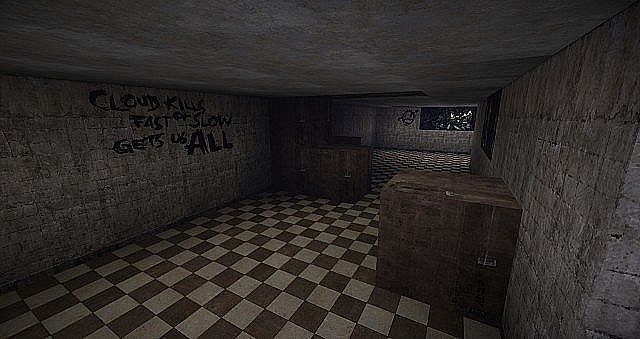
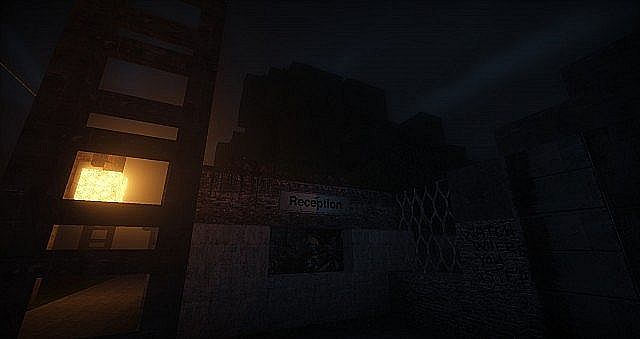
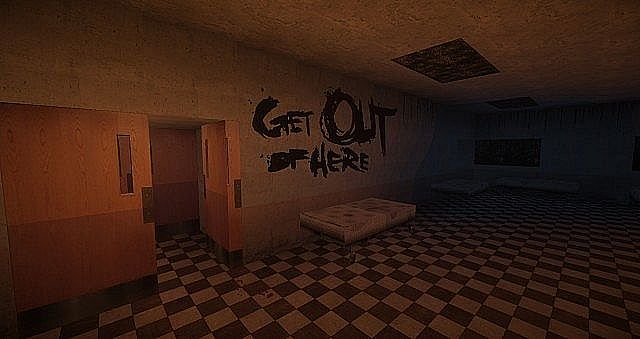
The visual style leans heavily into decay and abandonment, painting a picture of a world where life has long since retreated, leaving only the echoes of tragedy. Crumbling stone textures, faded wood, and discolored foliage create an environment that feels ancient and neglected. Exploring the desolate expanses, you’ll encounter textures that bring to life a grim reality: abandoned structures with peeling paint, cracked pavements, and ominous graffiti scrawled on decaying walls. The artist’s attention to detail is evident in every brick and block, ensuring that even the most mundane elements contribute to the overall unsettling mood.
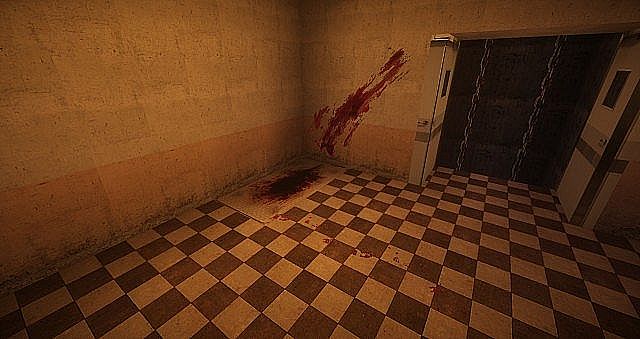
What truly sets Forgotten Memories apart is its ability to evoke a profound sense of isolation and vulnerability. The muted color palette, dominated by grays, browns, and dark greens, drains the world of its vibrancy, leaving behind a grim, washed-out aesthetic. This isn’t just about making things look “scary”; it’s about building an atmosphere where every shadow seems to hold a secret, and every distant sound could be a threat. The bloodstains and other macabre details are subtle enough not to be overly gratuitous but potent enough to reinforce the horror theme, hinting at untold stories within the abandoned wastelands. Whether you’re navigating claustrophobic corridors or traversing vast, empty plains, the pack ensures a consistent, high-quality visual experience that deepens the immersion into its terrifying narrative. While specific performance impacts aren’t detailed, the availability of resolutions like 64x, 128x, and 256x suggests options for various system capabilities, allowing players to tailor the visual fidelity to their setup while maintaining the core atmospheric experience.
| Minecraft Version | Compatibility |
|---|---|
| 1.8.1 | ✅ Supported |
| 1.7.10 | ✅ Supported |
| 1.7.9 | ✅ Supported |
| 1.7.4 | ✅ Supported |
| 1.7 | ✅ Supported |
| 1.6.4 | ✅ Supported |
| 1.6.2 | ✅ Supported |
Forgotten Memories Resource Pack – Screenshots
How to Install Texture Pack (Simple 10 Steps)
- Download Optifine: Most of the texture packs and shaders need Optifine. That’s why, first download and install Optifine for the version of Minecraft you want to play.
- Download the Texture Pack: Get the texture pack you want from the download section. Choose the version that works with your Minecraft and your PC’s performance.
- Open Minecraft Launcher: Start Minecraft using the official game launcher – or even TLauncher, if you use that.
- Go to Options: From the main menu, click on the “Options” button.
- Open Resource Packs: Inside Options, click on “Resource Packs…”.
- Open the Resource Pack Folder: Click on “Open Resource Pack Folder” – this will open a folder named “resourcepacks”.
- Move the Pack File: Copy or move the .zip file you downloaded into that “resourcepacks” folder. (Don’t unzip the file – Minecraft uses it as-is!)
- Go Back and Refresh: Close the folder and click “Done”, then go back into “Resource Packs…” again.
- Activate the Pack: You’ll see the pack on the left side. Hover over it and click the arrow to move it to the right (active side). Tip: If you get a message that the pack is for a different version, just click “Yes” – it usually works fine.
- Click Done and Enjoy: Click “Done” again. Now your pack is ready to use in-game. It’s that easy!
Download
(256x) (1.7) (1.6) Download Forgotten Memories Resource Pack
(64x) (128x) (1.7) (1.6) Download Forgotten Memories Resource Pack
Download Instructions
-
CurseForge: If the pack is hosted on CurseForge, the download will begin automatically after a few seconds. If it does not start, use the “Download” button shown on the page.
-
Modrinth: If the download is from Modrinth, click the file version that matches your Minecraft build, then press the Download button. Modrinth usually offers multiple releases, so make sure you pick the correct version before installing.
-
Mediafire: On Mediafire, click the large blue Download button to start the file download. Avoid any extra pop-ups or buttons that are not related to the direct download.
-
Google Drive: For Google Drive, click the small download icon at the top right corner of the page. It looks like a downward arrow. The file will be saved to your computer immediately.
Disclaimer We do not create or modify any of the texture packs or shader packs shared on this website. All credit goes to the original creators, and every download link we provide is the official link from their page, which keeps all downloads safe. Some links may stop working after updates, so if you find a broken one, let us know in the comments and we will update it quickly. If you like a pack, consider supporting the creator by visiting their official page or website that we have linked below, and feel free to leave a comment or vote to help their work reach more players.