Stepping into a world powered by the Feathercloud ULTRA resource pack feels like rediscovering the familiar landscapes of Minecraft through a freshly polished lens. Unlike packs that aim for a complete overhaul, Feathercloud ULTRA beautifully preserves the iconic blocky aesthetic we all know and love, while subtly elevating every visual detail to a new level of clarity and vibrancy. Developed with meticulous care by Jnaejnae, this HD version takes the essence of Minecraft and refines it, transforming ordinary textures into something simply amazing.
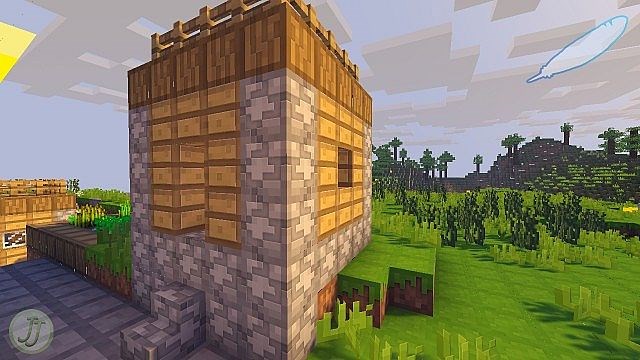
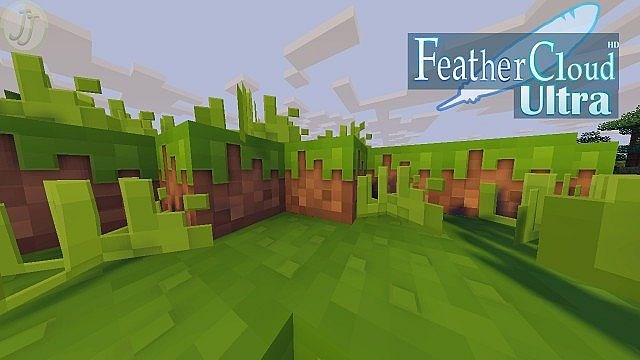
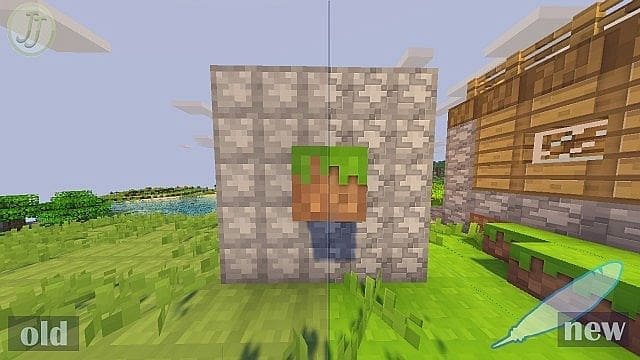
Exploring biomes with Feathercloud ULTRA installed is a delight. The pack operates at a crisp x128 resolution, an impressive eight times the vanilla standard, yet it manages to maintain the core identity of the game. What you notice isn’t a radical departure, but rather an enhanced richness. Each block appears smoother, losing those harsh, pixelated edges without sacrificing its characteristic shape. The color palette also receives a thoughtful refresh; grassy plains glow with a refreshing lime green, and dirt takes on a richer, more earthen hue, giving the world a livelier, more inviting feel. This vibrant transformation extends across hundreds of textures, further accentuated by the removal of the dark borders that typically outline blocks, leading to a more seamless visual flow.
Beyond the environmental textures, Feathercloud ULTRA also introduces subtle enhancements like muted custom fonts and an improved player HUD, ensuring that the entire in-game experience feels cohesive and premium. Jnaejnae’s dedication is evident, with over 70% of the game’s textures receiving this careful modification. While Feathercloud ULTRA shines brightly on its own, delivering a stunning visual upgrade with its smooth textures and vibrant colors, players seeking to push the boundaries further might consider pairing it with a shader pack. However, it’s worth noting that due to its x128 resolution, the pack is already quite resource-intensive, so combining it with shaders might impact performance, especially on less powerful systems. Nonetheless, the visual reward is often well worth the consideration for those chasing the ultimate Minecraft aesthetic.
| Minecraft Version | Compatibility |
|---|---|
| 1.12.2 | ✅ Supported |
| 1.12 | ✅ Supported |
| 1.11.2 | ✅ Supported |
| 1.11 | ✅ Supported |
| 1.10.2 | ✅ Supported |
| 1.10 | ✅ Supported |
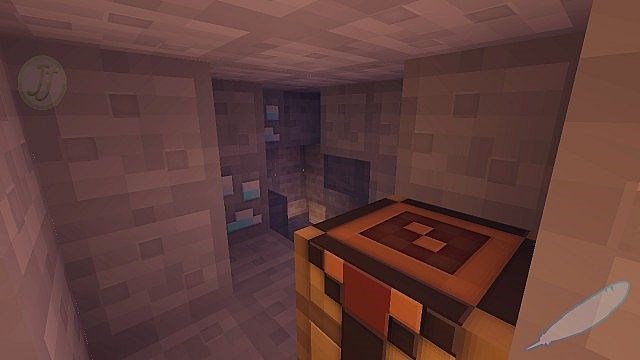
Feathercloud Resource Pack – Screenshots & Videos
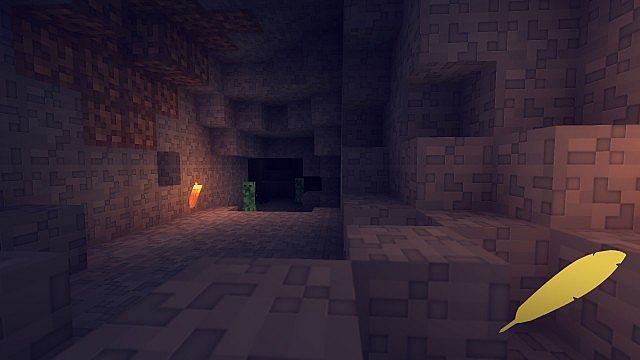
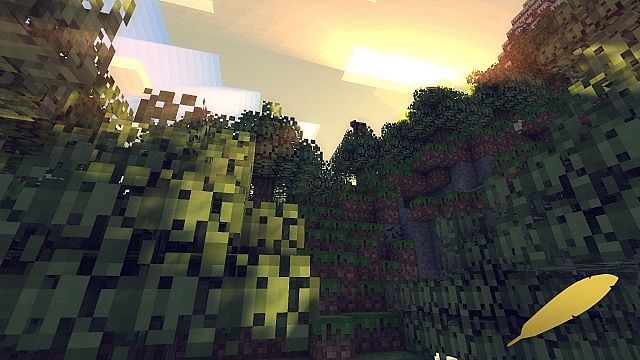
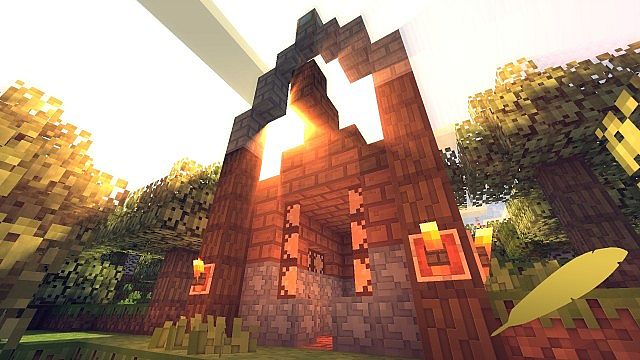
How to Install Texture Pack (Simple 10 Steps)
- Download Optifine: Most of the texture packs and shaders need Optifine. That’s why, first download and install Optifine for the version of Minecraft you want to play.
- Download the Texture Pack: Get the texture pack you want from the download section. Choose the version that works with your Minecraft and your PC’s performance.
- Open Minecraft Launcher: Start Minecraft using the official game launcher – or even TLauncher, if you use that.
- Go to Options: From the main menu, click on the “Options” button.
- Open Resource Packs: Inside Options, click on “Resource Packs…”.
- Open the Resource Pack Folder: Click on “Open Resource Pack Folder” – this will open a folder named “resourcepacks”.
- Move the Pack File: Copy or move the .zip file you downloaded into that “resourcepacks” folder. (Don’t unzip the file – Minecraft uses it as-is!)
- Go Back and Refresh: Close the folder and click “Done”, then go back into “Resource Packs…” again.
- Activate the Pack: You’ll see the pack on the left side. Hover over it and click the arrow to move it to the right (active side). Tip: If you get a message that the pack is for a different version, just click “Yes” – it usually works fine.
- Click Done and Enjoy: Click “Done” again. Now your pack is ready to use in-game. It’s that easy!
Download
(128x) (1.12.x – 1.10.x) Download Feathercloud Resource Pack
Download Instructions
-
CurseForge: If the pack is hosted on CurseForge, the download will begin automatically after a few seconds. If it does not start, use the “Download” button shown on the page.
-
Modrinth: If the download is from Modrinth, click the file version that matches your Minecraft build, then press the Download button. Modrinth usually offers multiple releases, so make sure you pick the correct version before installing.
-
Mediafire: On Mediafire, click the large blue Download button to start the file download. Avoid any extra pop-ups or buttons that are not related to the direct download.
-
Google Drive: For Google Drive, click the small download icon at the top right corner of the page. It looks like a downward arrow. The file will be saved to your computer immediately.
Disclaimer We do not create or modify any of the texture packs or shader packs shared on this website. All credit goes to the original creators, and every download link we provide is the official link from their page, which keeps all downloads safe. Some links may stop working after updates, so if you find a broken one, let us know in the comments and we will update it quickly. If you like a pack, consider supporting the creator by visiting their official page or website that we have linked below, and feel free to leave a comment or vote to help their work reach more players.