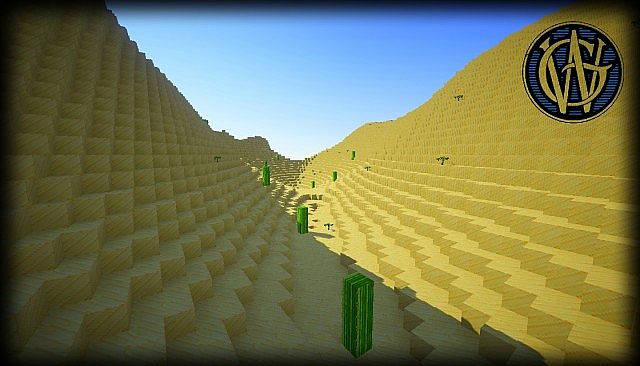
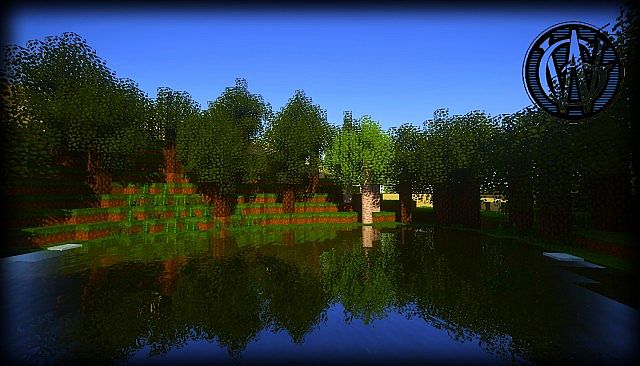
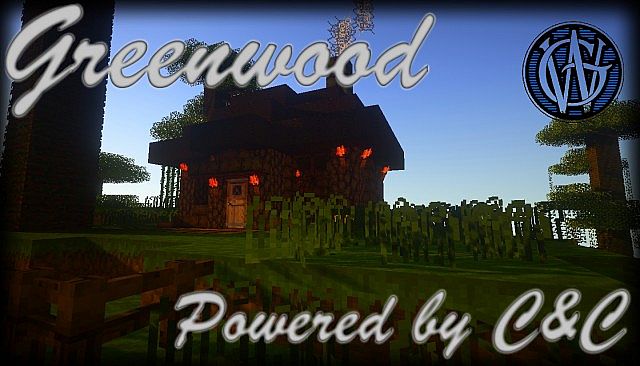
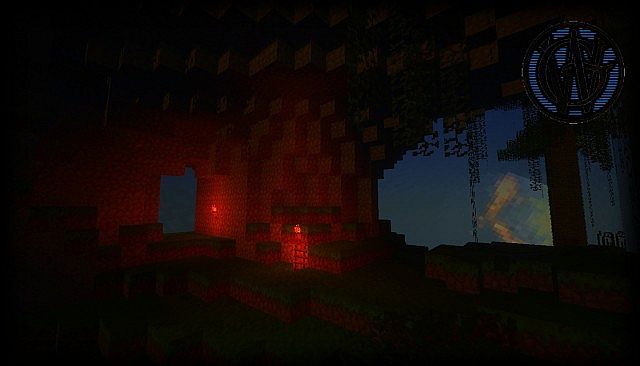
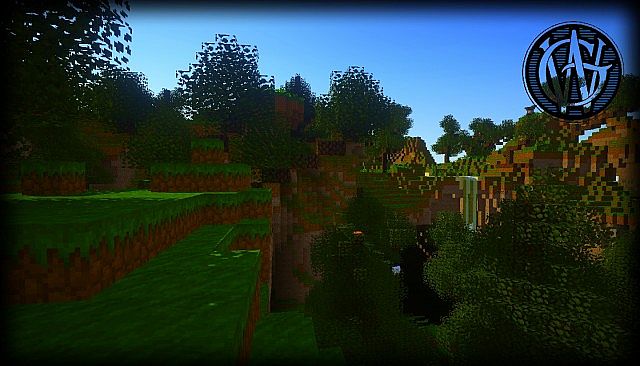
Stepping into a Minecraft world enhanced by the Greenwood Resource Pack feels like discovering a vibrant, untouched corner of nature, reimagined with a delightful palette. Crafted by dat_tree_gaming, this pack immediately strikes you with its “nice looking and very colorful textures,” living up to its name by infusing the blocky landscapes with a fresh, verdant essence. It’s a journey into a world where every tree, every patch of grass, and every flower bursts with renewed life, painting the familiar biomes with an inviting warmth.
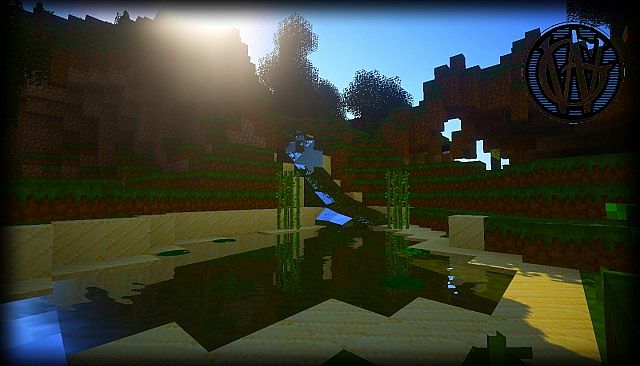
The charm of Greenwood lies in its ability to uplift the vanilla Minecraft aesthetic without straying too far from its roots. While it promises a “colorful” experience, it does so with a thoughtful hand, ensuring that the vibrancy feels natural and integrated, rather than overwhelming. You’ll notice how the sunlight catches the leaves with a richer glow, how water shimmers with clearer reflections, and how the various blocks, from cobblestone to crafting tables, receive a subtle yet impactful visual upgrade. This isn’t about radically altering the game’s identity, but rather polishing it to a brilliant sheen, making every exploration more engaging and every build more picturesque.
Related Articles:
• Simplex Resource Pack
• Vogpack HD Resource Pack
• Digs Simple Resource Pack
For players who appreciate a resource pack that maintains the classic 16x resolution, Greenwood is an excellent choice. This standard resolution means you can expect smooth performance across a wide range of systems, allowing you to dive into its beautiful world without worrying about demanding hardware. It’s perfect for those seeking a visually refreshed experience that remains true to Minecraft’s foundational look, yet feels distinctly more alive and appealing. Whether you’re constructing an elaborate base, venturing into uncharted territories, or simply enjoying the peaceful rhythm of the Minecraft day-night cycle, Greenwood provides a consistently pleasing backdrop. Its cohesive style and cheerful atmosphere make it a fantastic companion for any player looking to inject more color and personality into their blocky adventures, transforming the mundane into something truly memorable.
| Minecraft Version | Compatibility |
|---|---|
| 1.7.10 | ✅ Supported |
| 1.7.9 | ✅ Supported |
| 1.7.4 | ✅ Supported |
| 1.7 | ✅ Supported |
| 1.6.4 | ✅ Supported |
| 1.6.2 | ✅ Supported |
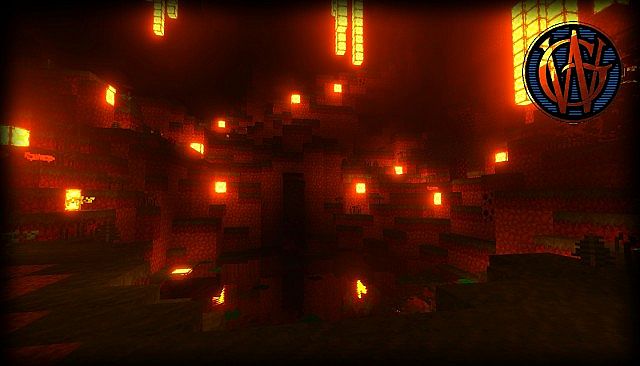
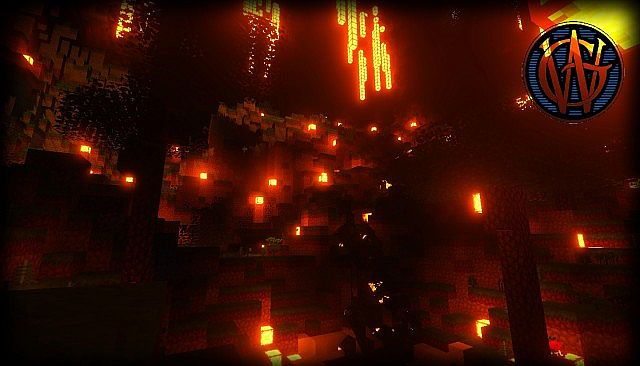
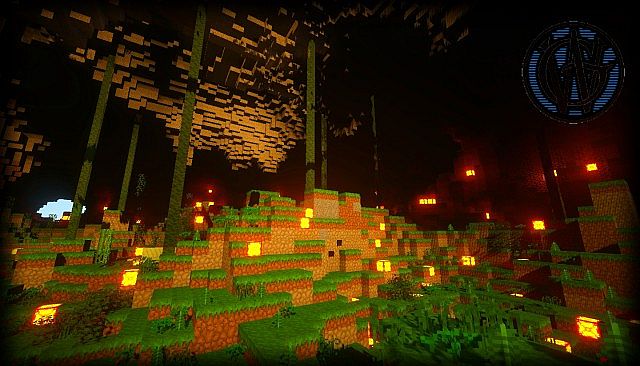
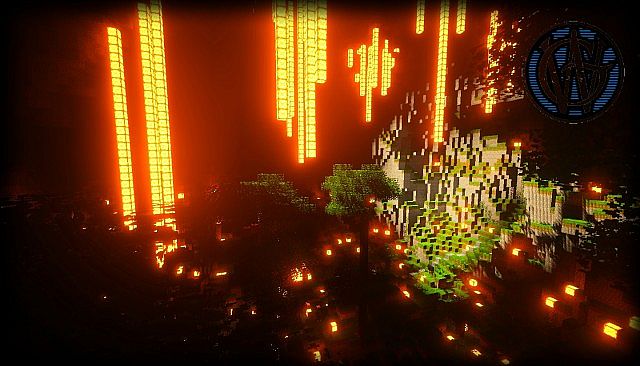
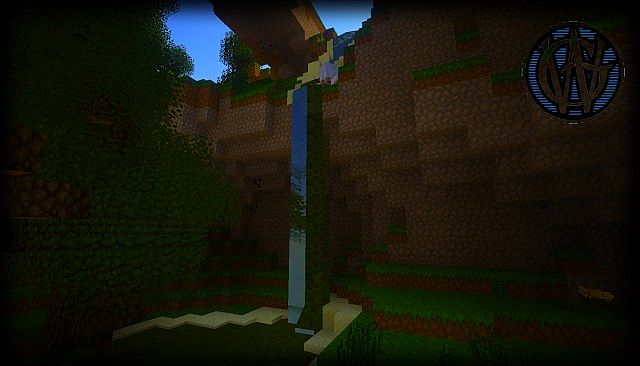
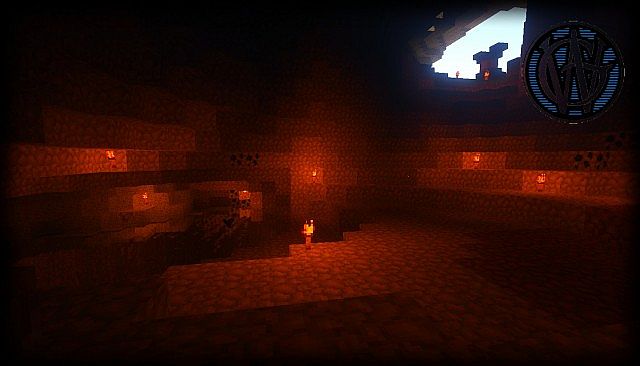
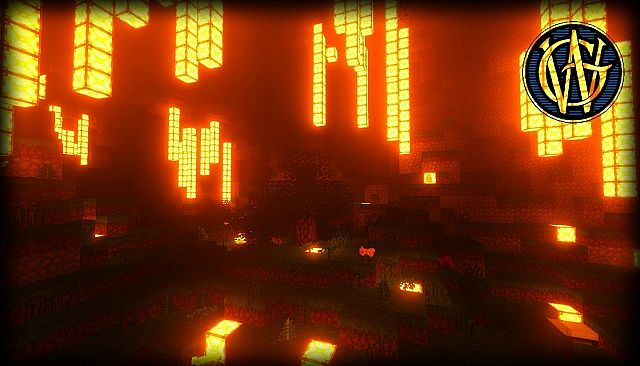
Greenwood Resource Pack – Screenshots
How to Install Texture Pack (Simple 10 Steps)
- Download Optifine: Most of the texture packs and shaders need Optifine. That’s why, first download and install Optifine for the version of Minecraft you want to play.
- Download the Texture Pack: Get the texture pack you want from the download section. Choose the version that works with your Minecraft and your PC’s performance.
- Open Minecraft Launcher: Start Minecraft using the official game launcher – or even TLauncher, if you use that.
- Go to Options: From the main menu, click on the “Options” button.
- Open Resource Packs: Inside Options, click on “Resource Packs…”.
- Open the Resource Pack Folder: Click on “Open Resource Pack Folder” – this will open a folder named “resourcepacks”.
- Move the Pack File: Copy or move the .zip file you downloaded into that “resourcepacks” folder. (Don’t unzip the file – Minecraft uses it as-is!)
- Go Back and Refresh: Close the folder and click “Done”, then go back into “Resource Packs…” again.
- Activate the Pack: You’ll see the pack on the left side. Hover over it and click the arrow to move it to the right (active side). Tip: If you get a message that the pack is for a different version, just click “Yes” – it usually works fine.
- Click Done and Enjoy: Click “Done” again. Now your pack is ready to use in-game. It’s that easy!
Download
(16x) (1.7) (1.6) Download Greenwood Resource Pack
Download Instructions
- CurseForge: If the pack is hosted on CurseForge, the download will begin automatically after a few seconds. If it does not start, use the “Download” button shown on the page.
- Modrinth: If the download is from Modrinth, click the file version that matches your Minecraft build, then press the Download button. Modrinth usually offers multiple releases, so make sure you pick the correct version before installing.
- Mediafire: On Mediafire, click the large blue Download button to start the file download. Avoid any extra pop-ups or buttons that are not related to the direct download.
- Google Drive: For Google Drive, click the small download icon at the top right corner of the page. It looks like a downward arrow. The file will be saved to your computer immediately.
Disclaimer We do not create or modify any of the texture packs or shader packs shared on this website. All credit goes to the original creators, and every download link we provide is the official link from their page, which keeps all downloads safe. Some links may stop working after updates, so if you find a broken one, let us know in the comments and we will update it quickly. If you like a pack, consider supporting the creator by visiting their official page or website that we have linked below, and feel free to leave a comment or vote to help their work reach more players.