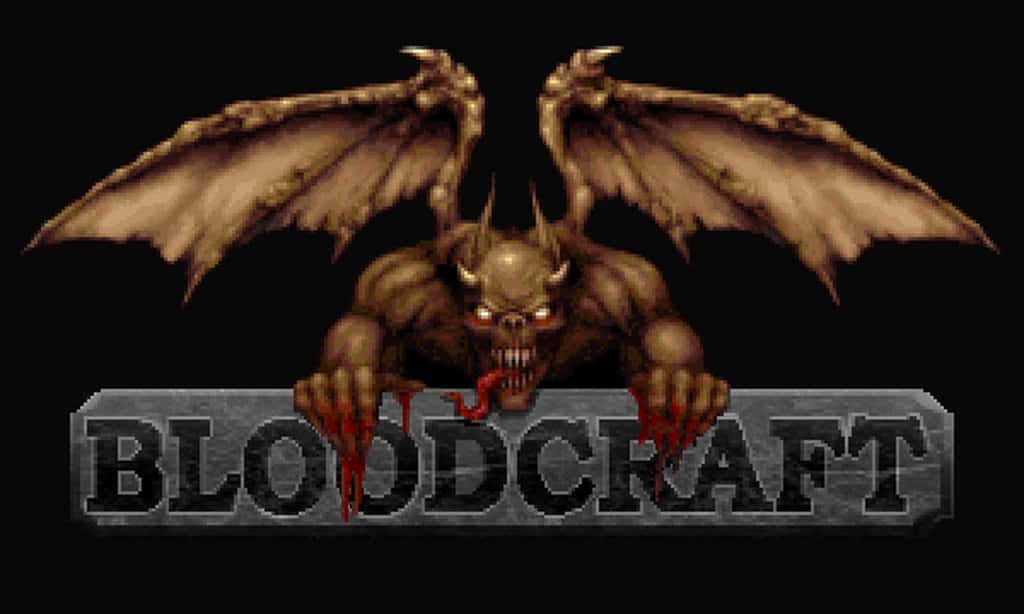
Dive headfirst into the chilling world of Minecraft with the BloodCraft Resource Pack, a recent addition that redefines horror within the game. Drawing inspiration from Monolith’s classic horror shooter, Blood, this pack doesn’t just replicate its predecessor’s atmosphere; it elevates it, offering a uniquely terrifying experience for both long-time fans and newcomers alike. From the moment you load it up, BloodCraft immediately commands attention with its meticulous focus on a dark, ominous color scheme, setting a distinctive tone unlike many other resource packs available today. While the original Blood game might not have been a mainstream phenomenon, its cult following and enduring appeal are clearly echoed in BloodCraft’s design, making it an ideal choice for players seeking a deeper, more mature horror adventure in their blocky worlds.
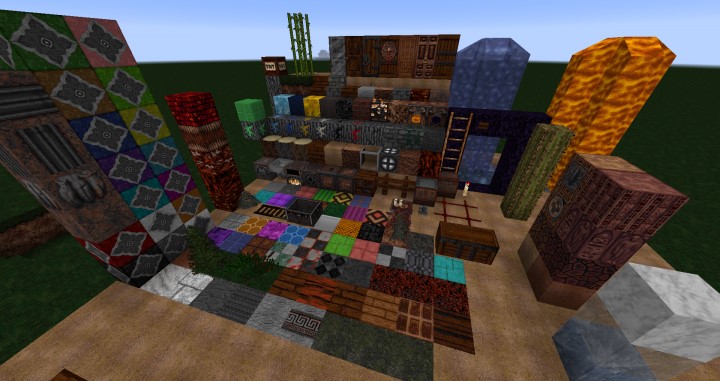
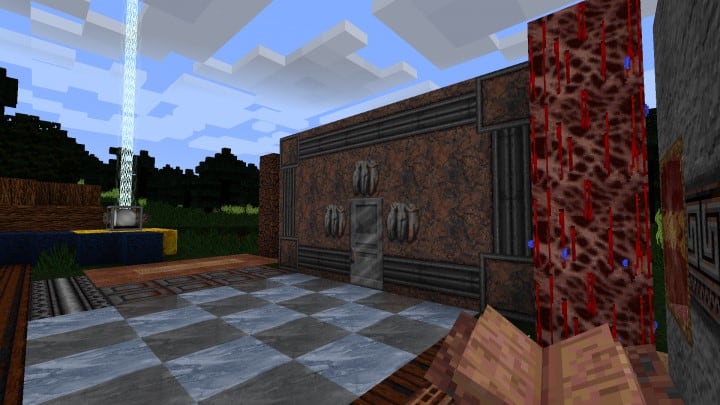
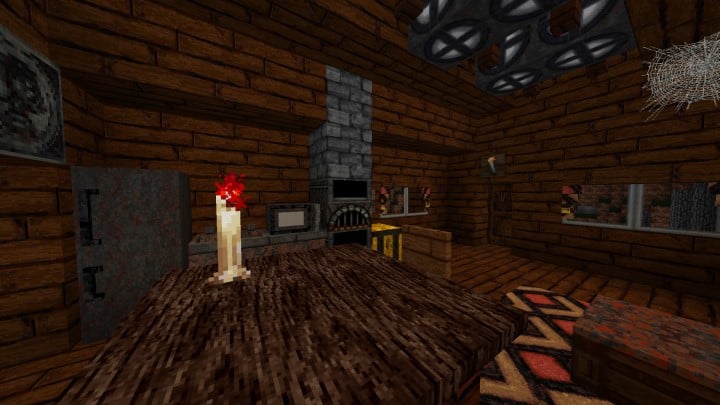
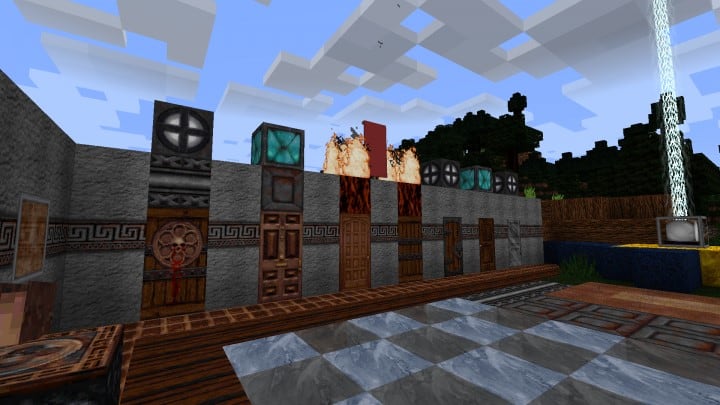
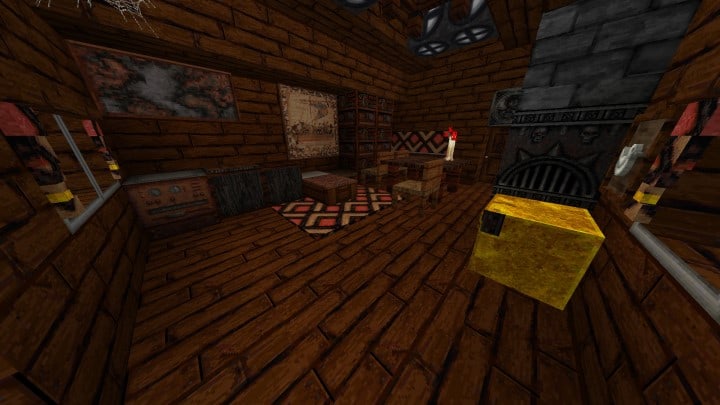
The visual journey with BloodCraft is one of profound dread and artistic mastery. This pack excels in creating an immersive, unsettling environment through its enhanced dark tones and foreboding art style. Every texture feels thoughtfully crafted, contributing to an overall sense of unease that permeates the Minecraft landscape. Running at a crisp 64×64 resolution, BloodCraft delivers a significant visual upgrade over standard packs, meaning sharper details and more nuanced graphical elements. However, this higher resolution does come with a recommendation: for the smoothest and most immersive experience, a high-end gaming PC is advisable. While it might run on less powerful machines, you could experience frame rate drops, which would unfortunately detract from the carefully constructed, fear-inducing ambiance the pack aims to deliver. BloodCraft masterfully employs a suite of “cutting-edge tricks” to manipulate the game’s atmosphere, utilizing a combination of moody color palettes, unsettlingly twisted models, and eerie sound design to genuinely scare and immerse you in its horrifying vision of Minecraft.
BloodCraft should be compatible with all of these Minecraft versions: 26.2 – 26.1.2 – 26.1.1 – 26.1 – 1.21.11 – 1.21.10 – 1.21.9 – 1.21.8 – 1.21.7 – 1.21.6 – 1.21.5 – 1.21.4 – 1.21.3 – 1.21.2 – 1.21.1 – 1.21 – 1.20.6 – 1.20.5 – 1.20.4 – 1.20.3 – 1.20.2 – 1.20.1 – 1.20 – 1.19.4 – 1.19.3 – 1.19.2 – 1.19.1 – 1.19 – 1.18.2 – 1.18.1 – 1.18 – 1.17.1 – 1.17 – 1.16.5 – 1.16.4 – 1.16.3 – 1.16.2 – 1.16.1 – 1.16 – 1.15.2 – 1.15.1 – 1.15 – 1.14.4 – 1.14.3 – 1.14.2 – 1.14 – 1.13.2 – 1.13.1 – 1.13 – 1.12.2 – 1.12
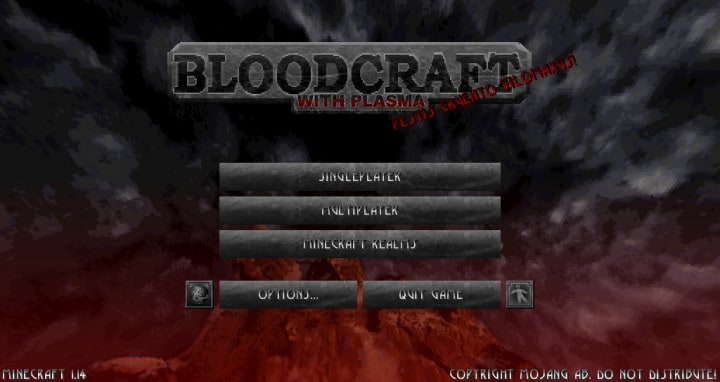
BloodCraft Resource Pack – Screenshots
How to Install Texture Pack (Simple 10 Steps)
- Download Optifine: Most of the texture packs and shaders need Optifine. That’s why, first download and install Optifine for the version of Minecraft you want to play.
- Download the Texture Pack: Get the texture pack you want from the download section. Choose the version that works with your Minecraft and your PC’s performance.
- Open Minecraft Launcher: Start Minecraft using the official game launcher – or even TLauncher, if you use that.
- Go to Options: From the main menu, click on the “Options” button.
- Open Resource Packs: Inside Options, click on “Resource Packs…”.
- Open the Resource Pack Folder: Click on “Open Resource Pack Folder” – this will open a folder named “resourcepacks”.
- Move the Pack File: Copy or move the .zip file you downloaded into that “resourcepacks” folder. (Don’t unzip the file – Minecraft uses it as-is!)
- Go Back and Refresh: Close the folder and click “Done”, then go back into “Resource Packs…” again.
- Activate the Pack: You’ll see the pack on the left side. Hover over it and click the arrow to move it to the right (active side). Tip: If you get a message that the pack is for a different version, just click “Yes” – it usually works fine.
- Click Done and Enjoy: Click “Done” again. Now your pack is ready to use in-game. It’s that easy!
Download
Java Edition:
[64x] [26.2.x – 1.13.x] Download BloodCraft Resource Pack
[64x] [1.12.x] Download BloodCraft Resource Pack
Palette Accurate Version (Java Edition):
This special, palette-accurate BloodCraft resource pack converts all textures – blocks, items, UI elements, and already present mobs to match the original 256-color palette.
[64x] [26.2.x – 1.21.x] Download BloodCraft Palette Accurate Resource Pack
Add-ons:
Download Instructions
- CurseForge: If the pack is hosted on CurseForge, the download will begin automatically after a few seconds. If it does not start, use the “Download” button shown on the page.
- Modrinth: If the download is from Modrinth, click the file version that matches your Minecraft build, then press the Download button. Modrinth usually offers multiple releases, so make sure you pick the correct version before installing.
- Mediafire: On Mediafire, click the large blue Download button to start the file download. Avoid any extra pop-ups or buttons that are not related to the direct download.
- Google Drive: For Google Drive, click the small download icon at the top right corner of the page. It looks like a downward arrow. The file will be saved to your computer immediately.
Disclaimer: We do not create or modify any of the texture packs or shader packs shared on this website. All credit goes to the original creators, and every download link we provide is the official link from their page, which keeps all downloads safe. Some links may stop working after updates, so if you find a broken one, let us know in the comments and we will update it quickly. If you like a pack, consider supporting the creator by visiting their official page or website that we have linked below, and feel free to leave a comment or vote to help their work reach more players.