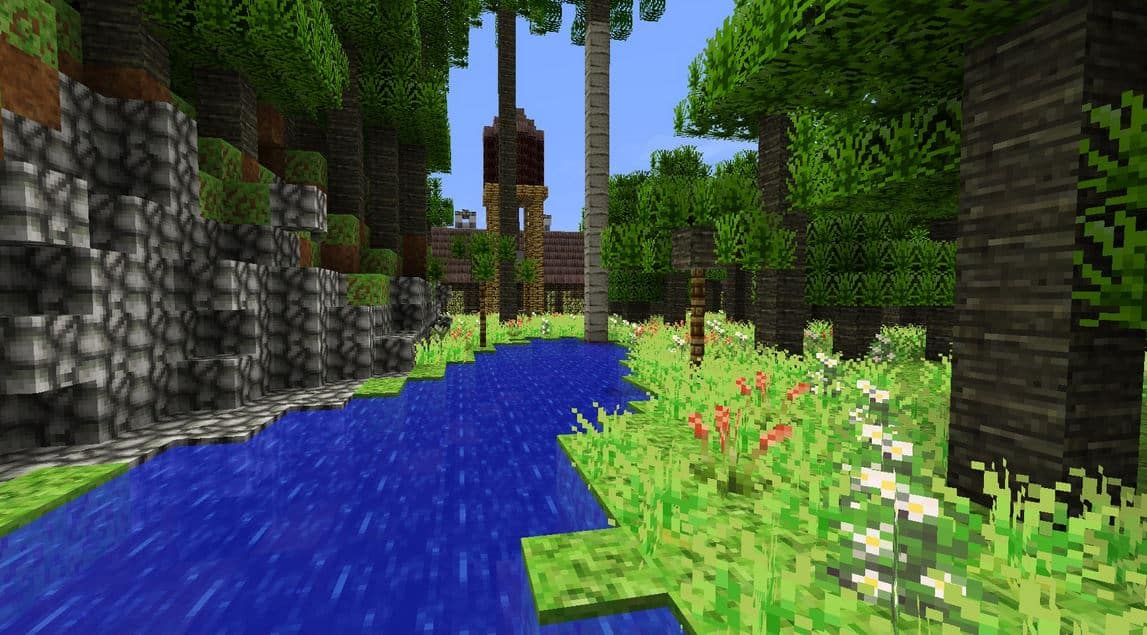
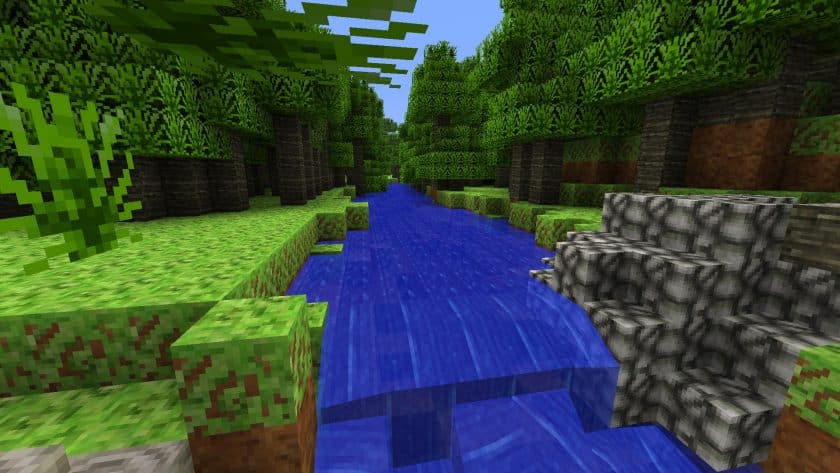
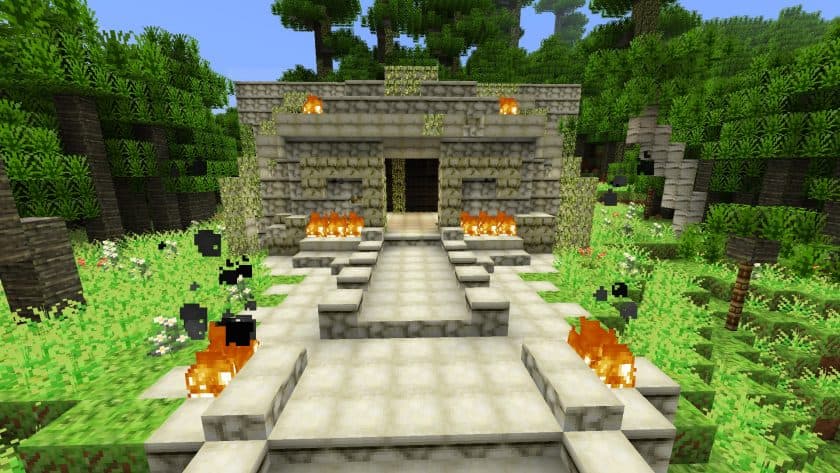
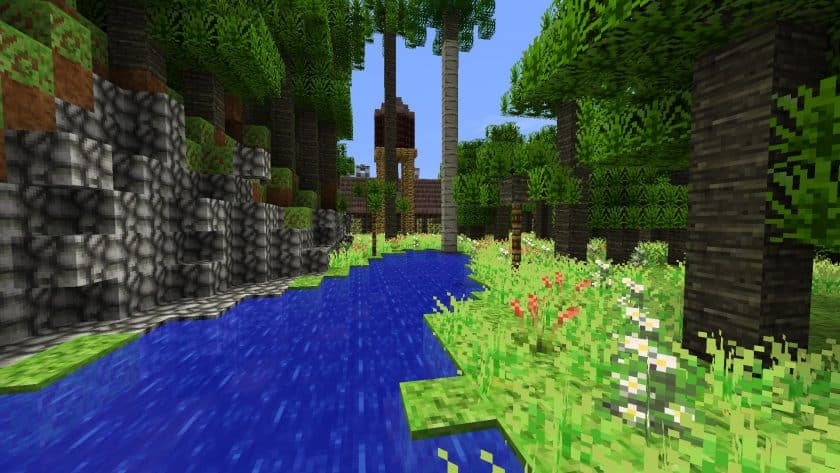
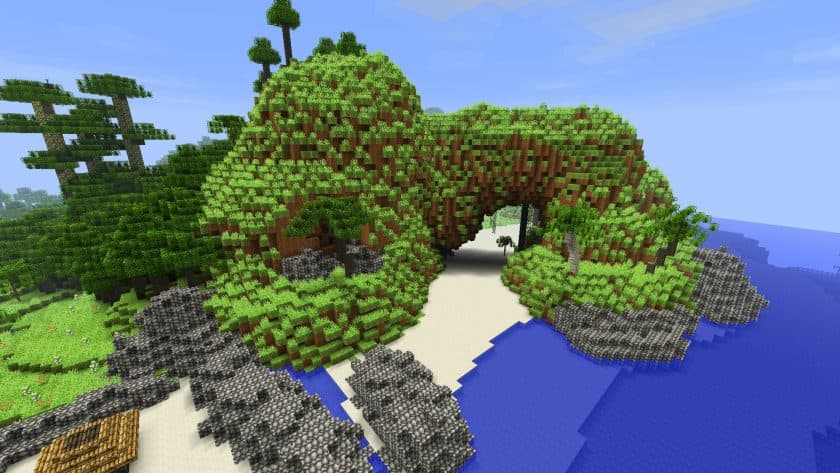
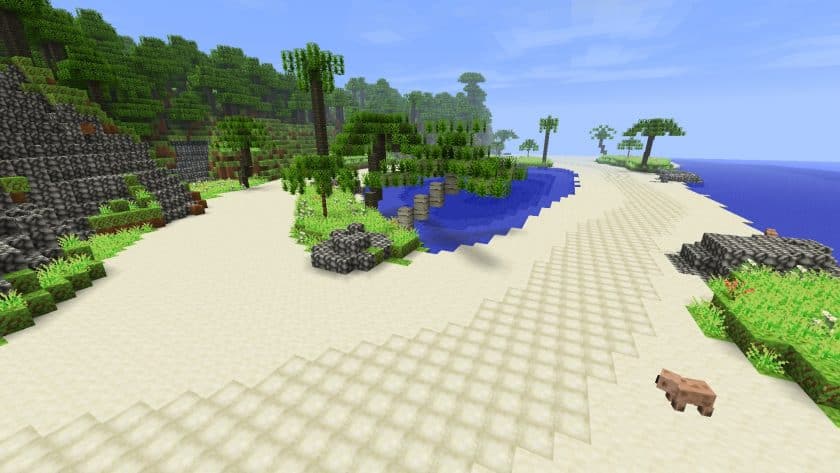
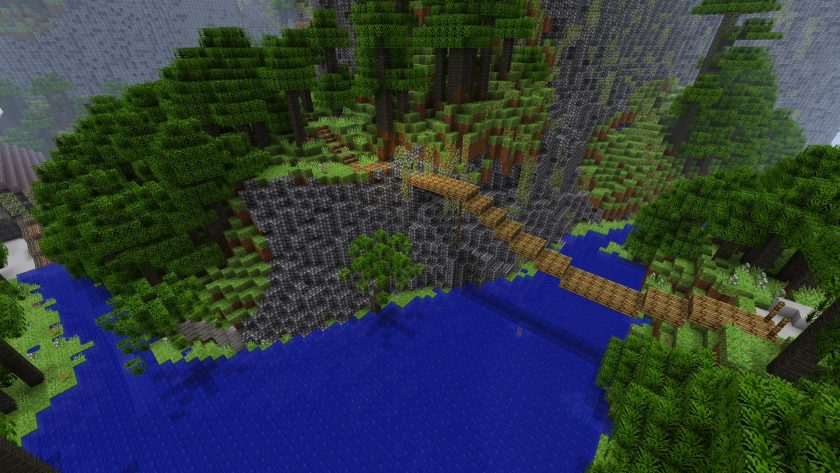
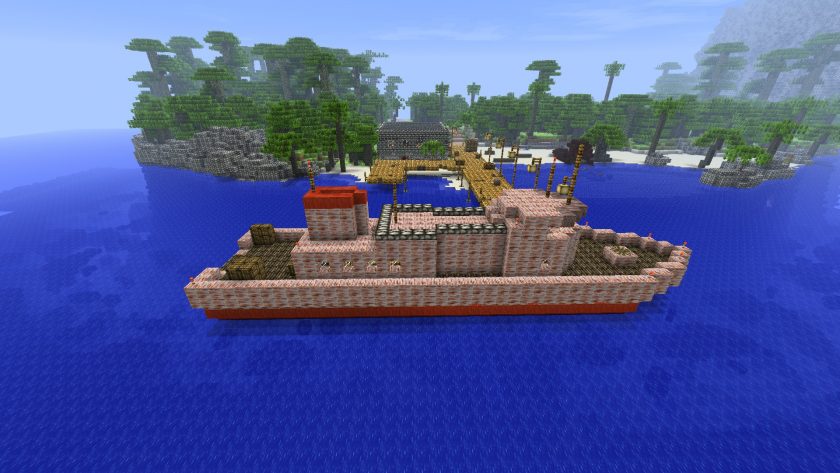
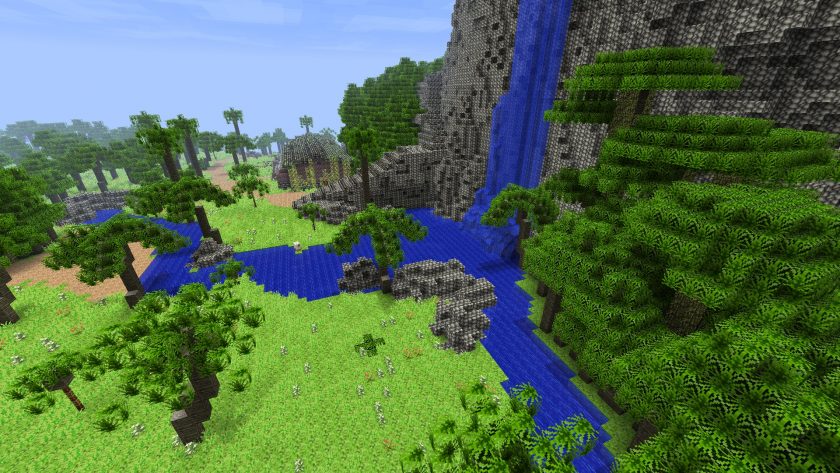
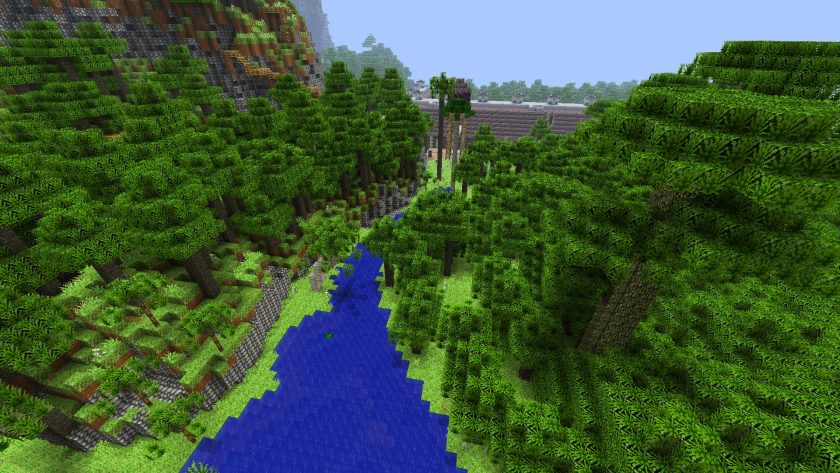
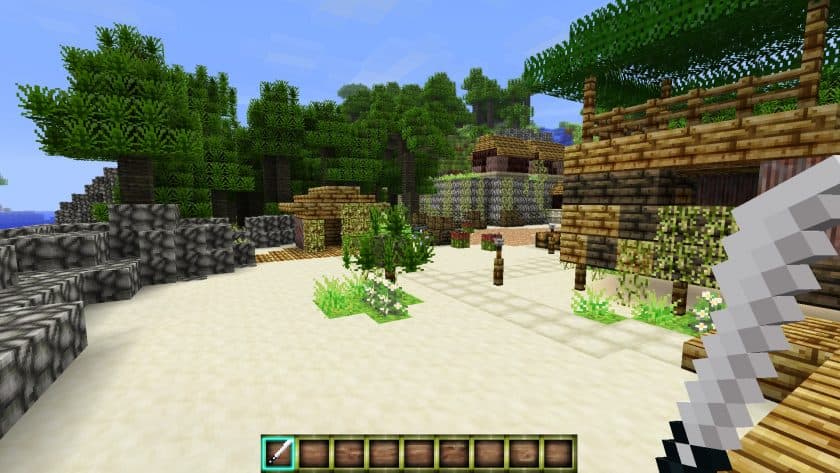
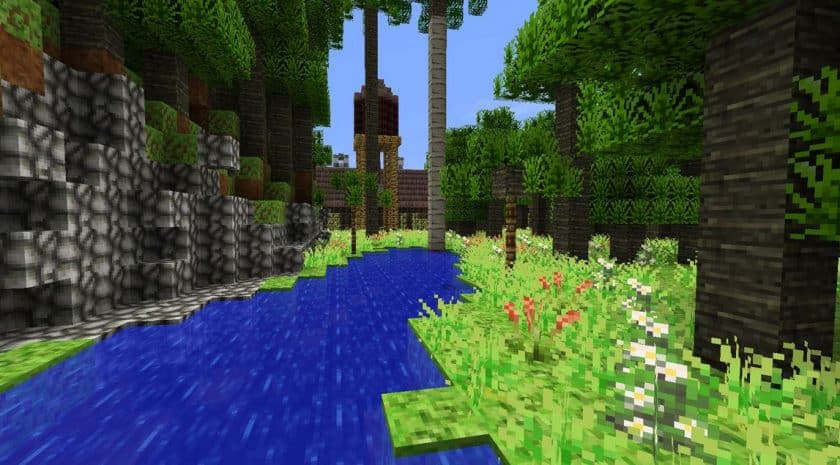
Loading into the Far Cry 3 Resource Pack honestly feels like Minecraft just booked a one-way ticket to a tropical survival zone. The moment the world appears, everything shifts. Vanilla landscapes fade out, and suddenly you’re surrounded by dense jungles, brighter grass, and water that actually looks warm and alive. It’s clearly inspired by the Rook Islands vibe, and it nails that wild, slightly dangerous atmosphere really well. Kinda feels like Minecraft decided to cosplay as an open-world shooter, if that makes sense.
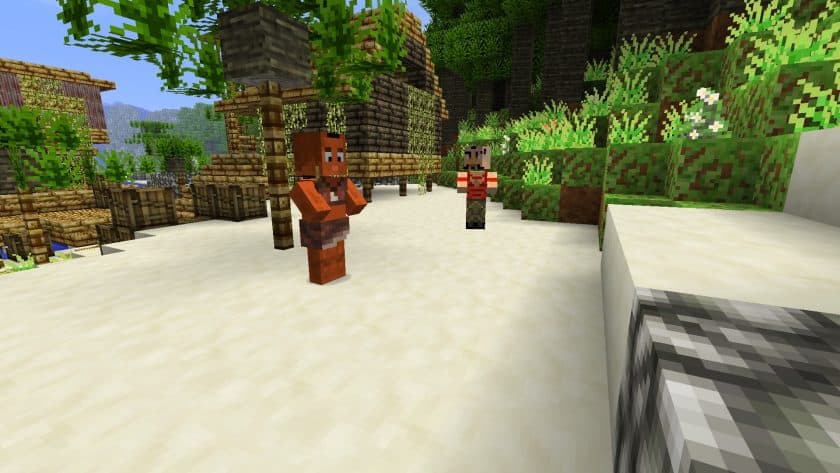
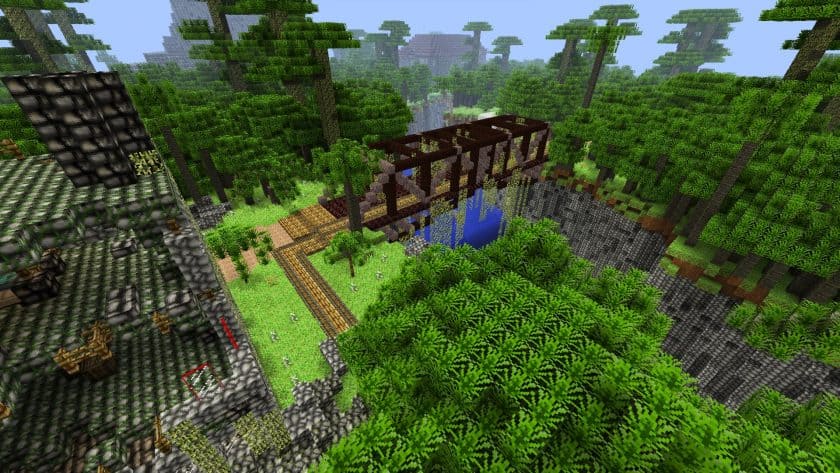
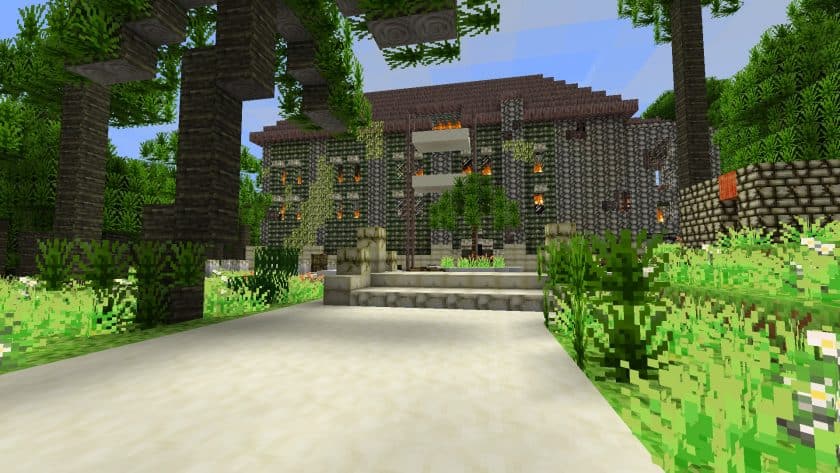
What’s cool about the Far Cry 3 Resource Pack is how deep the changes go. It’s not just trees and grass getting a makeover. Crates, boxes, fences, stone walls — all of it feels purpose-built for this tropical setting. Even textures that weren’t fully replaced have been recolored so nothing feels out of place. The world just feels more alive. Exploring becomes fun again because everywhere you turn, there’s some small detail pulling you in. If you’ve ever played around with game-themed packs like the Star Wars Battlefront 2 Resource Pack, you’ll recognize that same effort to recreate a specific universe inside Minecraft.
The immersion doesn’t stop with the environment either. Player textures are adjusted, weapons and tools get new designs, and even the UI, fonts, and inventory screens are reworked to match the Far Cry style. There are new ambient sounds too, which honestly help sell the island vibe more than I expected. It reminds me a bit of how the MW3 Resource Pack commits fully to its theme — once you’re in, you’re in.
Despite all that, the Far Cry 3 Resource Pack sticks to a simple 16x resolution, so performance stays smooth. Older PCs won’t struggle, and everything runs nicely whether you install it manually or use OptiFine. And even if you’re not playing on the official Far Cry 3 map, the pack still works great in regular worlds. If you enjoy strong atmosphere and game-inspired visuals, you might also want to check something completely different like the EnderCraft Resource Pack just to see how far texture packs can push mood in opposite directions.
At the end of the day, the Far Cry 3 Resource Pack doesn’t just reskin Minecraft — it changes how the game feels. It’s tropical, intense, and surprisingly immersive, turning every jungle walk or survival moment into something that feels straight out of another world.
| Minecraft Version | Compatibility |
|---|---|
| 1.7.10 | ✅ Supported |
| 1.7.9 | ✅ Supported |
| 1.7.4 | ✅ Supported |
| 1.7 | ✅ Supported |
| 1.6.4 | ✅ Supported |
| 1.6.2 | ✅ Supported |
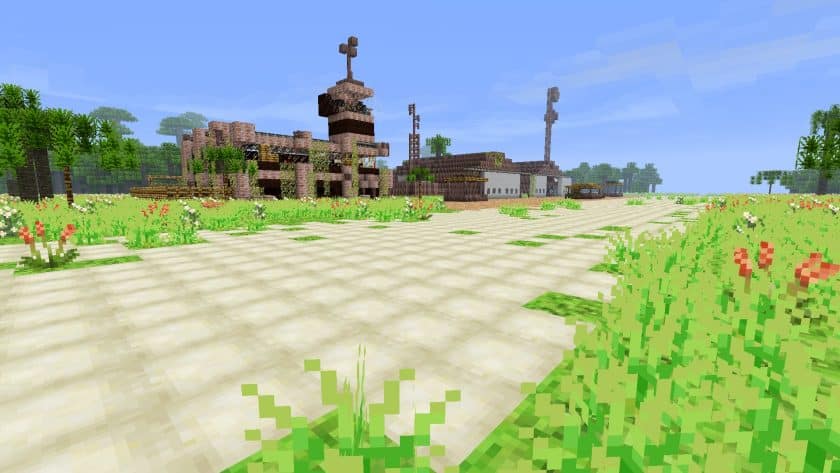
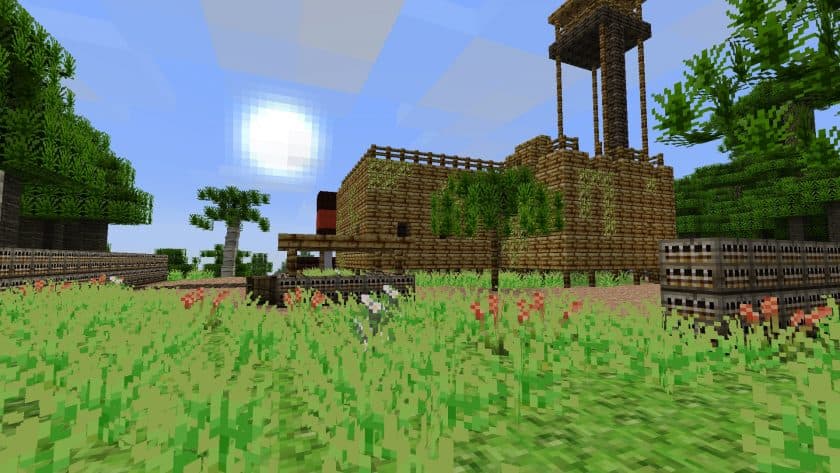
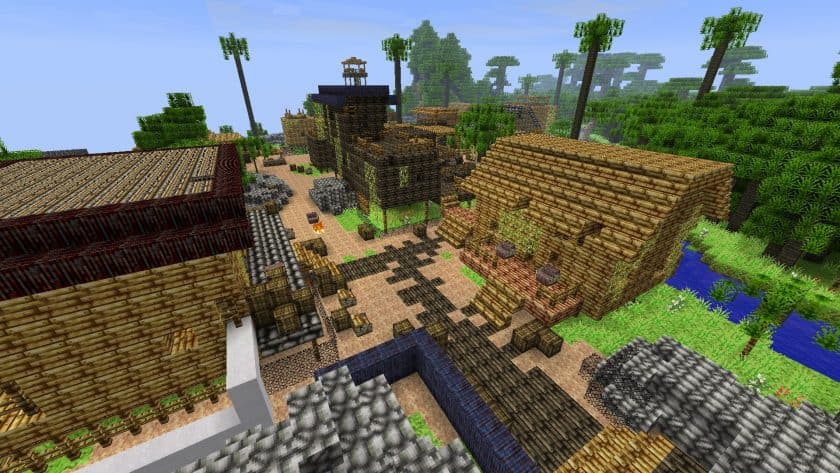
Far Cry 3 Resource Pack – Screenshots
How to Install Texture Pack (Simple 10 Steps)
- Download Optifine: Most of the texture packs and shaders need Optifine. That’s why, first download and install Optifine for the version of Minecraft you want to play.
- Download the Texture Pack: Get the texture pack you want from the download section. Choose the version that works with your Minecraft and your PC’s performance.
- Open Minecraft Launcher: Start Minecraft using the official game launcher – or even TLauncher, if you use that.
- Go to Options: From the main menu, click on the “Options” button.
- Open Resource Packs: Inside Options, click on “Resource Packs…”.
- Open the Resource Pack Folder: Click on “Open Resource Pack Folder” – this will open a folder named “resourcepacks”.
- Move the Pack File: Copy or move the .zip file you downloaded into that “resourcepacks” folder. (Don’t unzip the file – Minecraft uses it as-is!)
- Go Back and Refresh: Close the folder and click “Done”, then go back into “Resource Packs…” again.
- Activate the Pack: You’ll see the pack on the left side. Hover over it and click the arrow to move it to the right (active side). Tip: If you get a message that the pack is for a different version, just click “Yes” – it usually works fine.
- Click Done and Enjoy: Click “Done” again. Now your pack is ready to use in-game. It’s that easy!
Download
(16x) (1.7.x – 1.6.x) Download Far Cry 3 Resource Pack
Download Instructions
- CurseForge: If the pack is hosted on CurseForge, the download will begin automatically after a few seconds. If it does not start, use the “Download” button shown on the page.
- Modrinth: If the download is from Modrinth, click the file version that matches your Minecraft build, then press the Download button. Modrinth usually offers multiple releases, so make sure you pick the correct version before installing.
- Mediafire: On Mediafire, click the large blue Download button to start the file download. Avoid any extra pop-ups or buttons that are not related to the direct download.
- Google Drive: For Google Drive, click the small download icon at the top right corner of the page. It looks like a downward arrow. The file will be saved to your computer immediately.
Disclaimer: We do not create or modify any of the texture packs or shader packs shared on this website. All credit goes to the original creators, and every download link we provide is the official link from their page, which keeps all downloads safe. Some links may stop working after updates, so if you find a broken one, let us know in the comments and we will update it quickly. If you like a pack, consider supporting the creator by visiting their official page or website that we have linked below, and feel free to leave a comment or vote to help their work reach more players.