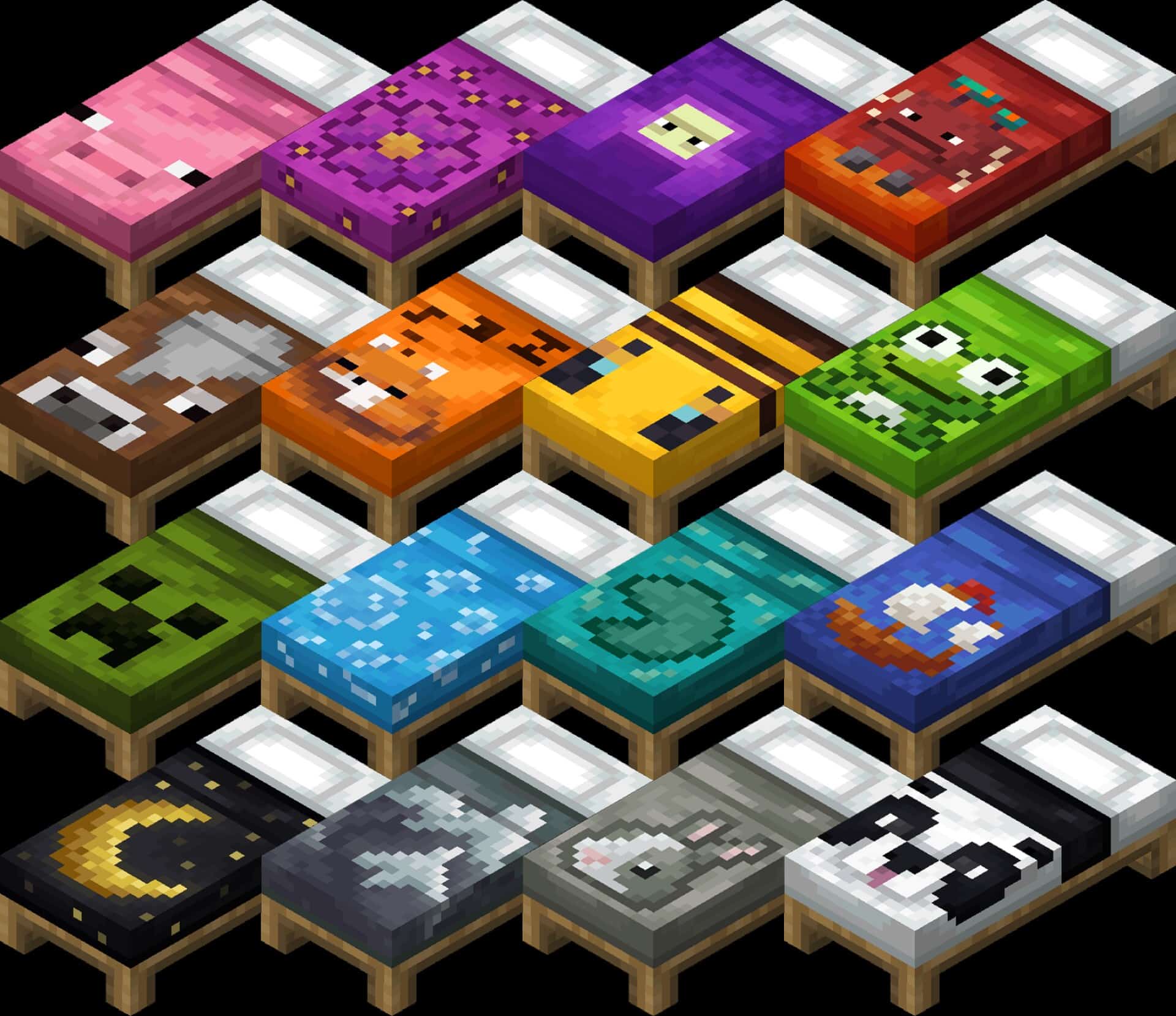
If you’re looking for a simple visual upgrade without changing the overall feel of Minecraft, the Fancy Beds Texture Pack is worth checking out. Instead of replacing every block in the game, it focuses on making beds look far more detailed and decorative while keeping the vanilla style intact. I started using it in a survival world because the default beds always felt a little plain, and the difference was immediately noticeable without affecting gameplay.
Whether you’re building cozy cottages, medieval villages, or modern houses, this pack makes bedrooms feel much more complete. The Fancy Beds Resource Pack stays lightweight, making it a nice choice for players who want better visuals without sacrificing performance.
Features
- 16x resolution that matches the vanilla Minecraft style.
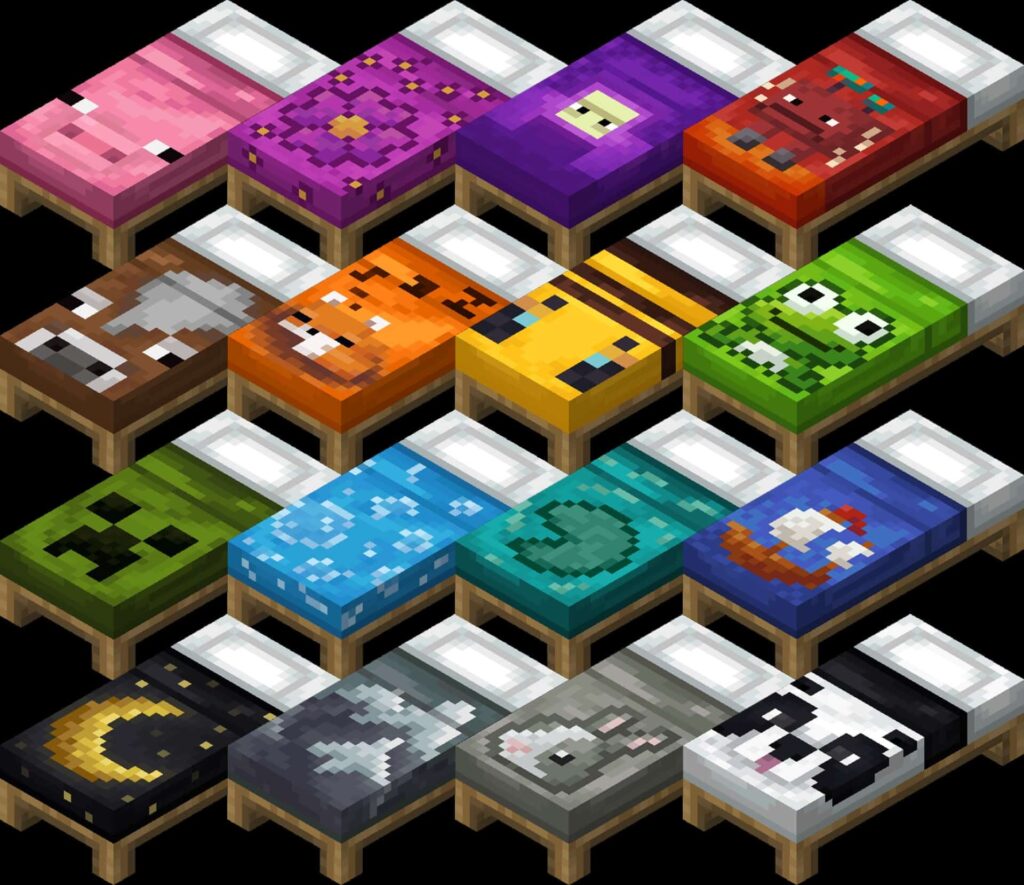
- The Fancy Beds Texture Pack upgrades every bed with cleaner and more decorative textures.
- FPS-friendly and suitable for older hardware.
- Great for Survival Mode and Creative builds alike.
- PvP-friendly since it doesn’t add distracting visual effects.
- Keeps the original Minecraft atmosphere instead of looking overly realistic.
- Works well alongside packs that improve blocks, items, or GUI elements.
- No custom sky or heavy visual effects, keeping performance stable.
- Perfect for builders who want interiors to look more polished.
- The Fancy Beds Resource Pack blends naturally with most vanilla-themed resource packs.
Compatibility
I tested it alongside several other lightweight packs, and it integrates well without causing texture conflicts in most cases.
Minecraft Versions: 26.2, 26.1.2, 26.1.1, 26.1, 1.21.11, 1.21.10, 1.21.9, 1.21.8, 1.21.7, 1.21.6, 1.21.5, 1.21.4, 1.21.3, 1.21.2, 1.21.1, 1.21, 1.20.6, 1.20.5, 1.20.4, 1.20.3, 1.20.2, 1.20.1, 1.20, 1.19.4, 1.19.3, 1.19.2, 1.19.1, 1.19, 1.18.2, 1.18.1, 1.18, 1.17.1, 1.17, 1.16.5, 1.16.4, 1.16.3, 1.16.2, 1.16.1, 1.16, 1.15.2, 1.15.1, 1.15, 1.14.4, 1.14.3, 1.14.2, 1.14, Bedrock Edition, and PE.
Fancy Beds – Screenshots
Performance
One thing I appreciate is how lightweight this pack is. Since it only improves bed textures rather than replacing thousands of assets, there’s virtually no noticeable FPS loss.
- Low-end PC: Excellent choice thanks to the lightweight 16x textures.
- Mid-end PC: Runs effortlessly while pairing nicely with other resource packs.
- High-end PC: Great as an additional detail pack alongside shaders and larger texture packs.
If you’re already using packs like Faithful or Stay True, this can fit into your setup without making Minecraft feel completely different.
Pros
- Makes beds look significantly better while keeping the vanilla style.
- Very lightweight with little to no performance impact.
- Easy to combine with other resource packs.
- Suitable for Survival, Creative, and multiplayer servers.
- Works across a wide range of Minecraft Java and Bedrock versions.
Cons
- Only improves beds, so the visual changes are fairly limited.
- Players looking for a complete graphical overhaul may find it too subtle.
- Some custom furniture or decoration packs may have overlapping designs depending on your load order.
Overall, I think the Fancy Beds Texture Pack is one of those small improvements that quietly makes every base look better. It doesn’t try to reinvent Minecraft—it simply makes one of the most-used blocks in the game look more polished. If you enjoy decorating your houses or building detailed interiors, it’s an easy recommendation.
Has anyone compared the Fancy Beds Texture Pack with other decorative packs that improve furniture or interiors? Which resource pack are you currently using for your survival world?
How to Install Fancy Beds Texture Pack (Simple 10 Steps)
- Download Optifine: Most of the texture packs and shaders need Optifine. That’s why, first download and install Optifine for the version of Minecraft you want to play.
- Download the Texture Pack: Get the texture pack you want from the download section. Choose the version that works with your Minecraft and your PC’s performance.
- Open Minecraft Launcher: 🚀 Start Minecraft using the official game launcher — or even TLauncher, if you use that.
- Go to Options: From the main menu, click on the “Options” button.
- Open Resource Packs: Inside Options, click on “Resource Packs…”.
- Open the Resource Pack Folder: Click on “Open Resource Pack Folder”— this will open a folder named “resourcepacks”.
- Move the Pack File: Copy or move the .zip file you downloaded into that “resourcepacks” folder. (Don’t unzip the file—Minecraft uses it as-is!)
- Go Back and Refresh: Close the folder and click “Done”, then go back into “Resource Packs…” again.
- Activate the Pack: You’ll see the pack on the left side. Hover over it and click the arrow to move it to the right (active side). Tip: If you get a message that the pack is for a different version, just click “”Yes”—it usually works fine.
- Click Done and Enjoy: Click “Done” again. Now your pack is ready to use in-game. It’s that easy!
Fancy Beds Texture Pack Download
Note: This texture pack needs Optifine or Iris to work on Java Edition. It won’t work without it.
Download Instructions:
CurseForge: The download will start by itself after a few seconds.
Mediafire: Click the big blue “DOWNLOAD” button.
Google Drive: Click the small download icon (a down arrow) at the top-right corner to start the download.
Disclaimer
We are not the creators of any texture packs or shader packs shared on this site. All credit goes to the original authors. We do not edit or change any files in any way. Also, none of the downloads are hosted on our servers — we only provide official links shared by the original creators. That means all downloads are completely safe.
❗Note: Since we manually add the official links, so some may stop working after updates. If you find a broken link, tell us in the comments and we’ll fix it as soon as we can.
If you like a pack, please leave a comment and vote for it — this helps the creators improve their work. You can also support them directly through the links below the download section.