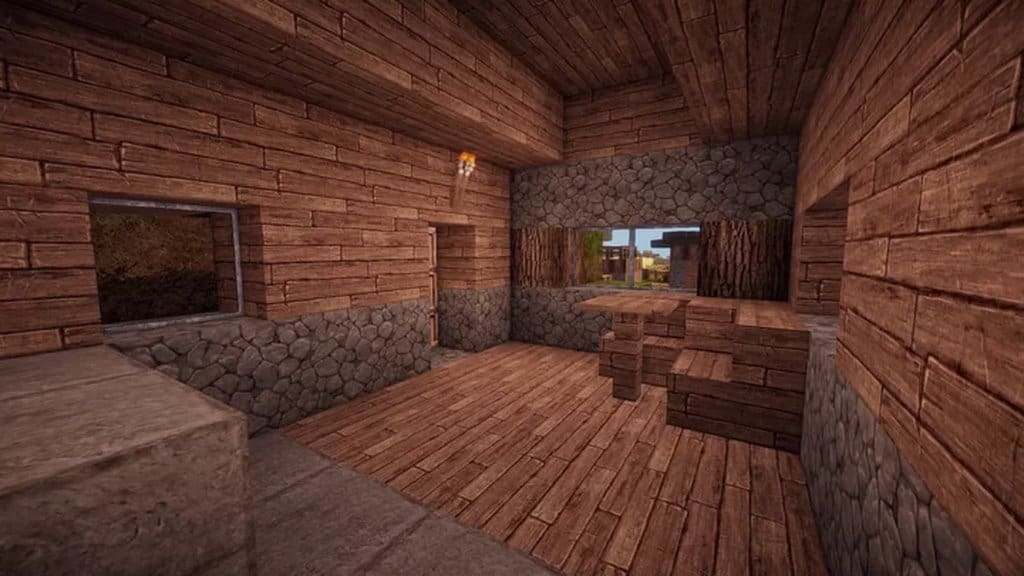
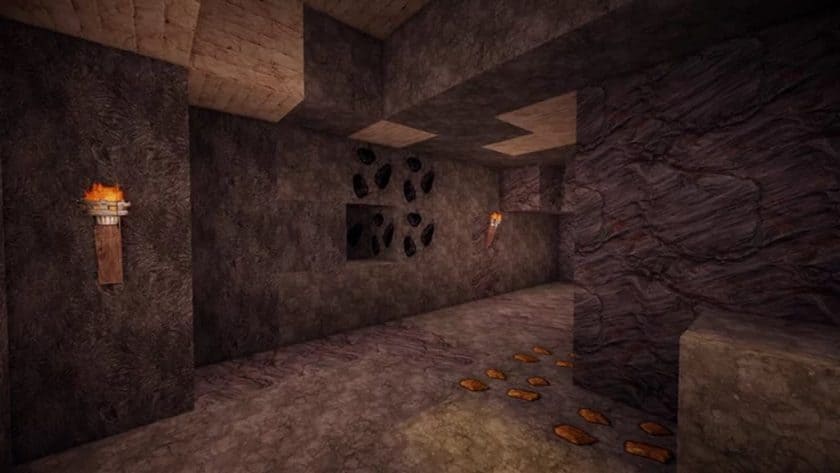
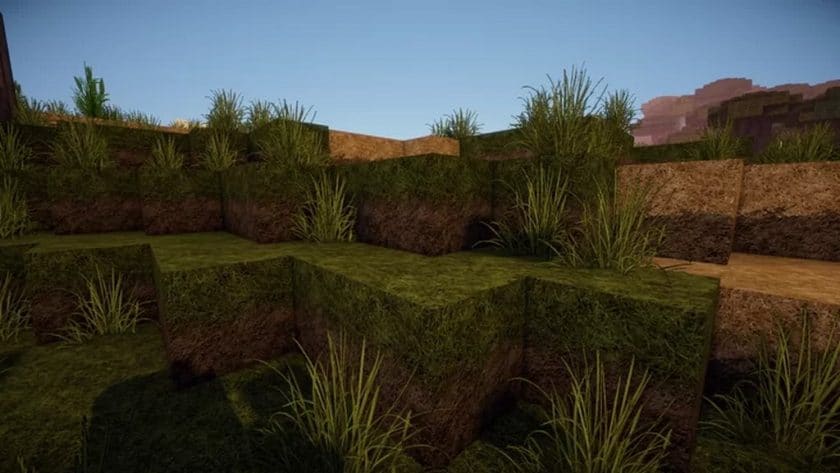
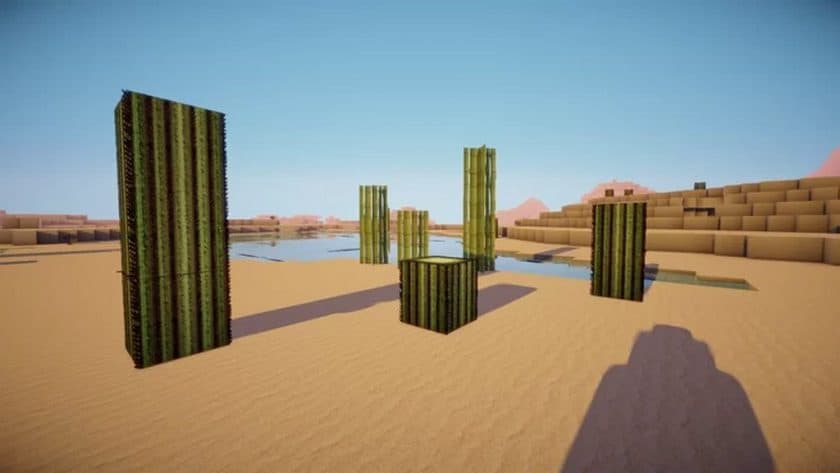
Stepping into a world enhanced by the Miranda Realism HD Source Pack is like opening a forgotten medieval tome, where every page comes alive with intricate detail and a palpable sense of history. This isn’t just another resource pack; it’s a journey into a bygone era, meticulously crafted to transform your Minecraft experience. From the moment you load into your world, you’ll be struck by the pack’s dedication to its medieval and realistic stone-age themes. The landscape takes on a rugged, ancient beauty, with stone textures that feel genuinely weathered and wood grains that tell stories of countless seasons. The developers have poured immense effort into creating an immersive visual tapestry, ensuring that each block and item contributes to a coherent and believable environment.
The pack’s strength lies in its ability to blend realism with the distinctive charm of Minecraft. It eschews overly bright or fantastical palettes in favor of a deeper, more muted color scheme. This deliberate choice perfectly captures the earthy, grounded atmosphere of a historical setting, making your explorations feel more authentic and impactful. You’ll notice the subtle nuances in shadows and lighting, and how they interact with the intricately designed textures to create a truly uncompromising look. Every detail, from the rough-hewn blocks of a castle wall to the delicate patterns on ancient artifacts, has been rendered with a precision that speaks to its 256×256 resolution. This high resolution allows for an incredible level of fidelity, bringing a sharp, defined appearance to everything around you. However, to truly appreciate the pack’s visual splendor and maintain a smooth gameplay experience, it’s essential to consider its technical demands. Given the intricate features and high-resolution assets, Miranda Realism HD thrives on high-end systems equipped with ample resources, ensuring you can delve into this stunning medieval world without encountering frame rate issues or performance dips. It’s an investment in visual quality that promises a captivating and immersive journey through a beautifully re-imagined Minecraft realm.
| Minecraft Version | Compatibility |
|---|---|
| 1.15.2 | ✅ Supported |
| 1.15.1 | ✅ Supported |
| 1.15 | ✅ Supported |
| 1.14.4 | ✅ Supported |
| 1.14.3 | ✅ Supported |
| 1.14.2 | ✅ Supported |
| 1.14 | ✅ Supported |
Miranda Realism HD – Screenshots
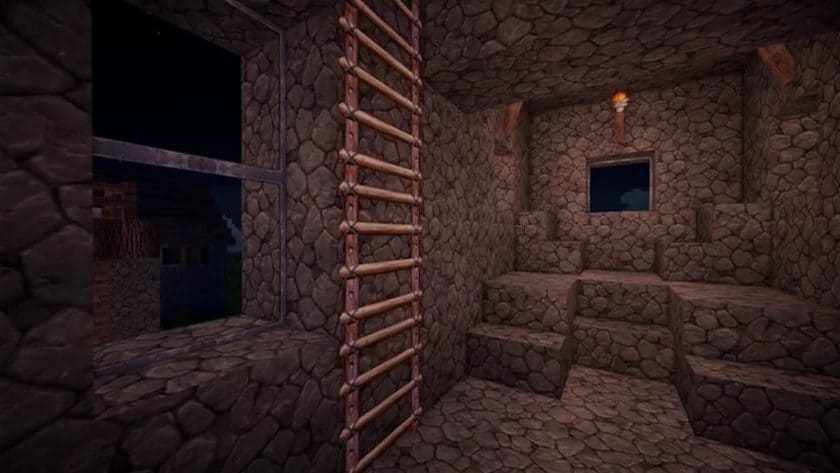
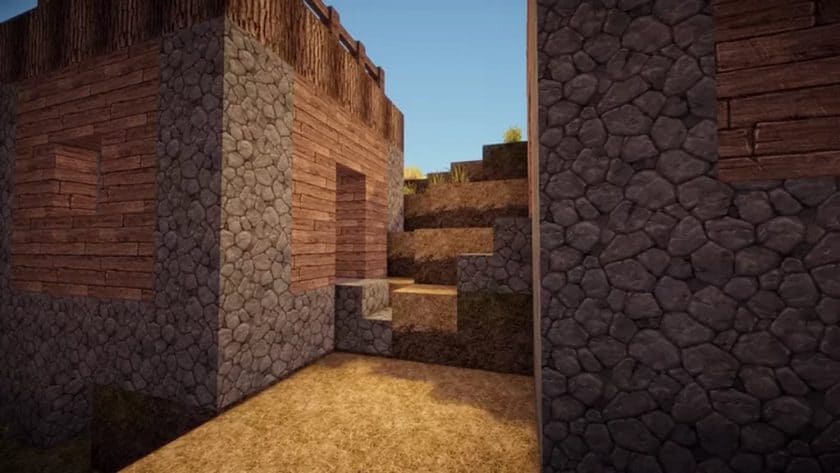
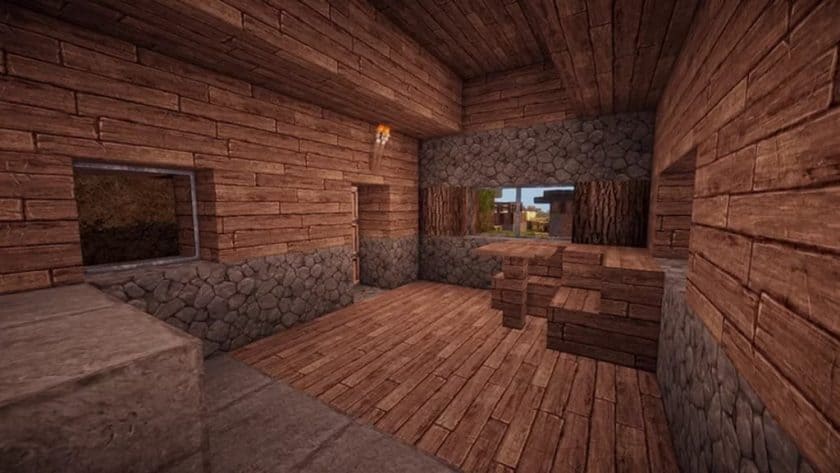
How to Install Texture Pack (Simple 10 Steps)
- Download Optifine: Most of the texture packs and shaders need Optifine. That’s why, first download and install Optifine for the version of Minecraft you want to play.
- Download the Texture Pack: Get the texture pack you want from the download section. Choose the version that works with your Minecraft and your PC’s performance.
- Open Minecraft Launcher: Start Minecraft using the official game launcher – or even TLauncher, if you use that.
- Go to Options: From the main menu, click on the “Options” button.
- Open Resource Packs: Inside Options, click on “Resource Packs…”.
- Open the Resource Pack Folder: Click on “Open Resource Pack Folder” – this will open a folder named “resourcepacks”.
- Move the Pack File: Copy or move the .zip file you downloaded into that “resourcepacks” folder. (Don’t unzip the file – Minecraft uses it as-is!)
- Go Back and Refresh: Close the folder and click “Done”, then go back into “Resource Packs…” again.
- Activate the Pack: You’ll see the pack on the left side. Hover over it and click the arrow to move it to the right (active side). Tip: If you get a message that the pack is for a different version, just click “Yes” – it usually works fine.
- Click Done and Enjoy: Click “Done” again. Now your pack is ready to use in-game. It’s that easy!
Download
(256x) (1.15.x – 1.14.x) Download Miranda Realism HD Resource Pack
Download Instructions
-
CurseForge: If the pack is hosted on CurseForge, the download will begin automatically after a few seconds. If it does not start, use the “Download” button shown on the page.
-
Modrinth: If the download is from Modrinth, click the file version that matches your Minecraft build, then press the Download button. Modrinth usually offers multiple releases, so make sure you pick the correct version before installing.
-
Mediafire: On Mediafire, click the large blue Download button to start the file download. Avoid any extra pop-ups or buttons that are not related to the direct download.
-
Google Drive: For Google Drive, click the small download icon at the top right corner of the page. It looks like a downward arrow. The file will be saved to your computer immediately.
Disclaimer We do not create or modify any of the texture packs or shader packs shared on this website. All credit goes to the original creators, and every download link we provide is the official link from their page, which keeps all downloads safe. Some links may stop working after updates, so if you find a broken one, let us know in the comments and we will update it quickly. If you like a pack, consider supporting the creator by visiting their official page or website that we have linked below, and feel free to leave a comment or vote to help their work reach more players.