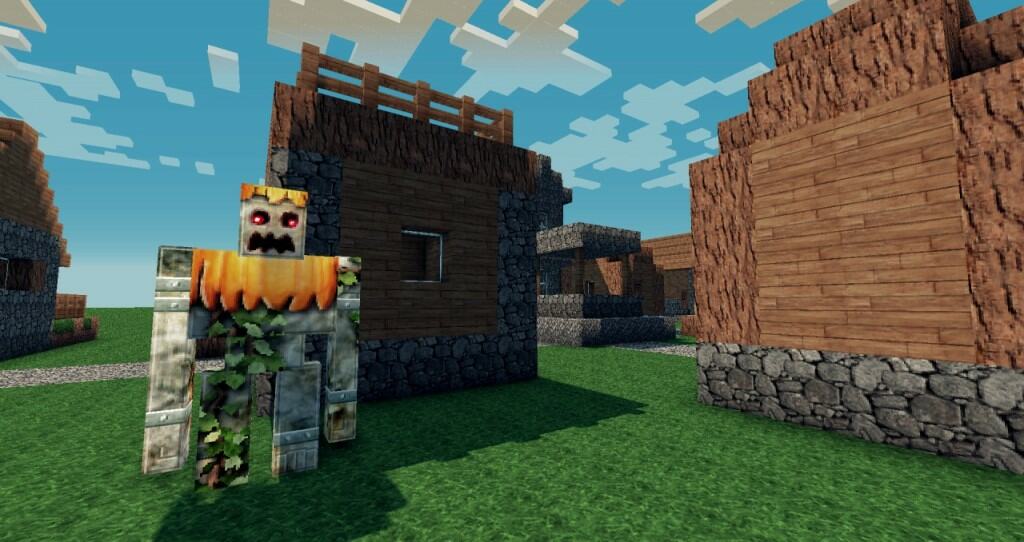
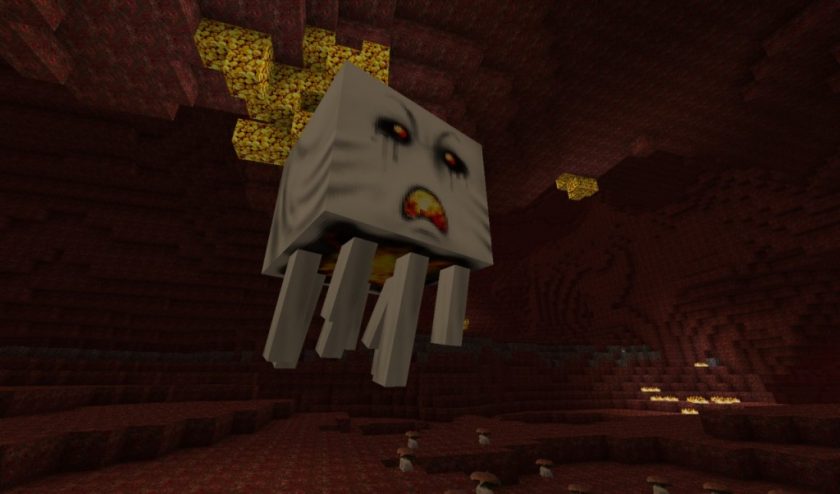
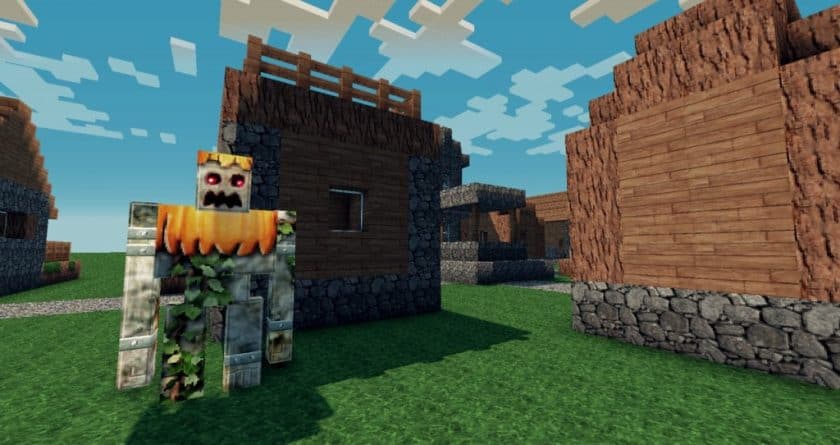
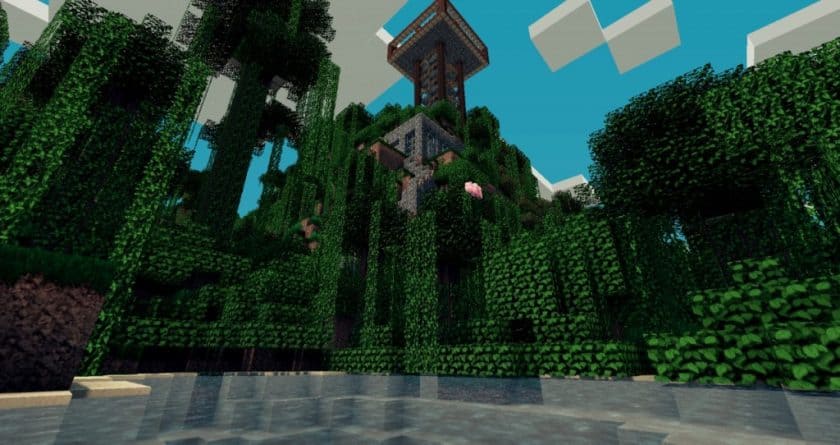
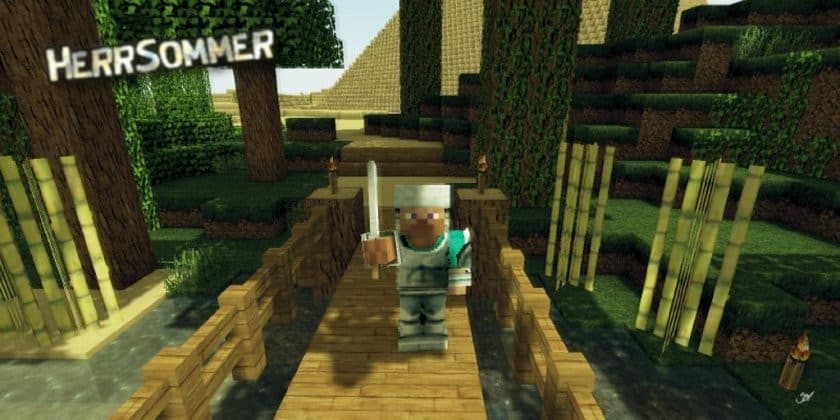
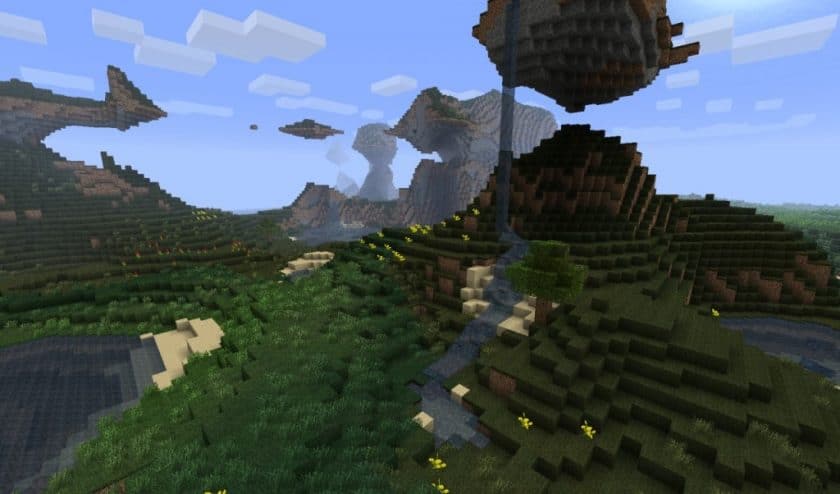
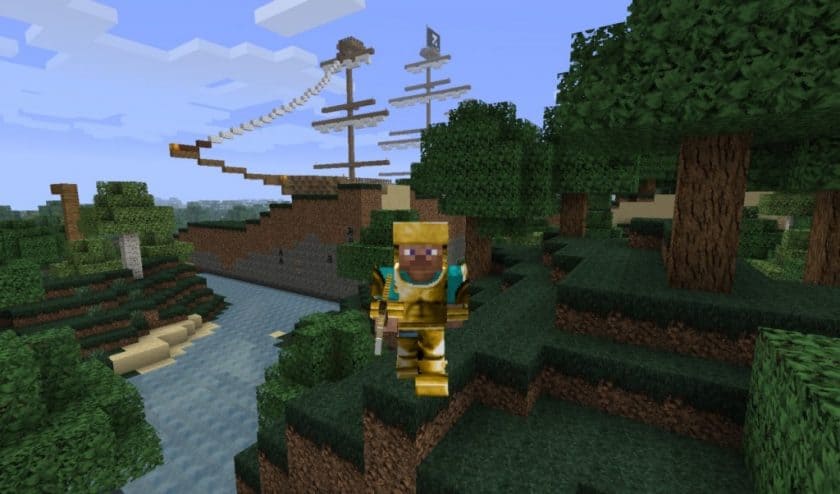
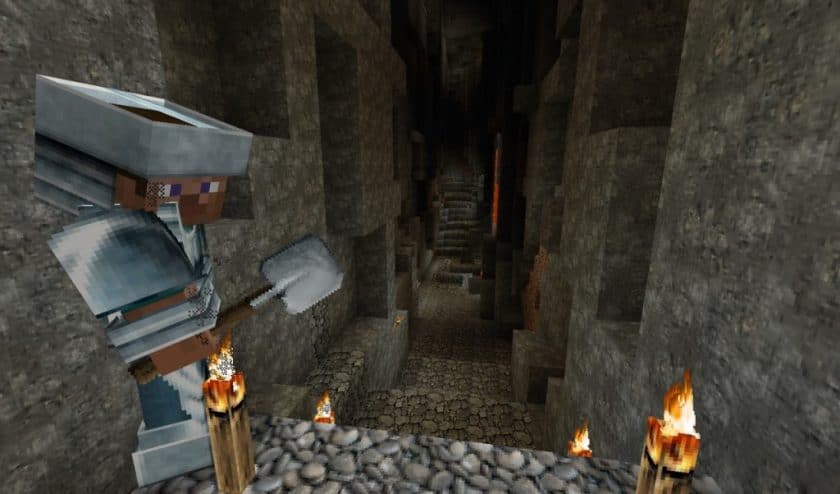
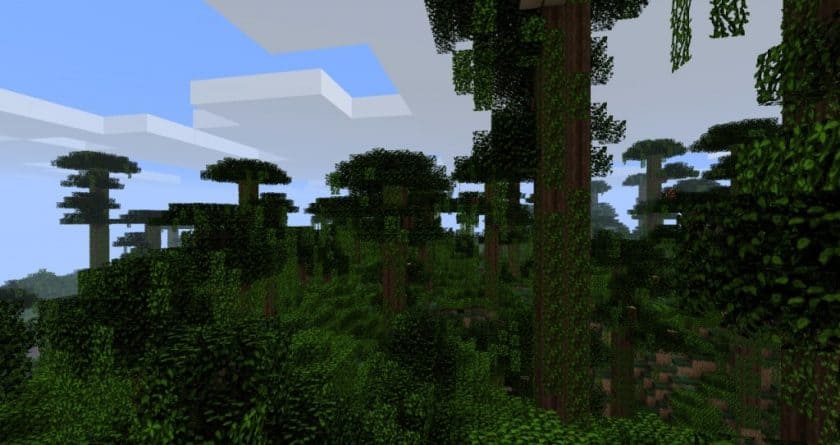
Stepping into a world enhanced by the HerrSommer resource pack is an experience that immediately elevates the familiar blocky landscapes of Minecraft. This pack stands as a testament to meticulous design, transforming the game’s inherently flat and matte textures into a vibrant, more engaging reality. From the moment you load it, the changes are evident and remarkably pleasing. Even the most humble elements, like cobblestone and dirt, are imbued with a new level of detail and character that makes them genuinely attractive and immersive. It’s not just about a few standout textures; HerrSommer subtly refines nearly every block, contributing to a cohesive and polished visual overhaul.
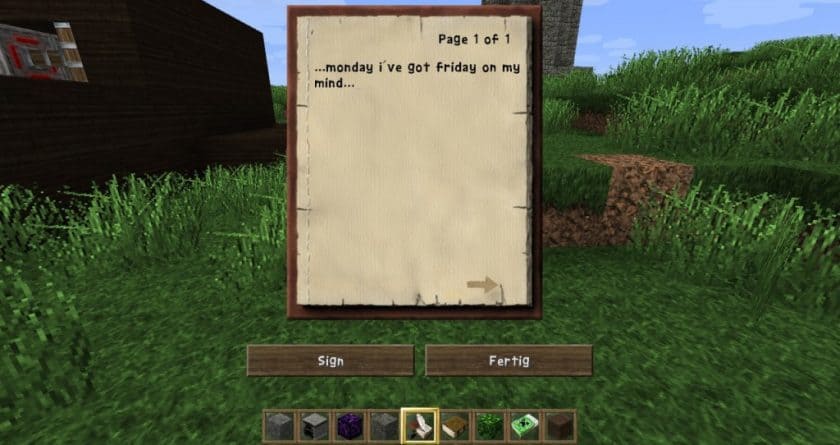
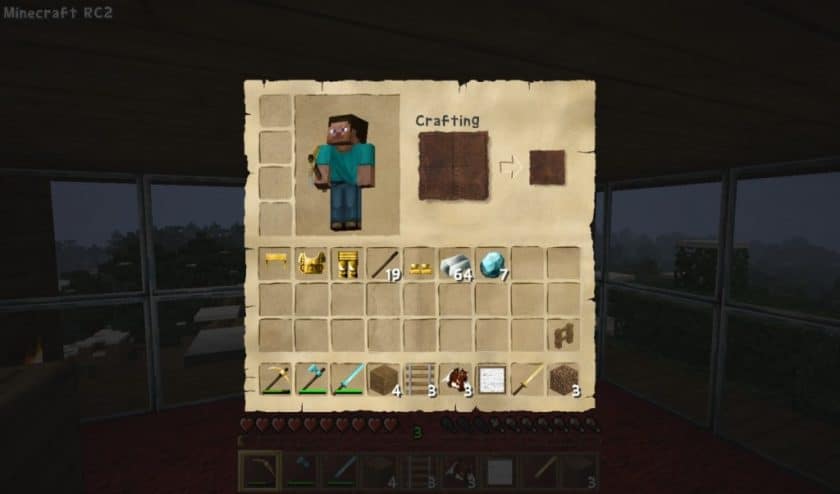
Beyond the world’s terrain, the pack introduces a completely revamped graphical interface. This updated GUI is a joy to behold, featuring a clean and intuitive design that makes reading digits and navigating menus effortless. The overall impression is one where essential game elements pop, while less crucial details harmoniously blend into the background. The creator’s dedication to thoroughness is truly impressive, as HerrSommer extends its touch to a vast array of Minecraft’s assets, including monsters, terrains, armor, captivating game art, dynamic particle effects, and even elegant chat fonts. Despite such comprehensive modifications, the pack maintains a friendly resolution of 64×64, ensuring that a broad spectrum of gamers can enjoy its beauty without experiencing burdensome performance issues. This balance of visual richness and accessibility has garnered HerrSommer over 0.24 million downloads, solidifying its status as a highly sought-after resource pack.
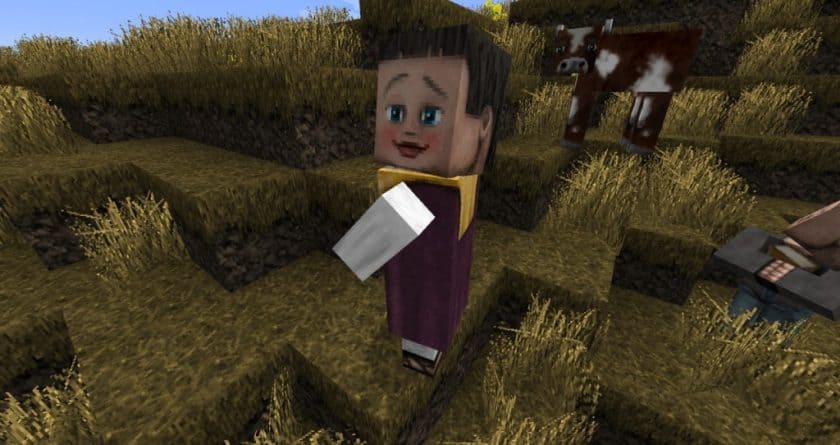
One of the most charming and unique features of HerrSommer is the distinct personality it bestows upon villagers. Gone are the days of identical, generic faces; with this pack, each villager boasts a unique appearance. This delightful detail allows players to truly differentiate and perhaps even develop favorites among their village inhabitants, adding a layer of depth and connection to interactions, even as they retain their familiar sounds and animations. The HerrSommer pack truly redefines the Minecraft aesthetic, offering a fresh, detailed, and surprisingly performant visual journey.
| Minecraft Version | Compatibility |
|---|---|
| 1.10.2 | ✅ Supported |
| 1.10 | ✅ Supported |
| 1.9.4 | ✅ Supported |
| 1.9 | ✅ Supported |
| 1.8.9 | ✅ Supported |
| 1.8.8 | ✅ Supported |
| 1.8.1 | ✅ Supported |
| 1.8.6 | ✅ Supported |
| 1.8 | ✅ Supported |
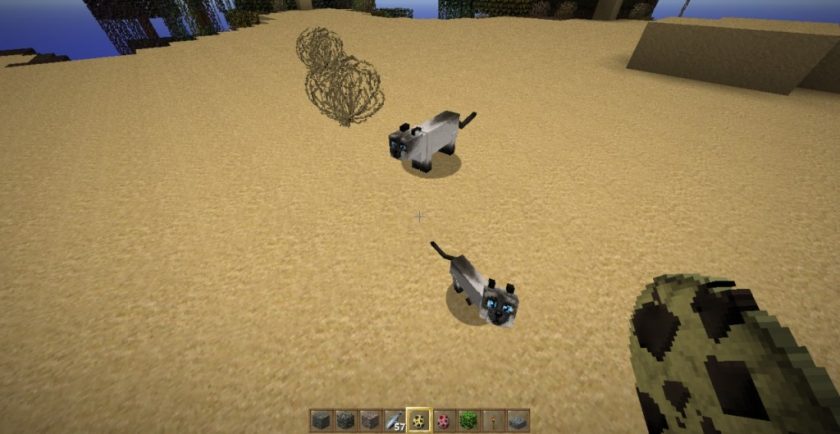
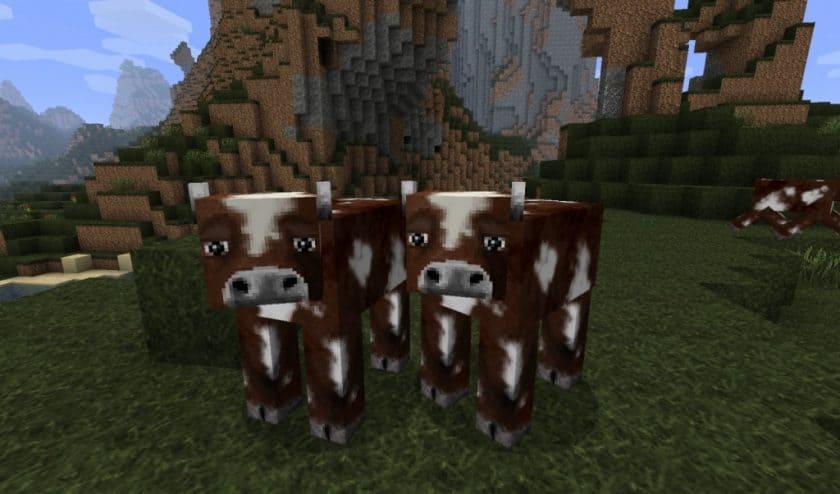
HerrSommer – Screenshots
How to Install Texture Pack (Simple 10 Steps)
- Download Optifine: Most of the texture packs and shaders need Optifine. That’s why, first download and install Optifine for the version of Minecraft you want to play.
- Download the Texture Pack: Get the texture pack you want from the download section. Choose the version that works with your Minecraft and your PC’s performance.
- Open Minecraft Launcher: Start Minecraft using the official game launcher – or even TLauncher, if you use that.
- Go to Options: From the main menu, click on the “Options” button.
- Open Resource Packs: Inside Options, click on “Resource Packs…”.
- Open the Resource Pack Folder: Click on “Open Resource Pack Folder” – this will open a folder named “resourcepacks”.
- Move the Pack File: Copy or move the .zip file you downloaded into that “resourcepacks” folder. (Don’t unzip the file – Minecraft uses it as-is!)
- Go Back and Refresh: Close the folder and click “Done”, then go back into “Resource Packs…” again.
- Activate the Pack: You’ll see the pack on the left side. Hover over it and click the arrow to move it to the right (active side). Tip: If you get a message that the pack is for a different version, just click “Yes” – it usually works fine.
- Click Done and Enjoy: Click “Done” again. Now your pack is ready to use in-game. It’s that easy!
Download
(64x) (1.10.x – 1.8.x) Download HerrSommer Resource Pack
Official links:
Check out the HerrSommer Resource Pack on the official resource
Download Instructions
-
CurseForge: If the pack is hosted on CurseForge, the download will begin automatically after a few seconds. If it does not start, use the “Download” button shown on the page.
-
Modrinth: If the download is from Modrinth, click the file version that matches your Minecraft build, then press the Download button. Modrinth usually offers multiple releases, so make sure you pick the correct version before installing.
-
Mediafire: On Mediafire, click the large blue Download button to start the file download. Avoid any extra pop-ups or buttons that are not related to the direct download.
-
Google Drive: For Google Drive, click the small download icon at the top right corner of the page. It looks like a downward arrow. The file will be saved to your computer immediately.
Disclaimer We do not create or modify any of the texture packs or shader packs shared on this website. All credit goes to the original creators, and every download link we provide is the official link from their page, which keeps all downloads safe. Some links may stop working after updates, so if you find a broken one, let us know in the comments and we will update it quickly. If you like a pack, consider supporting the creator by visiting their official page or website that we have linked below, and feel free to leave a comment or vote to help their work reach more players.