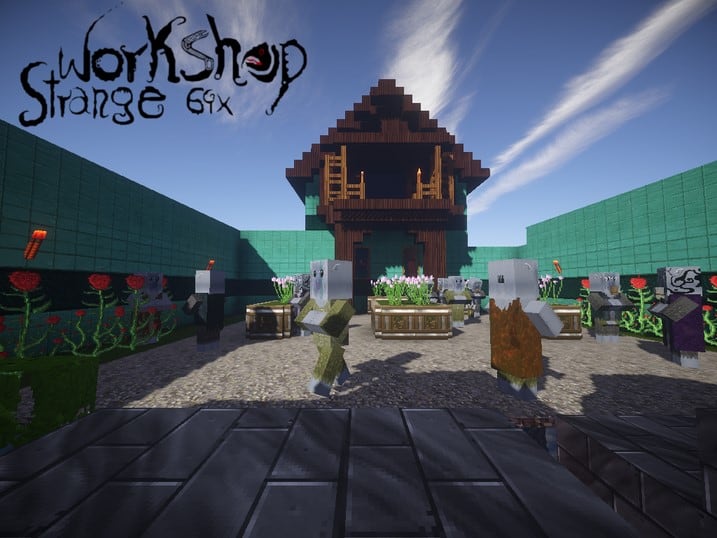
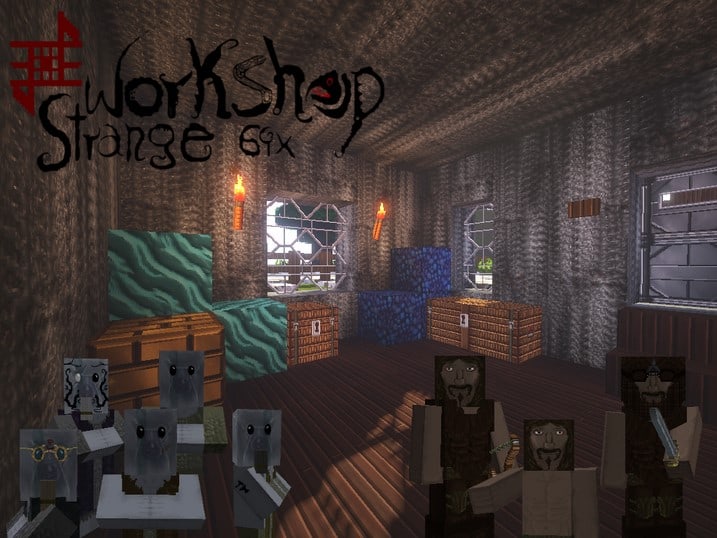
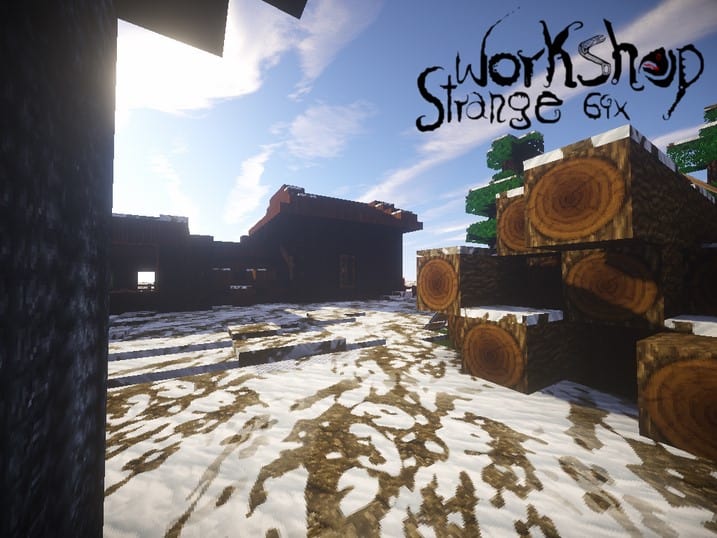
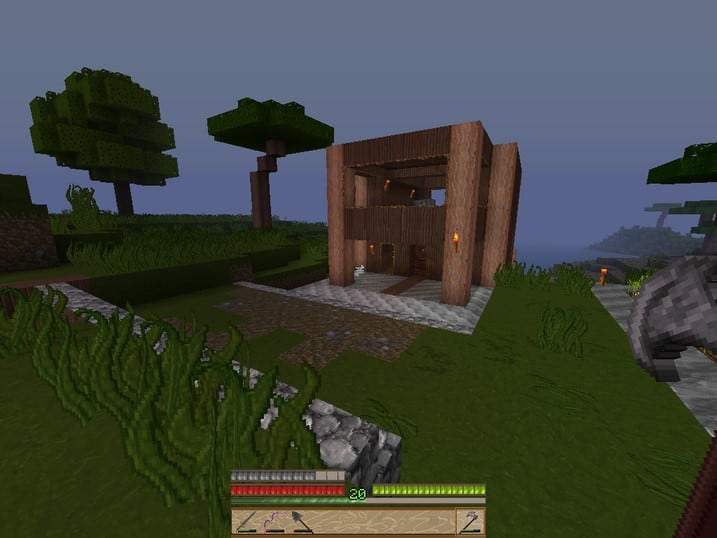
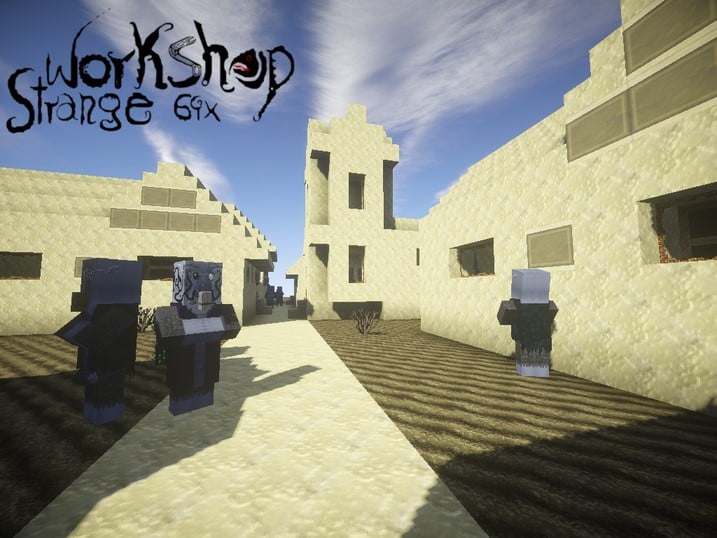
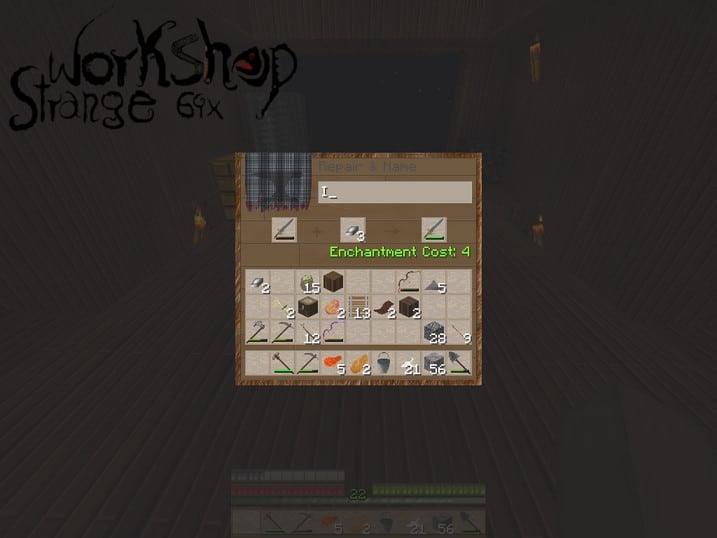
Stepping into a world transformed by the Strange Workshop resource pack is like uncovering a hidden dimension within Minecraft, one where ancient crafts meet arcane mysteries. This unique pack immediately draws you into a fantastical realm steeped in dark tones, yet subtly brightened by clever hints of humor woven into its textures. From the moment you load it, the atmosphere shifts, presenting a world that feels both familiar and wonderfully alien. You’ll find yourself exploring environments that evoke images of a mad alchemist’s laboratory, a secluded wizard’s tower, or perhaps a gnomish inventor’s bustling den.
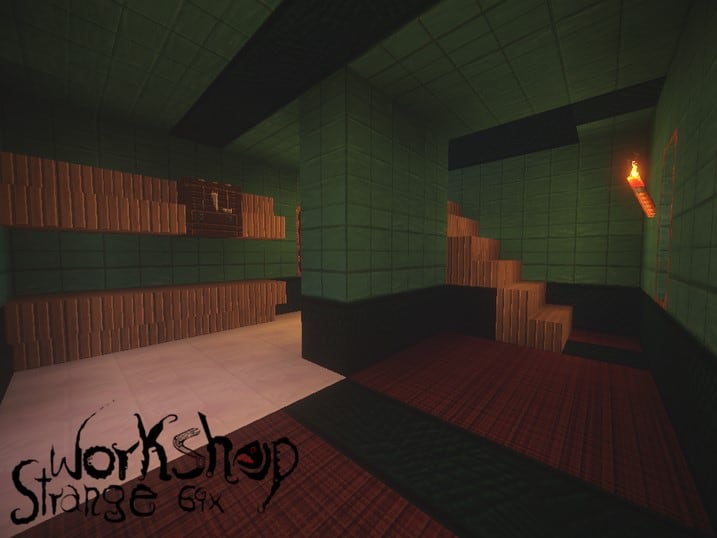
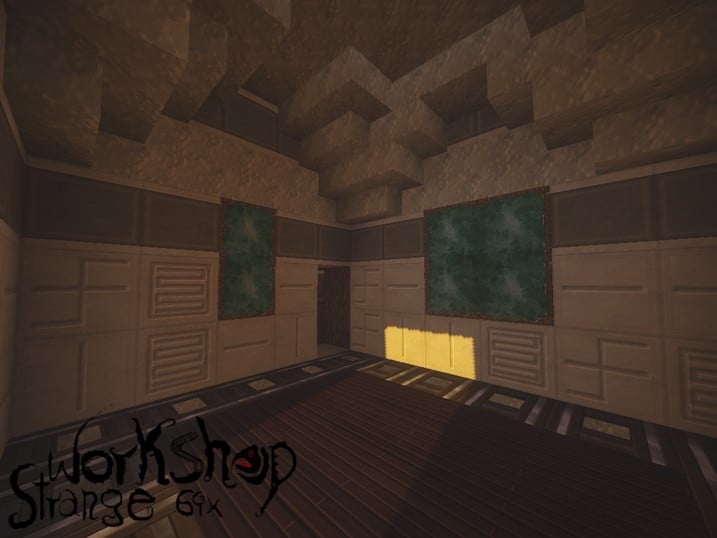
The pack’s distinctive fantasy style lends itself perfectly to players who crave a deeply immersive RPG experience. Whether you’re building a grand castle, venturing into perilous dungeons, or embarking on epic quests, the Strange Workshop provides an unparalleled visual backdrop. Every block and item feels meticulously crafted to enhance this sense of adventure, turning ordinary Minecraft landscapes into scenes straight out of a forgotten fable. The darker palette, while dominant, doesn’t compromise visibility; instead, it deepens the sense of immersion, making torches and glowing elements pop with dramatic effect.
With a resolution of 64x, the Strange Workshop pack strikes an excellent balance between detailed artistry and smooth performance. It offers a significant upgrade over vanilla textures, bringing in intricate patterns and richer visual depth without demanding excessive system resources. This means more players can enjoy its captivating aesthetic without sacrificing frame rates. The quirky, humorous touches are subtle but brilliant, often found in unexpected places, adding a layer of charm that prevents the darker themes from becoming overwhelming. This pack isn’t just a visual overhaul; it’s an invitation to role-play within a beautifully imagined, slightly eccentric, fantasy universe. It promises to ignite your imagination and provide a fresh, engaging perspective on your Minecraft adventures, making every exploration feel like a discovery.
| Minecraft Version | Compatibility |
|---|---|
| 1.8 | ✅ Supported |
| 1.8.1 | ✅ Supported |
| 1.8.6 | ✅ Supported |
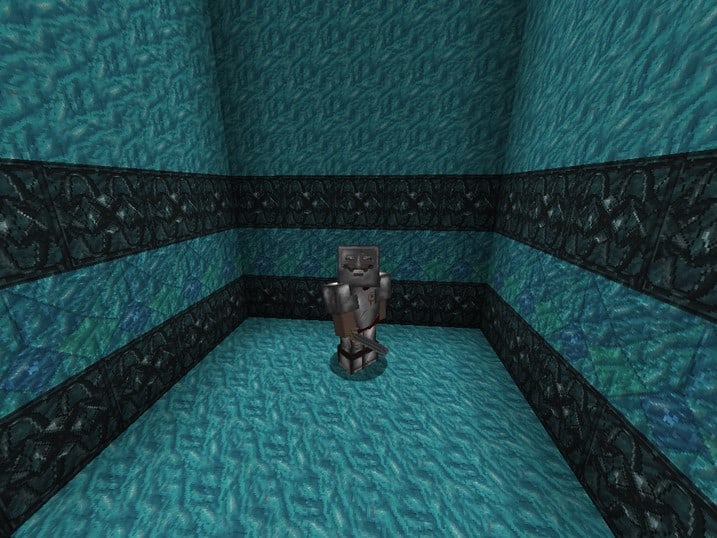
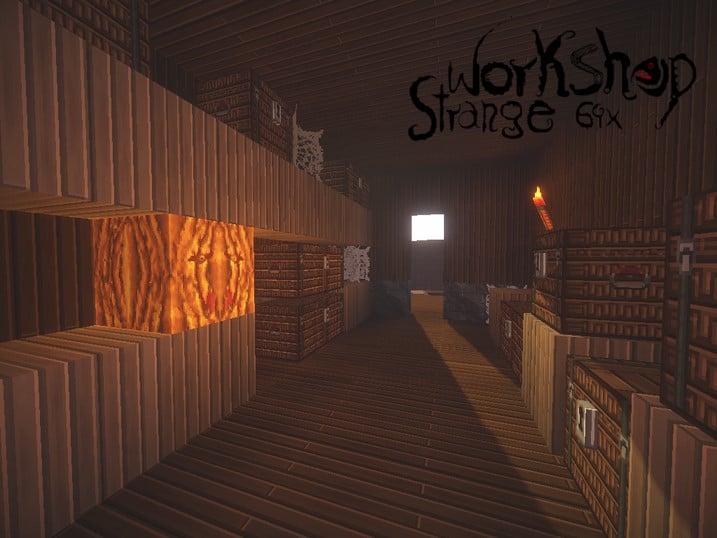
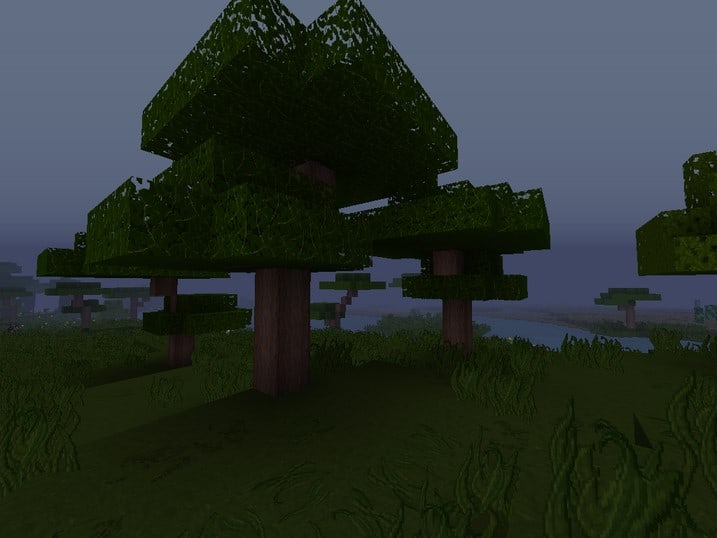
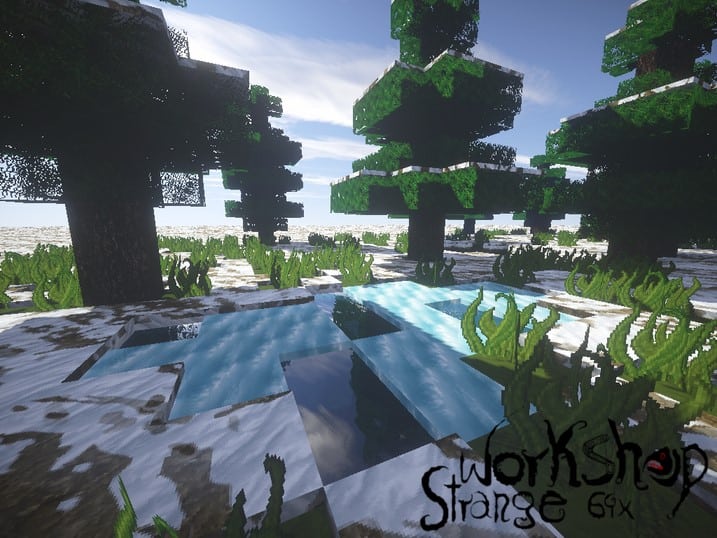
Strange Workshop – Screenshots
How to Install Texture Pack (Simple 10 Steps)
- Download Optifine: Most of the texture packs and shaders need Optifine. That’s why, first download and install Optifine for the version of Minecraft you want to play.
- Download the Texture Pack: Get the texture pack you want from the download section. Choose the version that works with your Minecraft and your PC’s performance.
- Open Minecraft Launcher: Start Minecraft using the official game launcher – or even TLauncher, if you use that.
- Go to Options: From the main menu, click on the “Options” button.
- Open Resource Packs: Inside Options, click on “Resource Packs…”.
- Open the Resource Pack Folder: Click on “Open Resource Pack Folder” – this will open a folder named “resourcepacks”.
- Move the Pack File: Copy or move the .zip file you downloaded into that “resourcepacks” folder. (Don’t unzip the file – Minecraft uses it as-is!)
- Go Back and Refresh: Close the folder and click “Done”, then go back into “Resource Packs…” again.
- Activate the Pack: You’ll see the pack on the left side. Hover over it and click the arrow to move it to the right (active side). Tip: If you get a message that the pack is for a different version, just click “Yes” – it usually works fine.
- Click Done and Enjoy: Click “Done” again. Now your pack is ready to use in-game. It’s that easy!
Download
(64x) (1.8) Download Strange Workshop Resource Pack
Download Instructions
-
CurseForge: If the pack is hosted on CurseForge, the download will begin automatically after a few seconds. If it does not start, use the “Download” button shown on the page.
-
Modrinth: If the download is from Modrinth, click the file version that matches your Minecraft build, then press the Download button. Modrinth usually offers multiple releases, so make sure you pick the correct version before installing.
-
Mediafire: On Mediafire, click the large blue Download button to start the file download. Avoid any extra pop-ups or buttons that are not related to the direct download.
-
Google Drive: For Google Drive, click the small download icon at the top right corner of the page. It looks like a downward arrow. The file will be saved to your computer immediately.
Disclaimer We do not create or modify any of the texture packs or shader packs shared on this website. All credit goes to the original creators, and every download link we provide is the official link from their page, which keeps all downloads safe. Some links may stop working after updates, so if you find a broken one, let us know in the comments and we will update it quickly. If you like a pack, consider supporting the creator by visiting their official page or website that we have linked below, and feel free to leave a comment or vote to help their work reach more players.