The Star Wars Battlefront 2 Resource Pack, masterfully crafted by Trooper_01, plunges players into the iconic universe of Star Wars Battlefront 2 directly within Minecraft. Designed initially to complement Trooper_01’s custom Tantive IV map, this pack is a meticulously detailed reinterpretation of the classic game’s aesthetic. From the moment you load it, you’re transported to a galaxy far, far away, where familiar textures and vibrant color palettes evoke the feeling of being part of a grand intergalactic conflict.
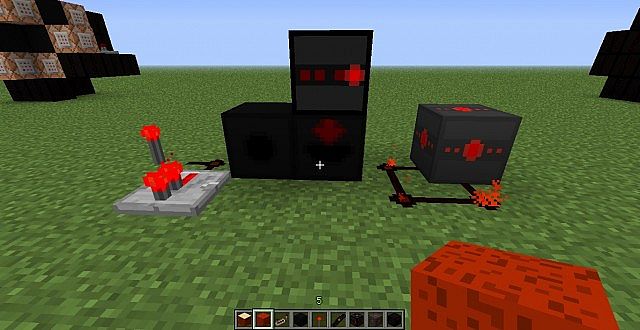
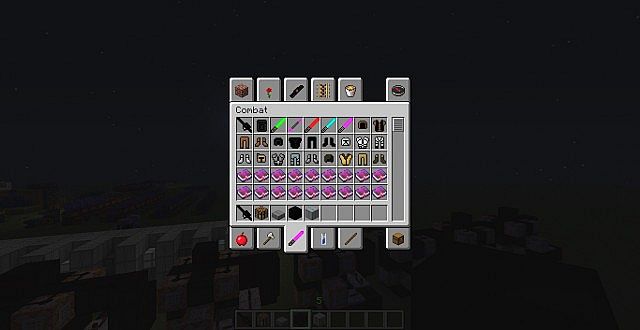
Exploring your Minecraft worlds with this pack feels like stepping onto the battlefield of a legendary Star Wars encounter. The textures, rendered at a classic 16x resolution, offer a perfect balance, maintaining Minecraft’s blocky charm while infusing it with distinctive sci-fi elements. This resolution ensures broad accessibility and smooth performance across a wide range of systems, allowing even players with older hardware to fully immerse themselves without significant frame rate drops. Despite its lower resolution, the pack achieves a remarkable level of detail, transforming mundane blocks into futuristic panels, worn starship hulls, and intricate machinery.
Related Articles:
• MW3 Resource Pack
• Vogpack HD Resource Pack
• Simplex Resource Pack
The atmosphere is undeniably thematic, bringing the gritty, battle-scarred environments of Battlefront 2 to life. Expect to see blocks that mimic the metallic gleam of spacecraft, the worn industrial aesthetic of Rebel bases, and the distinct, utilitarian look of Imperial strongholds. The visual vibe is one of authentic fan service, carefully recreating elements that fans of the Star Wars universe will instantly recognize and appreciate. Whether you’re building a new space station, exploring vast desert planets, or engaging in intense combat scenarios, the Star Wars Battlefront 2 Resource Pack ensures that every block, item, and environmental detail contributes to a cohesive and thrilling Star Wars experience. It’s a superb choice for anyone looking to add a touch of galactic warfare and epic sci-fi adventure to their Minecraft gameplay.
| Minecraft Version | Compatibility |
|---|---|
| 1.7.10 | ✅ Supported |
| 1.7.9 | ✅ Supported |
| 1.7.4 | ✅ Supported |
| 1.7 | ✅ Supported |
| 1.6.4 | ✅ Supported |
| 1.6.2 | ✅ Supported |
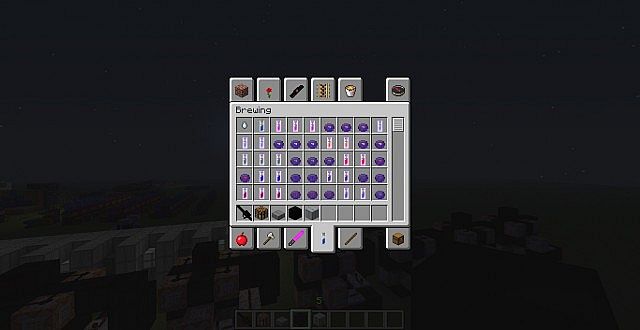
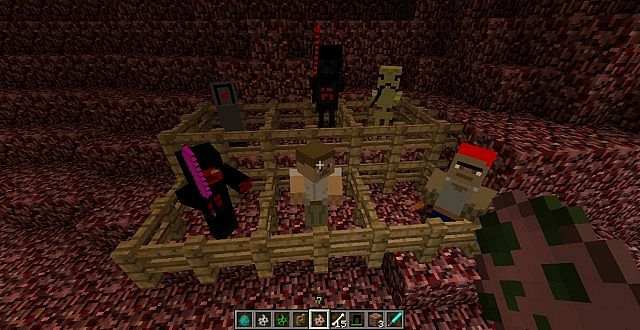
Star Wars Battlefront 2 Resource Pack – Screenshots
How to Install Texture Pack (Simple 10 Steps)
- Download Optifine: Most of the texture packs and shaders need Optifine. That’s why, first download and install Optifine for the version of Minecraft you want to play.
- Download the Texture Pack: Get the texture pack you want from the download section. Choose the version that works with your Minecraft and your PC’s performance.
- Open Minecraft Launcher: Start Minecraft using the official game launcher – or even TLauncher, if you use that.
- Go to Options: From the main menu, click on the “Options” button.
- Open Resource Packs: Inside Options, click on “Resource Packs…”.
- Open the Resource Pack Folder: Click on “Open Resource Pack Folder” – this will open a folder named “resourcepacks”.
- Move the Pack File: Copy or move the .zip file you downloaded into that “resourcepacks” folder. (Don’t unzip the file – Minecraft uses it as-is!)
- Go Back and Refresh: Close the folder and click “Done”, then go back into “Resource Packs…” again.
- Activate the Pack: You’ll see the pack on the left side. Hover over it and click the arrow to move it to the right (active side). Tip: If you get a message that the pack is for a different version, just click “Yes” – it usually works fine.
- Click Done and Enjoy: Click “Done” again. Now your pack is ready to use in-game. It’s that easy!
Download
(16x) (1.7) Download Star Wars Battlefront 2 Resource Pack
(16x) (1.6) Download Star Wars Battlefront 2 Resource Pack
Download Instructions
- CurseForge: If the pack is hosted on CurseForge, the download will begin automatically after a few seconds. If it does not start, use the “Download” button shown on the page.
- Modrinth: If the download is from Modrinth, click the file version that matches your Minecraft build, then press the Download button. Modrinth usually offers multiple releases, so make sure you pick the correct version before installing.
- Mediafire: On Mediafire, click the large blue Download button to start the file download. Avoid any extra pop-ups or buttons that are not related to the direct download.
- Google Drive: For Google Drive, click the small download icon at the top right corner of the page. It looks like a downward arrow. The file will be saved to your computer immediately.
Disclaimer We do not create or modify any of the texture packs or shader packs shared on this website. All credit goes to the original creators, and every download link we provide is the official link from their page, which keeps all downloads safe. Some links may stop working after updates, so if you find a broken one, let us know in the comments and we will update it quickly. If you like a pack, consider supporting the creator by visiting their official page or website that we have linked below, and feel free to leave a comment or vote to help their work reach more players.