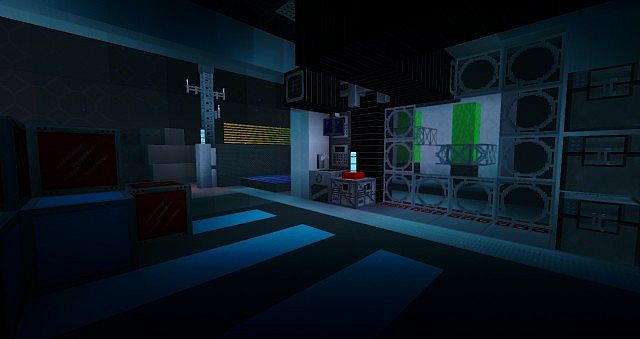
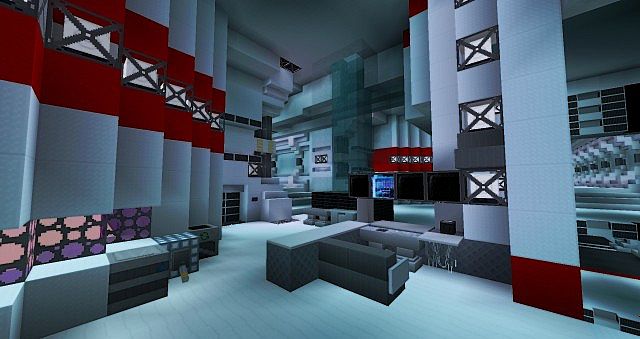
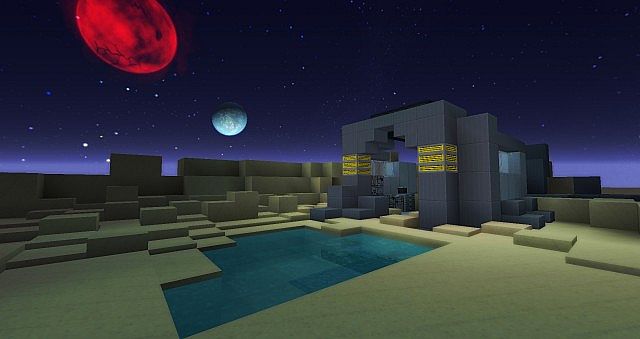
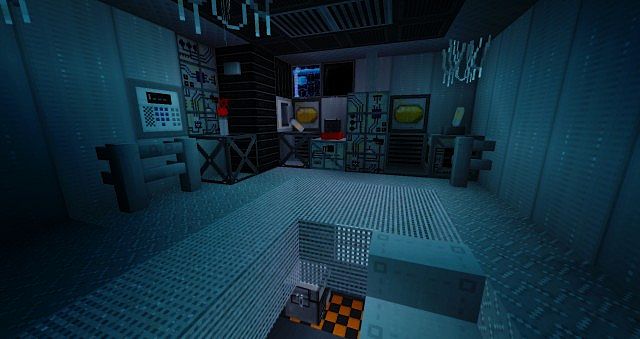
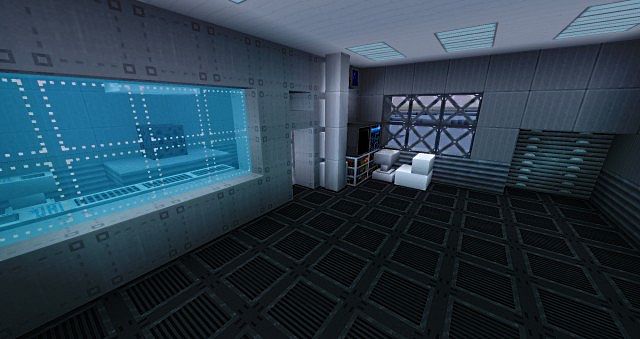
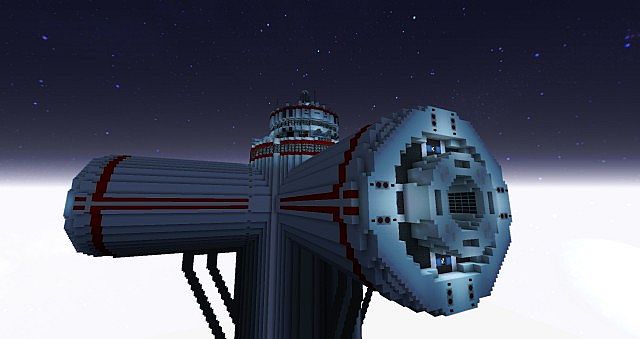
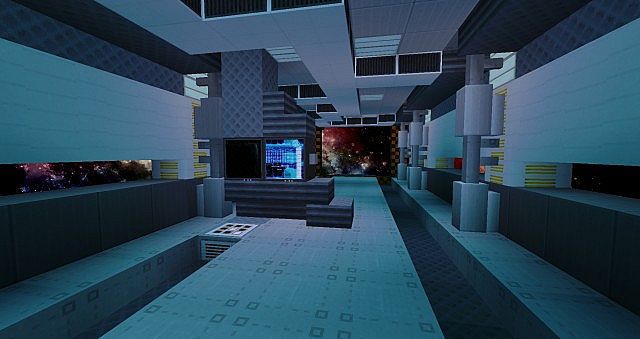
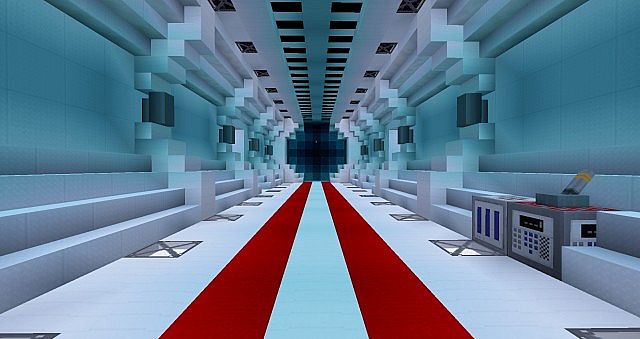
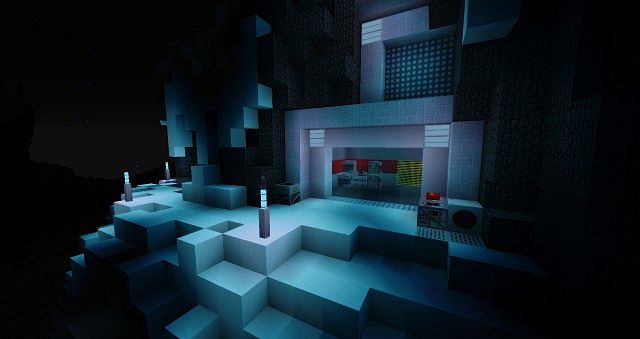
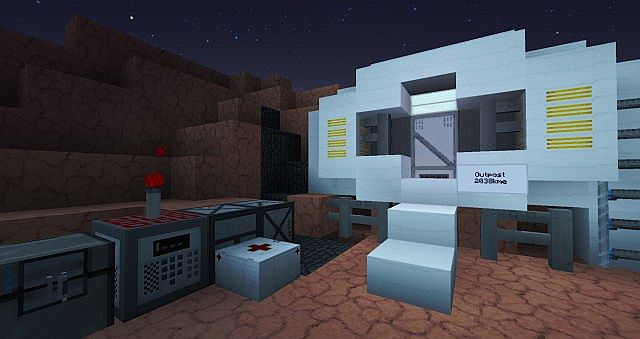
Loading into Minecraft with the Space Architect Resource Pack kinda feels like you’ve ditched Earth altogether. Suddenly everything around you has this clean, futuristic vibe, like you’re standing inside a sci-fi movie set. You can instantly tell this isn’t meant for cozy wooden cabins or medieval castles. Nope. The Space Architect Resource Pack is clearly built for moon bases, space stations, and those sleek cyberpunk-style cities you always wanted to try but vanilla textures never quite supported.
What really stands out is how smooth and polished everything looks. The textures are simple, sure, but in a very intentional way. Blocks feel sharp, modern, almost sterile—in a good way. Lights have this subtle glow, materials look engineered rather than mined, and the whole world just feels… advanced. Despite all that, the Space Architect Resource Pack sticks to a 32x resolution, which honestly is a smart move. You get that futuristic clarity without your PC begging for mercy. Even on average setups, it runs clean and steady.
Exploring with this pack feels completely different. Familiar terrain suddenly feels alien, like you’re charting unexplored planets instead of overworld biomes. If you’ve ever played with something more playful like the BearCraft Resource Pack, the contrast here is wild. Space Architect is all about precision and structure. At the same time, it shares that handcrafted attention to detail you might appreciate if you’ve tried something grounded like the Moray Swift Resource Pack, just pushed into a totally different direction.
And if you’re someone who enjoys strong visual themes, the Space Architect Resource Pack pairs really well mentally with fantasy-heavy visuals like the Faerielight Resource Pack, even though the moods couldn’t be more different. One is dreamy and magical, the other is cold, clean, and futuristic. That’s kinda what makes Space Architect so fun—it commits fully to its theme. By the time you’re done building, surviving, or just wandering around, the Space Architect Resource Pack makes Minecraft feel less like a sandbox and more like your own personal sci-fi universe.
| Minecraft Version | Compatibility |
|---|---|
| 1.7.10 | ✅ Supported |
| 1.7.9 | ✅ Supported |
| 1.7.4 | ✅ Supported |
| 1.7 | ✅ Supported |
| 1.6.4 | ✅ Supported |
| 1.6.2 | ✅ Supported |
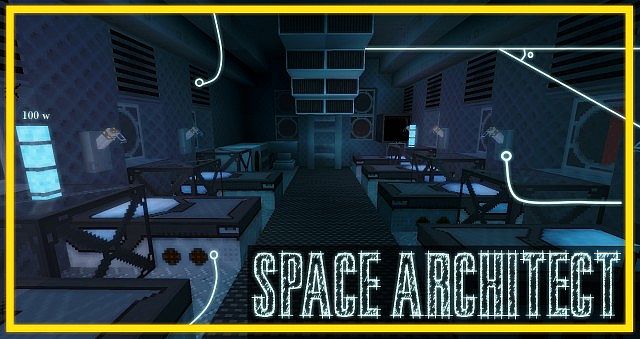
Space Architect – Screenshots
How to Install Texture Pack (Simple 10 Steps)
- Download Optifine: Most of the texture packs and shaders need Optifine. That’s why, first download and install Optifine for the version of Minecraft you want to play.
- Download the Texture Pack: Get the texture pack you want from the download section. Choose the version that works with your Minecraft and your PC’s performance.
- Open Minecraft Launcher: Start Minecraft using the official game launcher – or even TLauncher, if you use that.
- Go to Options: From the main menu, click on the “Options” button.
- Open Resource Packs: Inside Options, click on “Resource Packs…”.
- Open the Resource Pack Folder: Click on “Open Resource Pack Folder” – this will open a folder named “resourcepacks”.
- Move the Pack File: Copy or move the .zip file you downloaded into that “resourcepacks” folder. (Don’t unzip the file – Minecraft uses it as-is!)
- Go Back and Refresh: Close the folder and click “Done”, then go back into “Resource Packs…” again.
- Activate the Pack: You’ll see the pack on the left side. Hover over it and click the arrow to move it to the right (active side). Tip: If you get a message that the pack is for a different version, just click “Yes” – it usually works fine.
- Click Done and Enjoy: Click “Done” again. Now your pack is ready to use in-game. It’s that easy!
Download
Download Instructions
- CurseForge: If the pack is hosted on CurseForge, the download will begin automatically after a few seconds. If it does not start, use the “Download” button shown on the page.
- Modrinth: If the download is from Modrinth, click the file version that matches your Minecraft build, then press the Download button. Modrinth usually offers multiple releases, so make sure you pick the correct version before installing.
- Mediafire: On Mediafire, click the large blue Download button to start the file download. Avoid any extra pop-ups or buttons that are not related to the direct download.
- Google Drive: For Google Drive, click the small download icon at the top right corner of the page. It looks like a downward arrow. The file will be saved to your computer immediately.
Disclaimer We do not create or modify any of the texture packs or shader packs shared on this website. All credit goes to the original creators, and every download link we provide is the official link from their page, which keeps all downloads safe. Some links may stop working after updates, so if you find a broken one, let us know in the comments and we will update it quickly. If you like a pack, consider supporting the creator by visiting their official page or website that we have linked below, and feel free to leave a comment or vote to help their work reach more players.