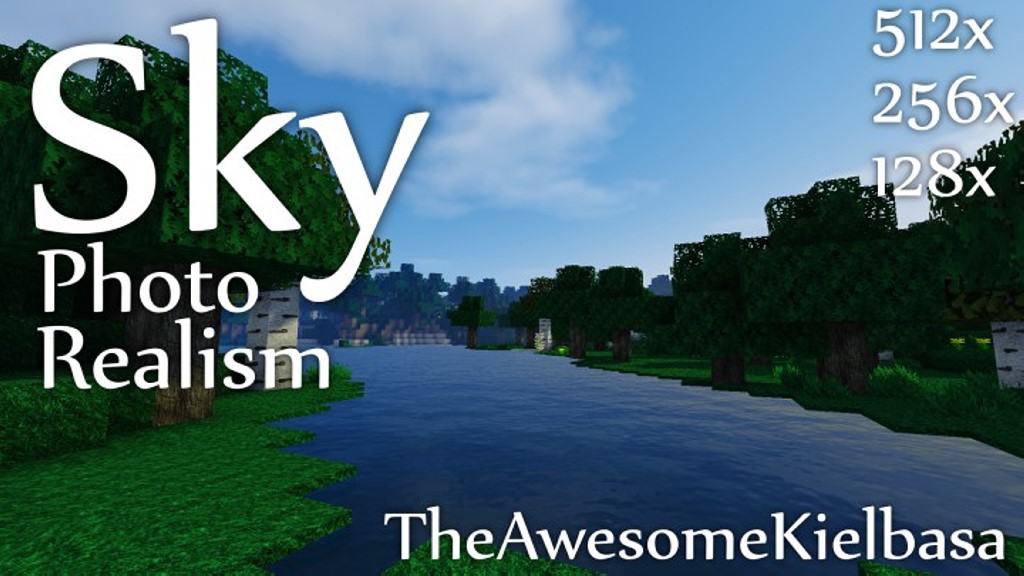
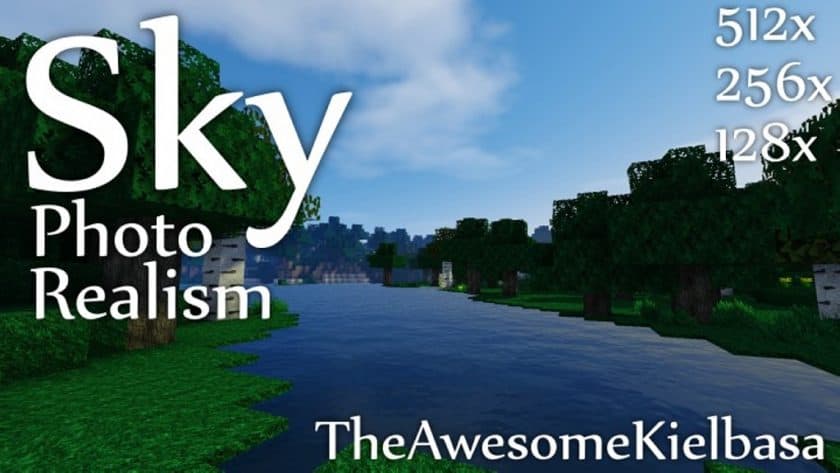
Stepping into a Minecraft world with the Sky Photo Realism Resource Pack activated feels like gazing at a familiar landscape through a brand-new lens. While Minecraft’s iconic, blocky charm remains untouched, this pack embarks on an ambitious journey to infuse it with breathtaking realism and visual depth. It’s not just an upgrade; it’s a reinterpretation that respects the game’s essence while pushing its graphical boundaries. The immediate impact is noticeable in the stunningly high-resolution textures that replace the vanilla defaults, bringing an unprecedented level of detail to every block and environmental element. The vibrant, often exaggerated colors of standard Minecraft are gently toned down, replaced with a richer palette of shades that lend a sophisticated, less cartoony feel to the world.
Exploring biomes with this pack installed is an experience unto itself. Terrain blocks, from the rough grit of cobblestone to the lush expanse of grass, exhibit enhanced clarity and finer textures, making the environment feel more tangible and alive. Despite the added detail, the textures maintain a clean aesthetic, avoiding excessive visual noise and instead appearing remarkably bright and crisp. For those seeking the ultimate visual fidelity, the 512x resolution version of the Sky Photo Realism texture pack delivers an unparalleled level of realism, transforming Minecraft into something truly cinematic. However, this visual splendor comes with a performance consideration; the 512x version is quite demanding on system resources and may lead to noticeable frame rate drops, especially on older hardware.
Players looking for a smoother experience without compromising too much on visual quality can opt for the 256x or 128x versions, which strike an excellent balance between performance and aesthetics. To unlock the full potential of Sky Photo Realism, especially its higher texture quality and noise reduction, integrating it with a compatible shader pack is highly recommended. Pairing it with options like GLSL Shaders or Sonic Ether’s Unbelievable Shaders (SEUS) will dramatically enhance lighting, shadows, and overall atmospheric effects, making the terrain and objects appear even sharper and more dynamic. Both the resource pack and any chosen shaders require Optifine to be installed, ensuring seamless integration and optimal performance adjustments. Navigating through a world rendered with Sky Photo Realism and a well-chosen shader pack offers an immersive and profoundly beautiful Minecraft adventure.
| Minecraft Version | Compatibility |
|---|---|
| 1.9.4 | ✅ Supported |
| 1.9 | ✅ Supported |
| 1.8.9 | ✅ Supported |
| 1.8.8 | ✅ Supported |
| 1.8.1 | ✅ Supported |
| 1.8.6 | ✅ Supported |
| 1.8 | ✅ Supported |
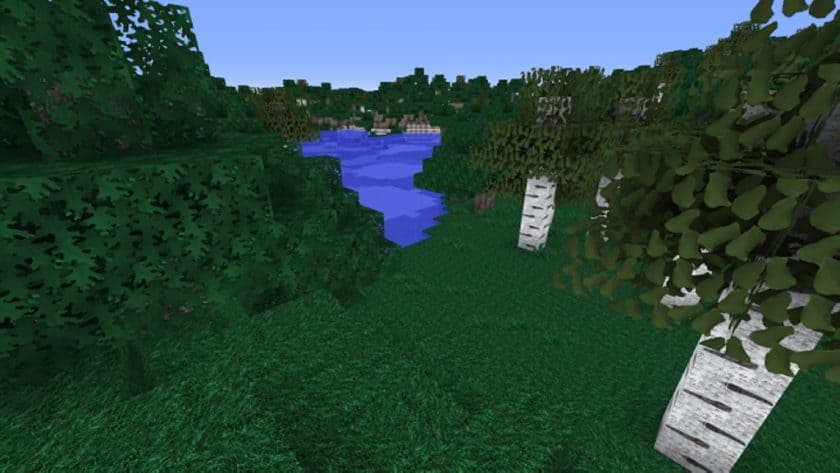
Sky Photo Realism – Screenshots
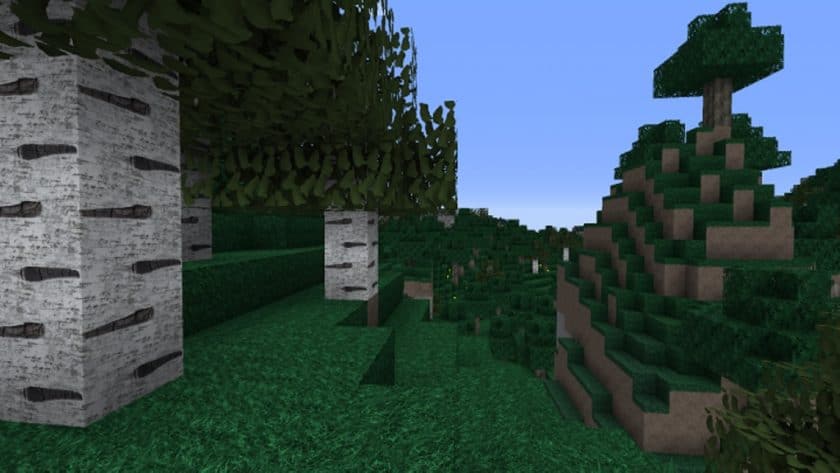
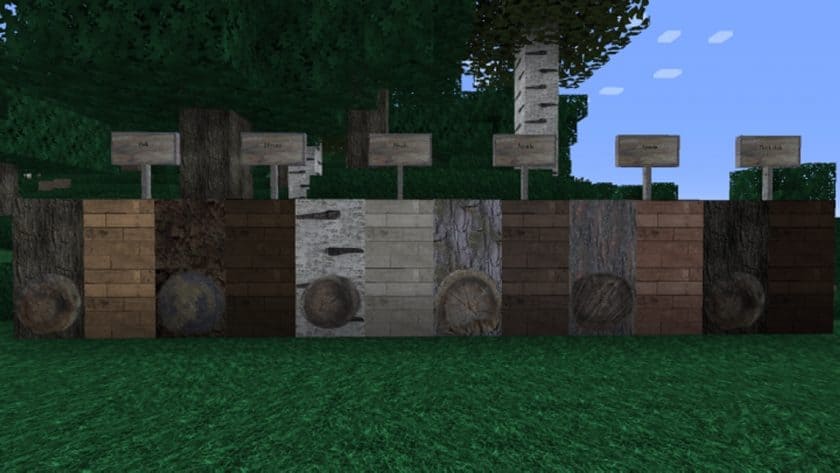
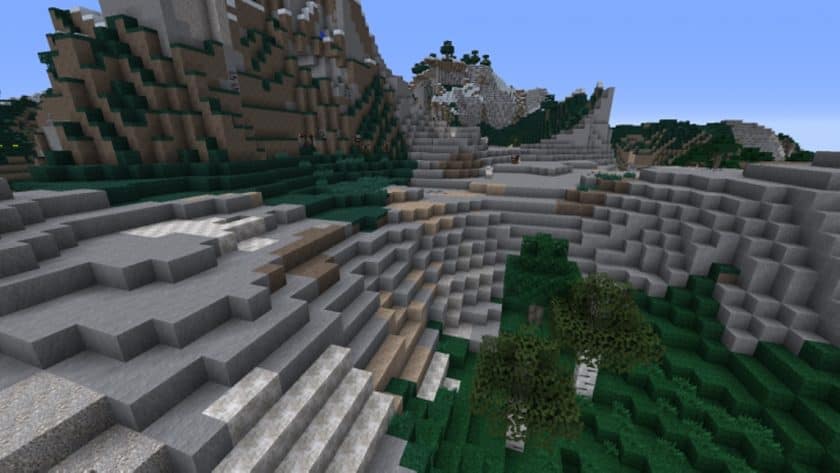
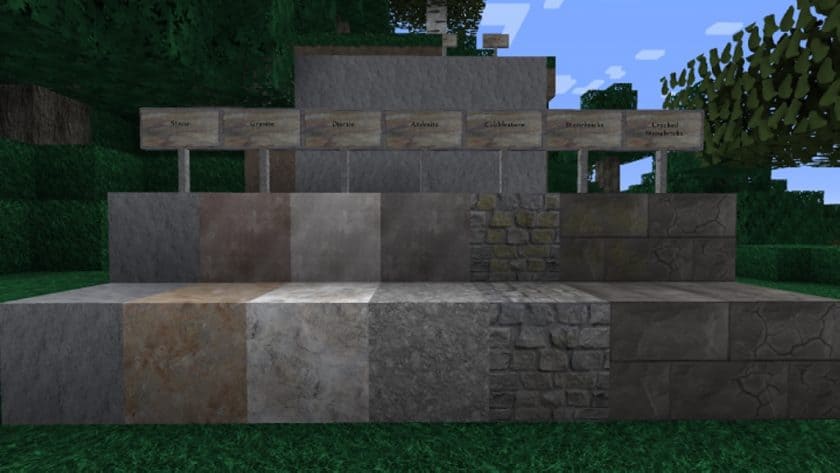
How to Install Texture Pack (Simple 10 Steps)
- Download Optifine: Most of the texture packs and shaders need Optifine. That’s why, first download and install Optifine for the version of Minecraft you want to play.
- Download the Texture Pack: Get the texture pack you want from the download section. Choose the version that works with your Minecraft and your PC’s performance.
- Open Minecraft Launcher: Start Minecraft using the official game launcher – or even TLauncher, if you use that.
- Go to Options: From the main menu, click on the “Options” button.
- Open Resource Packs: Inside Options, click on “Resource Packs…”.
- Open the Resource Pack Folder: Click on “Open Resource Pack Folder” – this will open a folder named “resourcepacks”.
- Move the Pack File: Copy or move the .zip file you downloaded into that “resourcepacks” folder. (Don’t unzip the file – Minecraft uses it as-is!)
- Go Back and Refresh: Close the folder and click “Done”, then go back into “Resource Packs…” again.
- Activate the Pack: You’ll see the pack on the left side. Hover over it and click the arrow to move it to the right (active side). Tip: If you get a message that the pack is for a different version, just click “Yes” – it usually works fine.
- Click Done and Enjoy: Click “Done” again. Now your pack is ready to use in-game. It’s that easy!
Download
(128x) (1.9.x – 1.8..x) Download Sky Photo Realism Resource Pack
(256x) (1.9.x – 1.8..x) Download Sky Photo Realism Resource Pack
(512x) (1.9.x – 1.8..x) Download Sky Photo Realism Resource Pack
Official links:
Check out the Sky Photo Realism Resource Pack on the official resource
Download Instructions
-
CurseForge: If the pack is hosted on CurseForge, the download will begin automatically after a few seconds. If it does not start, use the “Download” button shown on the page.
-
Modrinth: If the download is from Modrinth, click the file version that matches your Minecraft build, then press the Download button. Modrinth usually offers multiple releases, so make sure you pick the correct version before installing.
-
Mediafire: On Mediafire, click the large blue Download button to start the file download. Avoid any extra pop-ups or buttons that are not related to the direct download.
-
Google Drive: For Google Drive, click the small download icon at the top right corner of the page. It looks like a downward arrow. The file will be saved to your computer immediately.
Disclaimer We do not create or modify any of the texture packs or shader packs shared on this website. All credit goes to the original creators, and every download link we provide is the official link from their page, which keeps all downloads safe. Some links may stop working after updates, so if you find a broken one, let us know in the comments and we will update it quickly. If you like a pack, consider supporting the creator by visiting their official page or website that we have linked below, and feel free to leave a comment or vote to help their work reach more players.