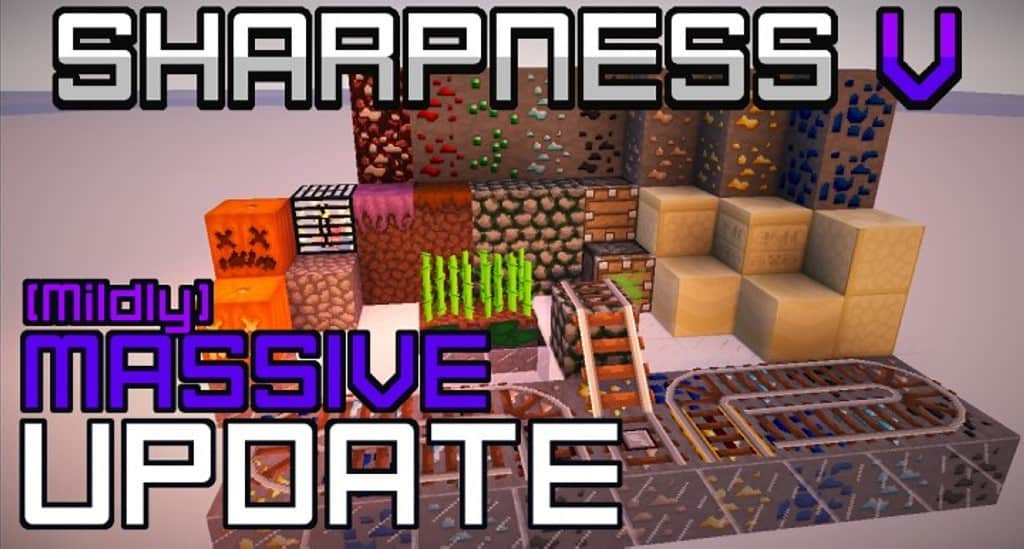
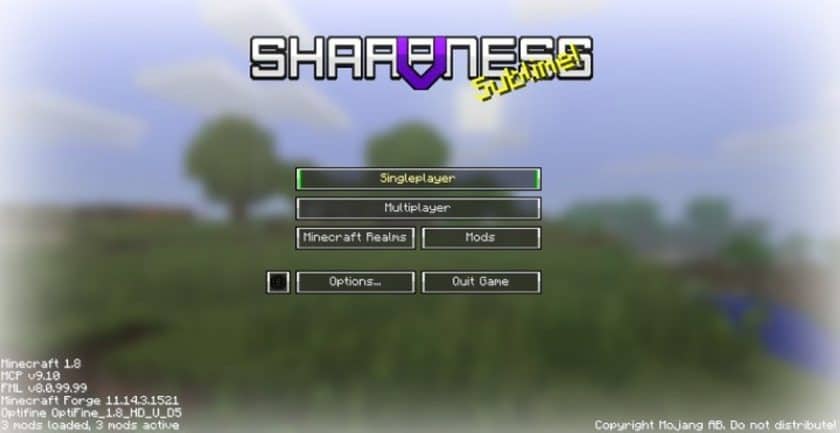
When I first stepped into a world powered by the Sharpness V PvP Resource Pack, the immediate impact was undeniable. Unlike many packs that simply remix existing assets, Sharpness V PvP truly carves out its own identity, offering a fresh take on the Minecraft experience, especially for those who live for player-versus-player combat. This pack isn’t just about making things look different; it’s about making them look better and sharper, all while retaining the core essence of Minecraft. The creators clearly poured their hearts into hand-crafting 100% original textures, with an ambitious goal to eventually revamp every item in the game.
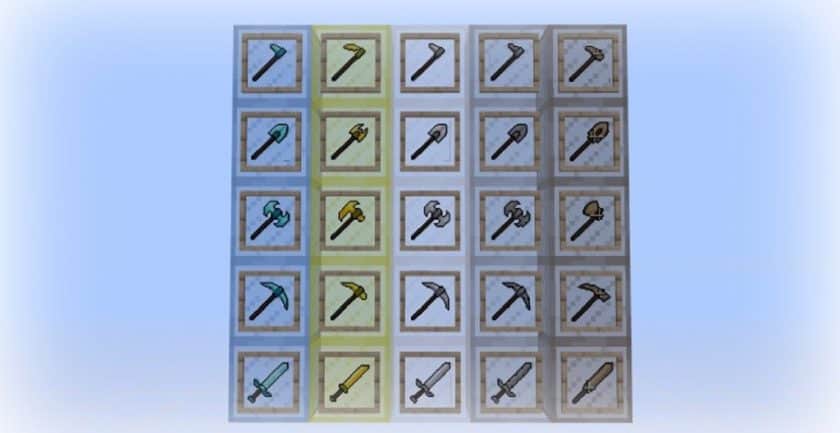
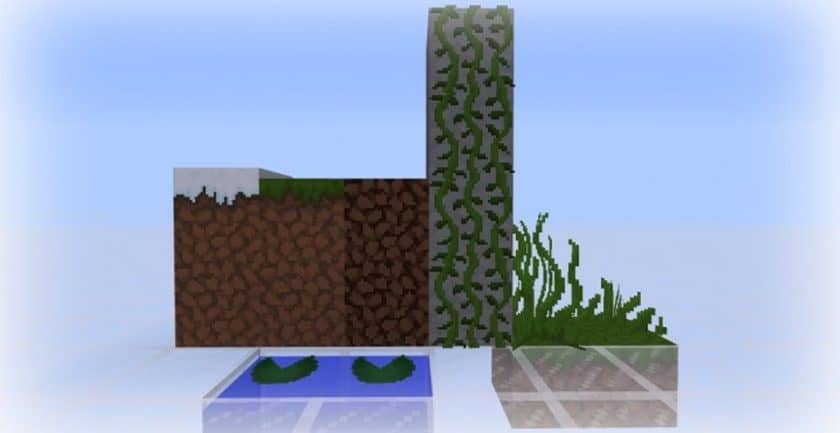
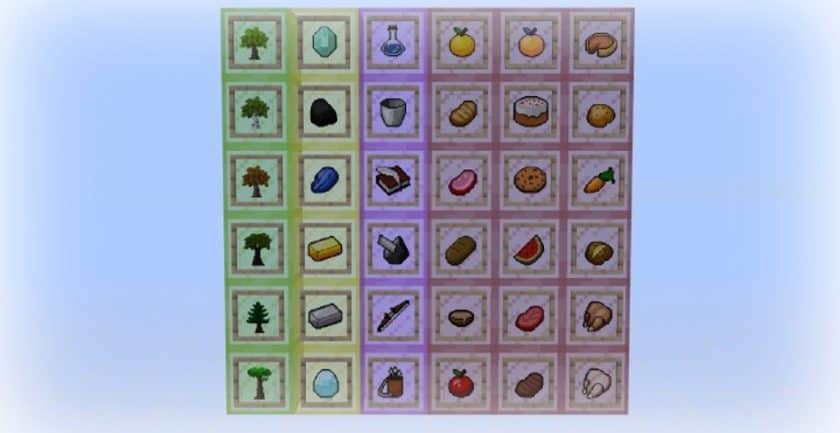
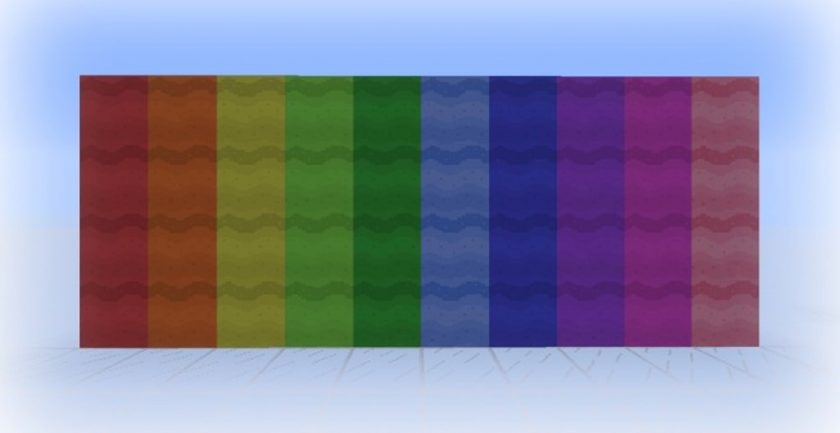
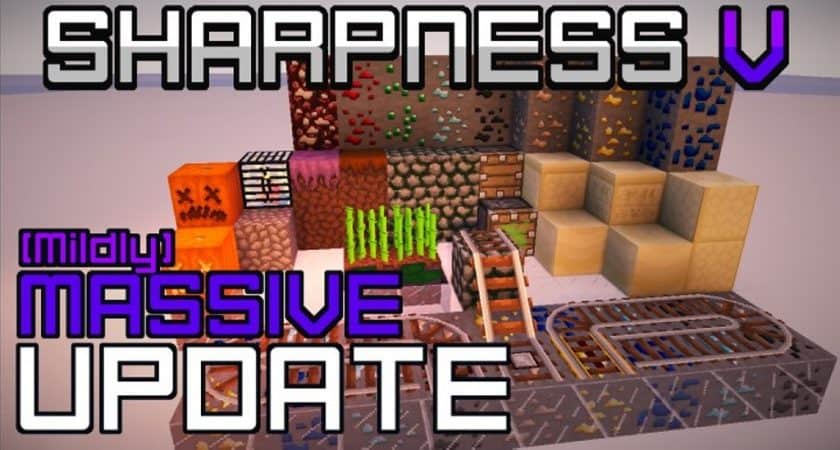
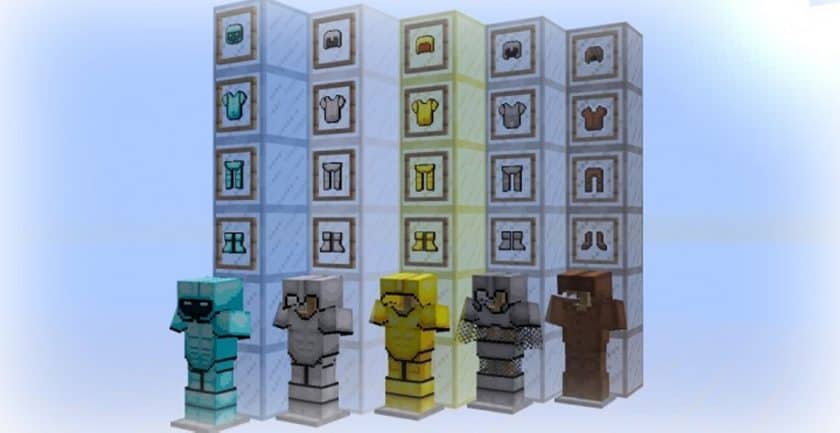
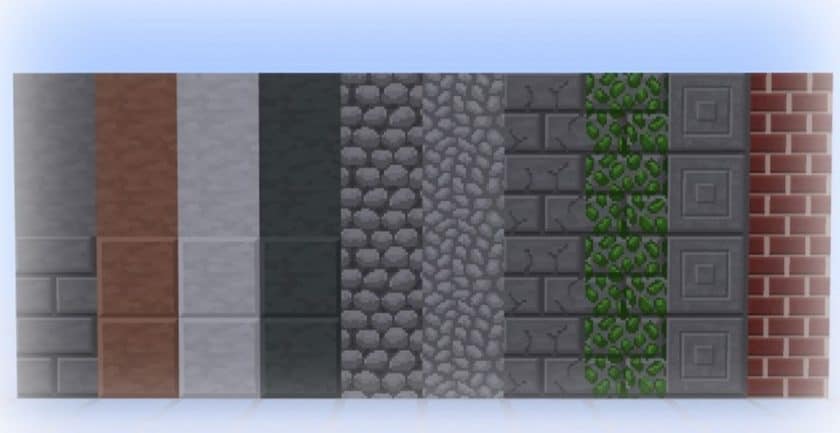
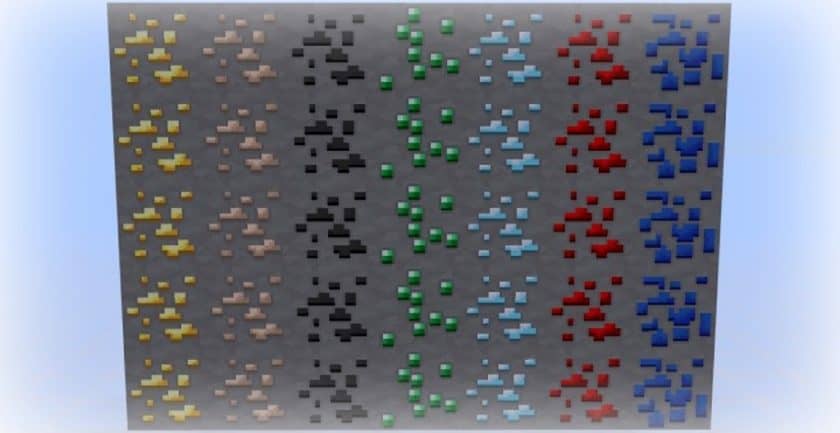
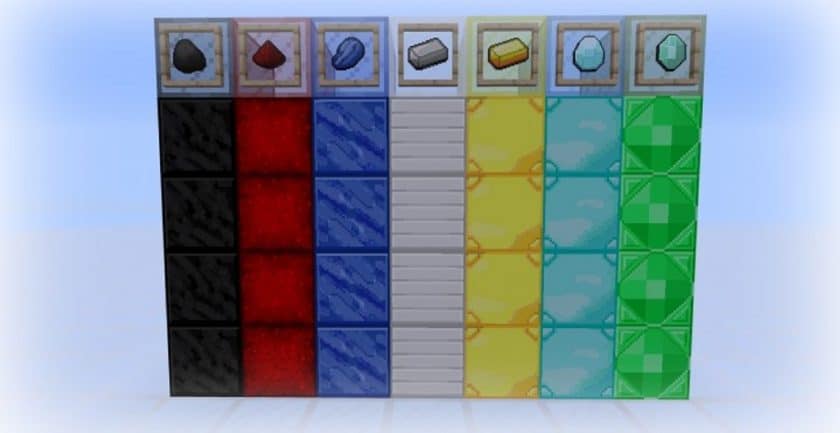
The moment you equip Sharpness V PvP, the difference in weapons and armor is striking. Every piece feels re-energized with new, higher-resolution textures at a crisp 32x. This upgrade from vanilla Minecraft’s 16x resolution immediately brings a level of detail and clarity that makes every sword swing and shield block feel more impactful. True to its name, the redesigned textures are visibly sharper and burst with a brightness that cuts through the default gloom. They’ve skillfully reduced visual noise, allowing the increased pixel density to highlight intricate details across blocks and items. Beyond just weapons, the world around you also transforms; colors become more saturated, breathing vivid life into landscapes, transforming mundane grays into a lively spectrum. Trees, food, grass, leaves, plants, and flowers all receive this meticulous, hand-crafted treatment, contributing to an overall more vibrant and engaging environment. While the development team continues their work on replacing every default texture, the progress so far is impressive. Despite the bump to 32x resolution, which might typically suggest a performance hit, Sharpness V PvP remains surprisingly light, ensuring a smooth and enjoyable experience without demanding a top-tier gaming rig. It’s a testament to a pack designed by players, for players, who understand the delicate balance between visual enhancement and seamless gameplay.
| Minecraft Version | Compatibility |
|---|---|
| 1.8.9 | ✅ Supported |
| 1.8.8 | ✅ Supported |
| 1.8.1 | ✅ Supported |
| 1.8.6 | ✅ Supported |
| 1.8 | ✅ Supported |
| 1.7.10 | ✅ Supported |
| 1.7.9 | ✅ Supported |
| 1.7.4 | ✅ Supported |
| 1.7 | ✅ Supported |
Sharpness V PvP Resource Pack – Screenshots & Videos
https://www.youtube.com/watch?v=cOHpdPyYW00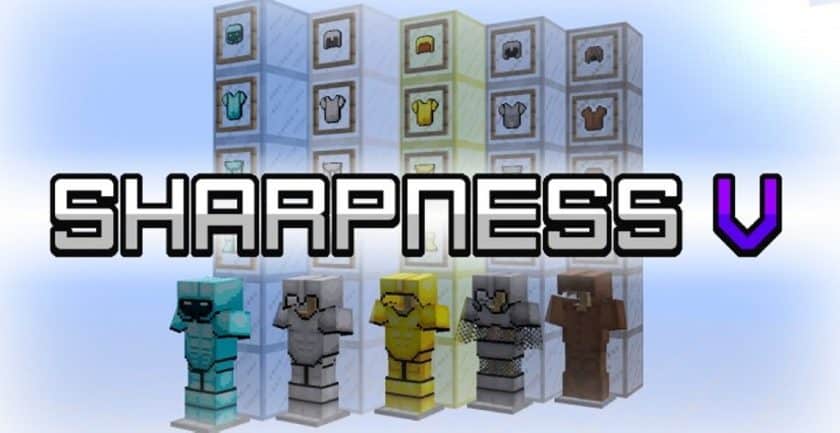
How to Install Texture Pack (Simple 10 Steps)
- Download Optifine: Most of the texture packs and shaders need Optifine. That’s why, first download and install Optifine for the version of Minecraft you want to play.
- Download the Texture Pack: Get the texture pack you want from the download section. Choose the version that works with your Minecraft and your PC’s performance.
- Open Minecraft Launcher: Start Minecraft using the official game launcher – or even TLauncher, if you use that.
- Go to Options: From the main menu, click on the “Options” button.
- Open Resource Packs: Inside Options, click on “Resource Packs…”.
- Open the Resource Pack Folder: Click on “Open Resource Pack Folder” – this will open a folder named “resourcepacks”.
- Move the Pack File: Copy or move the .zip file you downloaded into that “resourcepacks” folder. (Don’t unzip the file – Minecraft uses it as-is!)
- Go Back and Refresh: Close the folder and click “Done”, then go back into “Resource Packs…” again.
- Activate the Pack: You’ll see the pack on the left side. Hover over it and click the arrow to move it to the right (active side). Tip: If you get a message that the pack is for a different version, just click “Yes” – it usually works fine.
- Click Done and Enjoy: Click “Done” again. Now your pack is ready to use in-game. It’s that easy!
Download
(32x) (1.8.x) Download Sharpness V PvP Resource Pack
Official links:
Check out the Sharpness V PvP Resource Pack on the official resource
Download Instructions
-
CurseForge: If the pack is hosted on CurseForge, the download will begin automatically after a few seconds. If it does not start, use the “Download” button shown on the page.
-
Modrinth: If the download is from Modrinth, click the file version that matches your Minecraft build, then press the Download button. Modrinth usually offers multiple releases, so make sure you pick the correct version before installing.
-
Mediafire: On Mediafire, click the large blue Download button to start the file download. Avoid any extra pop-ups or buttons that are not related to the direct download.
-
Google Drive: For Google Drive, click the small download icon at the top right corner of the page. It looks like a downward arrow. The file will be saved to your computer immediately.
Disclaimer We do not create or modify any of the texture packs or shader packs shared on this website. All credit goes to the original creators, and every download link we provide is the official link from their page, which keeps all downloads safe. Some links may stop working after updates, so if you find a broken one, let us know in the comments and we will update it quickly. If you like a pack, consider supporting the creator by visiting their official page or website that we have linked below, and feel free to leave a comment or vote to help their work reach more players.