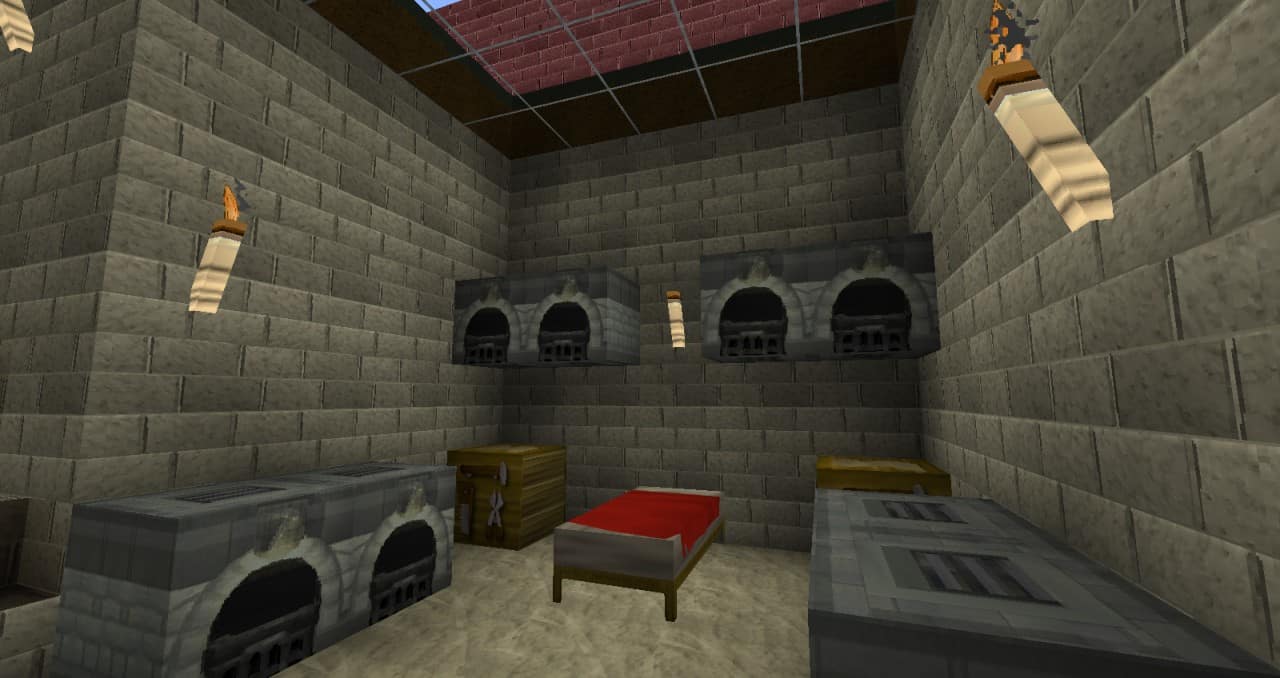
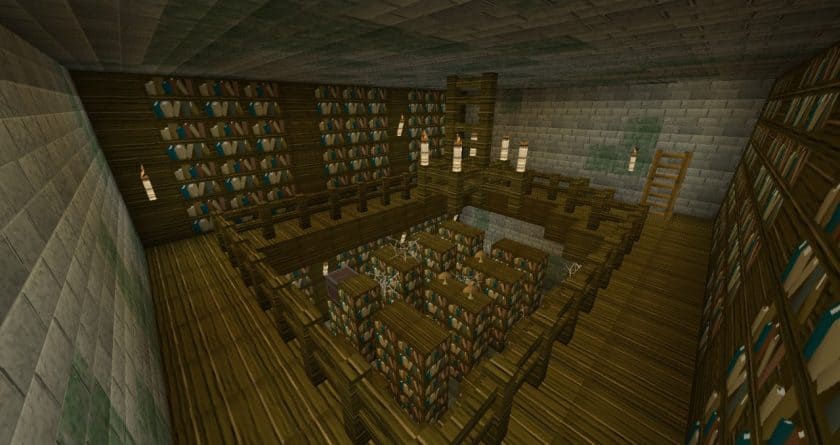
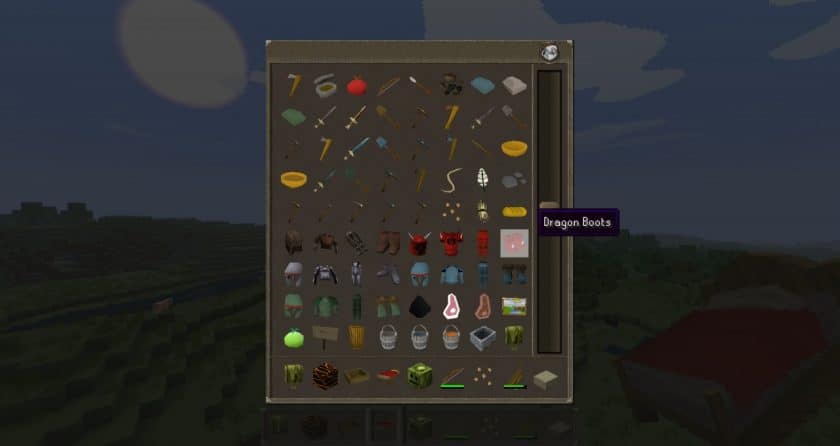
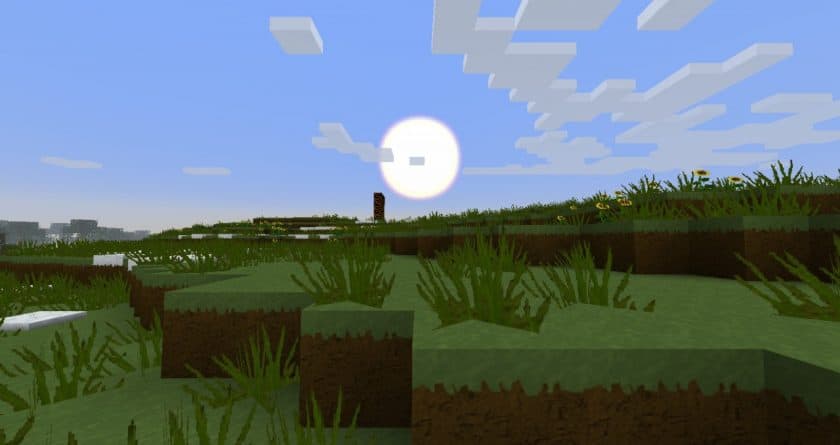
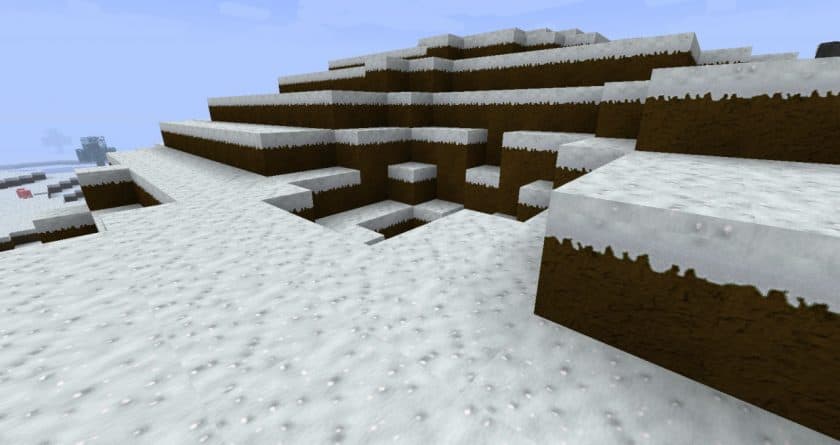
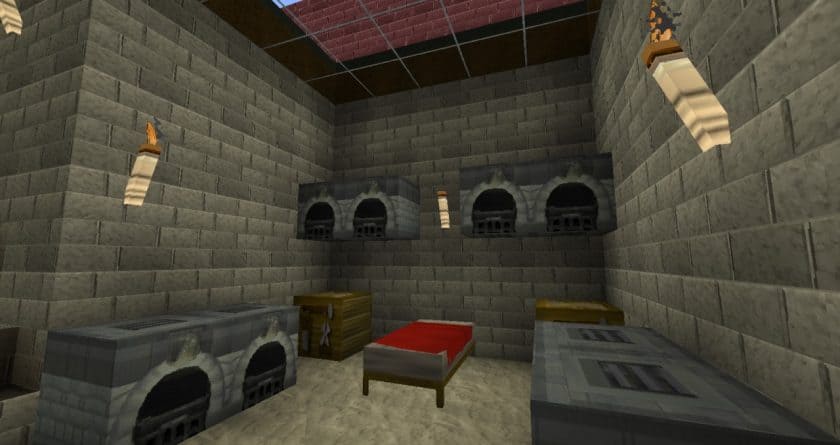
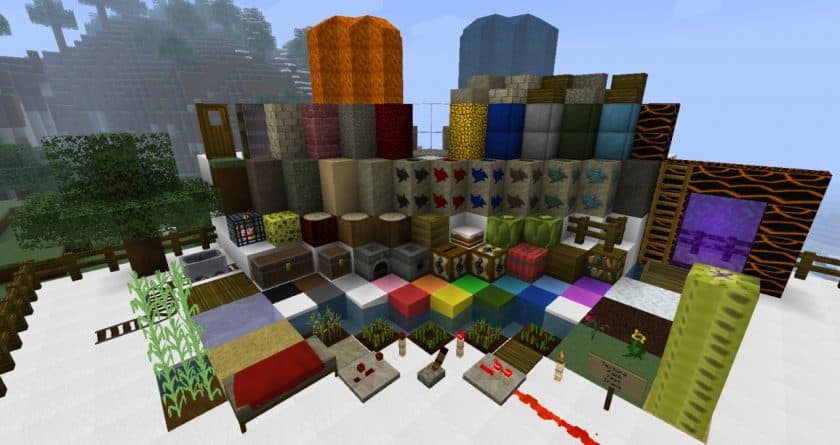
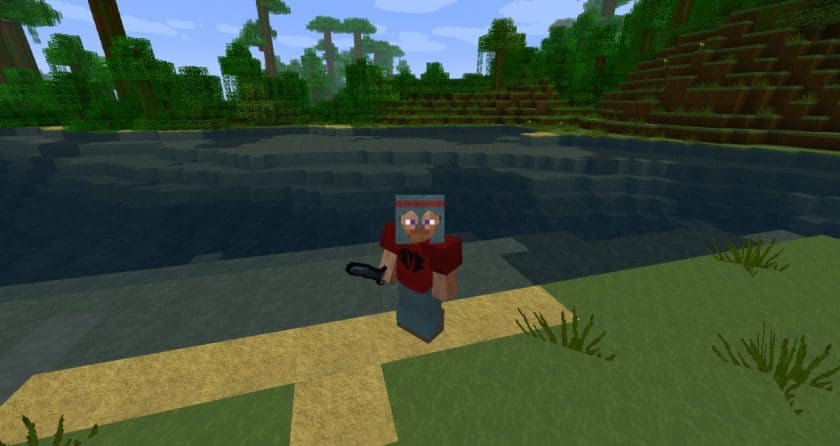
Stepping into a Minecraft world with the RuneScape Resource Pack feels like stumbling upon a hidden server dedicated to Gielinor itself. From the moment I loaded it up, the nostalgic charm of RuneScape immediately washed over the blocky landscape. The pack successfully translates the iconic aesthetic of the beloved MMORPG into Minecraft, transforming everything from the humble cobblestone to towering trees with a distinct, familiar artistry. This isn’t just a simple texture swap; it’s a careful reimagining that captures the unique blend of medieval fantasy and distinct low-polygon art that defined RuneScape for so many players. The visual vibe is distinctly old-school RPG, perfect for those who appreciate that classic feel. Walking through forests, the tree trunks have that recognizable chunky, stylized look, and the leaves offer a vibrant, yet softened, appearance. Mining feels more like gathering resources in Lumbridge or Falador, with ores and blocks reflecting the game’s recognizable item designs. Even the water and sky take on a subtle transformation, enhancing the overall atmosphere to feel less like vanilla Minecraft and more like traversing the wilderness or exploring a quest area. For long-time fans of RuneScape, this pack is an absolute treasure, providing countless moments of recognition and a sense of “home.” But even if you’ve never ventured into Gielinor, the RuneScape pack offers a robust and immersive RPG-style aesthetic that stands strong on its own, ideal for adventure maps, medieval builds, or simply a fresh, character-filled visual experience. Performance-wise, being a 64x resolution pack, it strikes a good balance, offering enhanced detail without being overly demanding on most systems, making it accessible for a wide range of players.
| Minecraft Version | Compatibility |
|---|---|
| 1.8.6 | ✅ Supported |
| 1.8 | ✅ Supported |
| 1.7.10 | ✅ Supported |
| 1.7.9 | ✅ Supported |
| 1.7.4 | ✅ Supported |
| 1.7 | ✅ Supported |
| 1.6.4 | ✅ Supported |
| 1.6.2 | ✅ Supported |
RuneScape Resource Pack – Screenshots
How to Install Texture Pack (Simple 10 Steps)
- Download Optifine: Most of the texture packs and shaders need Optifine. That’s why, first download and install Optifine for the version of Minecraft you want to play.
- Download the Texture Pack: Get the texture pack you want from the download section. Choose the version that works with your Minecraft and your PC’s performance.
- Open Minecraft Launcher: Start Minecraft using the official game launcher – or even TLauncher, if you use that.
- Go to Options: From the main menu, click on the “Options” button.
- Open Resource Packs: Inside Options, click on “Resource Packs…”.
- Open the Resource Pack Folder: Click on “Open Resource Pack Folder” – this will open a folder named “resourcepacks”.
- Move the Pack File: Copy or move the .zip file you downloaded into that “resourcepacks” folder. (Don’t unzip the file – Minecraft uses it as-is!)
- Go Back and Refresh: Close the folder and click “Done”, then go back into “Resource Packs…” again.
- Activate the Pack: You’ll see the pack on the left side. Hover over it and click the arrow to move it to the right (active side). Tip: If you get a message that the pack is for a different version, just click “Yes” – it usually works fine.
- Click Done and Enjoy: Click “Done” again. Now your pack is ready to use in-game. It’s that easy!
Download
(1.8) (1.7) (64x) RuneScape Resource Pack
Download Instructions
-
CurseForge: If the pack is hosted on CurseForge, the download will begin automatically after a few seconds. If it does not start, use the “Download” button shown on the page.
-
Modrinth: If the download is from Modrinth, click the file version that matches your Minecraft build, then press the Download button. Modrinth usually offers multiple releases, so make sure you pick the correct version before installing.
-
Mediafire: On Mediafire, click the large blue Download button to start the file download. Avoid any extra pop-ups or buttons that are not related to the direct download.
-
Google Drive: For Google Drive, click the small download icon at the top right corner of the page. It looks like a downward arrow. The file will be saved to your computer immediately.
Disclaimer We do not create or modify any of the texture packs or shader packs shared on this website. All credit goes to the original creators, and every download link we provide is the official link from their page, which keeps all downloads safe. Some links may stop working after updates, so if you find a broken one, let us know in the comments and we will update it quickly. If you like a pack, consider supporting the creator by visiting their official page or website that we have linked below, and feel free to leave a comment or vote to help their work reach more players.