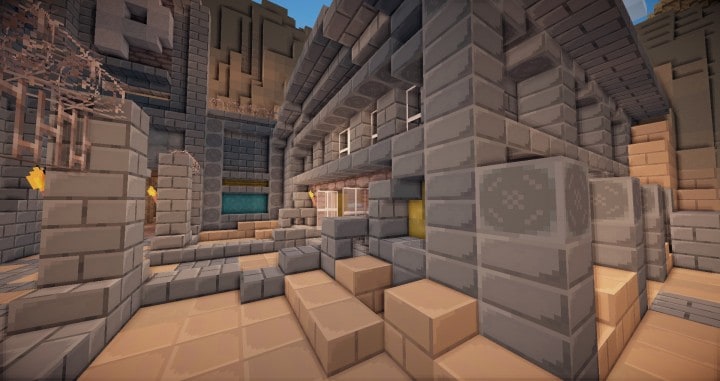
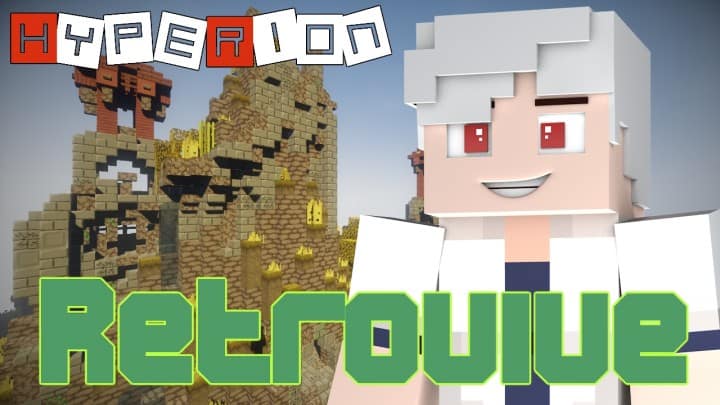
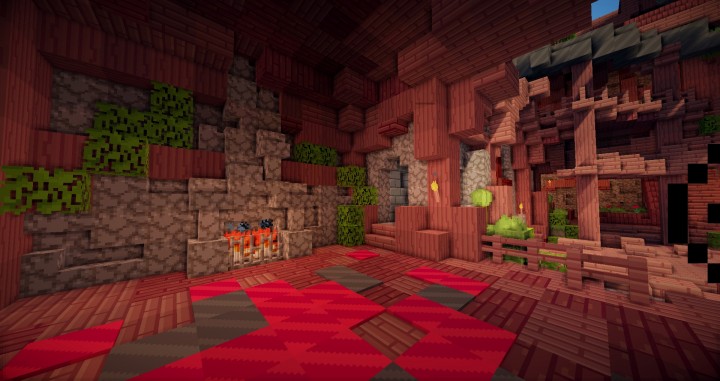
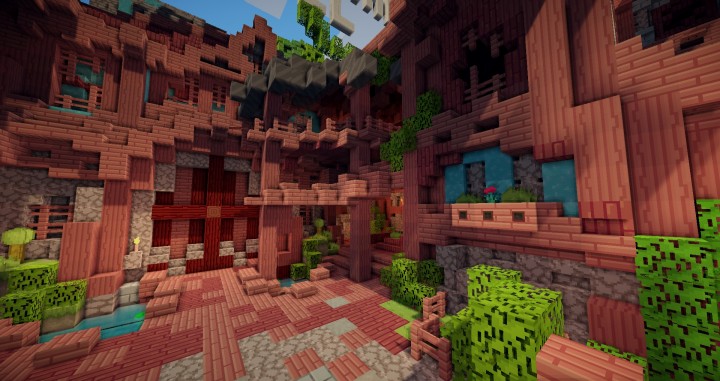
Stepping into a Minecraft world enhanced by the Retrovive Resource Pack is like rediscovering the game through a beautifully refined lens. Despite its modest 16×16 resolution, this pack masterfully redefines the visual experience, proving that high fidelity isn’t always about pixel count. From the moment you load it, the world around you transforms with quality-rendered textures that breathe new life into every block, item, and even the mobs. It’s an immersion that genuinely surprises, making you forget you’re playing with a standard resolution pack.
The genius of Retrovive lies in its ability to elevate the default Minecraft aesthetic without straying too far from its beloved roots. Each texture feels thoughtfully crafted, bringing a noticeable polish and consistency across the entire game environment. The color palette appears vibrant yet harmonious, contributing to an inviting and cohesive atmosphere whether you’re exploring lush forests, delving into dark caverns, or building your grandest creations. The subtle details and improved shading give objects a tangible presence, making familiar landscapes feel fresh and engaging.
Navigating through different biomes with Retrovive active is a pleasure. The trees boast more defined foliage, water shimmers with a clearer quality, and the diverse terrain textures blend seamlessly, eliminating the often-jagged transitions found in many default-style packs. Even the user interface elements and mob designs receive a tasteful overhaul, integrating perfectly with the pack’s overarching theme of enhanced classicism. This careful attention to detail ensures that your adventures, from resource gathering to epic boss battles, are framed within a consistently stunning visual backdrop.
Furthermore, one of Retrovive’s significant strengths is its performance. Given its 16×16 resolution, it’s exceptionally light on system resources, making it an ideal choice for players who want a significant visual upgrade without sacrificing frame rates. This means a smoother, more stable gameplay experience across a wide range of hardware, allowing you to fully appreciate its charm without any technical hitches. It truly offers an amazing overall look that belies its technical specifications, providing a renewed sense of wonder and visual comfort to your Minecraft journey.
| Minecraft Version | Compatibility |
|---|---|
| 1.8.1 | ✅ Supported |
| 1.8.6 | ✅ Supported |
| 1.7.10 | ✅ Supported |
| 1.7.9 | ✅ Supported |
| 1.7.4 | ✅ Supported |
| 1.7 | ✅ Supported |
| 1.6.4 | ✅ Supported |
| 1.6.2 | ✅ Supported |
Retrovive Resource Pack – Screenshots
How to Install Texture Pack (Simple 10 Steps)
- Download Optifine: Most of the texture packs and shaders need Optifine. That’s why, first download and install Optifine for the version of Minecraft you want to play.
- Download the Texture Pack: Get the texture pack you want from the download section. Choose the version that works with your Minecraft and your PC’s performance.
- Open Minecraft Launcher: Start Minecraft using the official game launcher – or even TLauncher, if you use that.
- Go to Options: From the main menu, click on the “Options” button.
- Open Resource Packs: Inside Options, click on “Resource Packs…”.
- Open the Resource Pack Folder: Click on “Open Resource Pack Folder” – this will open a folder named “resourcepacks”.
- Move the Pack File: Copy or move the .zip file you downloaded into that “resourcepacks” folder. (Don’t unzip the file – Minecraft uses it as-is!)
- Go Back and Refresh: Close the folder and click “Done”, then go back into “Resource Packs…” again.
- Activate the Pack: You’ll see the pack on the left side. Hover over it and click the arrow to move it to the right (active side). Tip: If you get a message that the pack is for a different version, just click “Yes” – it usually works fine.
- Click Done and Enjoy: Click “Done” again. Now your pack is ready to use in-game. It’s that easy!
Download
Download Retrovive Resource Pack from official site
Download Instructions
-
CurseForge: If the pack is hosted on CurseForge, the download will begin automatically after a few seconds. If it does not start, use the “Download” button shown on the page.
-
Modrinth: If the download is from Modrinth, click the file version that matches your Minecraft build, then press the Download button. Modrinth usually offers multiple releases, so make sure you pick the correct version before installing.
-
Mediafire: On Mediafire, click the large blue Download button to start the file download. Avoid any extra pop-ups or buttons that are not related to the direct download.
-
Google Drive: For Google Drive, click the small download icon at the top right corner of the page. It looks like a downward arrow. The file will be saved to your computer immediately.
Disclaimer We do not create or modify any of the texture packs or shader packs shared on this website. All credit goes to the original creators, and every download link we provide is the official link from their page, which keeps all downloads safe. Some links may stop working after updates, so if you find a broken one, let us know in the comments and we will update it quickly. If you like a pack, consider supporting the creator by visiting their official page or website that we have linked below, and feel free to leave a comment or vote to help their work reach more players.