
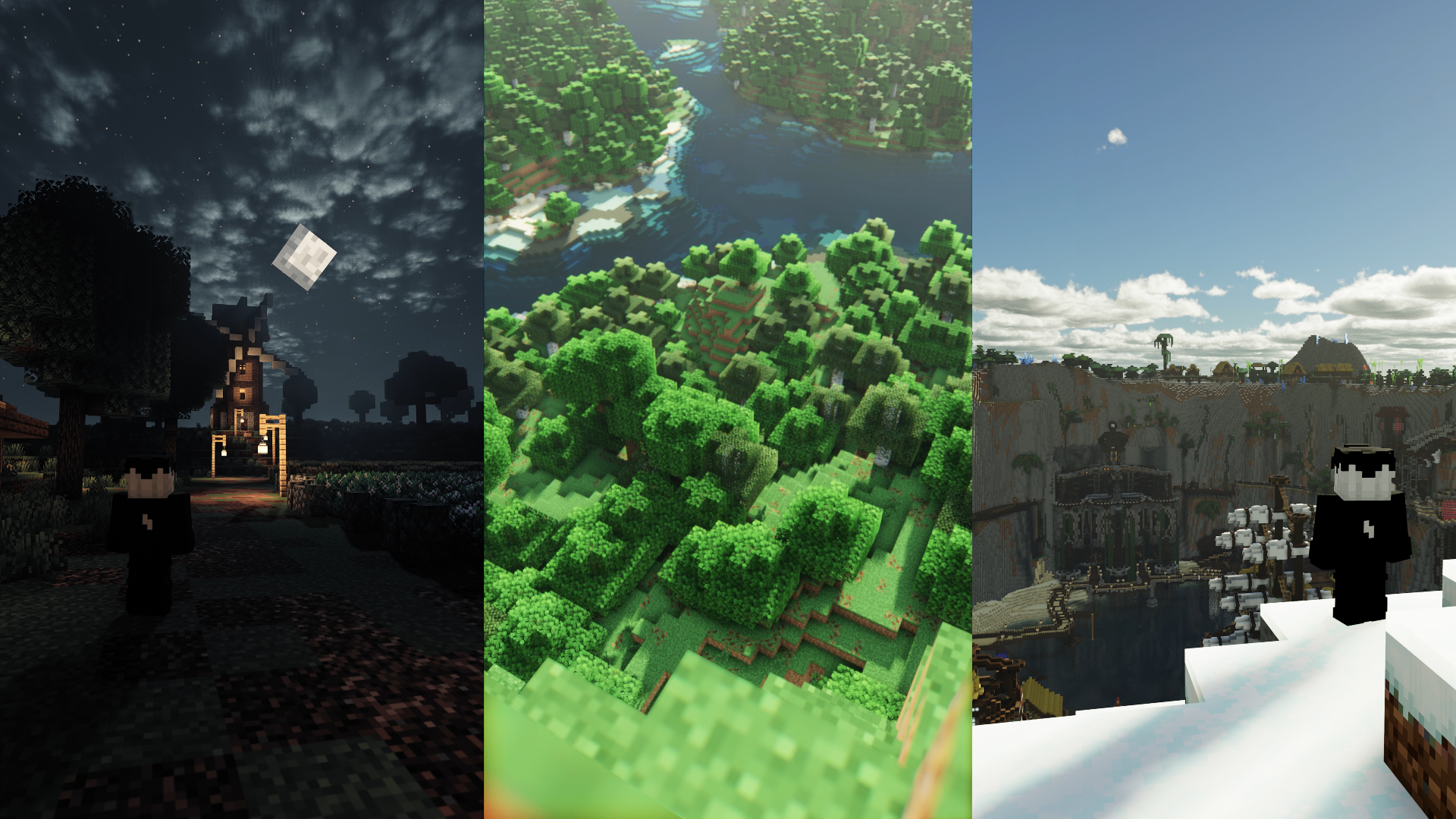
When I first tried running heavy shaders on my setup, the FPS completely fell apart. So I started messing around with the settings—not with a professional plan or anything, just experimenting until things stopped lagging like crazy. After a bunch of trial and error, I found that turning off some of the extra visual effects made a huge difference. It didn’t magically make my PC powerful, but it made the shader actually usable.
A lot of the fancy stuff like volumetric clouds, bloom, parallax, and water effects look amazing, but they eat performance instantly. So I just kept toggling things off and lowering samples one by one to see what gave me the biggest boost. I wasn’t trying to “optimize” it professionally—I just wanted it to stop stuttering every time I moved. Slowly, the FPS started getting stable enough to play normally.
Shadows also turned out to be a huge part of the lag, so I reduced their distance, lowered the resolution, and kept only the settings that didn’t break the look of the shader. Honestly, most of this was just me sliding values around until I found a balance that didn’t fry my GPU. It’s nothing fancy, but it works surprisingly well if you have a low-end or mid-end PC like mine.
So below is the exact TXT file I ended up with after all my experimenting. If you copy these settings into your shader, you’ll probably get a similar FPS boost. Again, not professional tuning—just things I tweaked until the game finally felt stable:
BLOOM_ENABLED=false
CAS_ENABLED=false
CLOUDS_WEATHER=false
COLORED_SHADOWS=false
EXPOSURE_SPEED=10.0
GENERAL_GRASS_FIX=false
PCF_SAMPLES=4
PLANAR_CLOUDS=false
PLANTS_WAVE_EFFECTS=false
RAYTRACE_SAMPLES=8
SHADOW_BACKFACE_CULLING=true
SHADOW_MAP_BIAS=0.75
TEMPORAL_UPSCALING=4
TONEMAP=AcademyFit
VOLUMETRIC_CLOUDS=false
WATER_CAUSTICS=false
WATER_PARALLAX=false
shadowDistance=96.0
shadowMapResolution=1024