The JumpyAcorn’s PvP Resource Pack hits you right away when you load in. Everything just feels brighter, sharper, more alive. It’s still Minecraft, no doubt about that, but tuned in a way that clearly favors fast reactions and clean visuals. Colors pop without being distracting, textures feel familiar but upgraded, and nothing gets in your way when things start getting intense. Honestly, it feels like the game suddenly decided to cooperate with you during fights.
What I really like about JumpyAcorn’s PvP Resource Pack is how clear everything looks. Blocks are easy to read, items stand out, and there’s way less visual noise compared to vanilla. Running through forests, jumping across terrain, or lining up hits just feels smoother. It has that same competitive-friendly mindset you’ll notice in packs like the Tightfault Revamp Resource Pack, where clarity matters more than flashy details.
The environment still looks great too, which is kinda surprising for a PvP-focused pack. Water, skies, foliage — all of it feels lively without pulling focus away from combat. You can roam around between fights and actually enjoy how the world looks. If you’ve ever tried something like the TimeDeo 2k Resource Pack, you’ll recognize that same balance between style and performance.
Performance is solid, which is exactly what you want in PvP. No lag spikes, no cluttered visuals slowing you down. The JumpyAcorn’s PvP Resource Pack clearly puts gameplay first, but without making the world feel empty or boring. And if you like comparing different PvP styles, the Huahwi PvP Resource Pack shows another clean approach to competitive visuals.
At the end of the day, the JumpyAcorn’s PvP Resource Pack just feels right. It’s bright, responsive, and built for players who want every fight to feel smooth and fair. Whether you’re grinding duels or jumping into chaotic battles, this pack gives you a clean visual edge without sacrificing the fun of Minecraft itself.
| Minecraft Version | Compatibility |
|---|---|
| 1.7.10 | ✅ Supported |
| 1.7.9 | ✅ Supported |
| 1.7.4 | ✅ Supported |
| 1.7 | ✅ Supported |
| 1.6.4 | ✅ Supported |
| 1.6.2 | ✅ Supported |
JumpyAcorn’s PvP – Screenshots
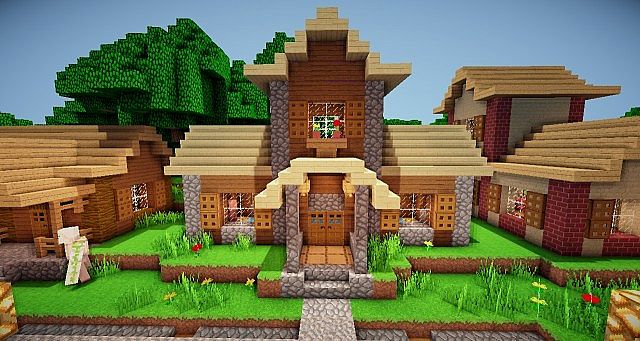
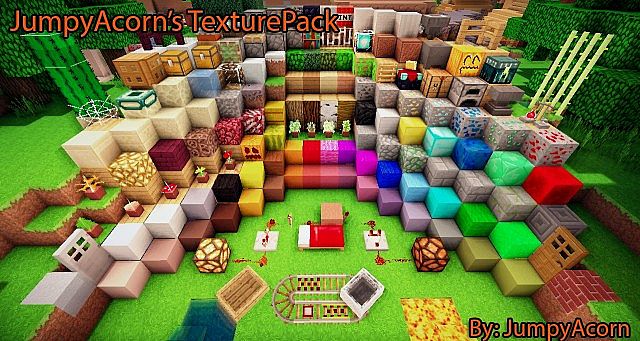
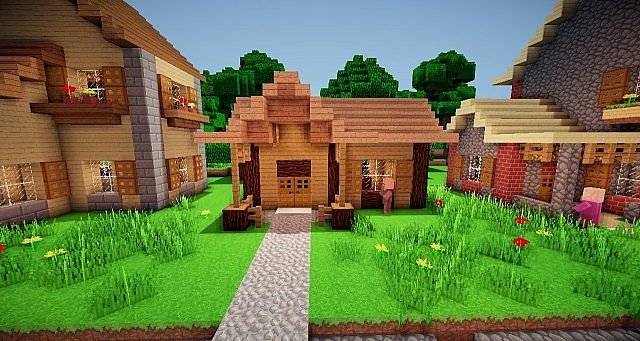
How to Install Texture Pack (Simple 10 Steps)
- Download Optifine: Most of the texture packs and shaders need Optifine. That’s why, first download and install Optifine for the version of Minecraft you want to play.
- Download the Texture Pack: Get the texture pack you want from the download section. Choose the version that works with your Minecraft and your PC’s performance.
- Open Minecraft Launcher: Start Minecraft using the official game launcher – or even TLauncher, if you use that.
- Go to Options: From the main menu, click on the “Options” button.
- Open Resource Packs: Inside Options, click on “Resource Packs…”.
- Open the Resource Pack Folder: Click on “Open Resource Pack Folder” – this will open a folder named “resourcepacks”.
- Move the Pack File: Copy or move the .zip file you downloaded into that “resourcepacks” folder. (Don’t unzip the file – Minecraft uses it as-is!)
- Go Back and Refresh: Close the folder and click “Done”, then go back into “Resource Packs…” again.
- Activate the Pack: You’ll see the pack on the left side. Hover over it and click the arrow to move it to the right (active side). Tip: If you get a message that the pack is for a different version, just click “Yes” – it usually works fine.
- Click Done and Enjoy: Click “Done” again. Now your pack is ready to use in-game. It’s that easy!
Download
(16x) (1.7) Download PvP Resource Pack by JumpyAcorn
(16x) (1.6) Download PvP Resource Pack by JumpyAcorn
Download Instructions
- CurseForge: If the pack is hosted on CurseForge, the download will begin automatically after a few seconds. If it does not start, use the “Download” button shown on the page.
- Modrinth: If the download is from Modrinth, click the file version that matches your Minecraft build, then press the Download button. Modrinth usually offers multiple releases, so make sure you pick the correct version before installing.
- Mediafire: On Mediafire, click the large blue Download button to start the file download. Avoid any extra pop-ups or buttons that are not related to the direct download.
- Google Drive: For Google Drive, click the small download icon at the top right corner of the page. It looks like a downward arrow. The file will be saved to your computer immediately.
Disclaimer We do not create or modify any of the texture packs or shader packs shared on this website. All credit goes to the original creators, and every download link we provide is the official link from their page, which keeps all downloads safe. Some links may stop working after updates, so if you find a broken one, let us know in the comments and we will update it quickly. If you like a pack, consider supporting the creator by visiting their official page or website that we have linked below, and feel free to leave a comment or vote to help their work reach more players.