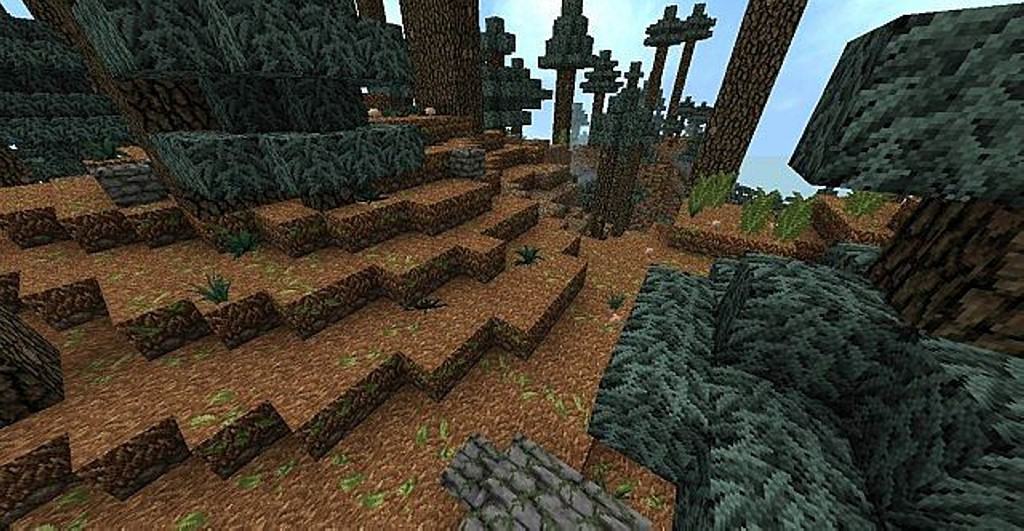
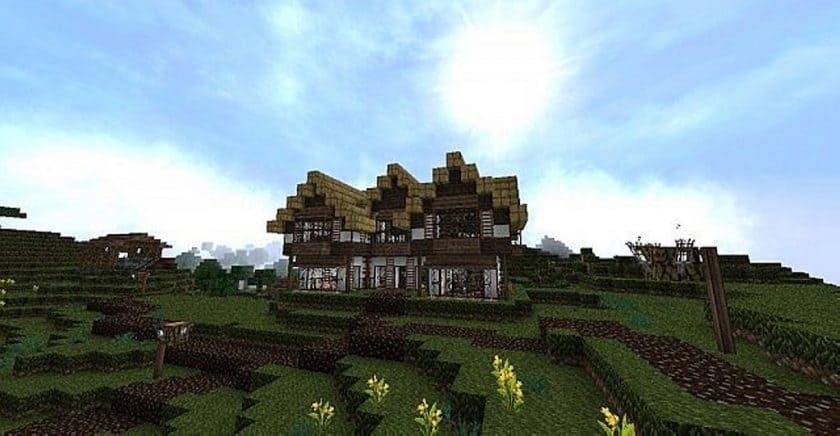
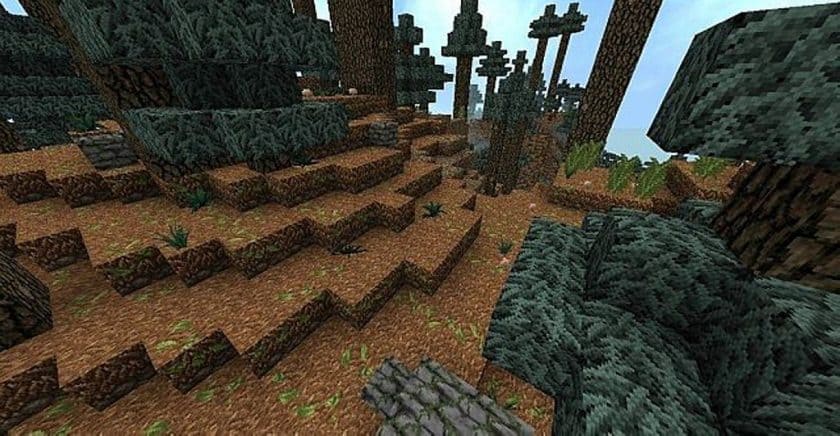
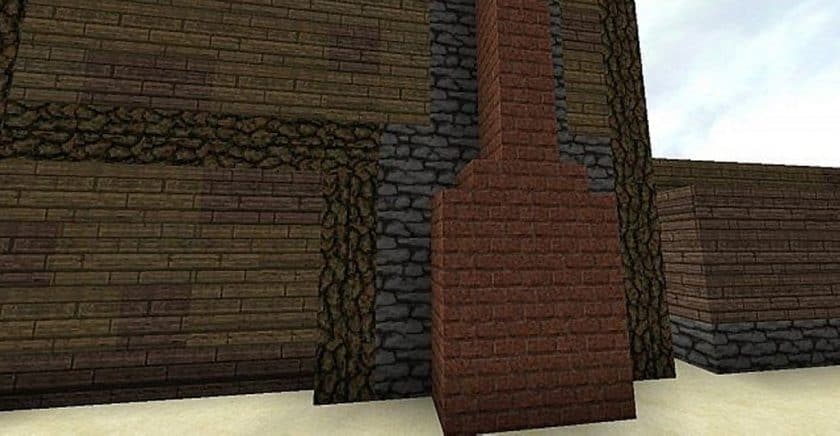
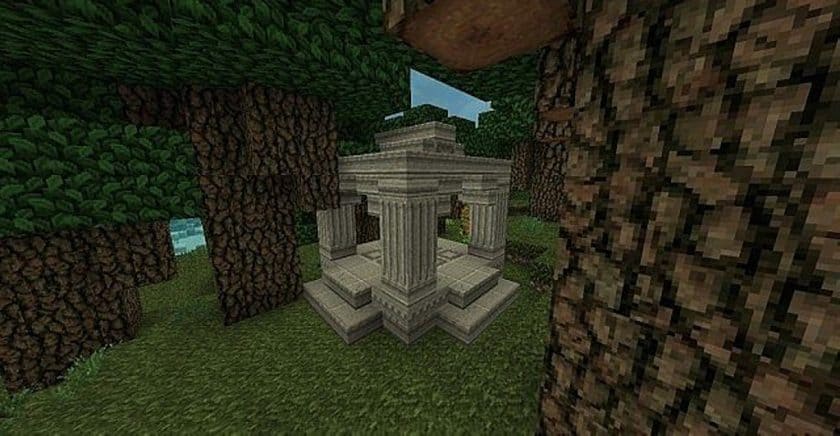
Stepping into a world transformed by the Golbez22 Medieval Resource Pack is like opening a forgotten tome, revealing a Minecraft experience steeped in a uniquely dark and expansive medieval atmosphere. This isn’t just another texture overhaul; it’s a meticulously crafted journey that redefines the very fabric of your blocky universe. What immediately stands out is the ingenious implementation of linked textures. Unlike conventional packs where identical blocks might feel repetitive, Golbez22 introduces subtle yet profound variations within the same block type. Imagine stone walls where each block, while recognizably stone, possesses slight differences in cracks, shading, or lichen, making every structure and natural formation feel organic and genuinely handcrafted. This innovative approach strips away uniformity, breathing individual character into every cave, castle, forest, and dungeon you explore, preventing that often monotonous feeling of a world constructed from endless copies.
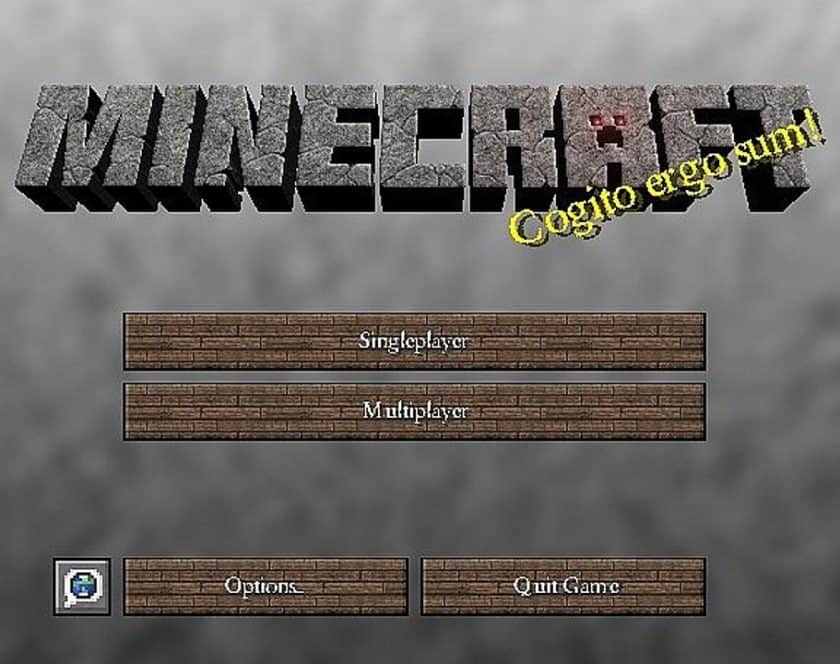
The pack masterfully cultivates a darker, more brooding medieval aesthetic, enhancing the game with a unique sense of mystery and grandeur. Recent updates have further enriched this experience, weaving in more RPG elements that deepen the immersion. You’ll notice a significant shift in the overall mood, largely driven by reworked colors, lighting, and breathtaking sky textures. The sun and clouds adopt a new, dramatic presence, casting longer shadows and bathing the landscape in hues that perfectly complement the pack’s thematic direction. Even the often-overlooked details like the menu, inventory, and HUD receive thoughtful improvements, ensuring the dark medieval theme is consistently maintained across all aspects of gameplay. With a resolution of 32x, Golbez22’s Medieval strikes a beautiful balance, offering a noticeable visual upgrade without demanding excessively high-end hardware, though its specialized features like linked and sky textures do necessitate the installation of Optifine for optimal performance and visual fidelity. Prepare to embark on an adventure where every corner of your Minecraft world feels ancient, unique, and brimming with untold stories.
| Minecraft Version | Compatibility |
|---|---|
| 1.8.9 | ✅ Supported |
| 1.8.8 | ✅ Supported |
| 1.8.1 | ✅ Supported |
| 1.8.6 | ✅ Supported |
| 1.8 | ✅ Supported |
| 1.7.10 | ✅ Supported |
| 1.7.9 | ✅ Supported |
| 1.7.4 | ✅ Supported |
| 1.7 | ✅ Supported |
| 1.6.4 | ✅ Supported |
| 1.6.2 | ✅ Supported |
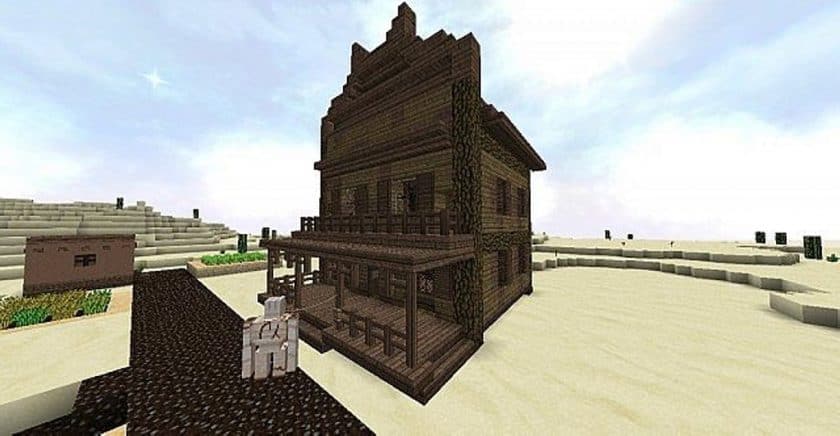
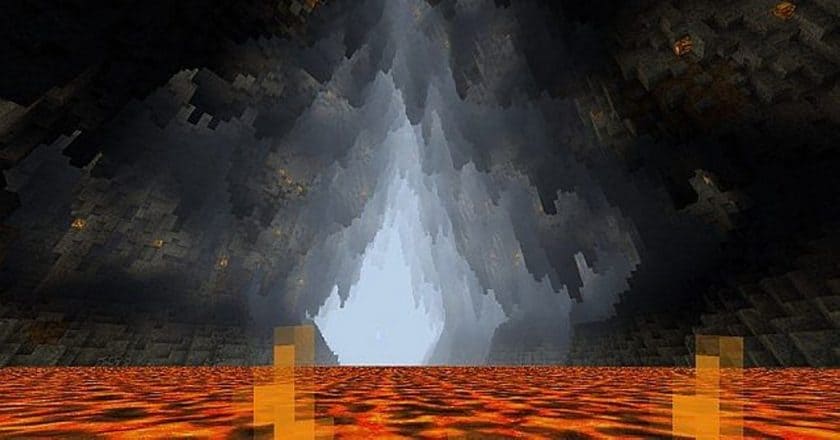
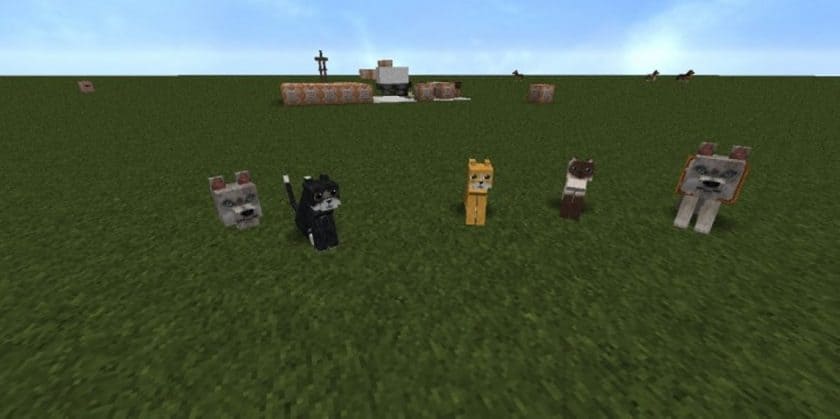
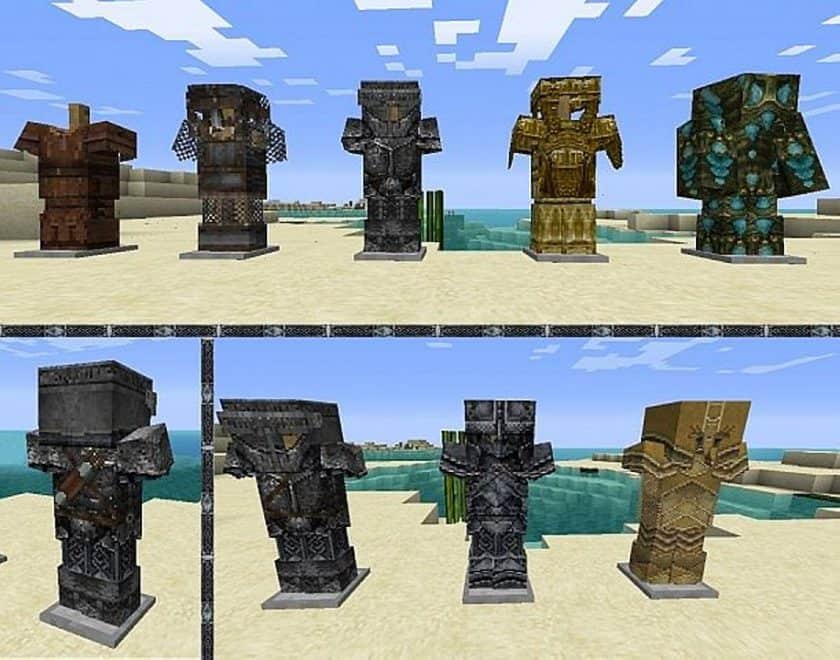
Golbez22’s Medieval – Screenshots
How to Install Texture Pack (Simple 10 Steps)
- Download Optifine: Most of the texture packs and shaders need Optifine. That’s why, first download and install Optifine for the version of Minecraft you want to play.
- Download the Texture Pack: Get the texture pack you want from the download section. Choose the version that works with your Minecraft and your PC’s performance.
- Open Minecraft Launcher: Start Minecraft using the official game launcher – or even TLauncher, if you use that.
- Go to Options: From the main menu, click on the “Options” button.
- Open Resource Packs: Inside Options, click on “Resource Packs…”.
- Open the Resource Pack Folder: Click on “Open Resource Pack Folder” – this will open a folder named “resourcepacks”.
- Move the Pack File: Copy or move the .zip file you downloaded into that “resourcepacks” folder. (Don’t unzip the file – Minecraft uses it as-is!)
- Go Back and Refresh: Close the folder and click “Done”, then go back into “Resource Packs…” again.
- Activate the Pack: You’ll see the pack on the left side. Hover over it and click the arrow to move it to the right (active side). Tip: If you get a message that the pack is for a different version, just click “Yes” – it usually works fine.
- Click Done and Enjoy: Click “Done” again. Now your pack is ready to use in-game. It’s that easy!
Download
Java Edition:
(32x) (1.8.x – 1.7.x) Download Golbez22’s Medieval Resource Pack
Download Instructions
-
CurseForge: If the pack is hosted on CurseForge, the download will begin automatically after a few seconds. If it does not start, use the “Download” button shown on the page.
-
Modrinth: If the download is from Modrinth, click the file version that matches your Minecraft build, then press the Download button. Modrinth usually offers multiple releases, so make sure you pick the correct version before installing.
-
Mediafire: On Mediafire, click the large blue Download button to start the file download. Avoid any extra pop-ups or buttons that are not related to the direct download.
-
Google Drive: For Google Drive, click the small download icon at the top right corner of the page. It looks like a downward arrow. The file will be saved to your computer immediately.
Disclaimer We do not create or modify any of the texture packs or shader packs shared on this website. All credit goes to the original creators, and every download link we provide is the official link from their page, which keeps all downloads safe. Some links may stop working after updates, so if you find a broken one, let us know in the comments and we will update it quickly. If you like a pack, consider supporting the creator by visiting their official page or website that we have linked below, and feel free to leave a comment or vote to help their work reach more players.