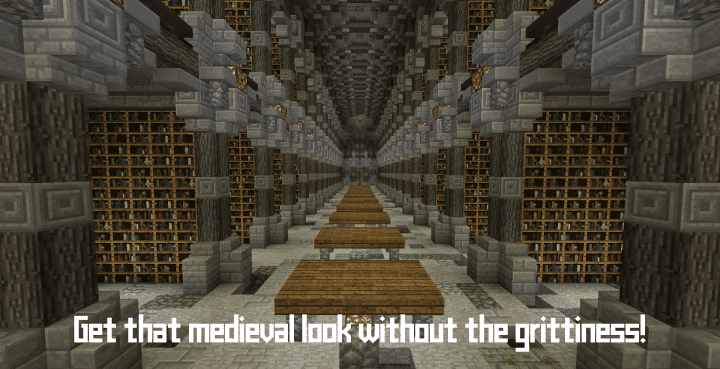
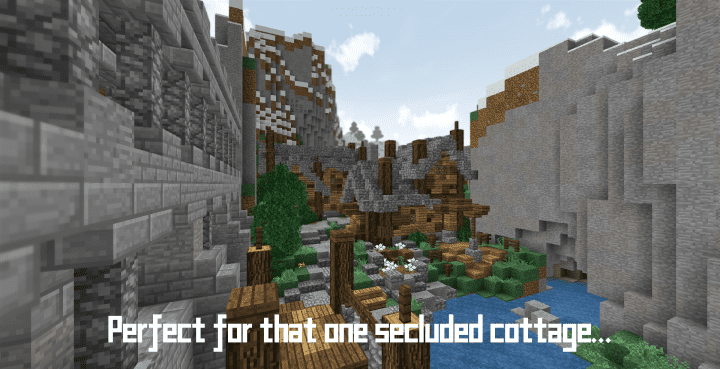
Step into a meticulously crafted past with the Farbenlehre Medieval Resource Pack, an exceptional creation that transports your Minecraft world straight to the heart of the Middle Ages. While medieval themes are common in resource packs, Farbenlehre distinguishes itself through its brilliant execution and immersive visual appeal. From the moment you load into your world, you’ll be struck by the pack’s ability to live up to its name, offering a complete and cohesive medieval experience that truly feels authentic. The atmosphere is rich with historical charm, transforming familiar landscapes into ancient realms filled with character and detail.
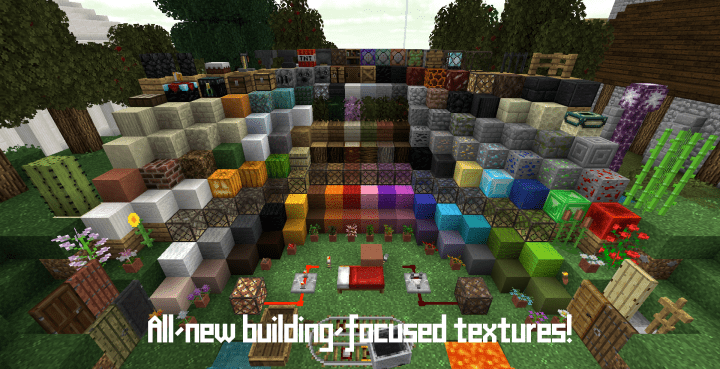
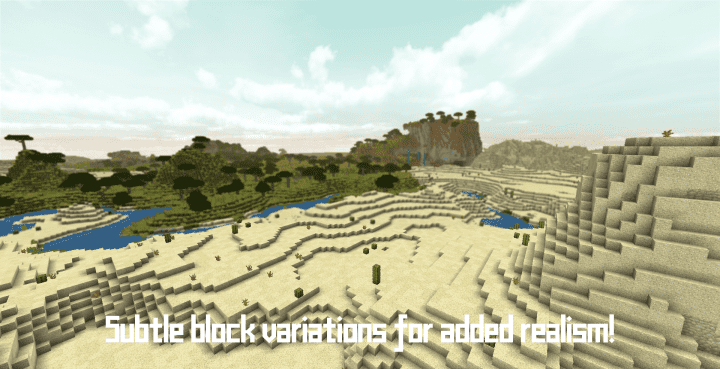
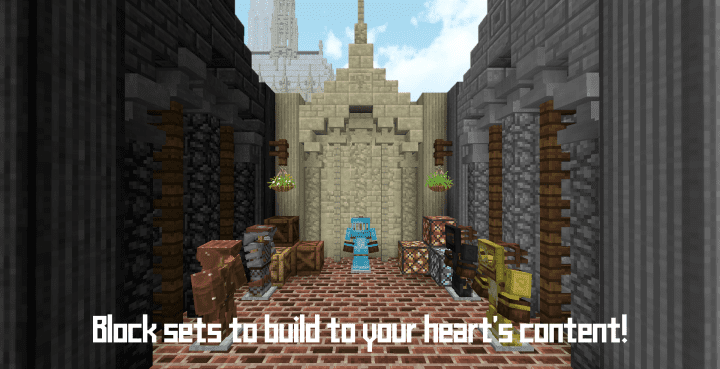
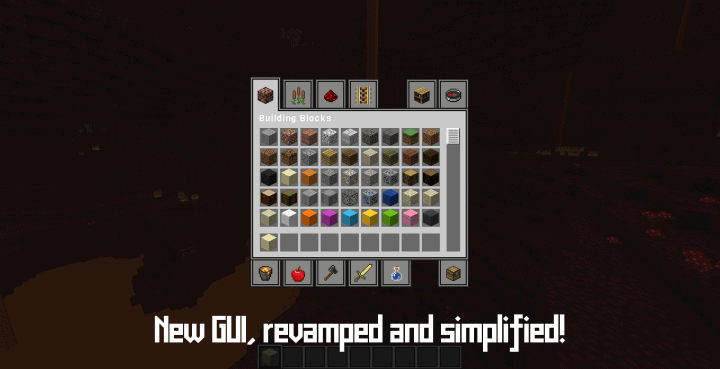
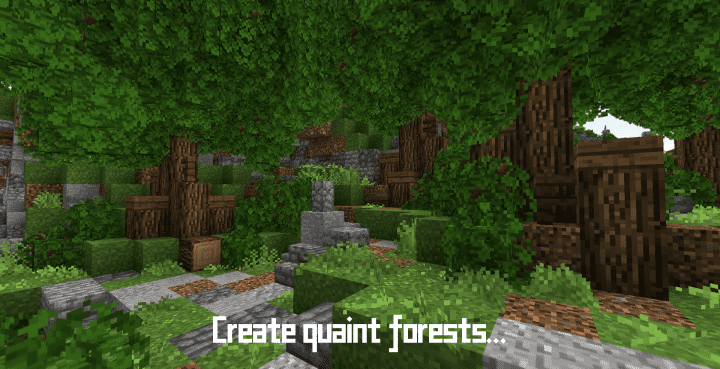
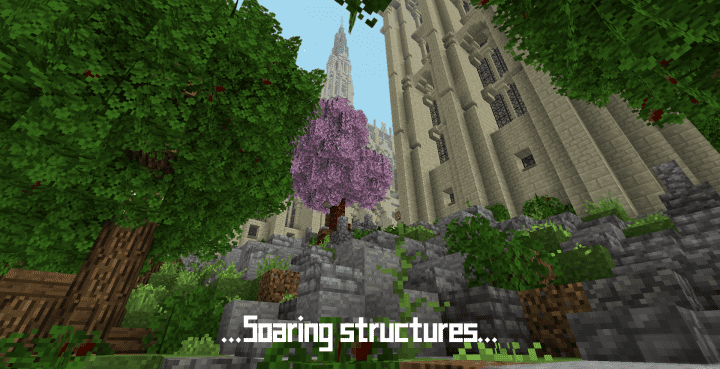
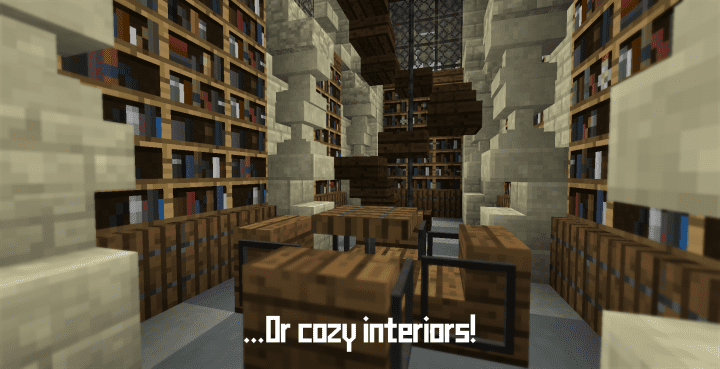
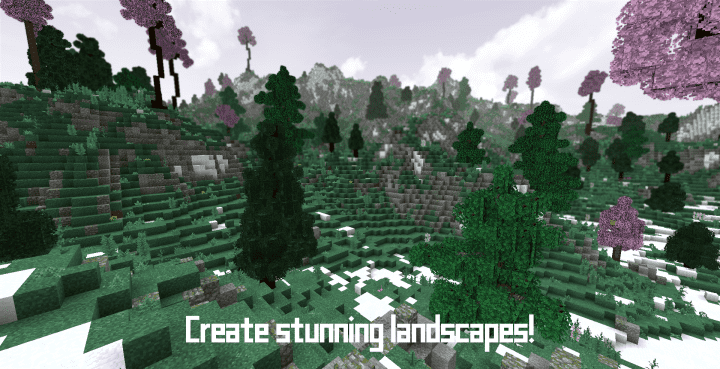
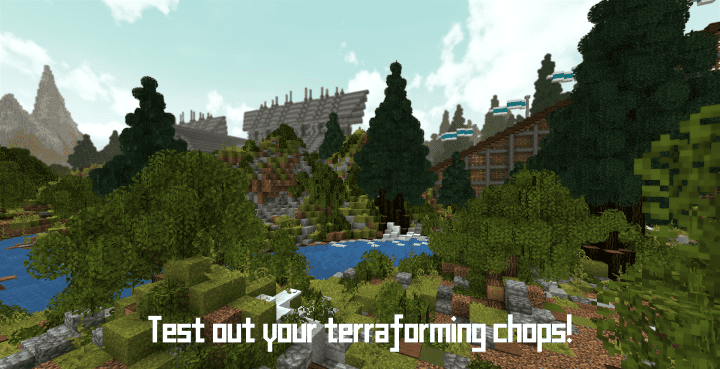
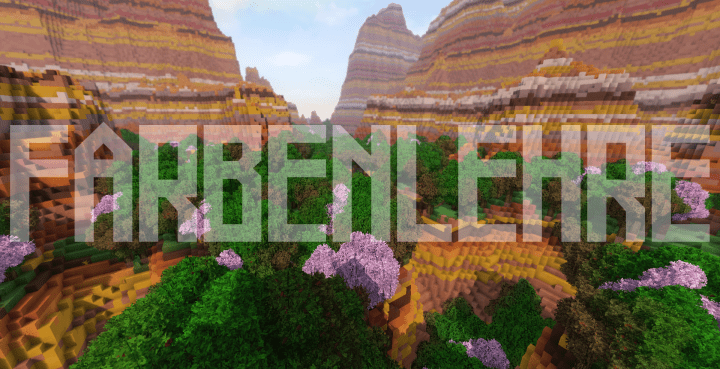
Every corner of the game world comes alive with visually stunning textures that make the Farbenlehre Medieval Resource Pack stand out from the crowd. Exploring villages, castles, and untouched wilderness feels incredibly engaging, as each block boasts unique variations that prevent visual repetition and add depth to your environment. The graphics achieve a remarkable level of realism, particularly noticeable in the customized models for in-game vegetation, which sway and rustle with a newfound vitality. While some textures might have a subtle “noisy” quality upon very close inspection, this is a minor detail easily overlooked when considering the overall exceptional texture detail and the pack’s ability to deliver such a compelling aesthetic.
Beyond its stunning visuals, Farbenlehre Medieval is also designed with practicality in mind. Many high-resolution packs can be demanding on system resources, but this pack maintains a comfortable base resolution of x16. This thoughtful choice ensures that players with a wide range of computer specifications can enjoy the medieval transformation without experiencing debilitating frame rate issues. The optimization means a smooth, uninterrupted journey through your revamped world, making it accessible for light PC users. Furthermore, you can embark on your adventure with confidence, as Farbenlehre Medieval is a fully finished pack, meaning there are no jarring missing textures to break your immersion. It’s a complete and polished experience, ready to redefine your Minecraft journey.
| Minecraft Version | Compatibility |
|---|---|
| 1.13.1 | ✅ Supported |
| 1.13 | ✅ Supported |
| 1.12.2 | ✅ Supported |
| 1.12 | ✅ Supported |
Farbenlehre Medieval – Screenshots
How to Install Texture Pack (Simple 10 Steps)
- Download Optifine: Most of the texture packs and shaders need Optifine. That’s why, first download and install Optifine for the version of Minecraft you want to play.
- Download the Texture Pack: Get the texture pack you want from the download section. Choose the version that works with your Minecraft and your PC’s performance.
- Open Minecraft Launcher: Start Minecraft using the official game launcher – or even TLauncher, if you use that.
- Go to Options: From the main menu, click on the “Options” button.
- Open Resource Packs: Inside Options, click on “Resource Packs…”.
- Open the Resource Pack Folder: Click on “Open Resource Pack Folder” – this will open a folder named “resourcepacks”.
- Move the Pack File: Copy or move the .zip file you downloaded into that “resourcepacks” folder. (Don’t unzip the file – Minecraft uses it as-is!)
- Go Back and Refresh: Close the folder and click “Done”, then go back into “Resource Packs…” again.
- Activate the Pack: You’ll see the pack on the left side. Hover over it and click the arrow to move it to the right (active side). Tip: If you get a message that the pack is for a different version, just click “Yes” – it usually works fine.
- Click Done and Enjoy: Click “Done” again. Now your pack is ready to use in-game. It’s that easy!
Download
(16x) (1.13) (1.12) Download Farbenlehre Medieval Resource Pack | Mirror
Download Instructions
-
CurseForge: If the pack is hosted on CurseForge, the download will begin automatically after a few seconds. If it does not start, use the “Download” button shown on the page.
-
Modrinth: If the download is from Modrinth, click the file version that matches your Minecraft build, then press the Download button. Modrinth usually offers multiple releases, so make sure you pick the correct version before installing.
-
Mediafire: On Mediafire, click the large blue Download button to start the file download. Avoid any extra pop-ups or buttons that are not related to the direct download.
-
Google Drive: For Google Drive, click the small download icon at the top right corner of the page. It looks like a downward arrow. The file will be saved to your computer immediately.
Disclaimer We do not create or modify any of the texture packs or shader packs shared on this website. All credit goes to the original creators, and every download link we provide is the official link from their page, which keeps all downloads safe. Some links may stop working after updates, so if you find a broken one, let us know in the comments and we will update it quickly. If you like a pack, consider supporting the creator by visiting their official page or website that we have linked below, and feel free to leave a comment or vote to help their work reach more players.