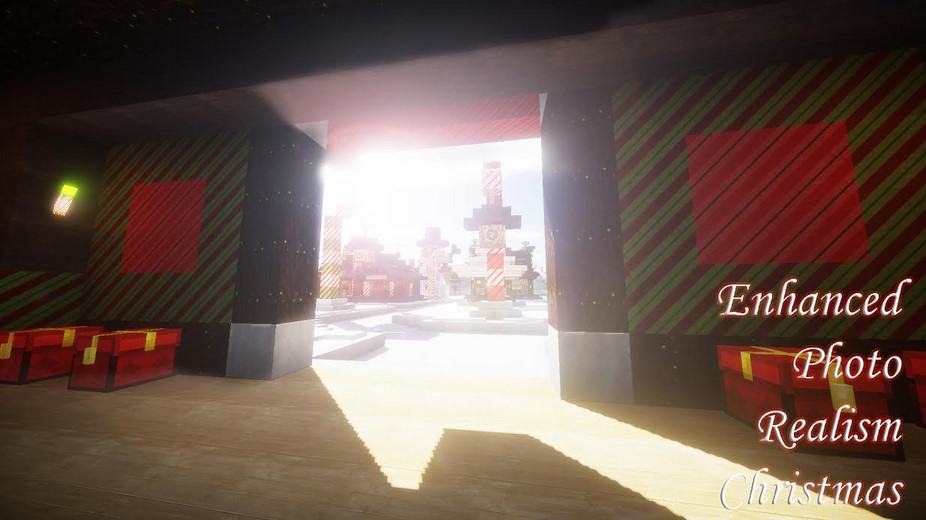
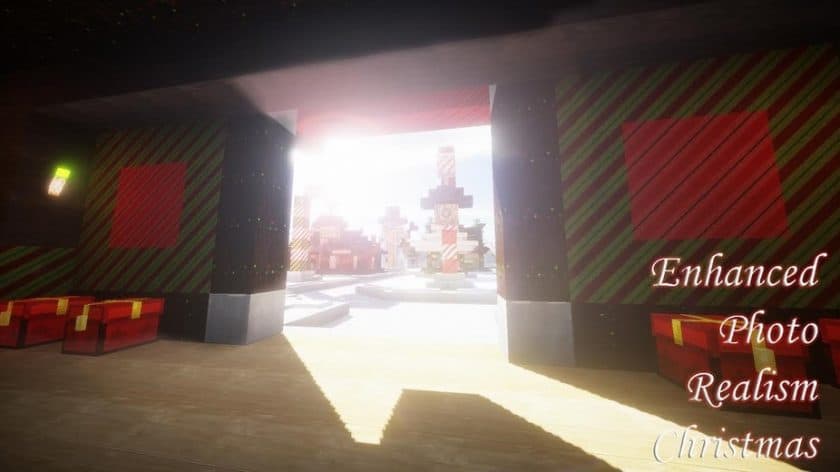
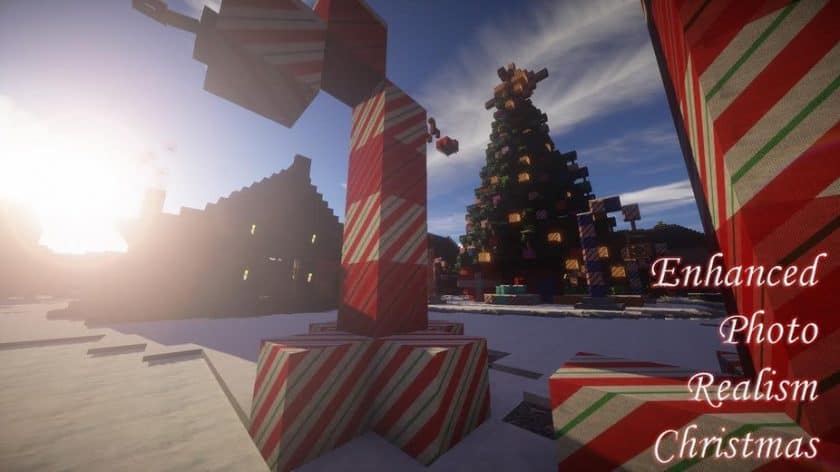
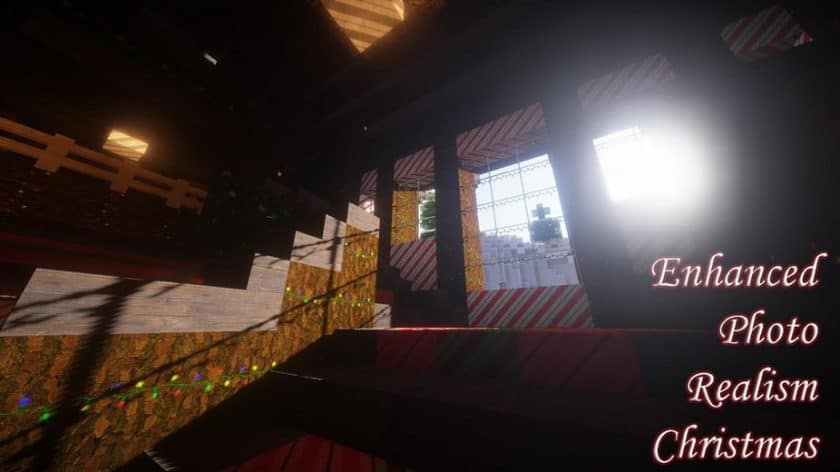
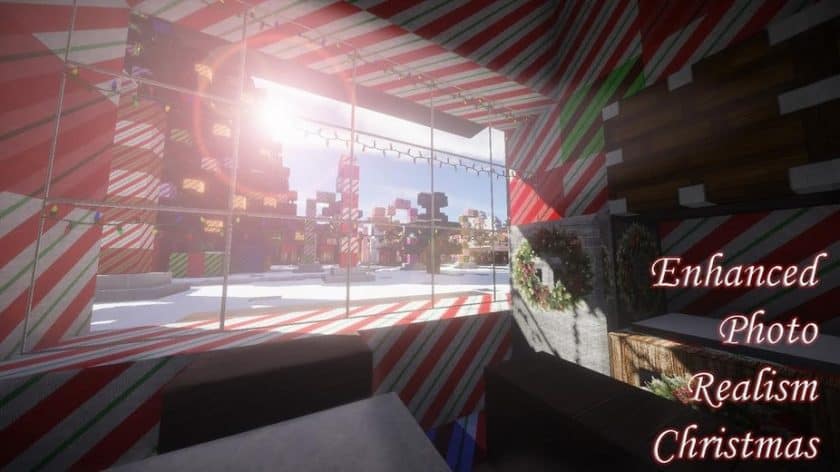
As the festive season approaches, the Minecraft world transforms with enchanting resource packs, and the Enhanced Photo Realism: Christmas Edition stands out as a true holiday marvel. Stepping into a world with this pack feels like unwrapping a cherished gift, revealing every block and item reimagined with a breathtaking, lifelike quality. The photo-realistic textures bring an incredible depth and detail, making familiar scenes feel fresh and visually rich, all while infused with the joyous spirit of Christmas. Imagine snow-dusted leaves rendered with intricate detail, glowing lanterns casting a warm, inviting light, and meticulously crafted ornaments adorning your festive builds. This pack doesn’t just add a few holiday textures; it completely overhauls the visual experience, inviting players to truly celebrate the season within their blocky realms. Available in a range of high resolutions, from x64 all the way up to a stunning x512, it caters to various systems while ensuring a crisp, immersive display. Whether your PC is a powerhouse or you prefer a smoother experience, you can select the resolution that best fits, each one promising to transform your game into a winter wonderland of unparalleled beauty. The atmosphere it creates is simply magical, blending realism with the whimsical charm of Christmas, making every exploration and every build feel like a step into a beautifully crafted holiday scene.
| Minecraft Version | Compatibility |
|---|---|
| 1.12.2 | ✅ Supported |
| 1.12 | ✅ Supported |
| 1.11.2 | ✅ Supported |
| 1.11 | ✅ Supported |
| 1.10.2 | ✅ Supported |
| 1.10 | ✅ Supported |
| 1.9.4 | ✅ Supported |
| 1.9 | ✅ Supported |
| 1.8.1 | ✅ Supported |
| 1.8.6 | ✅ Supported |
| 1.8 | ✅ Supported |
| 1.7.10 | ✅ Supported |
| 1.7.9 | ✅ Supported |
| 1.7.4 | ✅ Supported |
| 1.7 | ✅ Supported |
Enhanced Photo Realism: Christmas Edition – Screenshots & Videos
How to Install Texture Pack (Simple 10 Steps)
- Download Optifine: Most of the texture packs and shaders need Optifine. That’s why, first download and install Optifine for the version of Minecraft you want to play.
- Download the Texture Pack: Get the texture pack you want from the download section. Choose the version that works with your Minecraft and your PC’s performance.
- Open Minecraft Launcher: Start Minecraft using the official game launcher – or even TLauncher, if you use that.
- Go to Options: From the main menu, click on the “Options” button.
- Open Resource Packs: Inside Options, click on “Resource Packs…”.
- Open the Resource Pack Folder: Click on “Open Resource Pack Folder” – this will open a folder named “resourcepacks”.
- Move the Pack File: Copy or move the .zip file you downloaded into that “resourcepacks” folder. (Don’t unzip the file – Minecraft uses it as-is!)
- Go Back and Refresh: Close the folder and click “Done”, then go back into “Resource Packs…” again.
- Activate the Pack: You’ll see the pack on the left side. Hover over it and click the arrow to move it to the right (active side). Tip: If you get a message that the pack is for a different version, just click “Yes” – it usually works fine.
- Click Done and Enjoy: Click “Done” again. Now your pack is ready to use in-game. It’s that easy!
Download
Download Enhanced Photo Realism Christmas Edition Resource Pack from the official site
Download Instructions
-
CurseForge: If the pack is hosted on CurseForge, the download will begin automatically after a few seconds. If it does not start, use the “Download” button shown on the page.
-
Modrinth: If the download is from Modrinth, click the file version that matches your Minecraft build, then press the Download button. Modrinth usually offers multiple releases, so make sure you pick the correct version before installing.
-
Mediafire: On Mediafire, click the large blue Download button to start the file download. Avoid any extra pop-ups or buttons that are not related to the direct download.
-
Google Drive: For Google Drive, click the small download icon at the top right corner of the page. It looks like a downward arrow. The file will be saved to your computer immediately.
Disclaimer We do not create or modify any of the texture packs or shader packs shared on this website. All credit goes to the original creators, and every download link we provide is the official link from their page, which keeps all downloads safe. Some links may stop working after updates, so if you find a broken one, let us know in the comments and we will update it quickly. If you like a pack, consider supporting the creator by visiting their official page or website that we have linked below, and feel free to leave a comment or vote to help their work reach more players.