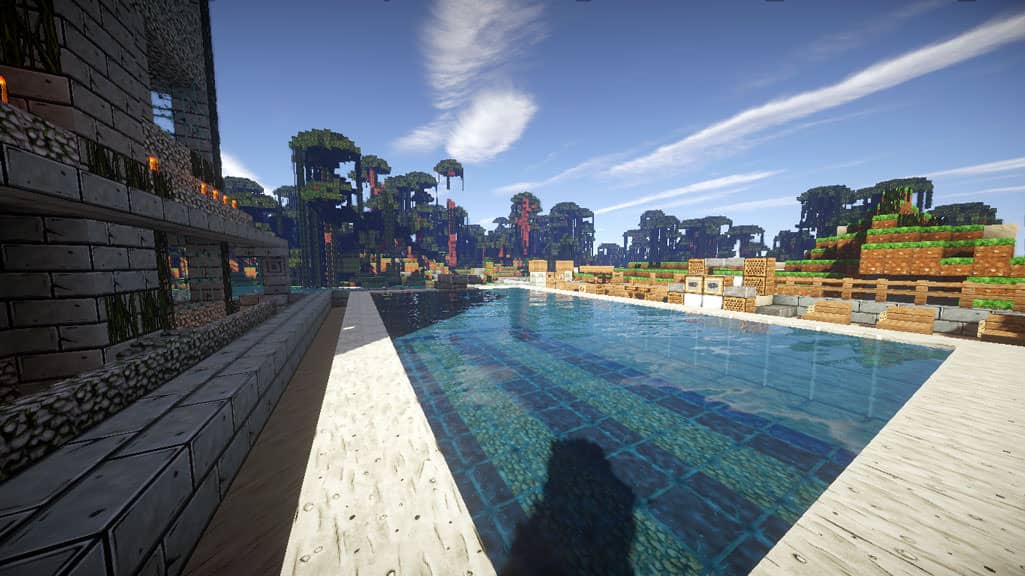
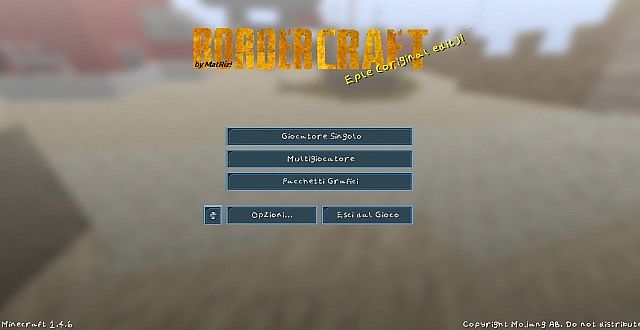
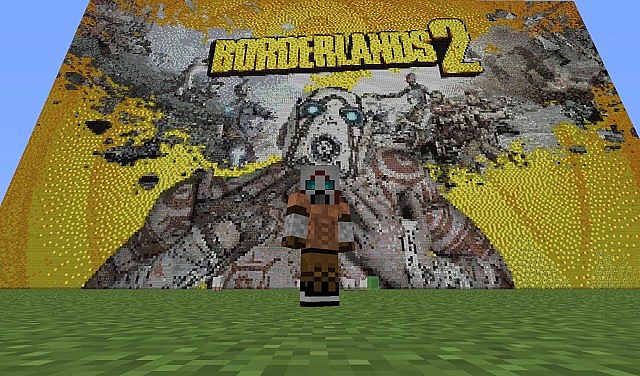
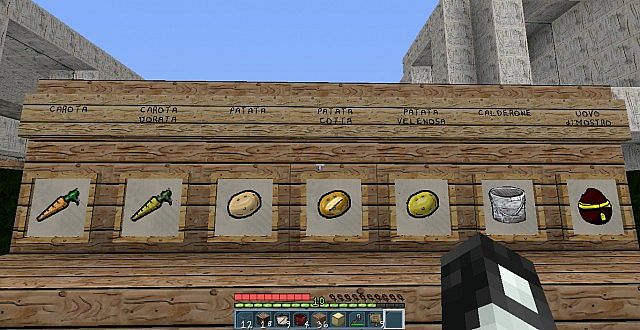
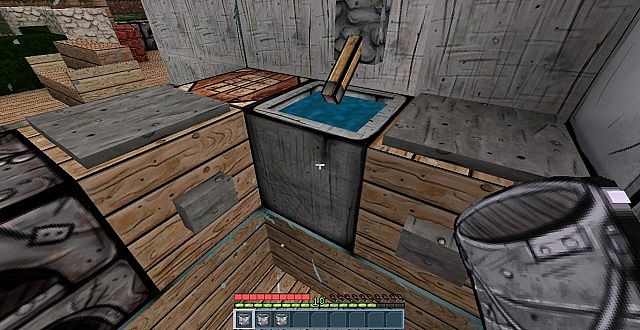
Stepping into a Minecraft world equipped with the Bordercraft Resource Pack is like opening a portal directly to the chaotic, cel-shaded landscapes of Pandora. This pack doesn’t just tweak textures; it completely re-imagines your blocky environment through the distinct lens of the Borderlands universe. Immediately, you’re struck by the bold, black outlines that define every block, every tree, and every creature, giving the entire game a vivid, comic-book aesthetic. The familiar textures of grass, dirt, and stone are transformed into something more stylized, almost hand-drawn, yet they retain enough of their original essence to remain perfectly recognizable.
Exploring caves feels like delving into a bandit hideout, with rough-hewn rock faces detailed with a gritty, industrial edge. Forests take on a vibrant, almost painted look, where leaves have a distinct, illustrated quality, and the light filtering through them creates dynamic shadows that accentuate the pack’s unique style. Even the water and sky receive this iconic treatment, with water adopting a more liquid, less blocky appearance, and the sky often featuring dramatic, stylized clouds that wouldn’t feel out of place on a sci-fi desert planet.
One of the Bordercraft Resource Pack’s greatest strengths lies in its ability to inject character into every corner of your Minecraft journey. Mobs, in particular, are wonderfully re-envisioned, taking on a more menacing or quirky persona thanks to the sharp lines and distinctive coloration. Whether you’re encountering a creeper that looks like it walked out of a graphic novel or a zombie with a truly unsettling, cartoonish grimace, the immersion is palpable. Performance-wise, the pack generally maintains a standard resolution, meaning it’s accessible to a wide range of systems without significant FPS drops, allowing you to fully appreciate its artistic flair without technical hitches. It’s an ideal choice for players who crave a fresh, visually striking experience that breaks away from the traditional Minecraft aesthetic without sacrificing clarity or playability. This pack is a loving homage to its inspiration, bringing a layer of unique visual storytelling to your blocky adventures, making every build, exploration, and combat encounter feel like a page from an epic saga.
| Minecraft Version | Compatibility |
|---|---|
| 1.12.2 | ✅ Supported |
| 1.12 | ✅ Supported |
| 1.11.2 | ✅ Supported |
| 1.11 | ✅ Supported |
| 1.10.2 | ✅ Supported |
| 1.10 | ✅ Supported |
| 1.9.4 | ✅ Supported |
| 1.9 | ✅ Supported |
| 1.8.1 | ✅ Supported |
| 1.8.6 | ✅ Supported |
| 1.8 | ✅ Supported |
| 1.7.10 | ✅ Supported |
| 1.7.9 | ✅ Supported |
| 1.7.4 | ✅ Supported |
| 1.7 | ✅ Supported |
| 1.6.4 | ✅ Supported |
| 1.6.2 | ✅ Supported |
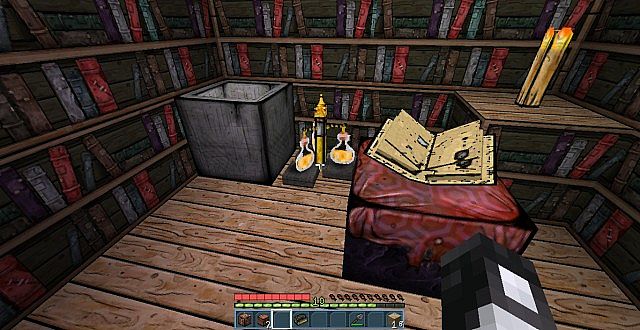
Bordercraft Resource Pack – Screenshots & Videos
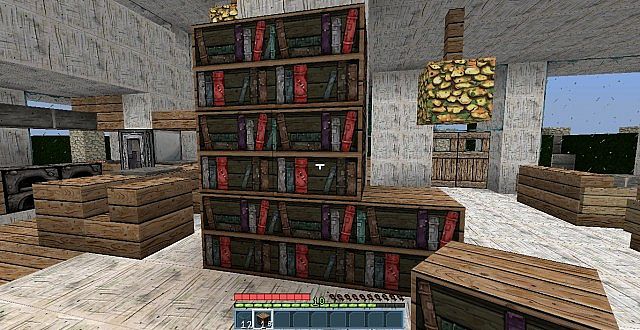
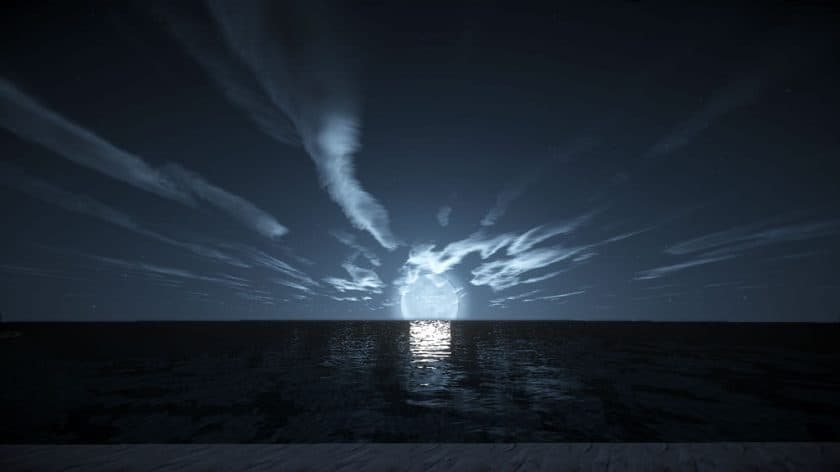
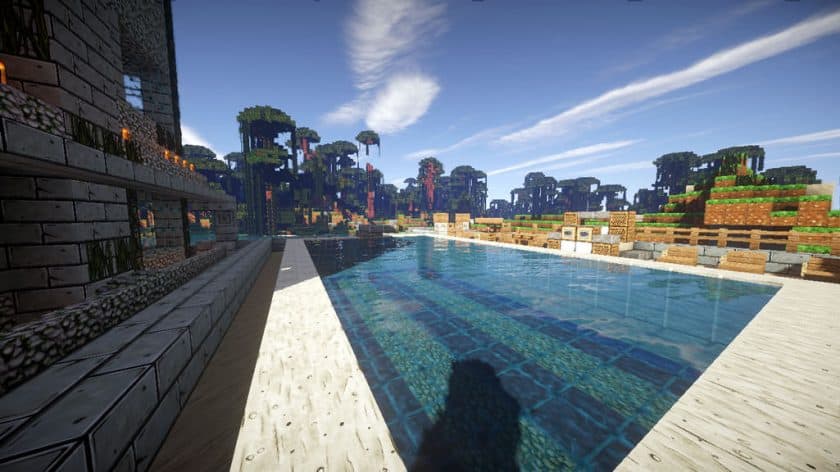
How to Install Texture Pack (Simple 10 Steps)
- Download Optifine: Most of the texture packs and shaders need Optifine. That’s why, first download and install Optifine for the version of Minecraft you want to play.
- Download the Texture Pack: Get the texture pack you want from the download section. Choose the version that works with your Minecraft and your PC’s performance.
- Open Minecraft Launcher: Start Minecraft using the official game launcher – or even TLauncher, if you use that.
- Go to Options: From the main menu, click on the “Options” button.
- Open Resource Packs: Inside Options, click on “Resource Packs…”.
- Open the Resource Pack Folder: Click on “Open Resource Pack Folder” – this will open a folder named “resourcepacks”.
- Move the Pack File: Copy or move the .zip file you downloaded into that “resourcepacks” folder. (Don’t unzip the file – Minecraft uses it as-is!)
- Go Back and Refresh: Close the folder and click “Done”, then go back into “Resource Packs…” again.
- Activate the Pack: You’ll see the pack on the left side. Hover over it and click the arrow to move it to the right (active side). Tip: If you get a message that the pack is for a different version, just click “Yes” – it usually works fine.
- Click Done and Enjoy: Click “Done” again. Now your pack is ready to use in-game. It’s that easy!
Download
Download the Bordercraft Resource Pack from the official site
Download Instructions
-
CurseForge: If the pack is hosted on CurseForge, the download will begin automatically after a few seconds. If it does not start, use the “Download” button shown on the page.
-
Modrinth: If the download is from Modrinth, click the file version that matches your Minecraft build, then press the Download button. Modrinth usually offers multiple releases, so make sure you pick the correct version before installing.
-
Mediafire: On Mediafire, click the large blue Download button to start the file download. Avoid any extra pop-ups or buttons that are not related to the direct download.
-
Google Drive: For Google Drive, click the small download icon at the top right corner of the page. It looks like a downward arrow. The file will be saved to your computer immediately.
Disclaimer We do not create or modify any of the texture packs or shader packs shared on this website. All credit goes to the original creators, and every download link we provide is the official link from their page, which keeps all downloads safe. Some links may stop working after updates, so if you find a broken one, let us know in the comments and we will update it quickly. If you like a pack, consider supporting the creator by visiting their official page or website that we have linked below, and feel free to leave a comment or vote to help their work reach more players.