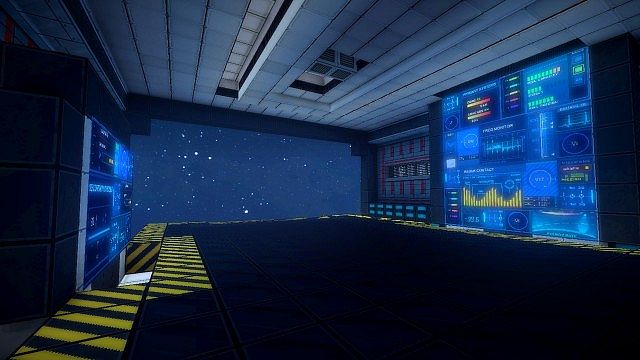
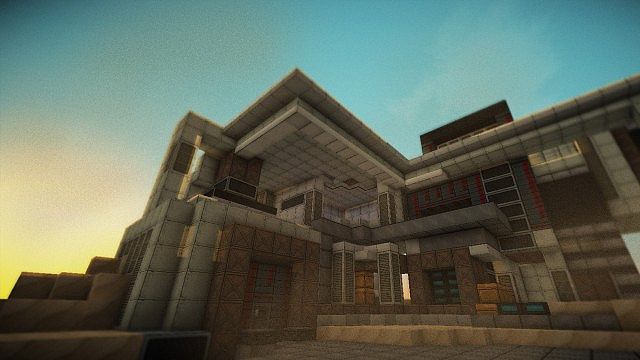
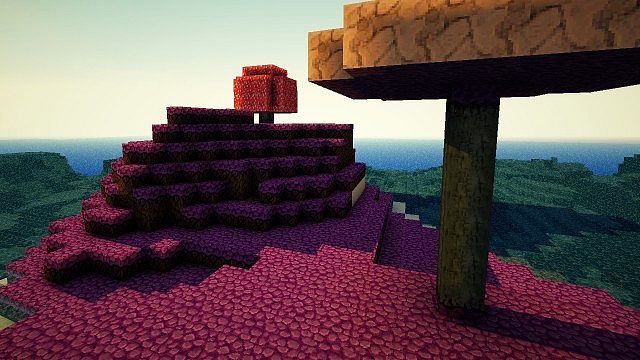
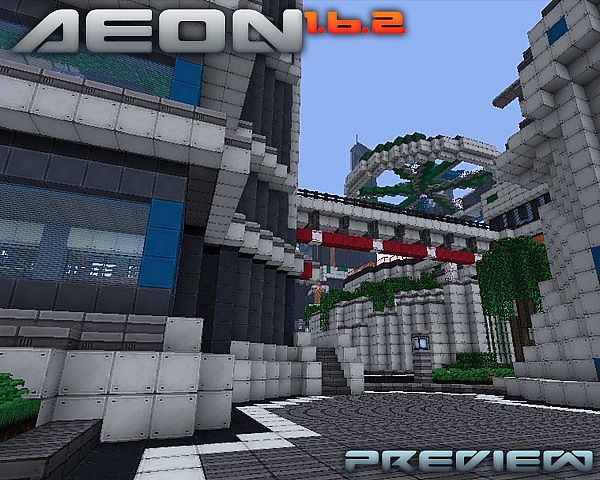
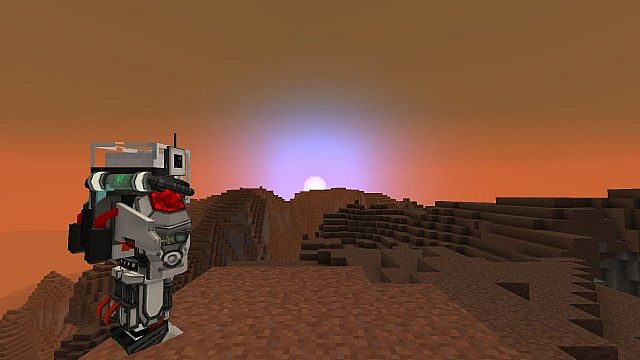
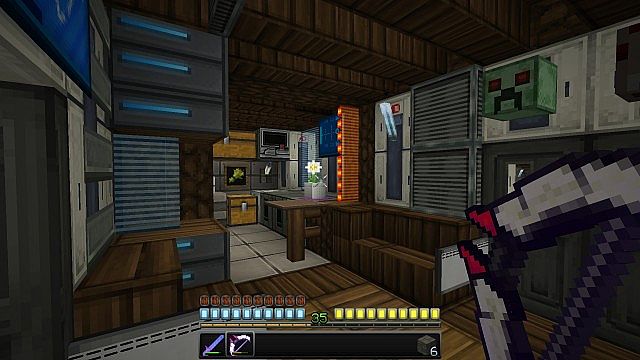
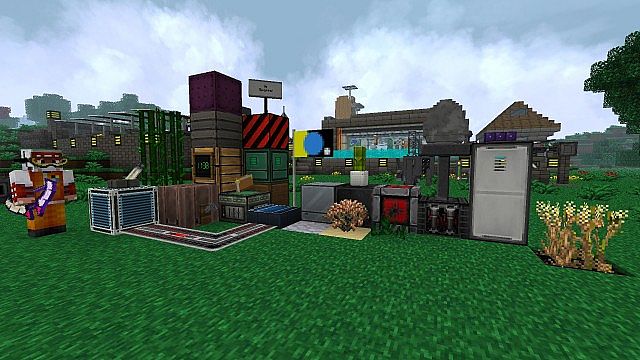
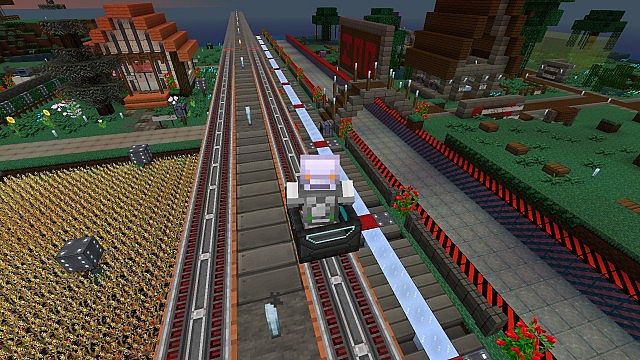
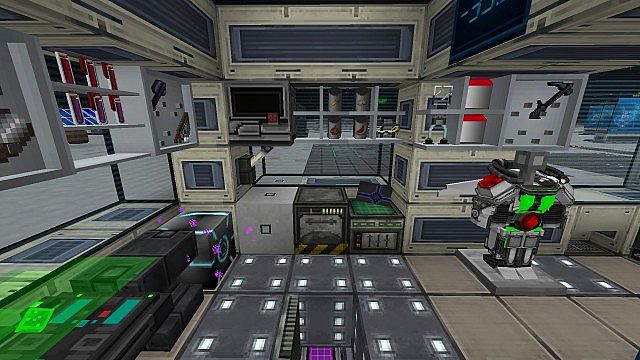
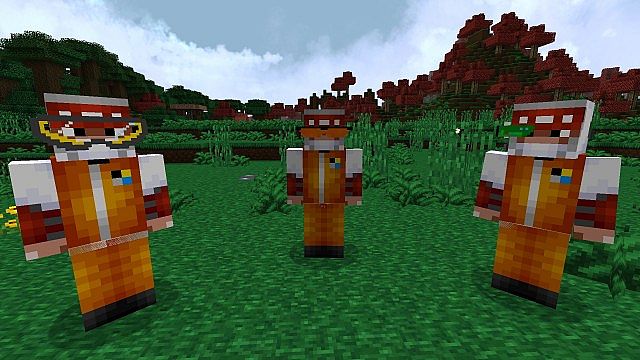
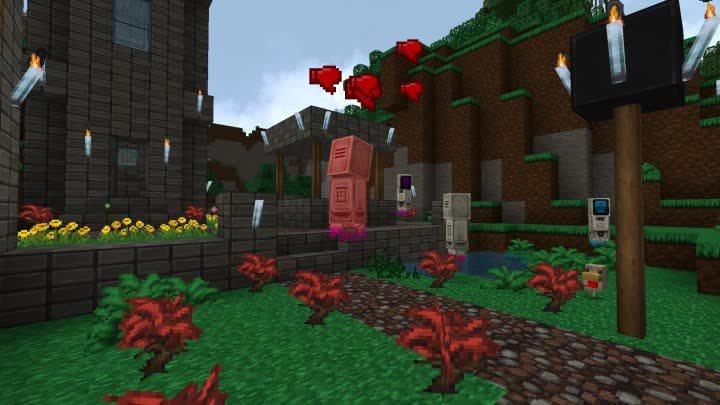
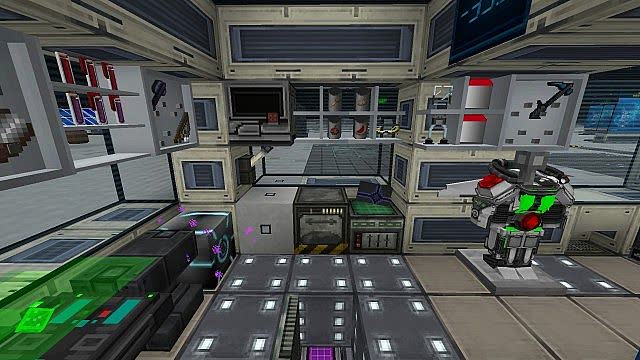
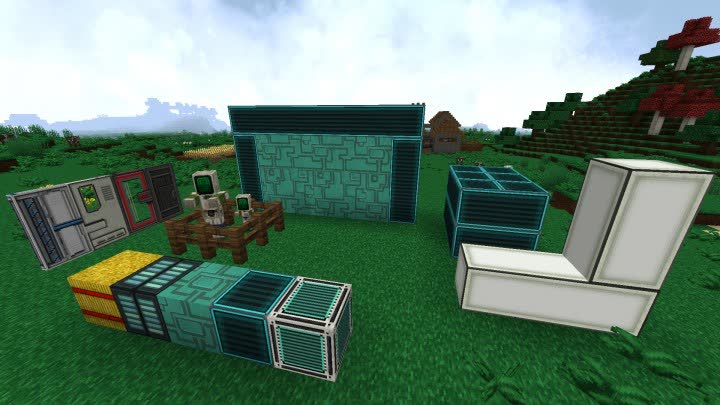
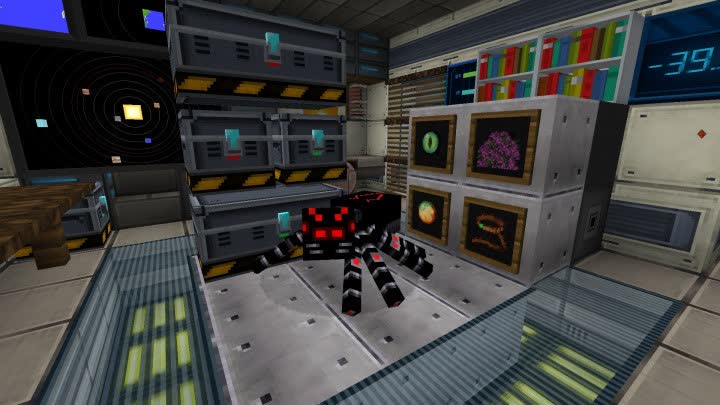
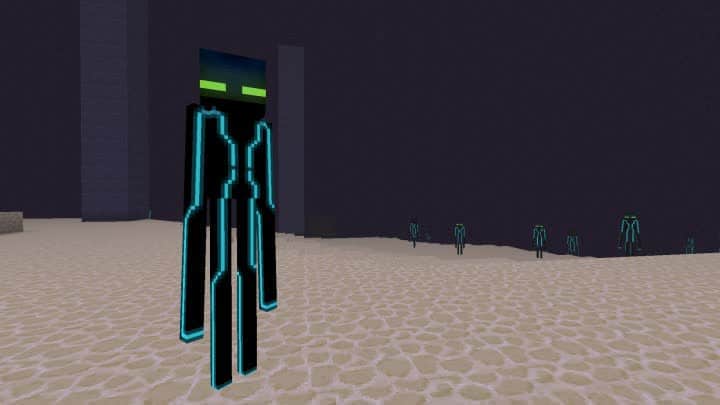
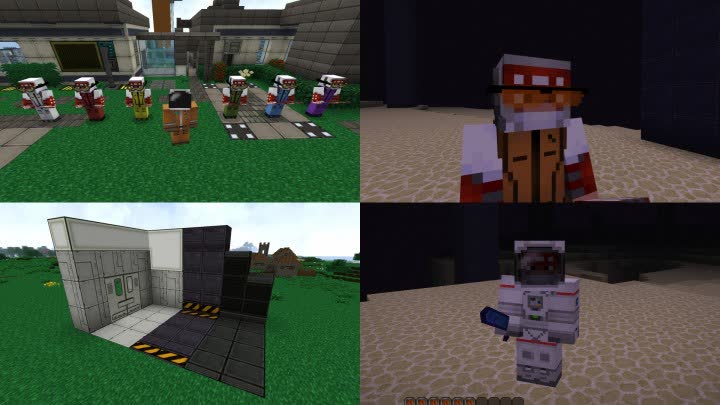
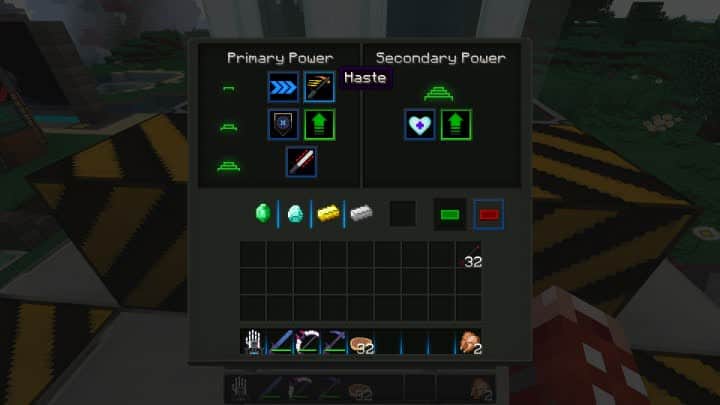
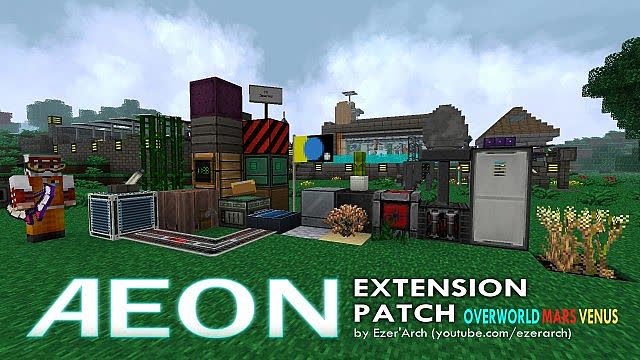
Stepping into a Minecraft world with the Aeon Extension resource pack active is like launching yourself into a meticulously crafted sci-fi epic. Immediately, the familiar blocky landscapes transform into something alien and advanced, bathed in a palette of muted, sophisticated colors punctuated by the subtle gleam of flashing lights. This pack isn’t just a simple retexture; it’s a complete atmospheric overhaul, enhanced by custom sound effects that deepen the sense of being in a futuristic, perhaps even dystopian, universe. The attention to detail is remarkable, extending beyond basic blocks and items to redefine everything from your inventory GUI to the very essence of combat. Instead of traditional hearts and hunger icons, you’re greeted with a sleek, tech-inspired UI that seamlessly integrates into the pack’s overall theme. Even the most common creatures of Minecraft are given a dramatic makeover. Zombies shamble about in full, tattered spacesuits, while villagers, though still susceptible to the ravages of undeath, sport similar astronaut gear, making every encounter feel like a close call with an extraterrestrial threat. Exploring further, you’ll notice how weapons, tools, and armor are no longer mundane but feel like advanced tech from another planet. Equipping a new set of armor is less about protection and more about suiting up for a deep-space expedition, making your character feel like an intergalactic explorer rather than a simple block-miner. The pack truly shines in its redesign of mobs; spiders, often a minor nuisance, become genuinely unsettling alien arachnids, while Endermen take on a sleek, almost digital appearance, reminiscent of characters from a futuristic film. The Aeon Extension pack excels at immersing players in a distinct, high-tech world, where every texture and sound contributes to a cohesive, science fiction narrative within Minecraft. While it brings significant visual changes, it’s a smooth experience, and support for features like CTM enhances the interconnectedness of textures across the environment. Prepare to see Minecraft through a completely new, cosmic lens.
| Minecraft Version | Compatibility |
|---|---|
| 1.12.2 | ✅ Supported |
| 1.12 | ✅ Supported |
| 1.11 | ✅ Supported |
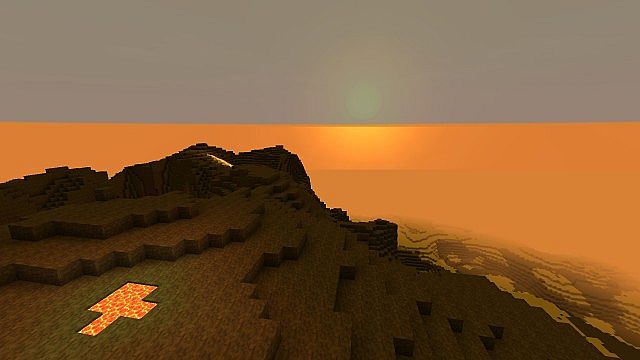
Aeon Extension Resource Pack – Screenshots & Videos
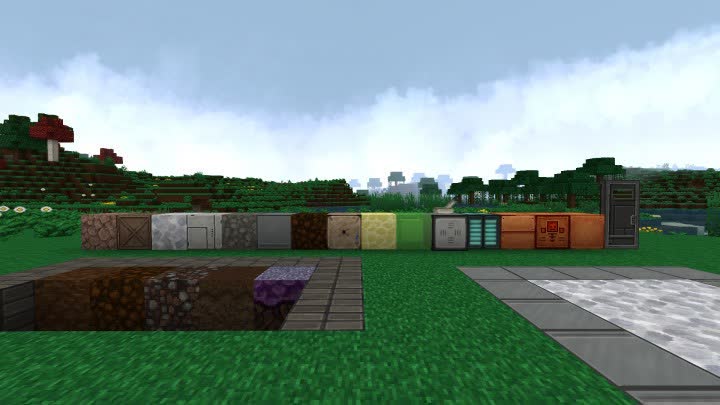
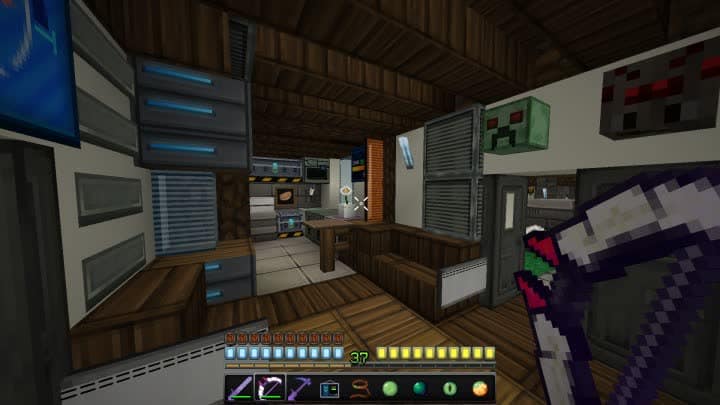
How to Install Texture Pack (Simple 10 Steps)
- Download Optifine: Most of the texture packs and shaders need Optifine. That’s why, first download and install Optifine for the version of Minecraft you want to play.
- Download the Texture Pack: Get the texture pack you want from the download section. Choose the version that works with your Minecraft and your PC’s performance.
- Open Minecraft Launcher: Start Minecraft using the official game launcher – or even TLauncher, if you use that.
- Go to Options: From the main menu, click on the “Options” button.
- Open Resource Packs: Inside Options, click on “Resource Packs…”.
- Open the Resource Pack Folder: Click on “Open Resource Pack Folder” – this will open a folder named “resourcepacks”.
- Move the Pack File: Copy or move the .zip file you downloaded into that “resourcepacks” folder. (Don’t unzip the file – Minecraft uses it as-is!)
- Go Back and Refresh: Close the folder and click “Done”, then go back into “Resource Packs…” again.
- Activate the Pack: You’ll see the pack on the left side. Hover over it and click the arrow to move it to the right (active side). Tip: If you get a message that the pack is for a different version, just click “Yes” – it usually works fine.
- Click Done and Enjoy: Click “Done” again. Now your pack is ready to use in-game. It’s that easy!
Download
Download Aeon Resource Pack from the official site
Mirror links:
(32x) (1.12 – 1.11) Download Aeon Main Pack – by EzerArch
(32x) (1.12 – 1.11) Download Aeon Extension Patch – by EzerArch
Download Instructions
-
CurseForge: If the pack is hosted on CurseForge, the download will begin automatically after a few seconds. If it does not start, use the “Download” button shown on the page.
-
Modrinth: If the download is from Modrinth, click the file version that matches your Minecraft build, then press the Download button. Modrinth usually offers multiple releases, so make sure you pick the correct version before installing.
-
Mediafire: On Mediafire, click the large blue Download button to start the file download. Avoid any extra pop-ups or buttons that are not related to the direct download.
-
Google Drive: For Google Drive, click the small download icon at the top right corner of the page. It looks like a downward arrow. The file will be saved to your computer immediately.
Disclaimer We do not create or modify any of the texture packs or shader packs shared on this website. All credit goes to the original creators, and every download link we provide is the official link from their page, which keeps all downloads safe. Some links may stop working after updates, so if you find a broken one, let us know in the comments and we will update it quickly. If you like a pack, consider supporting the creator by visiting their official page or website that we have linked below, and feel free to leave a comment or vote to help their work reach more players.