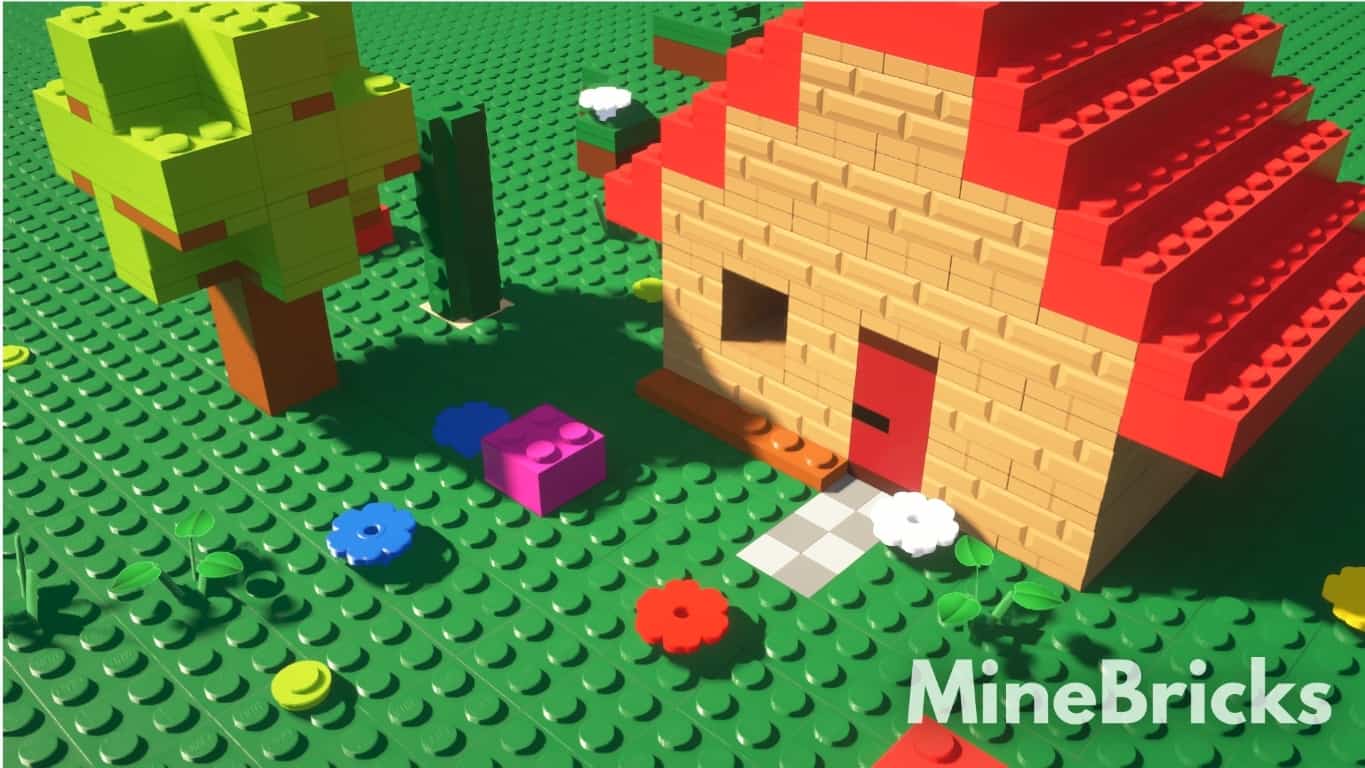
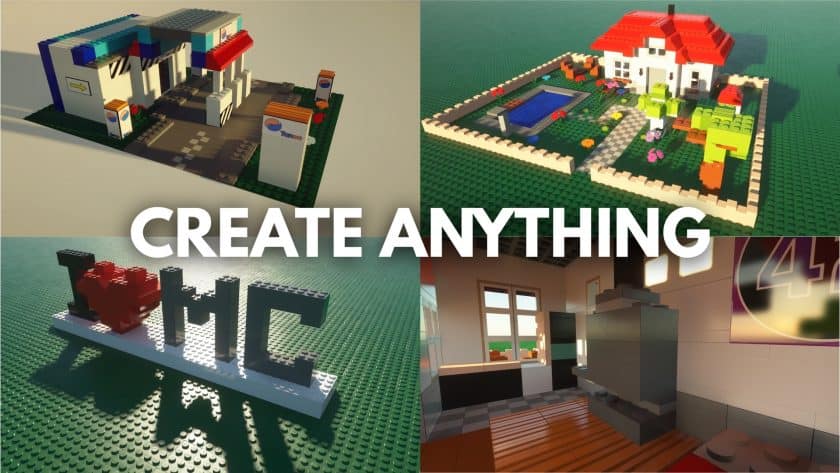
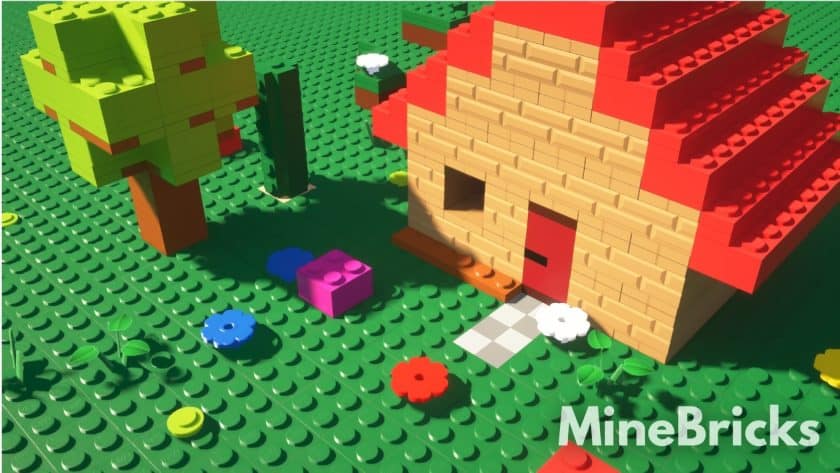
The Minecraft landscape is constantly evolving, with new resource packs emerging daily, making it a delightful challenge to discover something truly original. Among this vast ocean of creativity, the MineBricks Resource Pack stands out as a unique and refreshing experience, capturing the imagination of countless players. Its genius lies in its distinct LEGO-inspired aesthetic, transforming the familiar blocky world of Minecraft into an intricate, playful realm crafted from iconic plastic bricks. While not an officially licensed product, MineBricks masterfully emulates the beloved LEGO style, immersing players in a world where every block, creature, and environmental detail feels like it belongs in a meticulously constructed playset.
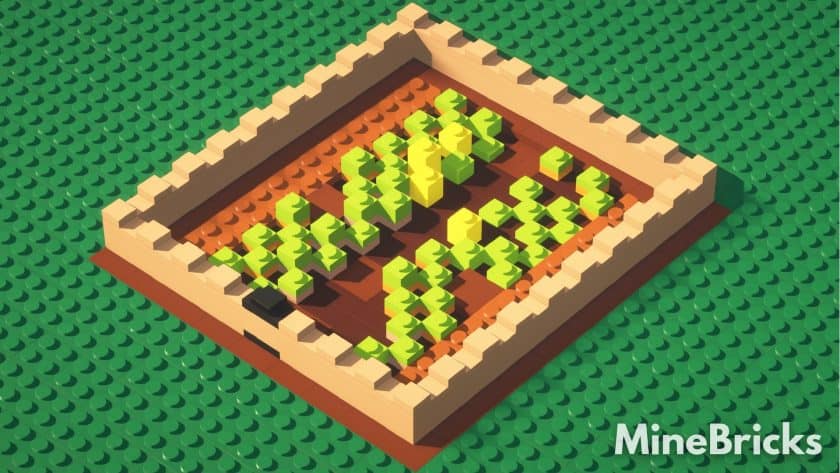
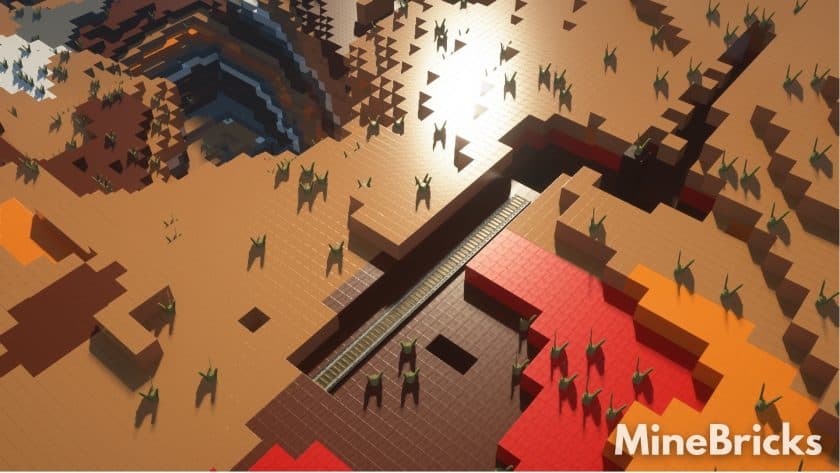
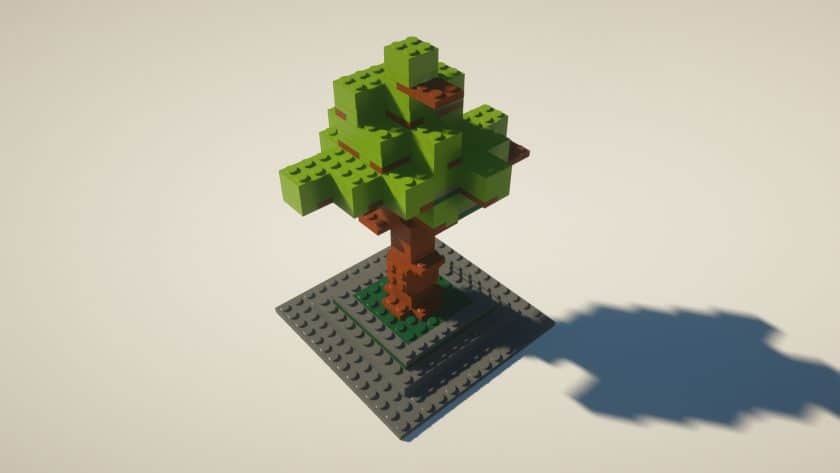
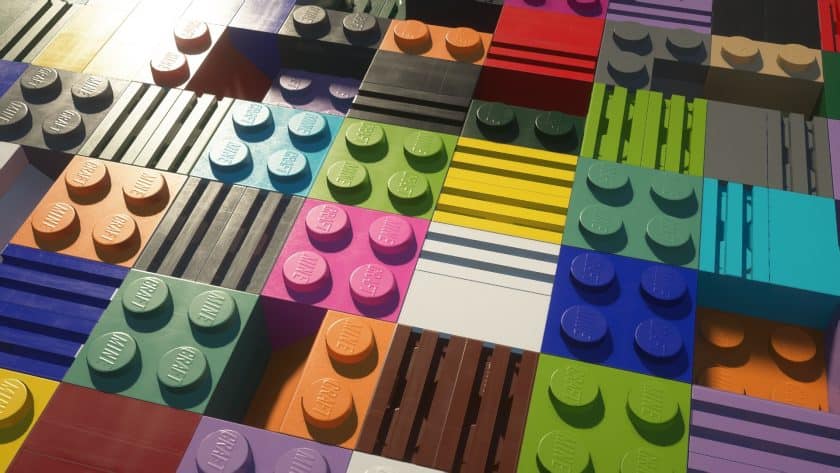
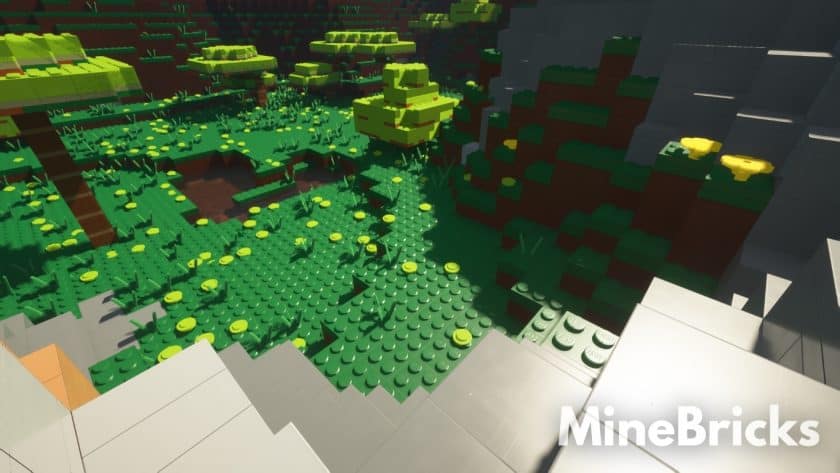
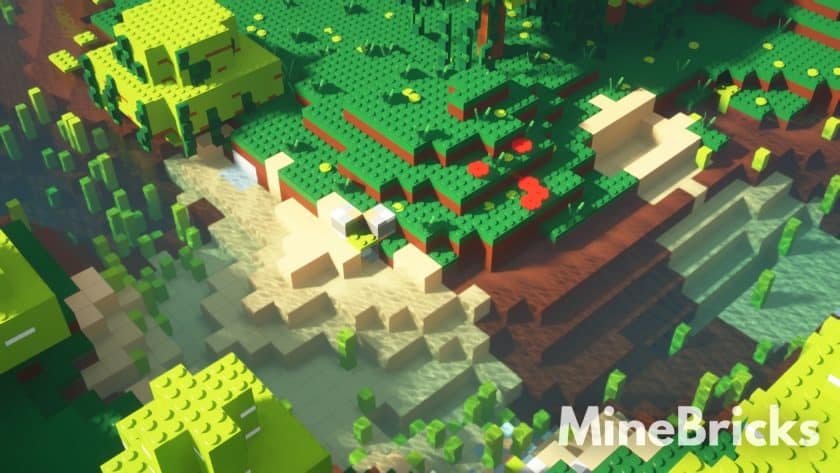
From the moment you load into a MineBricks-enhanced world, the visual transformation is striking. Textures across almost all in-game blocks have been painstakingly redesigned, shedding their default detail for vibrant, solid colors that pop with intensity. The characteristic scattering and noise of vanilla textures are replaced with a smooth, almost toy-like finish. Observe the subtle yet impactful changes in common materials like coal, gold, iron, diorite, gravel, snow, sand, stone, and clay – each now presents a cleaner, more defined appearance. Beyond the core blocks, the pack extends its magic to the natural world. Trees, leaves, grass, and flowers are reimagined, making the entire environment, from towering forests to sprawling meadows, appear as if assembled from colorful LEGO pieces. Even the creatures inhabiting your world, from the creepers to the cows, receive charming new blocky textures, further solidifying the immersive toy-like atmosphere.
Further enhancing this distinctive aesthetic, MineBricks meticulously updates the sky and water graphics, ensuring they perfectly complement the pack’s overall theme. The attention to detail doesn’t stop there; windows, paintings, and various in-game items are also given a fresh, brick-infused look. The current and most popular iteration, V3, builds upon previous improvements, delivering subtle tweaks for increased performance alongside additional textures and bonuses. This version notably reduces texture noise and dispersion, allowing even distant objects to retain clearer, more cohesive blocky textures. For those seeking the ultimate visual fidelity, combining MineBricks with a suitable shader pack like SEUS PTGI is highly recommended. However, be mindful that shaders like SEUS PTGI demand a powerful system to maintain smooth gameplay.
MineBricks offers multiple resolutions to cater to various hardware capabilities and preferences. A free 128x version provides a substantial upgrade over vanilla graphics, while a free 256x option is available for those with more robust PCs. For an even more detailed experience, premium 512x and 1024x versions can be acquired. The developer consistently updates all four versions, ensuring a continuously evolving and refined LEGO-inspired adventure. To fully leverage the pack’s capabilities, especially its special features, Optifine HD is a required installation.
MineBricks (LEGO in Minecraft) should work smoothly with all of these Minecraft versions: 1.21.4 – 1.21.3 – 1.21.2 – 1.21.1 – 1.21 – 1.20.6 – 1.20.5 – 1.20.4 – 1.20.3 – 1.20.2 – 1.20.1 – 1.20 – 1.19.4 – 1.19.3 – 1.19.2 – 1.19.1 – 1.19 – 1.18.2 – 1.18.1 – 1.18 – 1.17.1 – 1.17 – 1.16.5 – 1.16.4 – 1.16.3 – 1.16.2 – 1.16.1 – 1.16 – 1.15.2 – 1.15.1 – 1.15
MineBricks Resource Pack – Screenshots & Videos
How to Install Texture Pack (Simple 10 Steps)
- Download Optifine: Most of the texture packs and shaders need Optifine. That’s why, first download and install Optifine for the version of Minecraft you want to play.
- Download the Texture Pack: Get the texture pack you want from the download section. Choose the version that works with your Minecraft and your PC’s performance.
- Open Minecraft Launcher: Start Minecraft using the official game launcher – or even TLauncher, if you use that.
- Go to Options: From the main menu, click on the “Options” button.
- Open Resource Packs: Inside Options, click on “Resource Packs…”.
- Open the Resource Pack Folder: Click on “Open Resource Pack Folder” – this will open a folder named “resourcepacks”.
- Move the Pack File: Copy or move the .zip file you downloaded into that “resourcepacks” folder. (Don’t unzip the file – Minecraft uses it as-is!)
- Go Back and Refresh: Close the folder and click “Done”, then go back into “Resource Packs…” again.
- Activate the Pack: You’ll see the pack on the left side. Hover over it and click the arrow to move it to the right (active side). Tip: If you get a message that the pack is for a different version, just click “Yes” – it usually works fine.
- Click Done and Enjoy: Click “Done” again. Now your pack is ready to use in-game. It’s that easy!
Credit for the creation of MineBricks (LEGO in Minecraft) goes to macio6.
- We do not modify or edit any resource packs. All resource packs, shaders and tools found on this website are linked directly to official sources rather than hosted on our own servers. We provide only the official download links from the original creators to ensure that your files are safe and secure.
- These official links are updated manually and may occasionally stop working when a new version is released. We work hard to keep everything current so that you have a smooth experience. Please let us know in the comments if you find a link that no longer works.
- Minecraft is a trademark of Mojang Studios and has no official connection to this website. Our goal is simply to share the best creations from the community with other players.
- Please consider leaving a comment or voting for your favorite packs. This feedback helps authors improve their projects over time. You can also support the creators directly by visiting the official links located below the download section.
Download Links
Java Edition:
[128x] [1.21.x – 1.20.2] Download MineBricks Resource Pack – absolutely free;
[128x] [1.20.1 – 1.20] Download MineBricks Resource Pack – absolutely free;
[128x] [1.19.x] Download MineBricks Resource Pack – absolutely free;
[128x] [1.18.x] Download MineBricks Resource Pack – absolutely free;
[128x] [1.17.x] Download MineBricks Resource Pack – absolutely free;
[128x] [1.16.x] Download MineBricks Resource Pack – absolutely free;
[256x] [1.20.x – 1.16.x] Download MineBricks Resource Pack – paid;
[512x] [1.20.x – 1.16.x] Download MineBricks Resource Pack – paid;
[1024x] [1.20.x – 1.16.x] Download MineBricks Resource Pack – paid;
Download Instructions
- CurseForge: If the pack is hosted on CurseForge, the download will begin automatically after a few seconds. If it does not start, use the “Download” button shown on the page.
- Modrinth: If the download is from Modrinth, click the file version that matches your Minecraft build, then press the Download button. Modrinth usually offers multiple releases, so make sure you pick the correct version before installing.
- Mediafire: On Mediafire, click the large blue Download button to start the file download. Avoid any extra pop-ups or buttons that are not related to the direct download.
- Google Drive: For Google Drive, click the small download icon at the top right corner of the page. It looks like a downward arrow. The file will be saved to your computer immediately.
Disclaimer: We do not create or modify any of the texture packs or shader packs shared on this website. All credit goes to the original creators, and every download link we provide is the official link from their page, which keeps all downloads safe. Some links may stop working after updates, so if you find a broken one, let us know in the comments and we will update it quickly. If you like a pack, consider supporting the creator by visiting their official page or website that we have linked below, and feel free to leave a comment or vote to help their work reach more players.