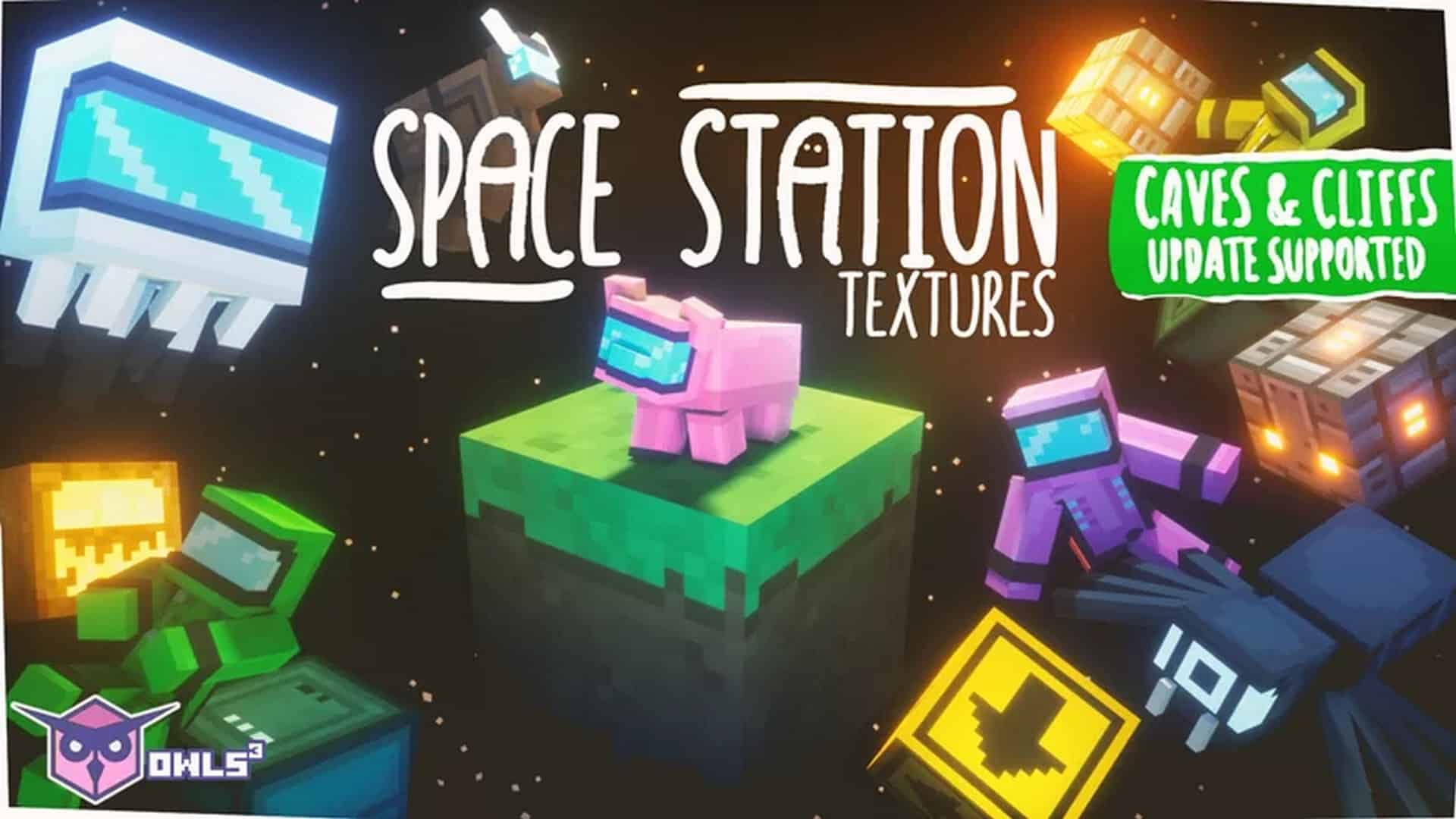
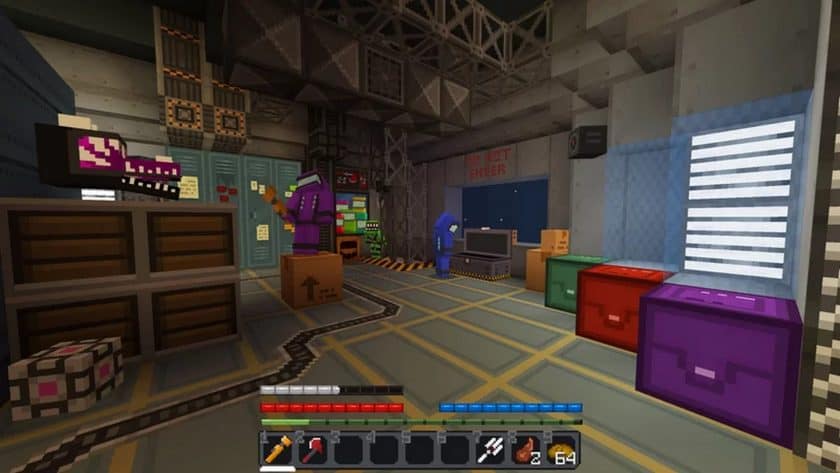
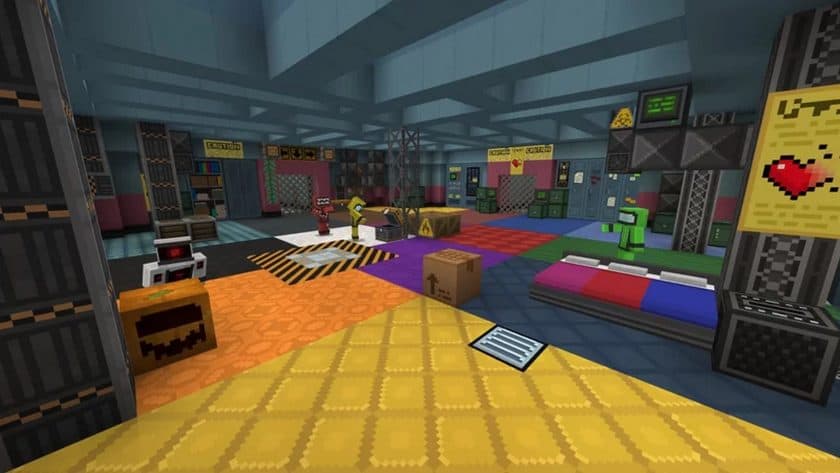
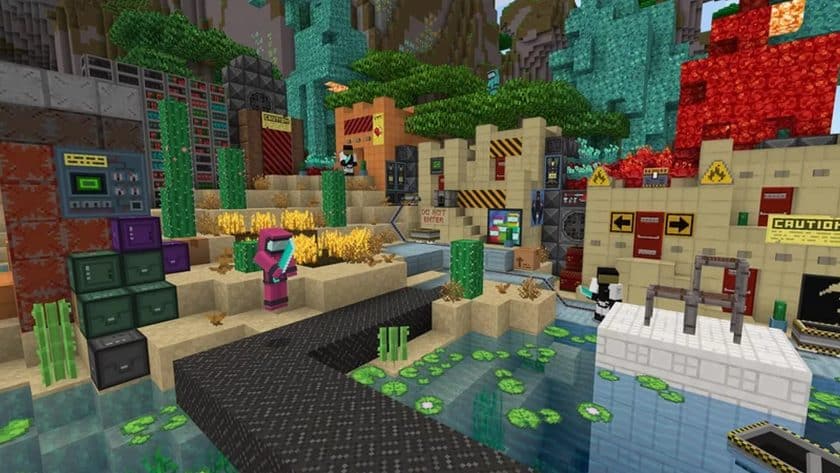
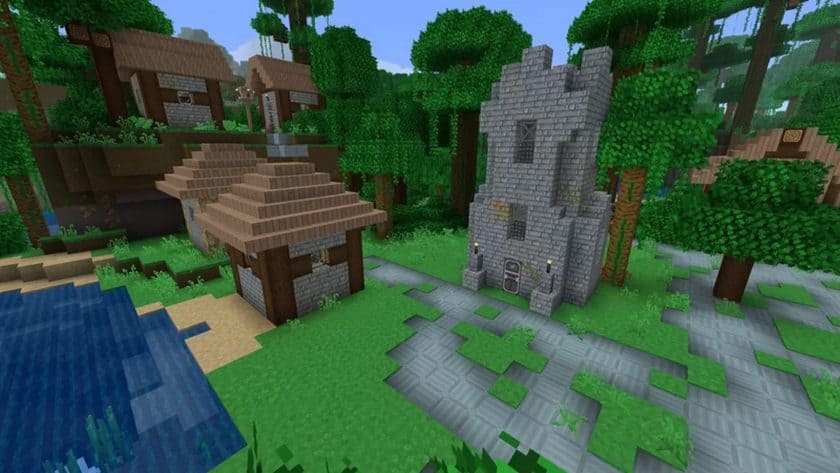
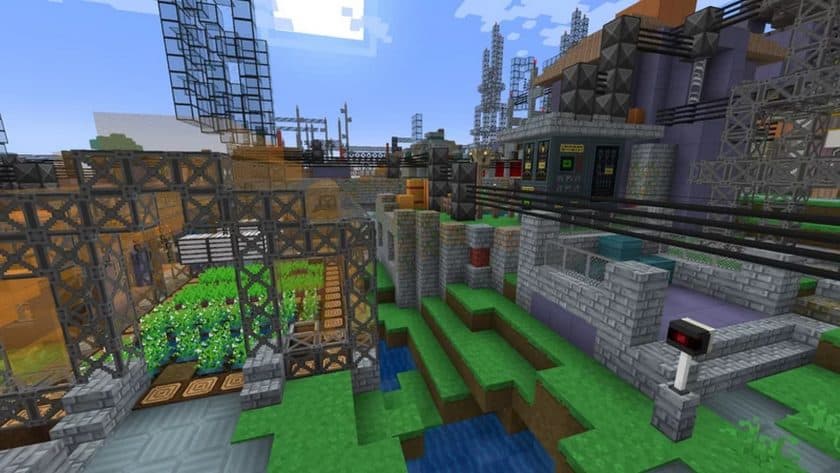
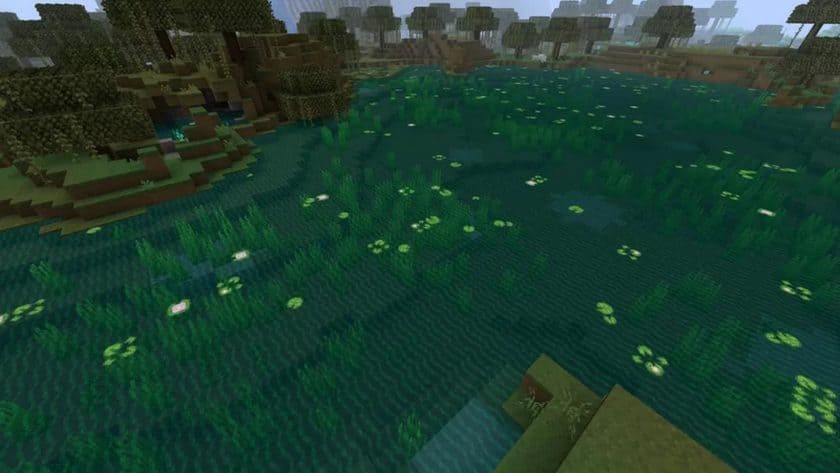
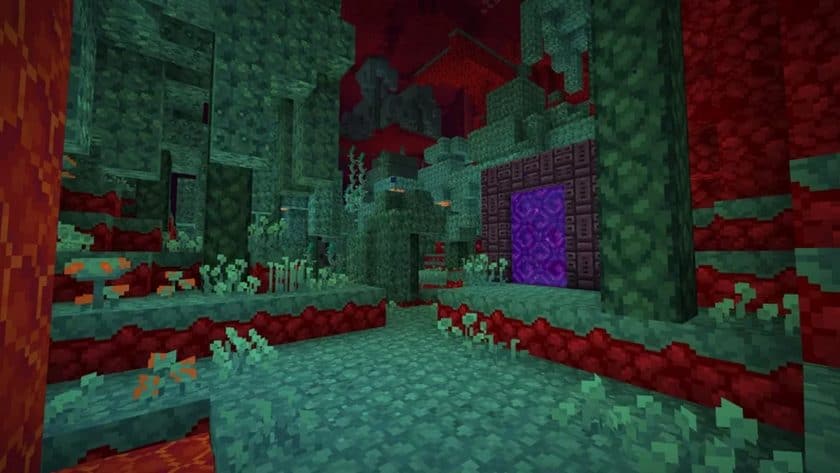
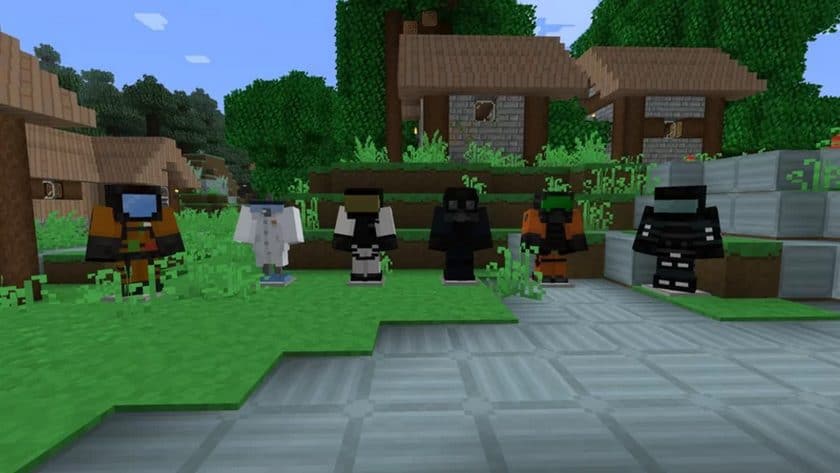
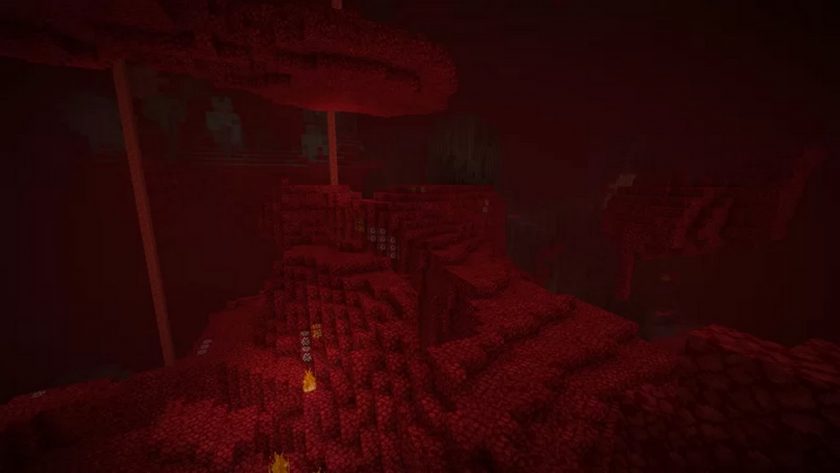
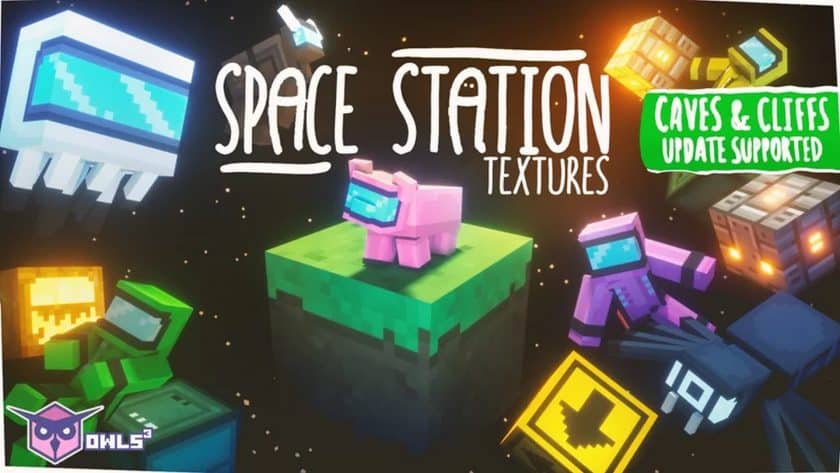
The Space Station resource pack, created by OwlsCubed in late 2021, invites players to transform their Minecraft worlds into a vibrant sci-fi frontier. While it won’t actually launch you into outer space, this texture pack masterfully redefines the game’s aesthetic, allowing for the construction of elaborate futuristic environments. Immediately upon diving in, you’ll notice a distinct shift towards a metallic, high-tech vibe. Blocks boast sleek, new metal textures, perfect for crafting the hull of a starship or the interior of a lunar base. Intricate details like ventilation systems, specialized floor tiles, and advanced lighting elements immerse you further, making every structure feel like a functional part of a grander space station. Even mundane elements are reimagined, with railways becoming conveyor belts and crates taking on a more industrial, cargo-hold appearance. The pack cleverly integrates small, yet impactful, touches such as lockers and blocks adorned with warning signs or navigational directions, truly selling the illusion of a bustling interstellar hub. Despite these profound visual overhauls, the pack maintains Minecraft’s inherent charm and blocky, cartoonish identity, preventing it from feeling completely alien.
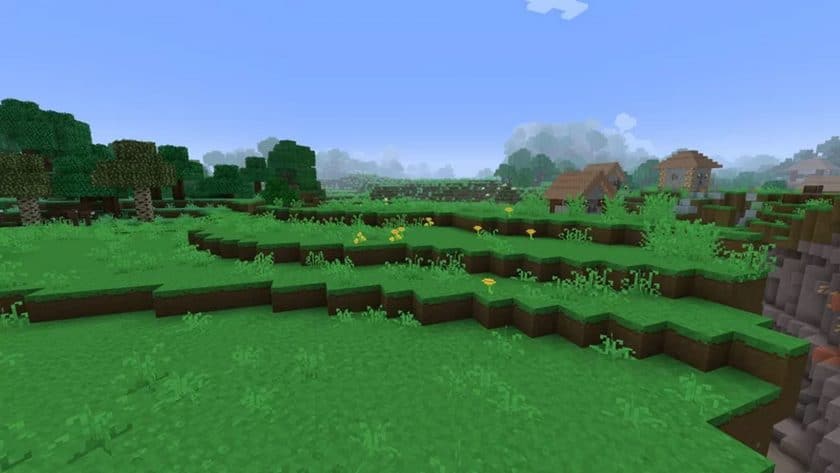
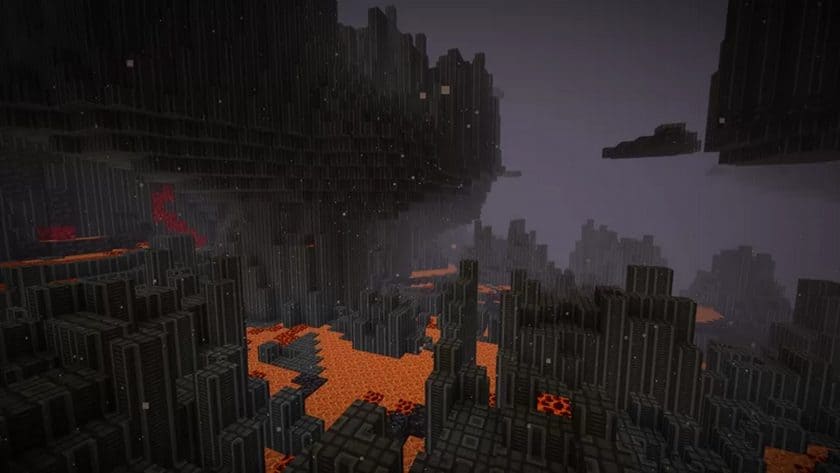
Opting for a 16x resolution, OwlsCubed has ensured that the Space Station pack remains accessible to a wide audience. This thoughtful choice means that even players with older or less powerful machines can experience the futuristic transformation without sacrificing performance. While 16x textures may not offer hyper-realistic detail, the stylistic changes are undeniably impactful, making the visual refresh immediately apparent. The developer, OwlsCubed, is commendably active, with ongoing plans for further enhancements. Though the pack is already considered 100% complete in its current form, future updates promise an even more polished experience, including potential sci-fi themed user interface changes, improved block textures, and a greater diversity of in-game blocks and items. Excitingly, new features like stylized mobs and player textures are also on the horizon, promising to deepen the immersive quality. For those seeking to push the visual boundaries even further, the Space Station resource pack pairs exceptionally well with shader packs. While shaders can dramatically enhance the pack’s already impressive visuals, creating stunning light and shadow effects, it’s worth noting that they may lead to a decrease in frame rates, especially on less powerful systems. The resource bundle has been blurred multiple times to improve its appearance, suggesting a conscious effort to enhance visual depth, even at 16x.
| Minecraft Version | Compatibility |
|---|---|
| 1.17.1 | ✅ Supported |
| 1.17 | ✅ Supported |
| 1.16.5 | ✅ Supported |
| 1.16.4 | ✅ Supported |
| 1.16.3 | ✅ Supported |
| 1.16.2 | ✅ Supported |
| 1.16.1 | ✅ Supported |
| 1.16 | ✅ Supported |
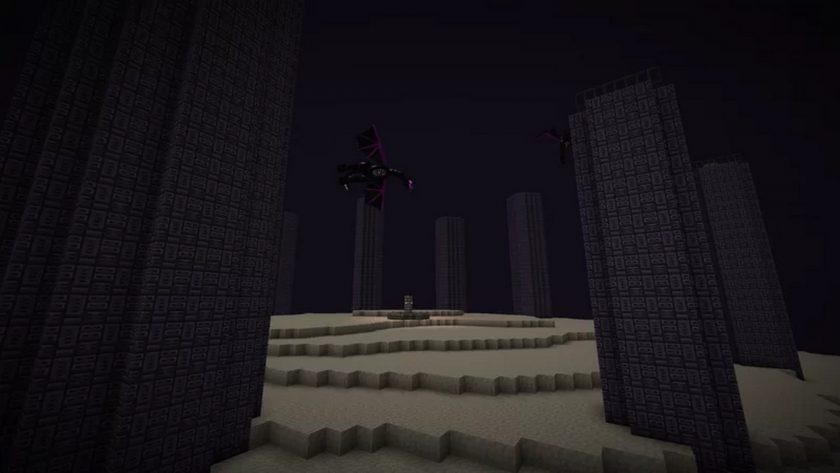
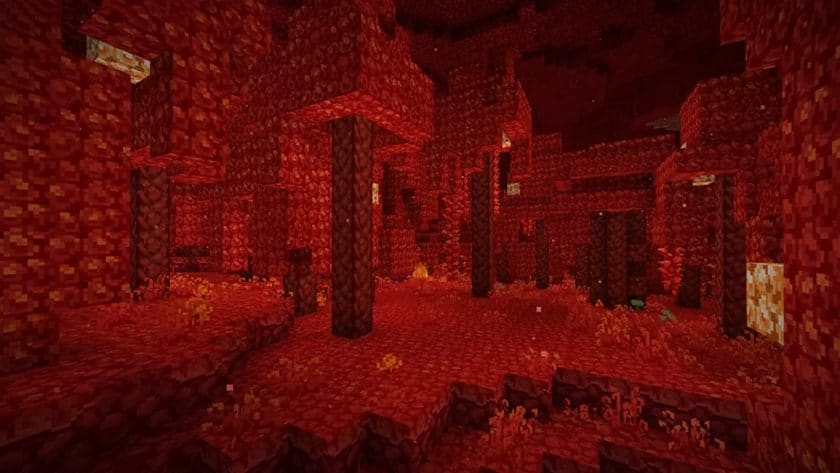
Space Station Resource Pack – Screenshots

How to Install Texture Pack (Simple 10 Steps)
- Download Optifine: Most of the texture packs and shaders need Optifine. That’s why, first download and install Optifine for the version of Minecraft you want to play.
- Download the Texture Pack: Get the texture pack you want from the download section. Choose the version that works with your Minecraft and your PC’s performance.
- Open Minecraft Launcher: Start Minecraft using the official game launcher – or even TLauncher, if you use that.
- Go to Options: From the main menu, click on the “Options” button.
- Open Resource Packs: Inside Options, click on “Resource Packs…”.
- Open the Resource Pack Folder: Click on “Open Resource Pack Folder” – this will open a folder named “resourcepacks”.
- Move the Pack File: Copy or move the .zip file you downloaded into that “resourcepacks” folder. (Don’t unzip the file – Minecraft uses it as-is!)
- Go Back and Refresh: Close the folder and click “Done”, then go back into “Resource Packs…” again.
- Activate the Pack: You’ll see the pack on the left side. Hover over it and click the arrow to move it to the right (active side). Tip: If you get a message that the pack is for a different version, just click “Yes” – it usually works fine.
- Click Done and Enjoy: Click “Done” again. Now your pack is ready to use in-game. It’s that easy!
Download
(16x) (1.17.x – 1.16.x) Download Space Station Resource Pack
Official links:
Check out the space station resource pack on the official resource
Download Instructions
-
CurseForge: If the pack is hosted on CurseForge, the download will begin automatically after a few seconds. If it does not start, use the “Download” button shown on the page.
-
Modrinth: If the download is from Modrinth, click the file version that matches your Minecraft build, then press the Download button. Modrinth usually offers multiple releases, so make sure you pick the correct version before installing.
-
Mediafire: On Mediafire, click the large blue Download button to start the file download. Avoid any extra pop-ups or buttons that are not related to the direct download.
-
Google Drive: For Google Drive, click the small download icon at the top right corner of the page. It looks like a downward arrow. The file will be saved to your computer immediately.
Disclaimer We do not create or modify any of the texture packs or shader packs shared on this website. All credit goes to the original creators, and every download link we provide is the official link from their page, which keeps all downloads safe. Some links may stop working after updates, so if you find a broken one, let us know in the comments and we will update it quickly. If you like a pack, consider supporting the creator by visiting their official page or website that we have linked below, and feel free to leave a comment or vote to help their work reach more players.