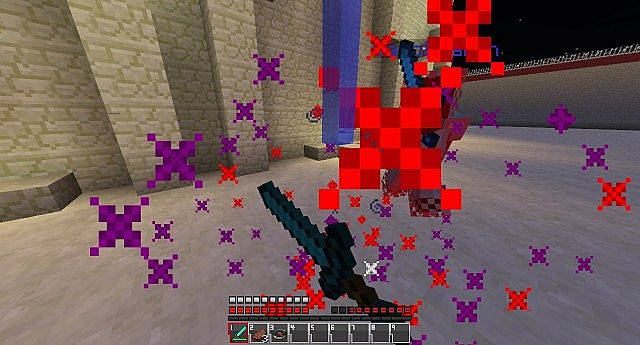
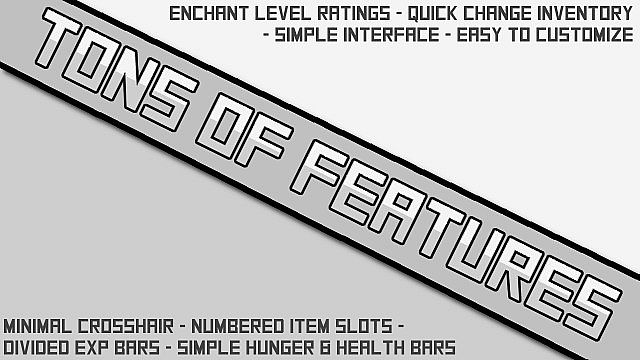
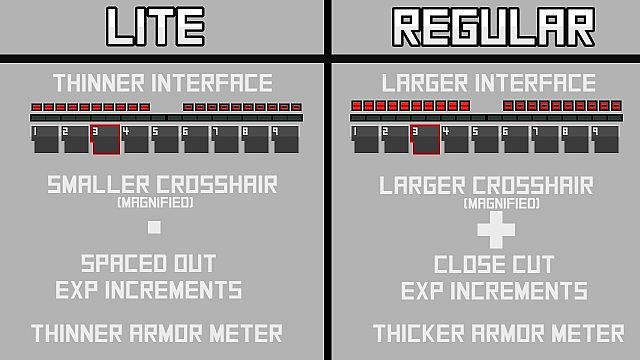
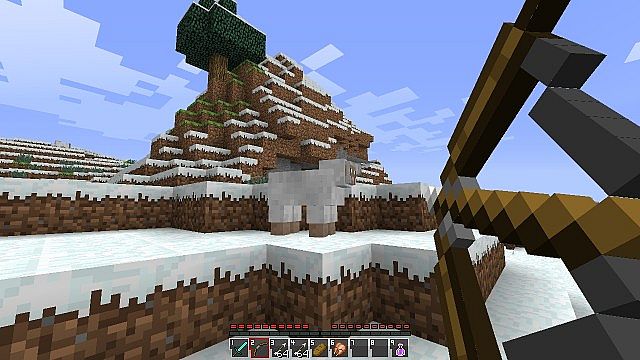
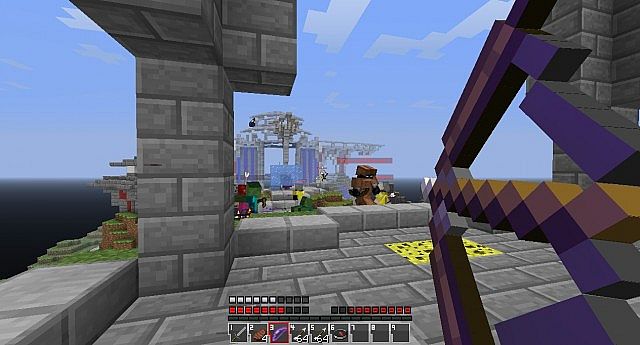
Stepping into a world with CombatPlus GUI activated immediately shifts the focus. Gone are the days of a mundane, standard interface dulling the thrill of a skirmish. This resource pack is meticulously crafted for the warrior at heart, completely overhauling the user interface and battle mechanics to sharpen every combat encounter. As I navigate through menus, everything feels streamlined, optimized for quick reactions and tactical decisions. The HUD elements are crisper, less cluttered, providing essential information at a glance without distracting from the action.
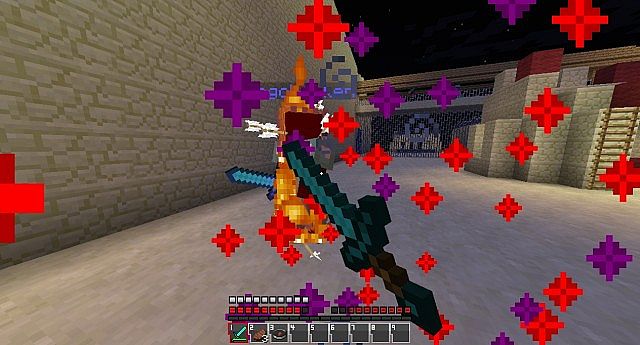
The true magic unfolds in PvP scenarios. Each clash, every block, and every swing feels more impactful due to the subtle yet significant visual and interactive adjustments. It’s not about grand, sweeping landscape changes or entirely new block designs; the pack intentionally leaves the core world untouched, ensuring your familiar environments remain. Instead, its brilliance lies in refining the combat aesthetic, making hit registrations clearer, status effects more discernible, and the overall rhythm of battle more engaging. This dedication to the combat aspect means players can dive into their favorite arenas or engage in spontaneous duels with a refreshed sense of purpose.
Performance-wise, CombatPlus GUI is a lightweight champion. Because it focuses purely on the GUI and combat elements, avoiding extensive texture overhauls, it runs smoothly, even on systems that might struggle with higher-resolution packs. It’s designed to enhance your competitive edge without burdening your framerate. This makes it an ideal choice for anyone looking to elevate their PvP game, streamline their interface, and immerse themselves deeper into the art of Minecraft combat, all while maintaining excellent playability. It’s a testament to how targeted improvements can profoundly impact the gameplay experience, proving that sometimes, less truly is more when it comes to visual overhauls, especially when the goal is pure, unadulterated combat.
| Minecraft Version | Compatibility |
|---|---|
| 1.8.9 | ✅ Supported |
| 1.8.8 | ✅ Supported |
| 1.8.1 | ✅ Supported |
| 1.8.6 | ✅ Supported |
| 1.8 | ✅ Supported |
| 1.7.10 | ✅ Supported |
| 1.7.9 | ✅ Supported |
| 1.7.4 | ✅ Supported |
| 1.7 | ✅ Supported |
| 1.6.4 | ✅ Supported |
| 1.6.2 | ✅ Supported |
CombatPlus GUI – Screenshots
How to Install Texture Pack (Simple 10 Steps)
- Download Optifine: Most of the texture packs and shaders need Optifine. That’s why, first download and install Optifine for the version of Minecraft you want to play.
- Download the Texture Pack: Get the texture pack you want from the download section. Choose the version that works with your Minecraft and your PC’s performance.
- Open Minecraft Launcher: Start Minecraft using the official game launcher – or even TLauncher, if you use that.
- Go to Options: From the main menu, click on the “Options” button.
- Open Resource Packs: Inside Options, click on “Resource Packs…”.
- Open the Resource Pack Folder: Click on “Open Resource Pack Folder” – this will open a folder named “resourcepacks”.
- Move the Pack File: Copy or move the .zip file you downloaded into that “resourcepacks” folder. (Don’t unzip the file – Minecraft uses it as-is!)
- Go Back and Refresh: Close the folder and click “Done”, then go back into “Resource Packs…” again.
- Activate the Pack: You’ll see the pack on the left side. Hover over it and click the arrow to move it to the right (active side). Tip: If you get a message that the pack is for a different version, just click “Yes” – it usually works fine.
- Click Done and Enjoy: Click “Done” again. Now your pack is ready to use in-game. It’s that easy!
Download
(16x) (1.8) (1.7) (1.6) Download CombatPlus GUI Resource Pack
Download Instructions
- CurseForge: If the pack is hosted on CurseForge, the download will begin automatically after a few seconds. If it does not start, use the “Download” button shown on the page.
- Modrinth: If the download is from Modrinth, click the file version that matches your Minecraft build, then press the Download button. Modrinth usually offers multiple releases, so make sure you pick the correct version before installing.
- Mediafire: On Mediafire, click the large blue Download button to start the file download. Avoid any extra pop-ups or buttons that are not related to the direct download.
- Google Drive: For Google Drive, click the small download icon at the top right corner of the page. It looks like a downward arrow. The file will be saved to your computer immediately.
Disclaimer: We do not create or modify any of the texture packs or shader packs shared on this website. All credit goes to the original creators, and every download link we provide is the official link from their page, which keeps all downloads safe. Some links may stop working after updates, so if you find a broken one, let us know in the comments and we will update it quickly. If you like a pack, consider supporting the creator by visiting their official page or website that we have linked below, and feel free to leave a comment or vote to help their work reach more players.