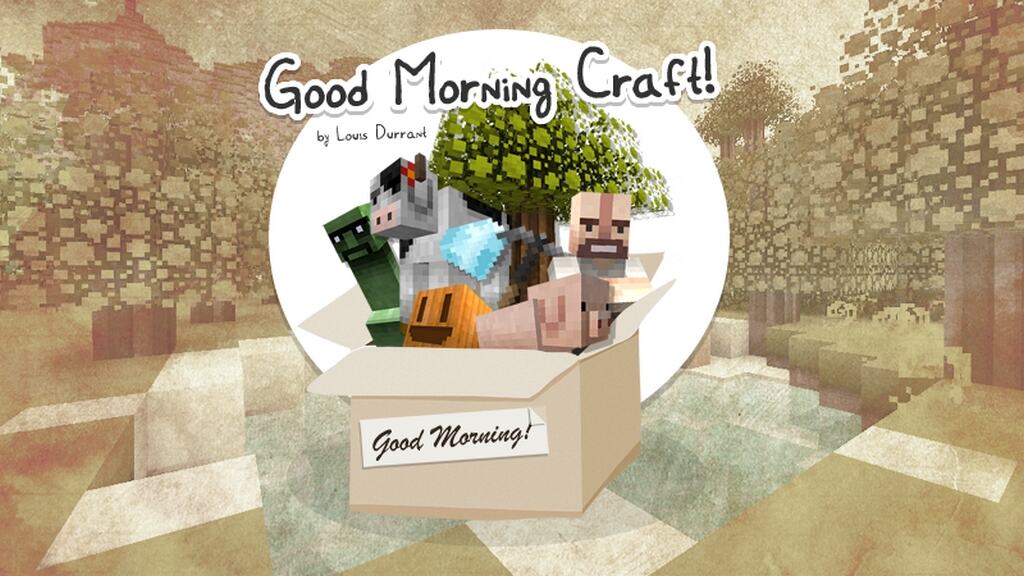
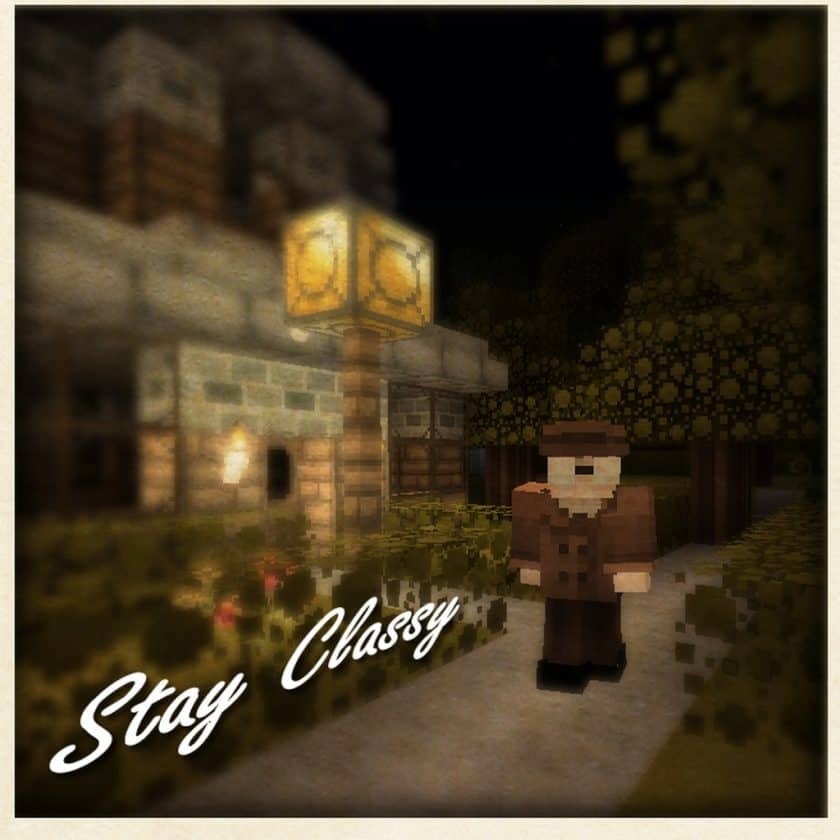
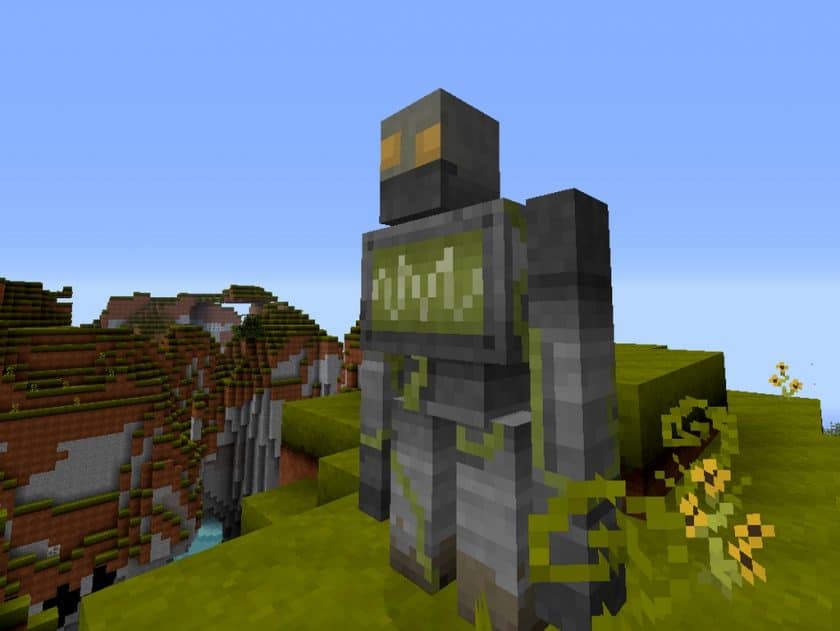
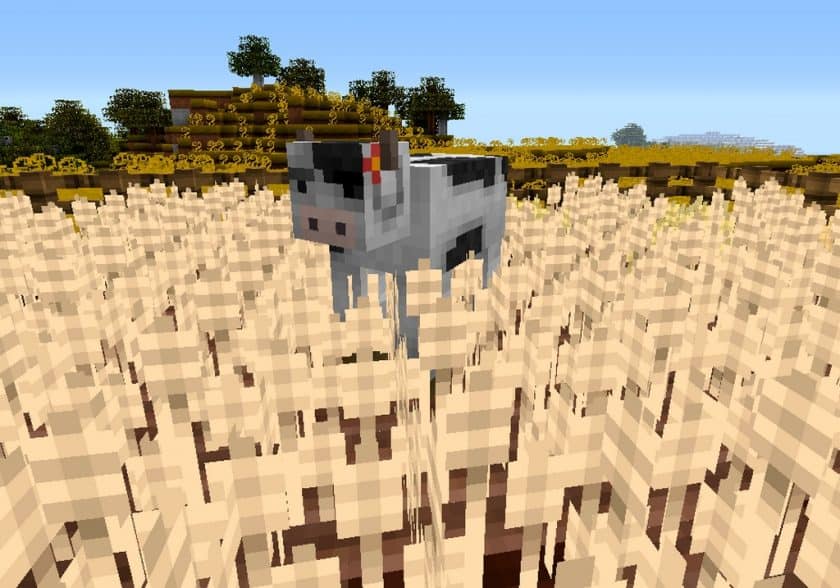
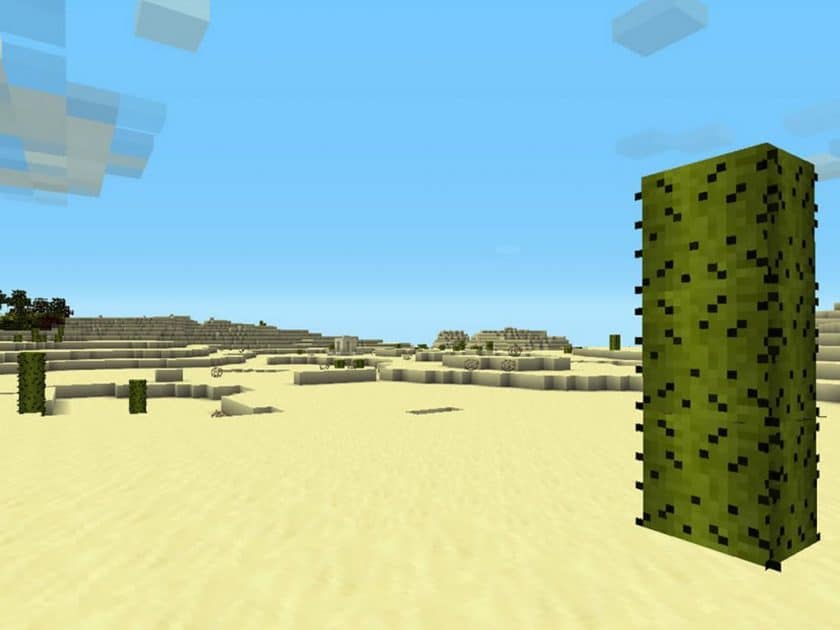
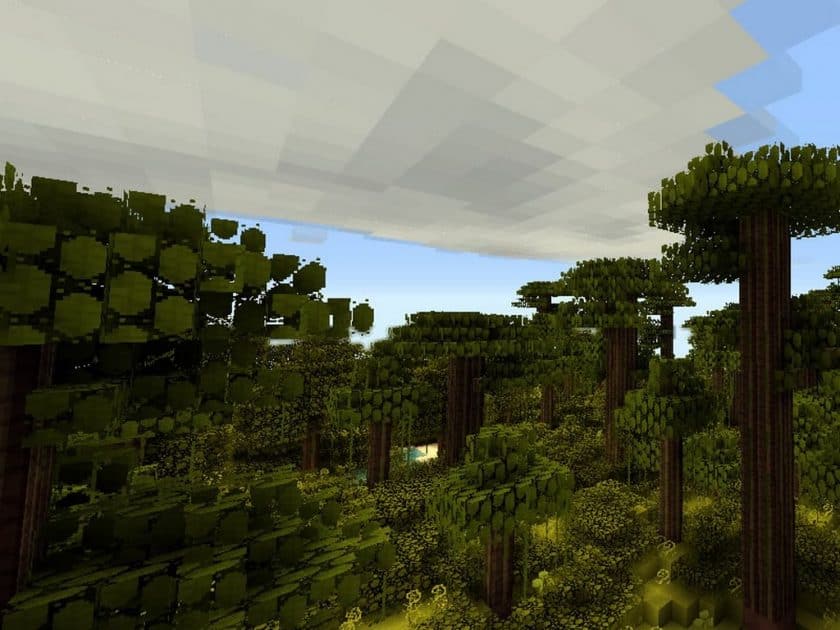
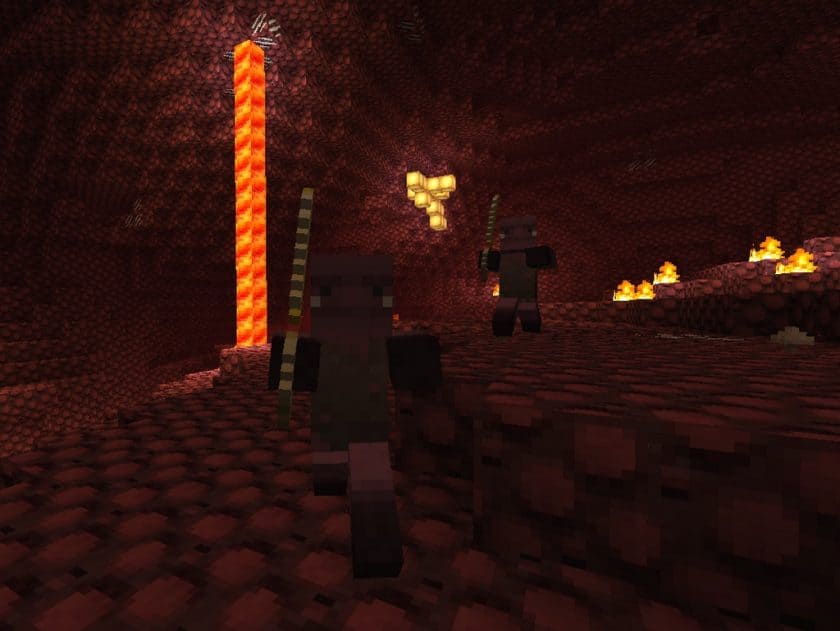
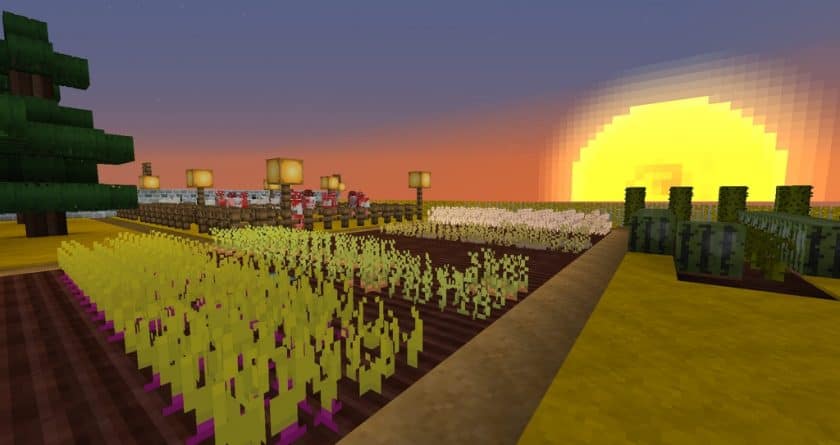
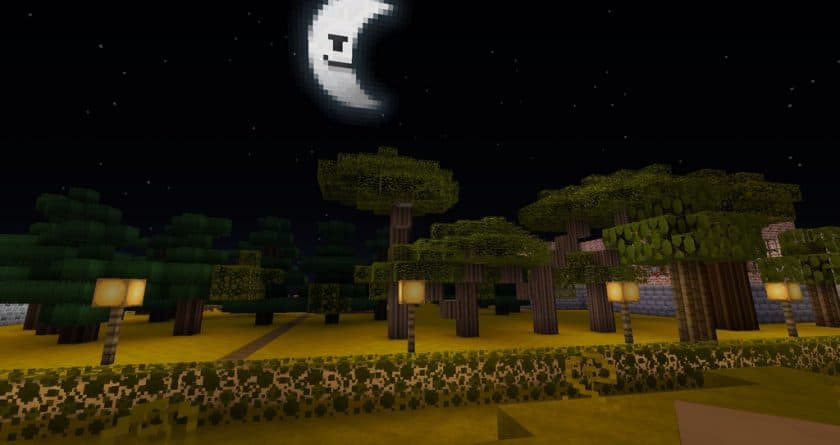
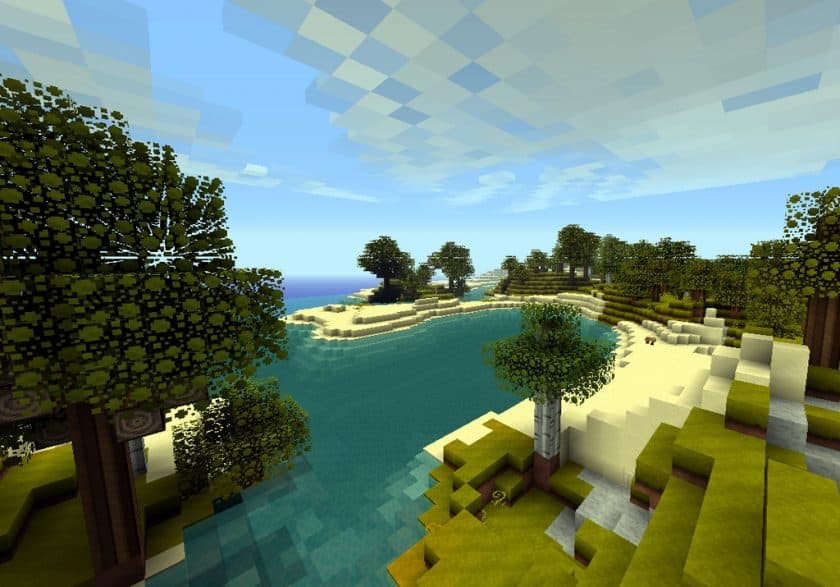
Stepping into a world with the Good Morning Craft Resource Pack feels like waking up to a fresh, vibrant day in Minecraft. This isn’t your typical gritty, dark, or ultra-realistic overhaul; instead, it embraces a delightfully quirky and straightforward 16×16 aesthetic that completely reimagines the game’s atmosphere. From the moment you load it, you’ll notice a distinct shift towards a brighter, more cheerful visual style, proving that simplicity can be incredibly effective. Every block, item, and even the Graphical User Interface (GUI) has been thoughtfully retextured, creating a cohesive and inviting environment that encourages exploration and creativity.
One of the standout features of Good Morning Craft is its impressive performance. Despite revamping nearly every visual element, this pack runs incredibly smoothly, thanks to its native 16×16 resolution-the same as Minecraft’s default. This means players won’t experience the frustrating stuttering or FPS drops often associated with higher-resolution packs, making it a fantastic choice for those with less powerful PCs or anyone who simply values a consistently fluid gameplay experience. It truly offers a ‘silver lining’ for players looking to enhance their game without compromising performance.
While its charm lies in its simplicity, it’s worth noting that Good Morning Craft maintains a visual quality akin to vanilla Minecraft, albeit with its unique, cheerful twist. Some players might find its textures quite simple, even more so than the default in certain aspects, which is part of its distinct character. This pack truly excels at delivering a simple yet effective visual stimulation that diverges from the often-treacherous portrayal of Minecraft. It provides a unique lens through which to experience your blocky adventures, making it a beloved choice for those who appreciate its distinct, low-resolution artistry. Although it shines in older versions up to 1.9.x, it hasn’t seen recent major updates, making it a nostalgic journey for many within its supported versions.
| Minecraft Version | Compatibility |
|---|---|
| 1.9.4 | ✅ Supported |
| 1.9 | ✅ Supported |
| 1.8.9 | ✅ Supported |
| 1.8.8 | ✅ Supported |
| 1.8.1 | ✅ Supported |
| 1.8.6 | ✅ Supported |
| 1.8 | ✅ Supported |
| 1.7.10 | ✅ Supported |
| 1.7.9 | ✅ Supported |
| 1.7.4 | ✅ Supported |
| 1.7 | ✅ Supported |
| 1.6.4 | ✅ Supported |
| 1.6.2 | ✅ Supported |
| 1.5.2 | ✅ Supported |
Good Morning Craft – Screenshots
How to Install Texture Pack (Simple 10 Steps)
- Download Optifine: Most of the texture packs and shaders need Optifine. That’s why, first download and install Optifine for the version of Minecraft you want to play.
- Download the Texture Pack: Get the texture pack you want from the download section. Choose the version that works with your Minecraft and your PC’s performance.
- Open Minecraft Launcher: Start Minecraft using the official game launcher – or even TLauncher, if you use that.
- Go to Options: From the main menu, click on the “Options” button.
- Open Resource Packs: Inside Options, click on “Resource Packs…”.
- Open the Resource Pack Folder: Click on “Open Resource Pack Folder” – this will open a folder named “resourcepacks”.
- Move the Pack File: Copy or move the .zip file you downloaded into that “resourcepacks” folder. (Don’t unzip the file – Minecraft uses it as-is!)
- Go Back and Refresh: Close the folder and click “Done”, then go back into “Resource Packs…” again.
- Activate the Pack: You’ll see the pack on the left side. Hover over it and click the arrow to move it to the right (active side). Tip: If you get a message that the pack is for a different version, just click “Yes” – it usually works fine.
- Click Done and Enjoy: Click “Done” again. Now your pack is ready to use in-game. It’s that easy!
Download
Java Edition:
(16x) (1.9.x – 1.8.x) Download Good Morning Craft Resource Pack
(16x) (1.7.x) Download Good Morning Craft Resource Pack
(16x) (1.6.x) Download Good Morning Craft Resource Pack
(16x) (1.5.x) Download Good Morning Craft Resource Pack
Download Instructions
-
CurseForge: If the pack is hosted on CurseForge, the download will begin automatically after a few seconds. If it does not start, use the “Download” button shown on the page.
-
Modrinth: If the download is from Modrinth, click the file version that matches your Minecraft build, then press the Download button. Modrinth usually offers multiple releases, so make sure you pick the correct version before installing.
-
Mediafire: On Mediafire, click the large blue Download button to start the file download. Avoid any extra pop-ups or buttons that are not related to the direct download.
-
Google Drive: For Google Drive, click the small download icon at the top right corner of the page. It looks like a downward arrow. The file will be saved to your computer immediately.
Disclaimer We do not create or modify any of the texture packs or shader packs shared on this website. All credit goes to the original creators, and every download link we provide is the official link from their page, which keeps all downloads safe. Some links may stop working after updates, so if you find a broken one, let us know in the comments and we will update it quickly. If you like a pack, consider supporting the creator by visiting their official page or website that we have linked below, and feel free to leave a comment or vote to help their work reach more players.