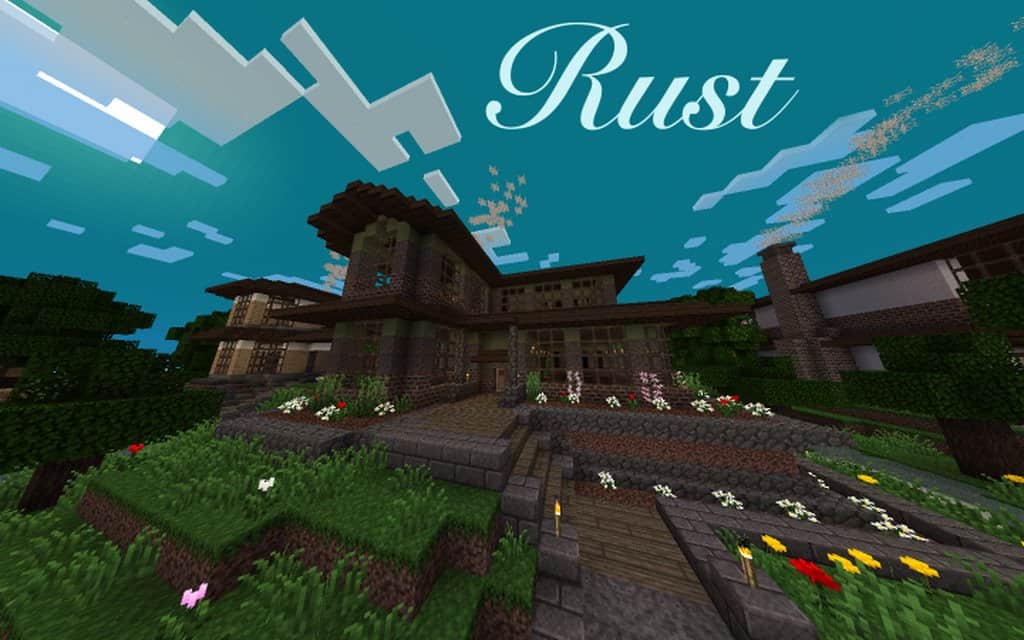
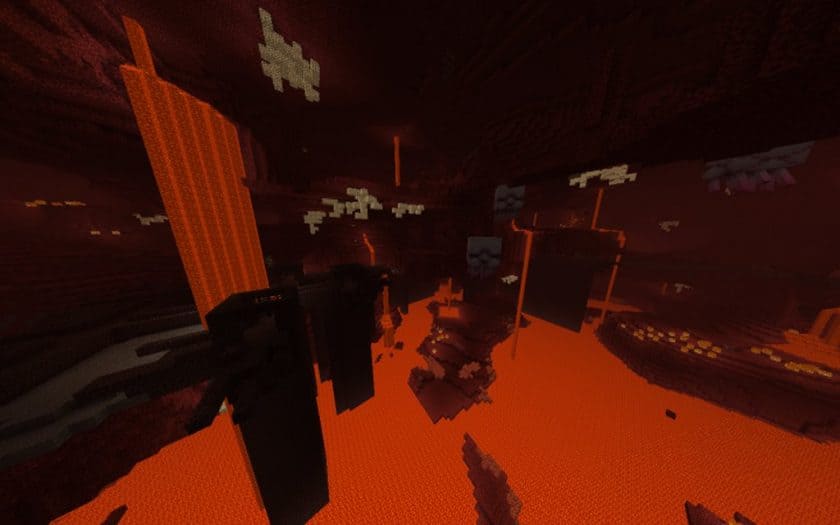
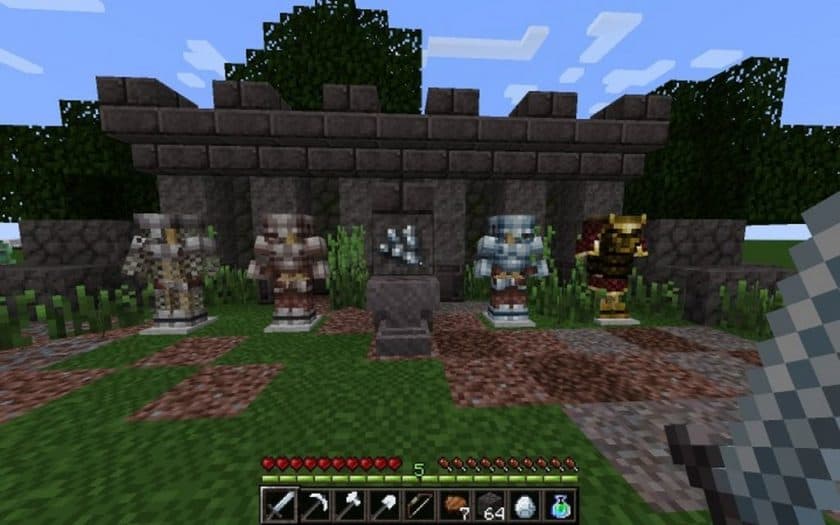
Stepping into a Minecraft world transformed by the Rust Resource Pack feels like discovering a forgotten realm, where time has gracefully weathered every surface. This 16×16 resolution pack, while seemingly modest, excels in delivering a uniquely realistic and aged aesthetic that distinguishes it from more contemporary-looking alternatives. Its low resolution is a significant advantage, ensuring smooth performance across a wide spectrum of hardware, from modern gaming rigs to older, less powerful machines, making it accessible to virtually every player without compromising on visual character.
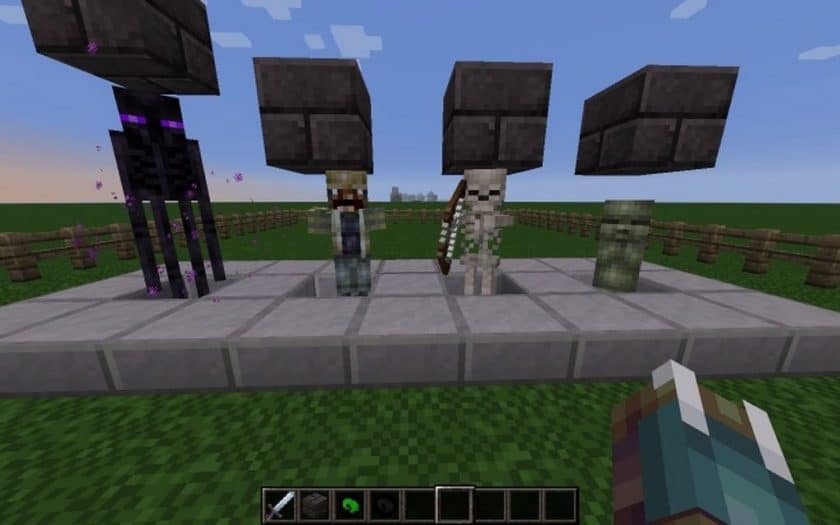
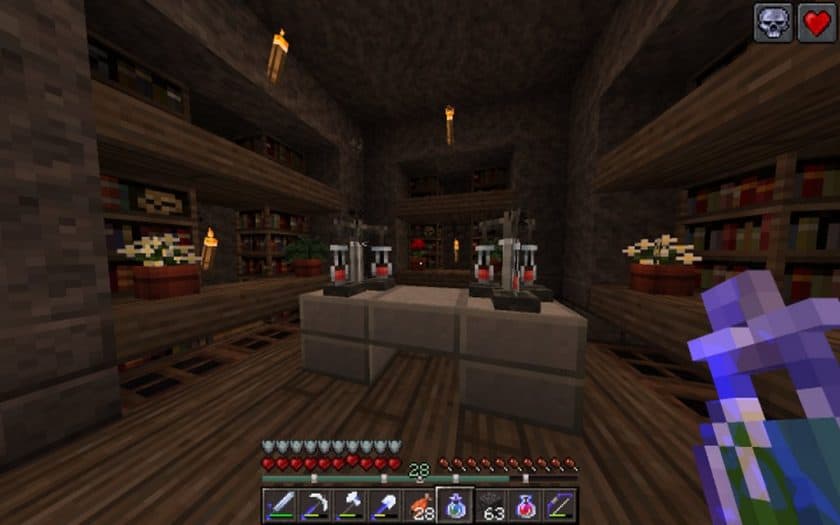
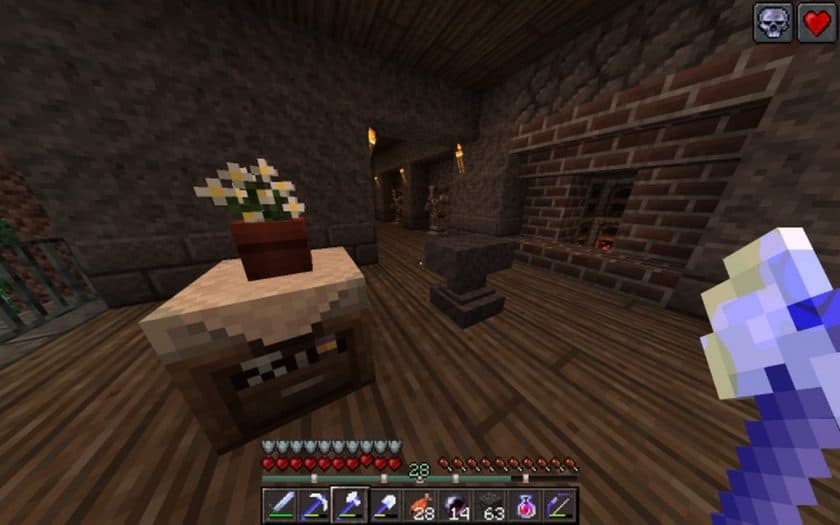
The moment you load Rust, you’re greeted by a world steeped in a comforting, rustic charm. Gone are the pristine blocks; in their place are textures that tell a story. Imagine traversing landscapes where stone appears genuinely ancient and worn, with subtle cracks and patches of dirt, or wandering through forests where wooden planks bear the marks of time, their surfaces battered and faded. This meticulous attention to detail creates an incredibly immersive atmosphere, perfectly suited for builders who envision grand, time-worn castles, mysterious, dimly lit dungeons, or simply desire a world with a profound sense of history.
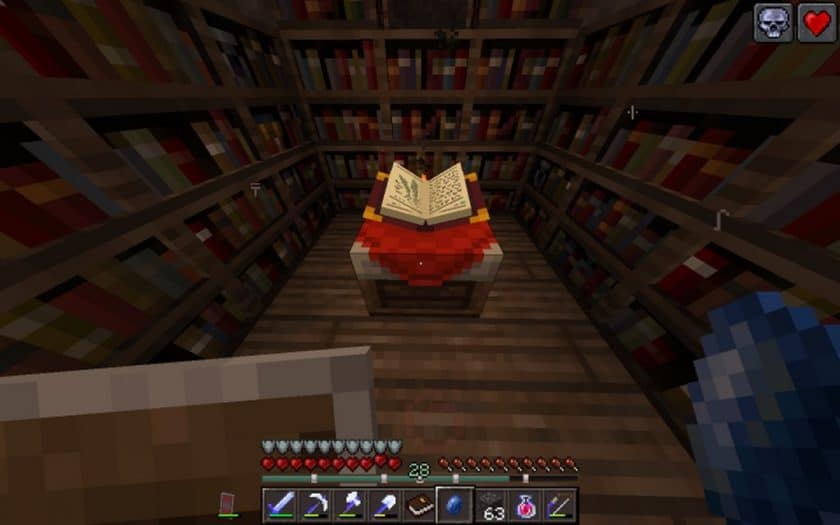
Beyond the environmental textures, the Rust Resource Pack extends its transformation to various other game elements. You’ll notice thoughtful tweaks to the Graphical User Interface (GUI), giving your menus and inventory a cohesive, vintage feel. Weapons and armor receive subtle but impactful modifications, ensuring they fit seamlessly into this weathered world, appearing as cherished relics rather than shiny new tools. Even the vegetation is carefully retextured to blend more harmoniously with the rugged terrain, enhancing the overall sense of a naturally evolved, slightly overgrown environment. The pack is continuously refined, with developers regularly pushing updates to ensure its textures are always improving and expanding, solidifying its place as a truly unique and beloved resource for Minecraft enthusiasts.
| Minecraft Version | Compatibility |
|---|---|
| 1.13.2 | ✅ Supported |
| 1.13.1 | ✅ Supported |
| 1.13 | ✅ Supported |
| 1.12.2 | ✅ Supported |
| 1.12 | ✅ Supported |
| 1.11.2 | ✅ Supported |
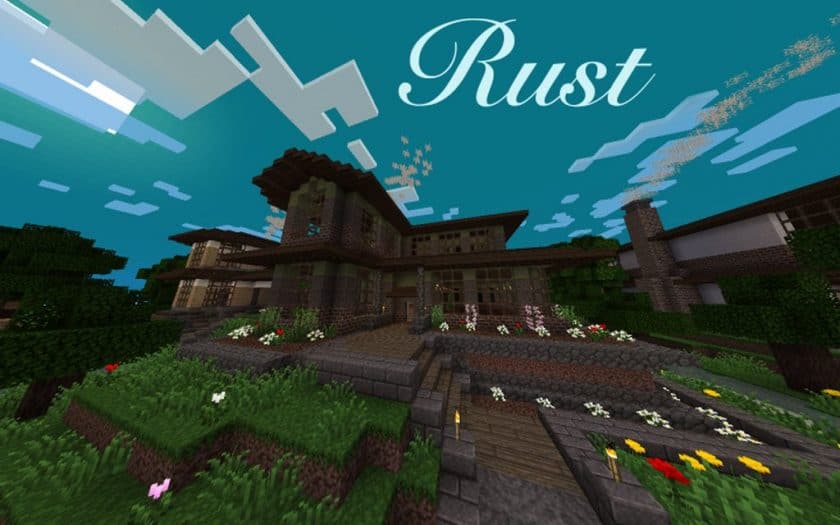
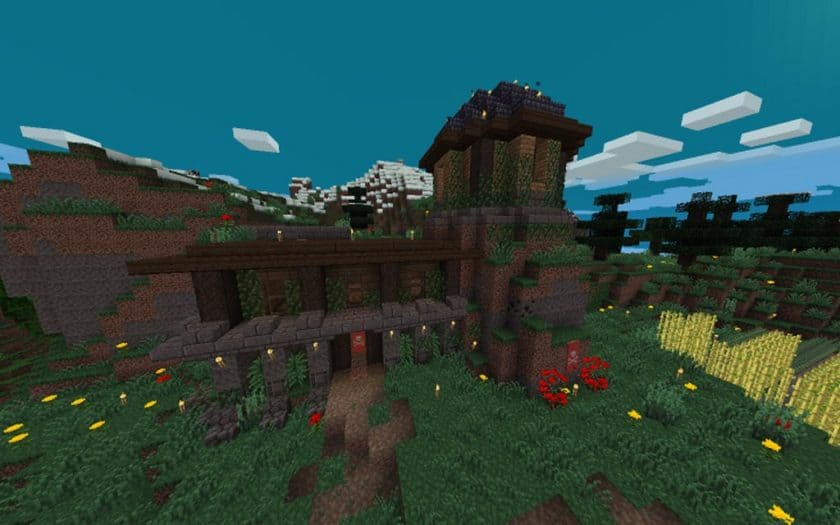
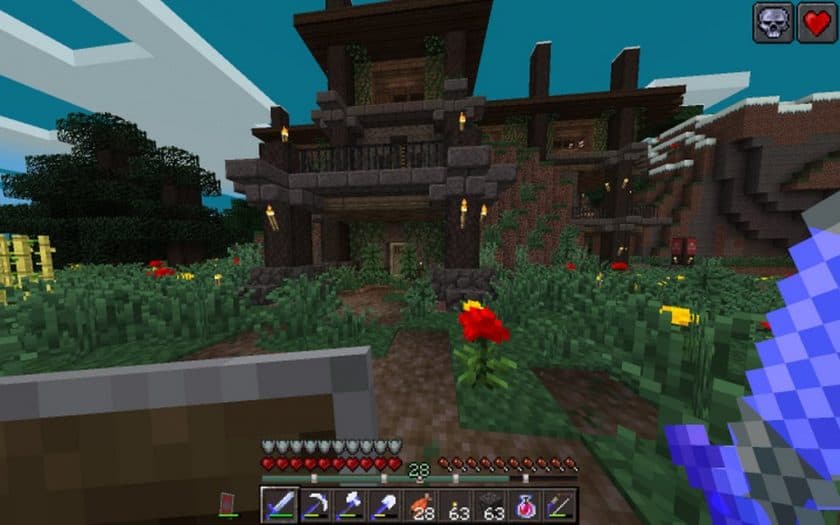
Rust Resource Pack – Screenshots
How to Install Texture Pack (Simple 10 Steps)
- Download Optifine: Most of the texture packs and shaders need Optifine. That’s why, first download and install Optifine for the version of Minecraft you want to play.
- Download the Texture Pack: Get the texture pack you want from the download section. Choose the version that works with your Minecraft and your PC’s performance.
- Open Minecraft Launcher: Start Minecraft using the official game launcher – or even TLauncher, if you use that.
- Go to Options: From the main menu, click on the “Options” button.
- Open Resource Packs: Inside Options, click on “Resource Packs…”.
- Open the Resource Pack Folder: Click on “Open Resource Pack Folder” – this will open a folder named “resourcepacks”.
- Move the Pack File: Copy or move the .zip file you downloaded into that “resourcepacks” folder. (Don’t unzip the file – Minecraft uses it as-is!)
- Go Back and Refresh: Close the folder and click “Done”, then go back into “Resource Packs…” again.
- Activate the Pack: You’ll see the pack on the left side. Hover over it and click the arrow to move it to the right (active side). Tip: If you get a message that the pack is for a different version, just click “Yes” – it usually works fine.
- Click Done and Enjoy: Click “Done” again. Now your pack is ready to use in-game. It’s that easy!
Download
(16x) (1.13 – 1.12) Download Rust Resource Pack
Download Instructions
-
CurseForge: If the pack is hosted on CurseForge, the download will begin automatically after a few seconds. If it does not start, use the “Download” button shown on the page.
-
Modrinth: If the download is from Modrinth, click the file version that matches your Minecraft build, then press the Download button. Modrinth usually offers multiple releases, so make sure you pick the correct version before installing.
-
Mediafire: On Mediafire, click the large blue Download button to start the file download. Avoid any extra pop-ups or buttons that are not related to the direct download.
-
Google Drive: For Google Drive, click the small download icon at the top right corner of the page. It looks like a downward arrow. The file will be saved to your computer immediately.
Disclaimer We do not create or modify any of the texture packs or shader packs shared on this website. All credit goes to the original creators, and every download link we provide is the official link from their page, which keeps all downloads safe. Some links may stop working after updates, so if you find a broken one, let us know in the comments and we will update it quickly. If you like a pack, consider supporting the creator by visiting their official page or website that we have linked below, and feel free to leave a comment or vote to help their work reach more players.