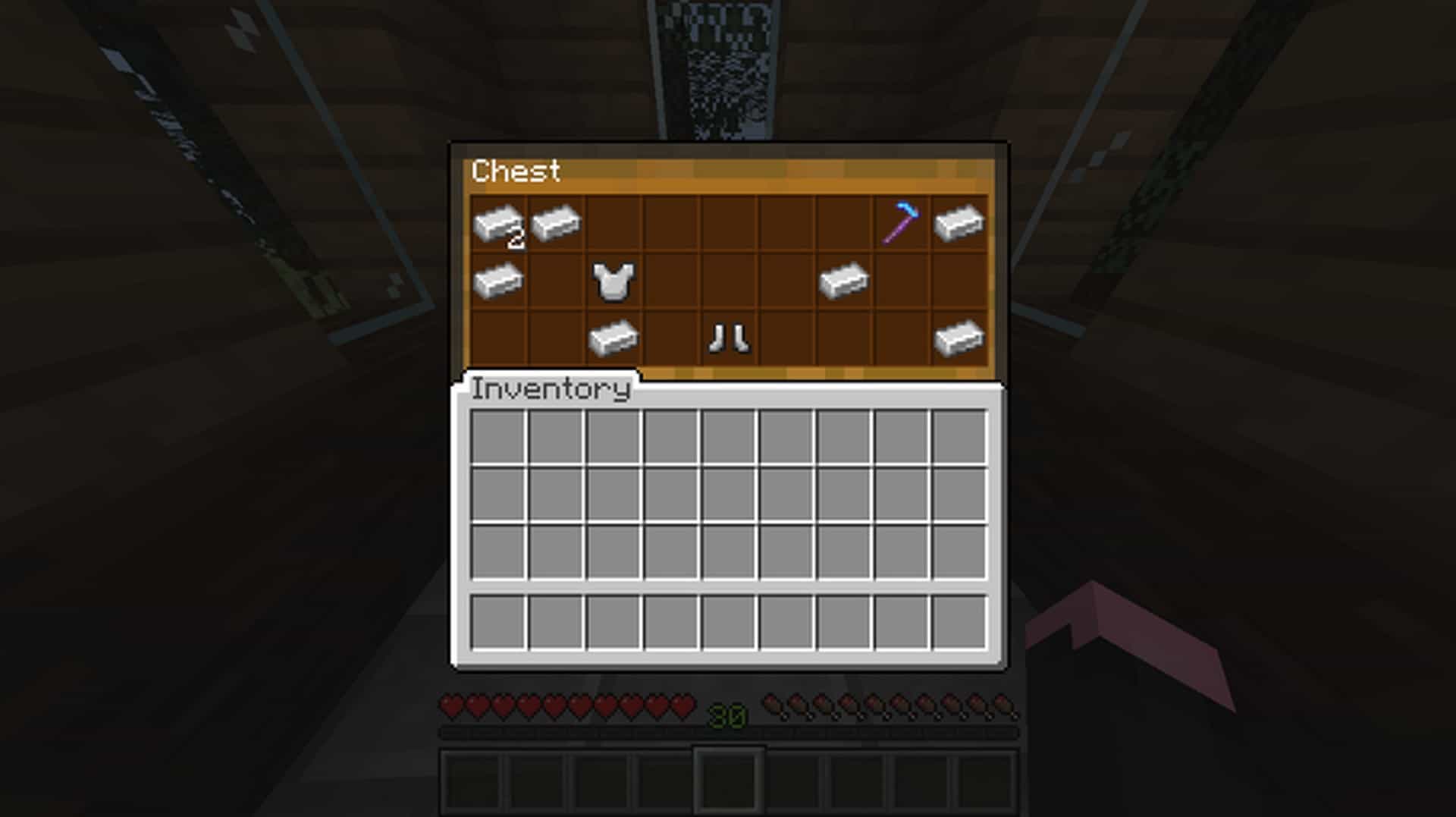
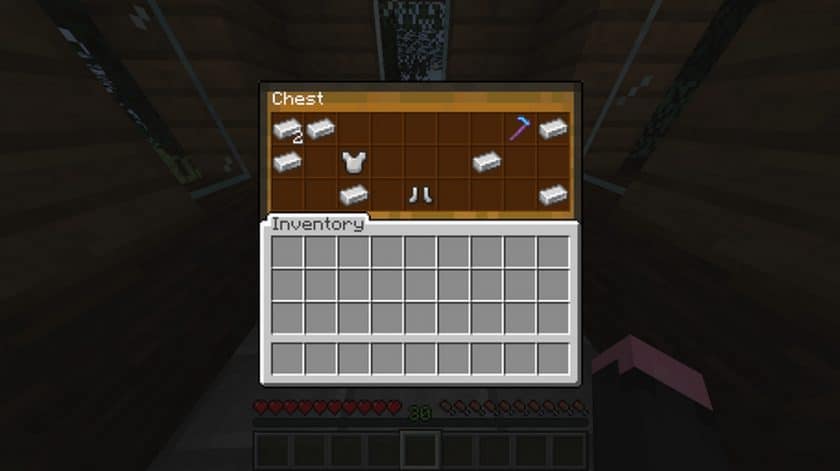
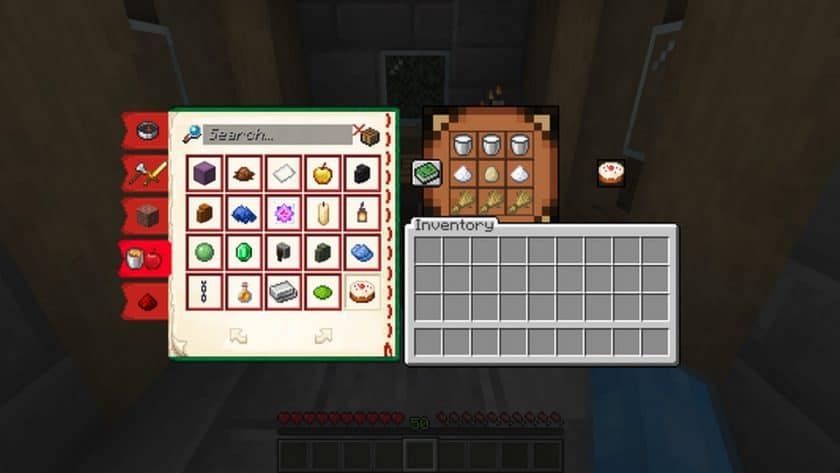
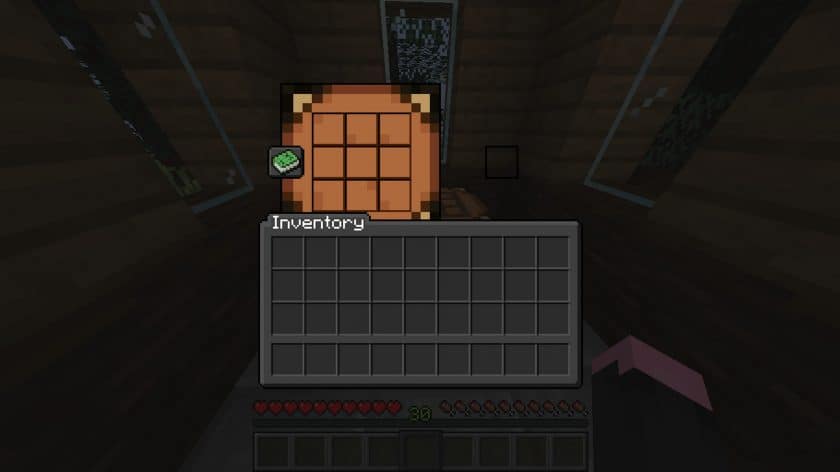
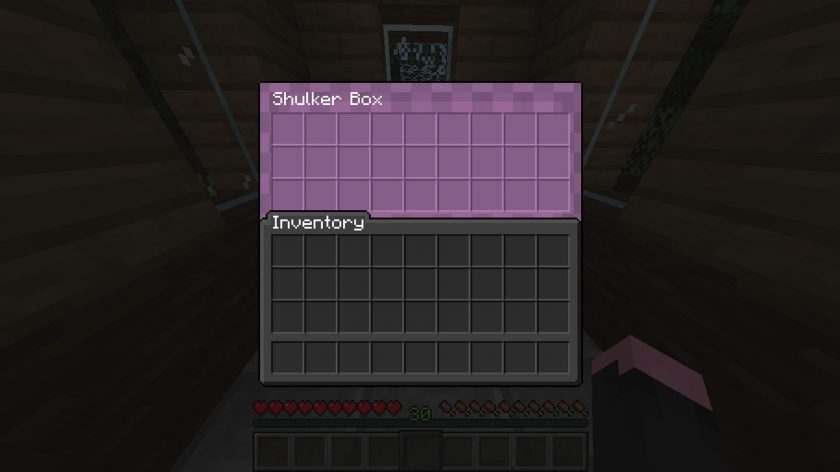
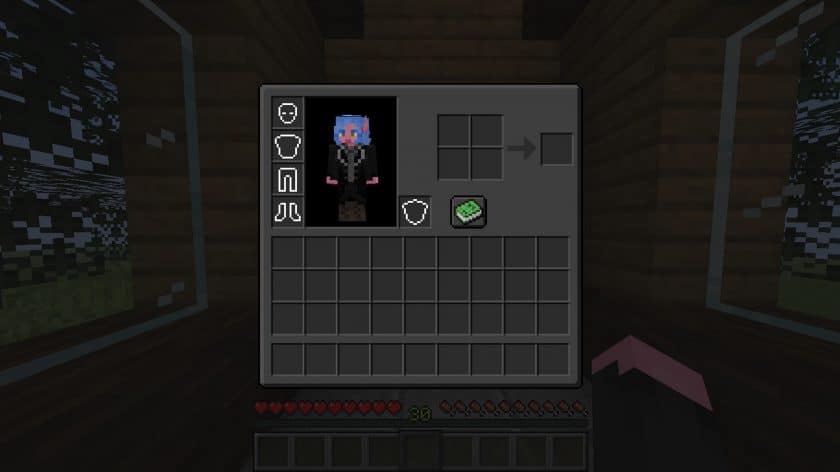
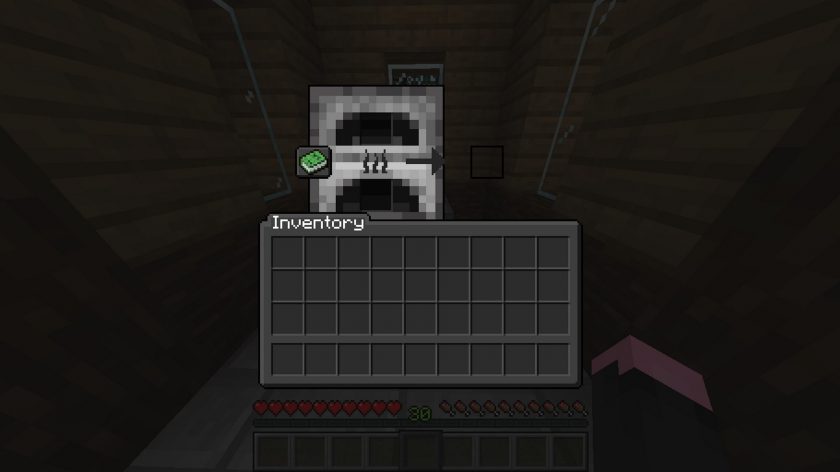
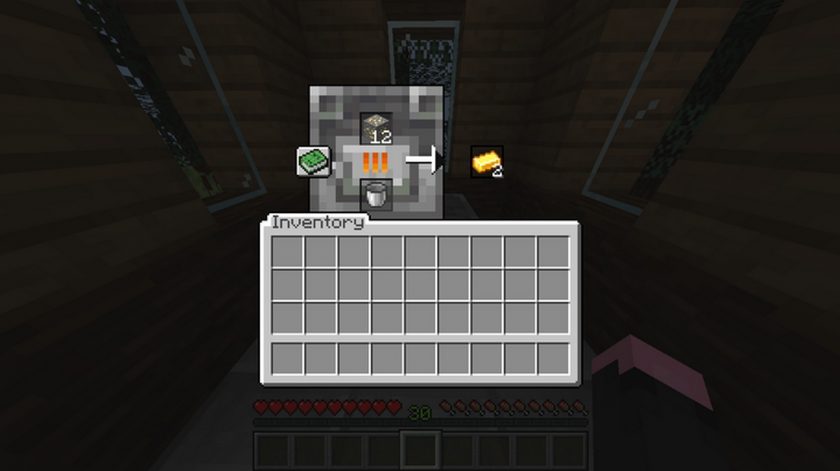
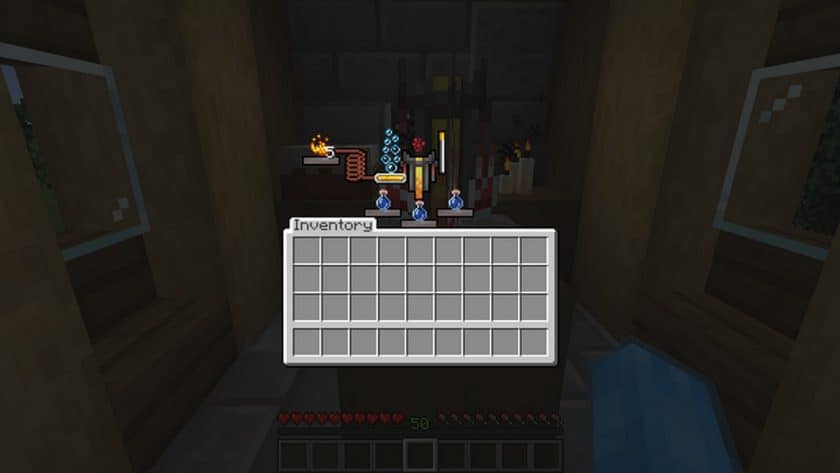
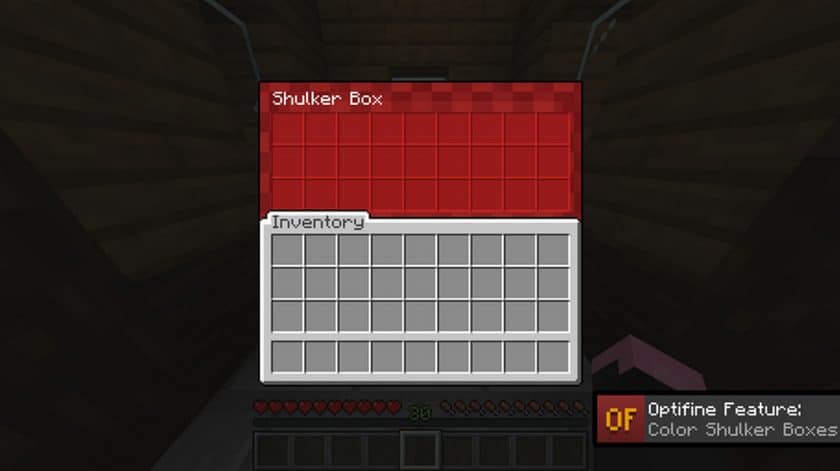
The world of Minecraft, while endlessly creative, can sometimes feel a bit clunky when it comes to its user interface. That’s where the Advanced GUI Resource Pack steps in, reimagining your in-game experience by transforming the graphical user interface into something far more intuitive and visually engaging. As soon as you install this 16x resolution pack, you’ll notice a distinct difference, feeling more connected and in control of every interaction. Whether you’re sifting through your inventory, managing your crafting table, or navigating complex menus, the updated GUI presents information with a newfound clarity that makes every task smoother.
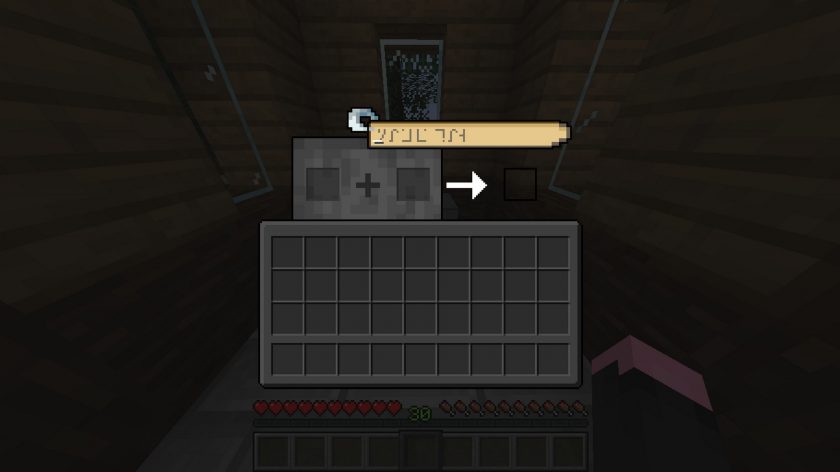
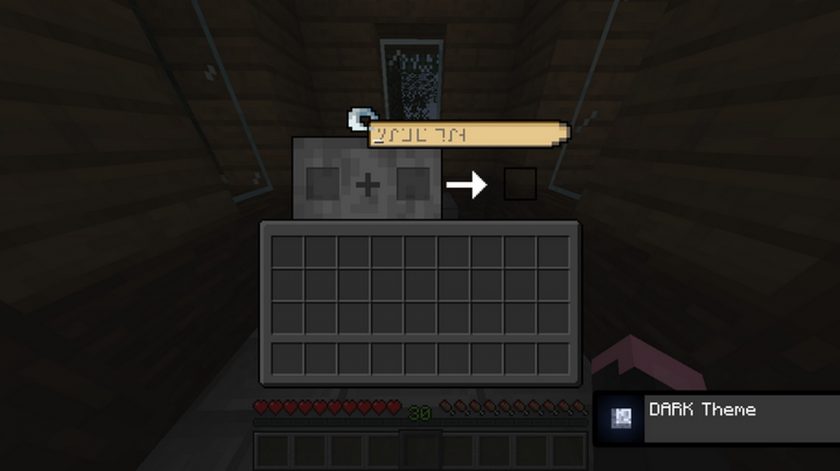
Imagine finally understanding those cryptic upgrade table letters without a moment’s hesitation, or easily keeping track of your precious ores as you smelt them, banishing the frustration of a cluttered or confusing interface. The Advanced GUI pack ensures that common in-game annoyances become a distant memory. Its design ethos focuses on making everything as accessible for a brand-new player as it is for a seasoned veteran, bridging any gap in understanding. The overall visual vibe is clean, functional, and distinctly improved, making your time in Minecraft more enjoyable simply because interacting with the game feels inherently better. This isn’t just a cosmetic change; it’s an enhancement to your gameplay flow, guaranteeing a seamless and fully improved Minecraft GUI experience.
| Minecraft Version | Compatibility |
|---|---|
| 1.17.1 | ✅ Supported |
| 1.17 | ✅ Supported |
| 1.16.5 | ✅ Supported |
| 1.16.4 | ✅ Supported |
| 1.16.3 | ✅ Supported |
| 1.16.2 | ✅ Supported |
| 1.16.1 | ✅ Supported |
| 1.16 | ✅ Supported |
| 1.15.2 | ✅ Supported |
| 1.15.1 | ✅ Supported |
| 1.15 | ✅ Supported |
| 1.14.4 | ✅ Supported |
| 1.14.3 | ✅ Supported |
| 1.14.2 | ✅ Supported |
| 1.14 | ✅ Supported |
| 1.13.2 | ✅ Supported |
| 1.13.1 | ✅ Supported |
| 1.13 | ✅ Supported |
| 1.12.2 | ✅ Supported |
| 1.12 | ✅ Supported |
| 1.11.2 | ✅ Supported |
| 1.11 | ✅ Supported |
| 1.10.2 | ✅ Supported |
| 1.10 | ✅ Supported |
| 1.9.4 | ✅ Supported |
| 1.9 | ✅ Supported |
| 1.8.9 | ✅ Supported |
| 1.8.8 | ✅ Supported |
| 1.8.1 | ✅ Supported |
| 1.8.6 | ✅ Supported |
| 1.8 | ✅ Supported |
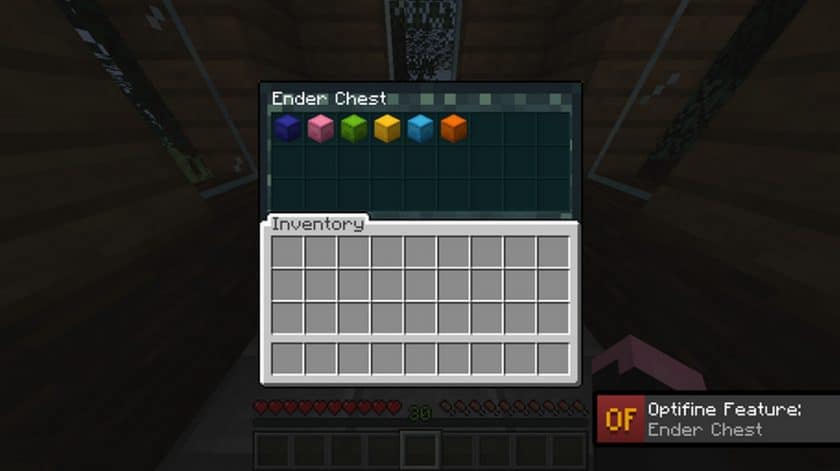
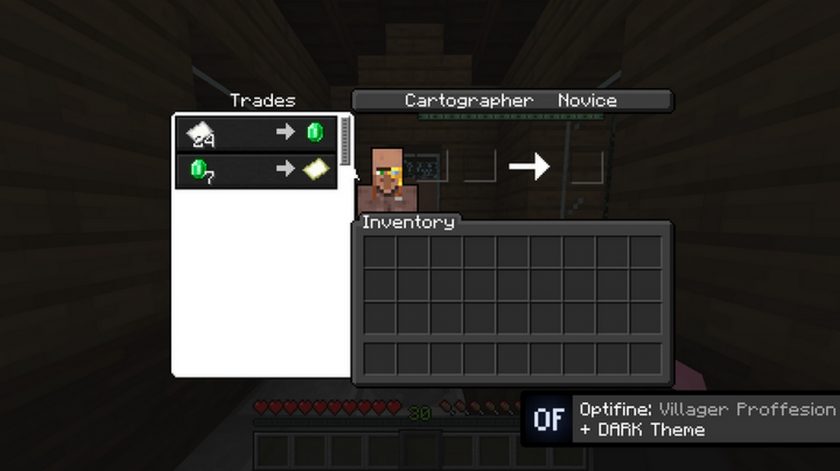
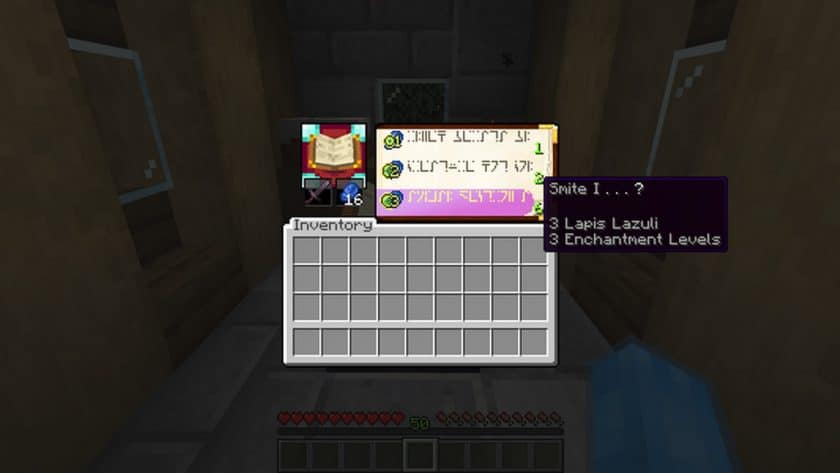
Advanced GUI Resource Pack – Screenshots & Videos
How to Install Texture Pack (Simple 10 Steps)
- Download Optifine: Most of the texture packs and shaders need Optifine. That’s why, first download and install Optifine for the version of Minecraft you want to play.
- Download the Texture Pack: Get the texture pack you want from the download section. Choose the version that works with your Minecraft and your PC’s performance.
- Open Minecraft Launcher: Start Minecraft using the official game launcher – or even TLauncher, if you use that.
- Go to Options: From the main menu, click on the “Options” button.
- Open Resource Packs: Inside Options, click on “Resource Packs…”.
- Open the Resource Pack Folder: Click on “Open Resource Pack Folder” – this will open a folder named “resourcepacks”.
- Move the Pack File: Copy or move the .zip file you downloaded into that “resourcepacks” folder. (Don’t unzip the file – Minecraft uses it as-is!)
- Go Back and Refresh: Close the folder and click “Done”, then go back into “Resource Packs…” again.
- Activate the Pack: You’ll see the pack on the left side. Hover over it and click the arrow to move it to the right (active side). Tip: If you get a message that the pack is for a different version, just click “Yes” – it usually works fine.
- Click Done and Enjoy: Click “Done” again. Now your pack is ready to use in-game. It’s that easy!
Download
(16x) (1.17.x) Download Advanced GUI Resource Pack – Vanilla
(16x) (1.17.x) Download Advanced GUI Resource Pack – Optifine
(16x) (1.16.x) Download Advanced GUI Resource Pack – Vanilla
(16x) (1.16.x) Download Advanced GUI Resource Pack – Optifine
(16x) (1.15.x) Download Advanced GUI Resource Pack – Vanilla
(16x) (1.15.x) Download Advanced GUI Resource Pack – Optifine
(16x) (1.14.x) Download Advanced GUI Resource Pack – Vanilla
(16x) (1.14.x) Download Advanced GUI Resource Pack – Optifine
Advanced GUI – DARK version:
(16x) (1.17.x) Download Advanced GUI Resource Pack – Dark, vanilla
(16x) (1.17.x) Download Advanced GUI Resource Pack – Dark, Optifine
(16x) (1.16.x) Download Advanced GUI Resource Pack – Dark, vanilla
(16x) (1.16.x) Download Advanced GUI Resource Pack – Dark, Optifine
(16x) (1.15.x) Download Advanced GUI Resource Pack – Dark, vanilla
(16x) (1.15.x) Download Advanced GUI Resource Pack – Dark, Optifine
(16x) (1.14.x) Download Advanced GUI Resource Pack – Dark, vanilla
(16x) (1.14.x) Download Advanced GUI Resource Pack – Dark, Optifine
Older version:
(16x) (1.13.x) Download Advanced GUI Resource Pack
(16x) (1.12.x – 1.8.x) Download Advanced GUI Resource Pack
Download Instructions
-
CurseForge: If the pack is hosted on CurseForge, the download will begin automatically after a few seconds. If it does not start, use the “Download” button shown on the page.
-
Modrinth: If the download is from Modrinth, click the file version that matches your Minecraft build, then press the Download button. Modrinth usually offers multiple releases, so make sure you pick the correct version before installing.
-
Mediafire: On Mediafire, click the large blue Download button to start the file download. Avoid any extra pop-ups or buttons that are not related to the direct download.
-
Google Drive: For Google Drive, click the small download icon at the top right corner of the page. It looks like a downward arrow. The file will be saved to your computer immediately.
Disclaimer We do not create or modify any of the texture packs or shader packs shared on this website. All credit goes to the original creators, and every download link we provide is the official link from their page, which keeps all downloads safe. Some links may stop working after updates, so if you find a broken one, let us know in the comments and we will update it quickly. If you like a pack, consider supporting the creator by visiting their official page or website that we have linked below, and feel free to leave a comment or vote to help their work reach more players.