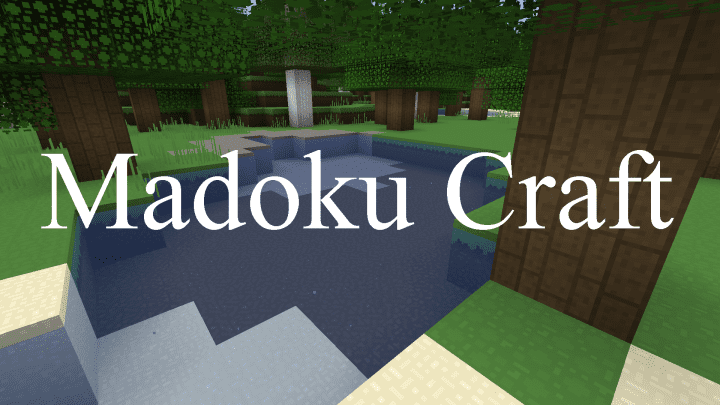
The Madoku Craft Resource Pack introduces a delightful blend of simplicity and charm to your Minecraft adventures, reimagining the game’s visual identity with a refined touch. While it may not be the most widely known pack, its thoughtful design and 32x resolution textures offer a distinctly fluid and cohesive aesthetic that truly stands out. Conceived by Monkey Nomics (also known as casual_ephraim), this pack set out to redefine classic Minecraft textures from the ground up, with each pixel meticulously hand-drawn to create fresh, yet familiar, designs.
Stepping into a world transformed by Madoku Craft, you immediately notice a distinct cartoony vibe that breathes new life into every block. The colors are harmoniously balanced, avoiding any jarring intensity or excessive darkness, which contributes to an incredibly unified and smooth visual experience. Exploring the landscape, elements like ores shimmer with renewed detail, while foliage boasts a fresh, vibrant appearance. Polished stones, various types of glass, and even wool textures have been given a unique overhaul, each fitting seamlessly into the pack’s overall artistic vision. The terrain, grass, flowers, and plants all benefit from these dedicated reworks, enhancing the natural world without straying too far from Minecraft’s beloved original atmosphere.
One of the pack’s notable strengths lies in its ability to add more detail to textures without compromising their original essence. Blocks become more distinct and easier to identify from a distance, thanks to the removal of unnecessary visual clutter and the strategic addition of new elements. This careful balance ensures that the world feels refreshed and detailed, yet instantly recognizable. While the developer has poured significant effort into redesigning environmental and crafting textures, the player GUI and inventory items intentionally retain their vanilla Minecraft appearance, offering a familiar interface amidst the new visuals.
Madoku Craft, at a comfortable 32x resolution, is remarkably performance-friendly, making it an excellent choice for a wide range of systems. It achieves this by focusing on static texture improvements rather than demanding dynamic features often found in more complex packs. Running Madoku Craft without additional shader packs promises a buttery-smooth experience, delivering visual upgrades without a significant hit to your frame rate. However, combining it with certain shader packs might lead to some performance degradation or minor visual inconsistencies. For those who prioritize a stable and visually enhanced vanilla-like experience, including PvP players looking for a clean, non-distracting visual upgrade, Madoku Craft proves to be a superb option. Its consistent updates also suggest a promising future for further texture enhancements and optimizations.
| Minecraft Version | Compatibility |
|---|---|
| 1.19.4 | ✅ Supported |
| 1.19.3 | ✅ Supported |
| 1.19.2 | ✅ Supported |
| 1.19.1 | ✅ Supported |
| 1.19 | ✅ Supported |
| 1.18.2 | ✅ Supported |
| 1.18.1 | ✅ Supported |
| 1.18 | ✅ Supported |
| Bedrock edition | ✅ Supported |
| PE | ✅ Supported |
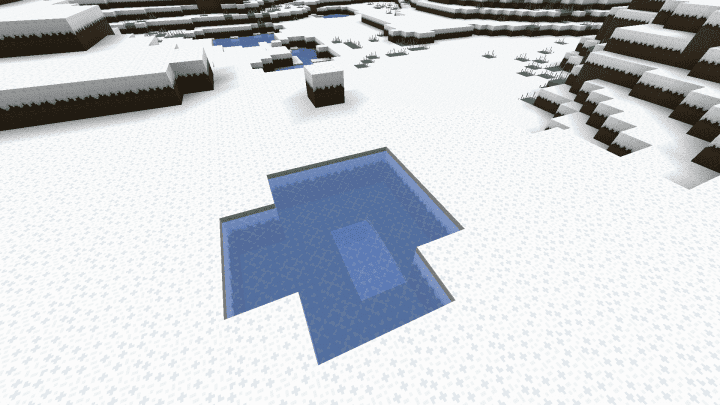
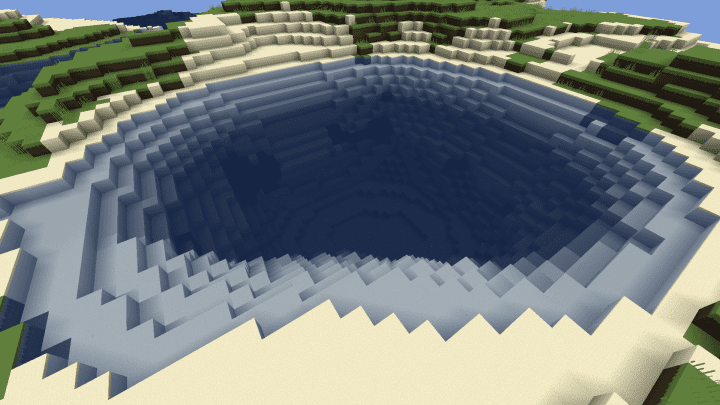
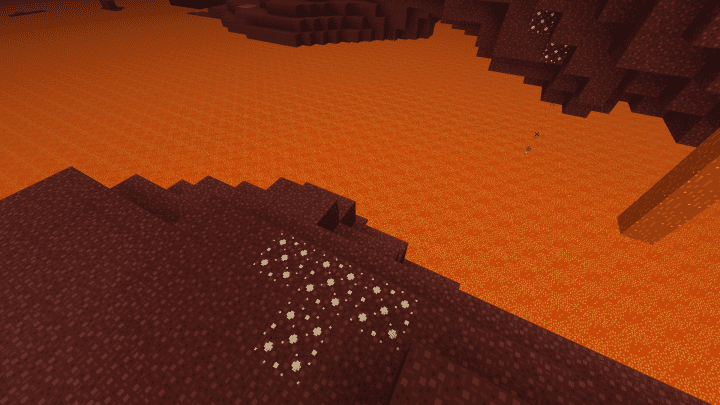
Madoku Craft – Screenshots & Videos
How to Install Texture Pack (Simple 10 Steps)
- Download Optifine: Most of the texture packs and shaders need Optifine. That’s why, first download and install Optifine for the version of Minecraft you want to play.
- Download the Texture Pack: Get the texture pack you want from the download section. Choose the version that works with your Minecraft and your PC’s performance.
- Open Minecraft Launcher: Start Minecraft using the official game launcher – or even TLauncher, if you use that.
- Go to Options: From the main menu, click on the “Options” button.
- Open Resource Packs: Inside Options, click on “Resource Packs…”.
- Open the Resource Pack Folder: Click on “Open Resource Pack Folder” – this will open a folder named “resourcepacks”.
- Move the Pack File: Copy or move the .zip file you downloaded into that “resourcepacks” folder. (Don’t unzip the file – Minecraft uses it as-is!)
- Go Back and Refresh: Close the folder and click “Done”, then go back into “Resource Packs…” again.
- Activate the Pack: You’ll see the pack on the left side. Hover over it and click the arrow to move it to the right (active side). Tip: If you get a message that the pack is for a different version, just click “Yes” – it usually works fine.
- Click Done and Enjoy: Click “Done” again. Now your pack is ready to use in-game. It’s that easy!
Download
Bedrock Edition:
(32x) (1.19.x – 1.18.x) Download Madoka Craft Bedrock Edition Resource Pack
Java Edition:
(32x) (1.19.x – 1.18.x) Download Madoka Craft Resource Pack
Download Instructions
-
CurseForge: If the pack is hosted on CurseForge, the download will begin automatically after a few seconds. If it does not start, use the “Download” button shown on the page.
-
Modrinth: If the download is from Modrinth, click the file version that matches your Minecraft build, then press the Download button. Modrinth usually offers multiple releases, so make sure you pick the correct version before installing.
-
Mediafire: On Mediafire, click the large blue Download button to start the file download. Avoid any extra pop-ups or buttons that are not related to the direct download.
-
Google Drive: For Google Drive, click the small download icon at the top right corner of the page. It looks like a downward arrow. The file will be saved to your computer immediately.
Disclaimer We do not create or modify any of the texture packs or shader packs shared on this website. All credit goes to the original creators, and every download link we provide is the official link from their page, which keeps all downloads safe. Some links may stop working after updates, so if you find a broken one, let us know in the comments and we will update it quickly. If you like a pack, consider supporting the creator by visiting their official page or website that we have linked below, and feel free to leave a comment or vote to help their work reach more players.